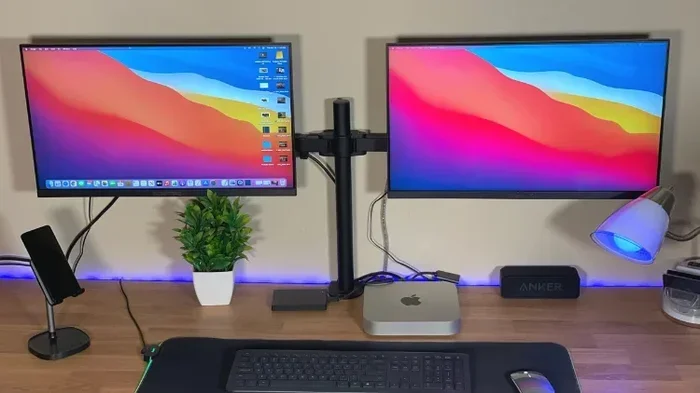
Can You Run Two Monitors Off Of One Hdmi Port Easily
Yes, you can run two monitors off one HDMI port using a splitter or adapter. This guide shows you the easiest methods, compatible devices, and step-by-step setup tips. Whether you are a gamer, remote worker, or multitasker, you will find the right solution here.
Have you ever looked at your laptop or desktop and thought, “I wish I could just plug in two monitors and get more screen space”? You are not alone. Many people want a bigger workspace without buying a new computer. The good news is that you can often do this with just one HDMI port. You just need the right tool and a little know-how.
Running two monitors off one HDMI port is easier than most people think. Whether you want to extend your screen for work or mirror your display for presentations, there is a solution for you. In this guide, we will walk you through every option, every setup step, and every common mistake to avoid. Let us get started.
Key Takeaways
- HDMI splitters and adapters let you connect two monitors to a single HDMI port on your laptop or PC.
- Screen mirroring and extended display are two different modes you can choose based on your needs.
- Not all splitters are equal — quality, resolution support, and bandwidth matter a lot.
- Graphics card limitations can affect how well your dual monitor setup performs.
- USB-C and DisplayPort alternatives may offer better results if your device supports them.
- Setting up display preferences in your operating system is simple and takes just a few minutes.
📑 Table of Contents
Understanding HDMI Ports and Their Limitations
Before you buy any gadget, it helps to understand what an HDMI port can and cannot do. HDMI stands for High-Definition Multimedia Interface. It carries both video and audio through a single cable. That is convenient, but it also has limits.
A standard HDMI port sends one video signal to one display. If you plug in two monitors directly, only one will show an image. This is because the port does not have the built-in ability to split the signal on its own. You need extra hardware to make two screens work from one port.
Here are some key things to keep in mind about HDMI ports:
- Bandwidth matters. Older HDMI versions like 1.4 have less bandwidth than newer ones like 2.0 or 2.1. This affects the resolution and refresh rate you can push to two screens.
- Not all ports are the same. Some computers have full-size HDMI ports. Others use mini HDMI or micro HDMI. Make sure you know which type you have before buying any adapter.
- Graphics card limits count too. Even with a splitter, your GPU needs to handle the extra load. A weak graphics card may struggle with dual high-resolution displays.
Understanding these basics helps you choose the right solution. It also saves you from buying something that will not work with your setup.
What Version of HDMI Do You Have?
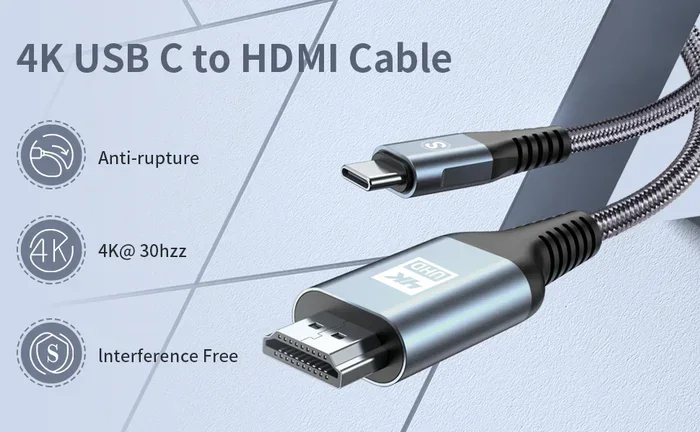
Check your device manual or look at the port itself. HDMI 1.4 supports up to 4K at 30Hz. HDMI 2.0 supports 4K at 60Hz. If you plan to run two 4K monitors, you will want HDMI 2.0 or higher. Otherwise, you might experience lag or reduced image quality.
How to Connect Two Monitors to One HDMI Port
Now let us talk about the actual methods. There are a few ways to get two screens working from a single HDMI port. Each method has its pros and cons. Let us break them down.
Method 1: Use an HDMI Splitter
An HDMI splitter takes one input and sends the same signal to two or more outputs. This is the most common way to run two monitors off one port. You plug your computer into the splitter, and then connect two monitors to the splitter’s outputs.
Most HDMI splitters are small and affordable. You can find them online for under $20. They work well for screen mirroring, where both monitors show the exact same image. Here is how to set one up:
- Plug the HDMI cable from your computer into the splitter’s input port.
- Connect two HDMI cables from the splitter to your two monitors.
- Power on the splitter if it requires external power.
- Go to your display settings and choose mirror mode.
Keep in mind that a basic splitter does not extend your desktop. Both screens show the same content. If you want extended display, you will need a different approach or a smarter splitter.
Method 2: Use an HDMI Adapter with a Dock
A docking station is a more powerful option. These devices connect to your computer through USB-C or Thunderbolt and provide multiple video outputs, including HDMI, DisplayPort, and VGA. You get two or more ports for monitors on one single connection.
Docks are great for people who need more than just two monitors. They also charge your laptop and add USB ports for peripherals. The downside is cost. A good docking station can set you back $100 or more.
Here are some popular dock options to consider:
- USB-C docks with HDMI output. These work with most modern laptops and offer flexible setup options.
- Thunderbolt docks. These provide the fastest data transfer and support the highest resolutions.
- Multi-port adapters. Budget-friendly options that give you one or two extra HDMI ports.
Method 3: Use a USB to HDMI Adapter
This is a clever workaround. A USB to HDMI adapter adds an extra HDMI port to your computer through a USB port. You use your one HDMI port for the first monitor and the USB adapter for the second monitor.
This method works well because it does not rely on splitting the HDMI signal. Each monitor gets its own dedicated video output. The trade-off is that USB ports have less bandwidth than a direct HDMI connection. You may notice lower refresh rates or reduced image quality at high resolutions.
Here is a quick comparison of these three methods:
| Feature | HDMI Splitter | USB-C Dock | USB to HDMI Adapter |
|---|---|---|---|
| Cost | Low ($10-$25) | Medium-High ($80-$200) | Low-Medium ($15-$40) |
| Screen Mirroring | Yes | Yes | Yes |
| Extended Display | Limited | Yes | Yes |
| Ease of Setup | Very Easy | Easy | Easy |
| Image Quality | Good | Excellent | Good |
| Extra Ports | No | Yes | No |
Setting Up Your Dual Monitor Display
Once you have your hardware in place, the next step is configuring your operating system. This part is simpler than it sounds. Both Windows and macOS make it easy to manage multiple screens.
Setting Up Dual Monitors on Windows
On Windows, right-click your desktop and select Display Settings. You will see two rectangles representing your monitors. You can drag them around to match their physical arrangement on your desk. This tells Windows which screen is on the left and which is on the right.
Next, scroll down to the Multiple Displays dropdown. You have three choices:
- Duplicate these displays. Both screens show the same image.
- Extend these displays. You get one large desktop spread across both screens.
- Show only on 1 or 2. Only one monitor is active.
For most people, “Extend these displays” is the best option. It gives you the most workspace. You can drag windows between screens and multitask like a pro.
Setting Up Dual Monitors on macOS
On a Mac, go to System Settings and click Displays. Your Mac will detect the external monitors automatically. Click Arrangement at the top of the settings panel. You can drag the menu bar between screens to match your physical setup.
Mac users also get a “Mirror Displays” option in the same menu. Turn it off to extend your desktop across both screens. One nice thing about macOS is that it handles mixed resolutions very well. You can have a 4K monitor and a 1080p monitor side by side without any issues.
Adjusting Resolution and Scaling
When your two monitors have different sizes or resolutions, things can look a bit off. Windows and macOS both let you adjust scaling per display. This ensures text and icons look the same size on both screens. Go to your display settings and look for Scale and Layout. Experiment until everything looks right.
Common Problems and How to Fix Them
Setting up two monitors is usually smooth, but problems can happen. Here are the most common issues and how to solve them.
No Signal on One Monitor
If one monitor shows no signal, check your cables first. A loose HDMI connection is the number one cause. Unplug and replug both ends of the cable. If that does not work, try a different HDMI cable. Cables wear out over time, and a bad cable can cause all sorts of issues.
Also, make sure your splitter or adapter is powered if it needs external power. Some splitters draw power from the HDMI port alone, but others need a USB cable plugged into a power source.
Flickering or Blurry Image
A flickering screen often means your cable is too long or of poor quality. HDMI cables should not exceed 15 feet for best results. If you need a longer run, buy a high-quality certified cable or use an active HDMI repeater.
Blurry images usually happen when the resolution does not match the monitor’s native resolution. Go to your display settings and set each monitor to its recommended resolution. This alone fixes most blurry screen problems.
Audio Not Working Through HDMI
HDMI carries audio, but sometimes your computer sends sound to the wrong output. On Windows, right-click the speaker icon in your taskbar and select the correct playback device. On Mac, go to Sound settings and choose your HDMI monitor as the output.
Expert Tips for the Best Dual Monitor Experience
Once you have your two monitors running, a few pro tips can make a a huge difference in your daily workflow.
Use Monitor Stands or Arms
A dual monitor arm lifts both screens to eye level and frees up desk space. You can adjust the height, tilt, and rotation of each monitor independently. This reduces neck strain and improves posture during long work sessions.
Match Your Monitors When Possible
Using two identical monitors gives you the best experience. The colors, brightness, and bezel sizes match perfectly. If you must mix monitors, try to match the resolution and size as closely as you can. Mismatched screens can be distracting when you drag windows between them.
Keep Your Cables Organized
Two monitors mean more cables. Use cable management clips or a cable tray to keep things tidy. A clean workspace reduces stress and makes it easier to troubleshoot problems later.
Consider Your Graphics Card
If you are running demanding applications like video editing software or modern games, your graphics card matters. Check that your GPU can handle two displays at your desired resolution. Most modern cards handle this easily, but older or budget cards might struggle.
It is also worth noting that your system’s overall connectivity setup matters. For instance, if your proprietary operating system has specific display driver requirements, you may need to update those drivers before your dual monitor setup works properly. Always keep your system updated for the best compatibility.
When One HDMI Port Is Not Enough: Alternative Solutions
Sometimes the HDMI splitter approach is not ideal. Maybe you need more than two monitors, or maybe your setup demands higher performance. In those cases, there are other paths to explore.
DisplayPort is one excellent alternative. Many modern monitors come with DisplayPort inputs, and your graphics card likely has multiple DisplayPort outputs. This lets you connect several monitors directly without any splitters or adapters.
USB-C and Thunderbolt ports are also game-changers. A single USB-C cable can carry video, data, and power all at once. Many modern laptops now use USB-C as their primary video output. If your laptop has USB-C, you can use a hub or dock to connect multiple monitors with ease.
For those who work in networked environments, connectivity solutions can also play a role. Some advanced setups use a value-added network for sharing display data between connected devices across a local network. This is more of an enterprise-level solution, but it is worth knowing about if you manage multiple workstations.
Another thing to consider is security, especially in shared office environments. Proper device identification helps prevent unauthorized access to your display setup. Just as MAC address filtering helps secure network access, ensuring only authorized devices connect to your display outputs keeps your workspace safe and private.
No matter which path you choose, the goal is the same. You want a setup that boosts your productivity and makes your workday smoother. The right monitor configuration can transform how you work, play, and create.
Final Thoughts
Running two monitors off one HDMI port is absolutely doable. You have several options, from simple HDMI splitters to full docking stations. The best choice depends on your budget, your workflow, and the ports available on your computer.
Start with the simplest solution that fits your needs. If you just need screen mirroring, a basic HDMI splitter will do the job. If you want extended display and extra ports, invest in a USB-C dock or a USB to HDMI adapter. And always remember to check your display settings after setup — a small adjustment there can make a big difference.
With the right setup, you will wonder how you ever worked with just one screen. More space means more productivity, better multitasking, and a more enjoyable computing experience. So go ahead, plug in that second monitor, and take your workspace to the next level.
Frequently Asked Questions
Can I run two different monitors with different resolutions from one HDMI port?
Yes, you can. Most HDMI splitters and adapters support mixed resolutions. Your operating system will handle each display independently. Just set each monitor to its native resolution in your display settings for the best results.
Will an HDMI splitter reduce image quality?
A good quality HDMI splitter will not noticeably reduce image quality. Cheap splitters may cause signal loss or reduced refresh rates. Always buy a splitter that supports your desired resolution and refresh rate to avoid quality issues.
Can I use an HDMI splitter for gaming on two monitors?
It depends on your graphics card and the game. An HDMI splitter mirrors the same image to both screens, which works fine for gaming. However, extended display for gaming across two monitors requires a graphics card that supports multi-output configurations. Check your GPU specifications before setting up a gaming dual monitor rig.
Do I need a powered HDMI splitter or will a passive one work?
For most basic setups, a passive splitter works fine. If you are running two high-resolution monitors or long cable runs, a powered splitter with external power is better. It ensures a strong, stable signal to both displays without degradation.
Can I connect two monitors to one HDMI port on a Mac?
Macs with a single HDMI port can use adapters or docks to connect a second monitor. USB-C to HDMI adapters work well for most Mac models. Check your specific Mac model to confirm which video output options are supported.
What is the difference between screen mirroring and extended display?
Screen mirroring shows the same image on both monitors. Extended display creates one large desktop that spans across both screens. Extended display is better for multitasking, while mirroring is ideal for presentations and sharing content with an audience.
=== CONCLUSION ===
Running two monitors off one HDMI port is simple, affordable, and incredibly useful. Whether you choose an HDMI splitter, a docking station, or a USB adapter, the right setup can double your productivity. Follow the steps in this guide, avoid the common mistakes, and enjoy your expanded workspace. Your future self will thank you for making the switch today.