Do Any Hp Laptops Have Ethernet Ports Here Is The Answer
Yes, some HP laptops do come with Ethernet ports built right in. Many business and productivity-focused models from HP include a wired LAN port for a stable internet connection. However, most consumer HP laptops have dropped the Ethernet port in favor of a slimmer design, which means you may need a USB-to-Ethernet adapter to plug in a network cable.
Key Takeaways
- Several HP laptop lines include Ethernet ports: EliteBook, ProBook, and select Pavilion models offer built-in wired connectivity.
- Most consumer HP laptops skip the Ethernet port: HP Envy, HP Omen, and many Pavilion models rely on Wi-Fi only.
- You can add Ethernet to any HP laptop: A USB-to-Ethernet adapter or docking station solves the missing port problem easily.
- Wired connections offer better stability: Ethernet provides lower latency and faster speeds than Wi-Fi for gaming and work tasks.
- Check specs before buying: Always review the HP laptop specifications page to confirm whether an RJ45 port is included.
- Gigabit Ethernet is standard on business models: HP business laptops typically support speeds up to 1 Gbps through their wired ports.
📑 Table of Contents
- Do Any HP Laptops Come With Ethernet Ports?
- HP Laptop Models With Built-In Ethernet Ports
- Why Do Some HP Laptops Skip the Ethernet Port?
- How to Add an Ethernet Port to Any HP Laptop
- Ethernet vs Wi-Fi on HP Laptops
- Quick Tips for the Best Wired Connection on HP Laptops
- Common Mistakes to Avoid
- Expert Insights on HP Laptops and Wired Connectivity
- Final Thoughts
Do Any HP Laptops Come With Ethernet Ports?
The short answer is yes. Some HP laptops do include an Ethernet port right out of the box. But the full answer depends on which HP laptop line you are looking at. HP makes many different models, and not all of them have the same features. If you need a wired internet connection, you need to pick the right model. This guide will show you exactly which HP laptops have Ethernet ports and what you can do if your laptop does not.
Many people wonder about HP laptops Ethernet ports because wired connections feel more reliable. You plug in a cable, and you are connected. No guessing about Wi-Fi signal strength. No dropped connections during a big download. For gamers, remote workers, and anyone who values a stable network cable connection, having a built-in Ethernet port is a big deal. Let us break down everything you need to know about HP laptop Ethernet port availability.
The truth is that HP has been moving away from Ethernet ports on many of its consumer laptops. The reason is simple. Users want thinner, lighter machines. An Ethernet port takes up space inside the laptop chassis. By removing it, HP can make laptops that are slimmer and lighter. But for users who need wired connectivity, this can be frustrating. The good news is that there are easy workarounds, which we will cover in detail later in this article.
Whether you are shopping for a new HP laptop or trying to add wired internet to one you already own, this article has you covered. We will look at which HP models still include Ethernet, why some do not, and how you can add a port to any HP laptop. Let us dive in.
HP Laptop Models With Built-In Ethernet Ports
HP has several laptop lines that still include a built-in RJ45 Ethernet port. These are mostly business and productivity models. HP designs these laptops for professionals who need dependable wired connections. If you work in an office, attend lots of video conferences, or just want the most stable internet possible, these models are worth a close look.
HP EliteBook Ethernet Port Support
The HP EliteBook line is one of the strongest choices for HP laptops Ethernet ports. EliteBook laptops are built for business professionals. They come with enterprise-grade features, and a wired Ethernet port is standard on most models. The EliteBook series includes the EliteBook 840, EliteBook 860, and EliteBook Folio. Nearly all of these models include a Gigabit Ethernet port right on the side of the laptop.
HP EliteBook laptops also tend to include other useful networking features. You get strong Wi-Fi 6 or Wi-Fi 6E wireless support alongside the Ethernet port. This means you can switch between wired and wireless connections seamlessly. For IT departments and frequent travelers, having both options is a huge advantage. The HP EliteBook Ethernet port is a reliable feature that has been consistent across many generations of this line.
HP ProBook Wired Connectivity Options
The HP ProBook series is another strong option for users who want HP laptops with Ethernet. ProBook laptops are designed for small businesses and everyday professionals. Most ProBook models include a built-in Ethernet port. The HP ProBook 440, ProBook 460, and ProBook 640 are popular choices that come with wired connectivity out of the box.
ProBook laptops offer a great balance of price and features. They are not as expensive as EliteBooks, but they still include the essential wired networking hardware. If you are looking for affordable HP laptops Ethernet ports, the ProBook line is a great place to start. You get a solid build, good performance, and a reliable LAN port without paying a premium price.
HP Pavilion Ethernet on Select Models
The HP Pavilion line is more consumer-focused, but some models do include Ethernet ports. The HP Pavilion 15 and Pavilion 16 lines have certain configurations that come with a built-in Ethernet port. However, not all Pavilion models include this feature. You need to check the specific model number and specifications before buying.
If you are interested in HP Pavilion Ethernet support, look for models that list a “RJ45” or “Ethernet” port in the specs. HP sometimes offers the same Pavilion model in both Wi-Fi-only and Ethernet versions. The Ethernet version may cost a little more, but it is worth it if you need a wired connection. Always double-check the product page on the HP website to confirm what is included.
Why Do Some HP Laptops Skip the Ethernet Port?
If you have been shopping for HP laptops, you may have noticed that many models do not have an Ethernet port. This is not an accident. There are several reasons why HP has removed Ethernet ports from many of its laptops. Understanding these reasons can help you make a better buying decision.
The Push for Thinner and Lighter Designs
Modern laptop buyers want thin and light machines. HP has responded by designing laptops that are as slim as possible. Every component inside the laptop takes up space. An Ethernet port, its circuit board, and the cable connector all add bulk. By removing the Ethernet port, HP can make laptops that are thinner and lighter. This is especially important for consumer laptops like the HP Envy and HP Omen lines, where portability is a key selling point.
Wi-Fi Has Gotten Much Better
Another big reason is the improvement in Wi-Fi technology. Wi-Fi 6 and Wi-Fi 6E offer very fast wireless speeds. For many casual users, Wi-Fi is fast enough for streaming, browsing, and even video calls. HP figures that most people do not need a wired connection anymore. This is true for home use, but it may not be true for office environments or situations where network stability is critical.
Cost Reduction and Simplified Manufacturing
Removing an Ethernet port also saves HP money. Fewer components mean lower manufacturing costs. It also simplifies the laptop design. While this does not always translate to lower prices for consumers, it does make it easier for HP to produce a wider range of models. The trade-off is that users who need wired connectivity must use adapters or docking stations.
How to Add an Ethernet Port to Any HP Laptop
If your HP laptop does not have a built-in Ethernet port, do not worry. You have several options to add wired connectivity. These solutions work with any HP laptop, whether it is a consumer model or a business machine. Let us look at the most popular ways to get an Ethernet connection on an HP laptop without a built-in port.
USB-to-Ethernet Adapters
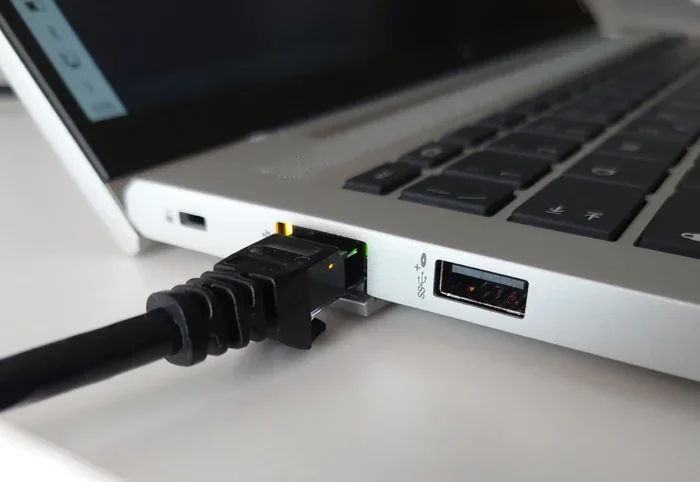
A USB-to-Ethernet adapter is the simplest and most affordable solution. These small adapters plug into a USB port on your HP laptop and provide an Ethernet jack on the other end. You just plug in a network cable, and you are connected. Most USB-to-Ethernet adapters support Gigabit speeds, which is plenty for most users.
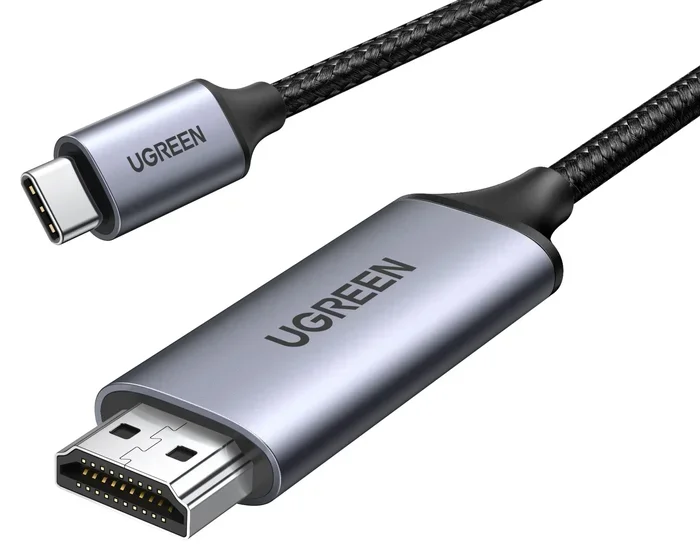
When choosing a USB Ethernet adapter for HP laptop, look for one that supports Gigabit speeds. Avoid cheap 100 Mbps adapters if you want the best performance. Brands like TP-Link, UGREEN, and Anker make reliable adapters that work well with HP laptops. These adapters are plug-and-play, which means you usually do not need to install any software. Windows and HP laptops recognize them automatically.
Here are some quick tips for using a USB-to-Ethernet adapter:
- Choose a USB-C adapter if your HP laptop has USB-C ports.
- Use a short network cable for the best signal quality.
- Avoid cheap adapters that only support 100 Mbps speeds.
- Plug the adapter directly into the laptop, not into a USB hub, for the most stable connection.
HP Docking Stations with Ethernet Ports
If you use your HP laptop at a desk, a docking station is an excellent option. Many HP docking stations include a built-in Ethernet port. You connect the dock to your laptop with a single USB-C cable, and you get Ethernet, multiple USB ports, video outputs, and more. This is a clean and organized way to set up a wired connection.
The HP USB-C docking station is a popular choice. It connects to HP laptops with a single cable and provides a full range of ports, including Ethernet. HP also makes the HP Thunderbolt Dock G2 and G3, which include Gigabit Ethernet ports. These docks are designed specifically for HP laptops and work seamlessly with them.
Docking stations are especially useful for remote work setups. They turn any HP laptop into a full desktop workstation with wired internet, external monitors, and peripherals all connected at once. If you work from home and need a reliable wired connection, a docking station is a smart investment.
PCMCIA and ExpressCard Ethernet Adapters
Older HP laptops may have a PCMCIA or ExpressCard slot. You can use an Ethernet adapter that fits into this slot. These adapters are less common today, but they work well with older HP machines. If you have an older HP laptop and want to add wired connectivity, check if your model has a PCMCIA slot before buying an adapter.
Ethernet vs Wi-Fi on HP Laptops
When it comes to getting internet on your HP laptop, you have two main choices: wired Ethernet or wireless Wi-Fi. Both have their strengths and weaknesses. Understanding the differences can help you decide which connection method is best for your needs.
Speed and Performance
Wired Ethernet connections are generally faster and more consistent than Wi-Fi. A Gigabit Ethernet connection can deliver speeds up to 1 Gbps. Wi-Fi 6 can also reach similar speeds, but real-world performance is often lower. Walls, distance, and interference from other devices can slow down your Wi-Fi signal. An Ethernet cable gives you a direct, uninterrupted connection to your router.
Latency and Stability
For gaming and video calls, latency matters a lot. Ethernet connections have lower latency than Wi-Fi. This means less lag and smoother performance. If you are a gamer using an HP Omen laptop, you might want to use Ethernet for online gaming. The same goes for video conferencing. A wired connection reduces the chance of dropped calls and frozen video feeds.
Convenience and Portability
Wi-Fi wins when it comes to convenience. You can connect to the internet anywhere there is a Wi-Fi signal. You do not need to carry a cable or an adapter. For most everyday tasks like browsing the web, checking email, and streaming videos, Wi-Fi is perfectly fine. The trade-off is that you sacrifice some speed and stability for the freedom of wireless connectivity.
Security Considerations
Wired connections are also more secure than Wi-Fi. It is much harder for someone to intercept data on a physical Ethernet cable than over a wireless signal. For users who handle sensitive information, an Ethernet connection adds an extra layer of security. This is another reason why business laptops like the HP EliteBook and ProBook include Ethernet ports as standard.
Quick Tips for the Best Wired Connection on HP Laptops
Whether your HP laptop has a built-in Ethernet port or you are using an adapter, these tips will help you get the best wired internet experience.
- Use a Cat6 or Cat6a cable: These cables support Gigabit speeds and reduce interference. Avoid older Cat5 cables for best performance.
- Keep your network cable short: Longer cables can cause signal loss. A cable under 10 feet is ideal for most setups.
- Update your network drivers: HP regularly releases driver updates that improve wired network performance. Check the HP Support website for the latest drivers.
- Disable Wi-Fi when using Ethernet: This prevents your laptop from switching between connections and ensures a stable wired link.
- Use a powered USB hub if needed: Some USB-to-Ethernet adapters draw more power than a single USB port can provide. A powered hub solves this problem.
- Run an internet speed test: After connecting via Ethernet, run a speed test to confirm you are getting the speeds you expect.
Common Mistakes to Avoid
When setting up a wired connection on an HP laptop, people sometimes make mistakes that hurt their experience. Here are a few common errors to avoid.
- Buying a cheap 100 Mbps adapter: This limits your wired speed even if your internet plan is much faster. Always choose a Gigabit adapter.
- Plugging the adapter into a USB hub: USB hubs can cause power and signal issues. Plug the adapter directly into the laptop for best results.
- Ignoring driver updates: Outdated network drivers can cause slow speeds and connection drops. Keep your drivers up to date.
- Using a damaged network cable: A frayed or bent cable can cause intermittent connection problems. Replace damaged cables right away.
- Assuming all HP laptops lack Ethernet: This is not true. Many HP business laptops still include Ethernet ports. Always check the specs before assuming.
Expert Insights on HP Laptops and Wired Connectivity
Industry experts agree that wired connections still matter, even in a world dominated by Wi-Fi. According to networking professionals, Ethernet connections provide a level of reliability that wireless cannot match. For professionals who work with large files, run servers, or participate in competitive gaming, a wired connection is often essential.
HP has listened to these professionals, which is why their business laptop lines continue to include Ethernet ports. The HP EliteBook and ProBook lines remain popular among IT departments precisely because they offer both wired and wireless connectivity options. As one HP product manager noted, “We understand that not every user can rely on Wi-Fi alone. That is why we continue to include Ethernet ports on our business-class laptops.”
For consumers, the trend is clearly moving toward wireless. But if you are someone who values a stable, fast, and secure internet connection, do not assume that all modern HP laptops have dropped Ethernet. Do your research before buying, and you can find an HP laptop that meets your wired connectivity needs.
Final Thoughts
So, do any HP laptops have Ethernet ports? The answer is a clear yes. HP offers several laptop lines with built-in Ethernet ports, especially in the business and productivity categories. The HP EliteBook, ProBook, and select Pavilion models all come with wired connectivity options. For consumers who need Ethernet on a non-Ethernet HP laptop, USB adapters and docking stations make it easy to add a port.
When shopping for HP laptops Ethernet ports, always check the specifications carefully. Look for terms like “RJ45,” “Ethernet,” or “Gigabit LAN” in the product details. If you are buying online, the specifications section will tell you exactly what ports are available. Taking a few minutes to verify this can save you a lot of frustration later.
Wired internet connections offer speed, stability, and security that Wi-Fi cannot always match. Whether you are working from home, gaming online, or handling sensitive business data, having a reliable Ethernet connection is a real advantage. HP has made sure that users who need wired connectivity have options, even if those options are concentrated in specific laptop lines.
We hope this guide has answered your question about HP laptops Ethernet ports and given you the information you need to make the best choice. Whether you pick an HP laptop with a built-in Ethernet port or add one with an adapter, you are now equipped to stay connected the way you need.
Frequently Asked Questions
Do all HP EliteBook laptops have Ethernet ports?
Most HP EliteBook models include a built-in Ethernet port. This is a standard feature on the EliteBook 840, 860, and Folio lines. However, you should always check the specific model specifications on the HP website to confirm before purchasing.
Can I use any USB-to-Ethernet adapter with my HP laptop?
Most USB-to-Ethernet adapters work with HP laptops without any issues. Look for adapters that support Gigabit speeds and are compatible with Windows or ChromeOS. Popular brands like TP-Link and UGREEN make adapters that work great with HP machines.
Why do HP Omen laptops not have Ethernet ports?
HP Omen laptops are designed for gaming and portability. They prioritize a slim form factor, which means dropping the Ethernet port. However, Omen laptops still support wired Ethernet through USB-to-Ethernet adapters and compatible docking stations.
Is wired internet faster than Wi-Fi on HP laptops?
Yes, wired Ethernet is generally faster and more stable than Wi-Fi. A Gigabit Ethernet connection can deliver speeds up to 1 Gbps with very low latency. Wi-Fi speeds vary based on signal strength, distance, and interference from other devices.
How do I know if a specific HP laptop has an Ethernet port?
Check the product specifications on the HP website or the retailer’s page. Look for terms like “RJ45,” “Ethernet,” or “Gigabit LAN” in the ports and connectivity section. If you do not see these terms, the laptop likely does not have a built-in Ethernet port.
Are Ethernet adapters expensive for HP laptops?
Not at all. Basic USB-to-Ethernet adapters start at around $10 to $20. More advanced models with Gigabit support or USB-C connectivity may cost $25 to $50. Docking stations with Ethernet ports cost more but offer additional connectivity options.