Can Vga Go To Hdmi A Simple Guide To Getting It Working
Can vga go to hdmi? Yes, but you need the right adapter or converter because VGA carries an analog signal while HDMI is digital. This guide walks you through every step, from choosing the right VGA to HDMI adapter to fixing common connection problems. You will learn how to get video and sometimes audio working on your modern screen.
Have you ever looked at your old computer or projector and wondered, can vga go to hdmi? It is a very common question. Maybe you have a laptop with only a VGA port and a new monitor with only HDMI. Or perhaps you are setting up a conference room and need to connect older equipment to a modern display.
The short answer is yes. You can get VGA to work with HDMI. But it is not as simple as plugging one cable into the other. VGA and HDMI are two very different types of connections. They carry different kinds of signals. And understanding that difference is the first step to making everything work.
In this guide, I will walk you through everything you need to know. I will explain what VGA and HDMI are, why they do not work together directly, and exactly how to make the connection. By the end, you will know which adapter to buy, how to set it up, and what to do when things do not go as planned.
Key Takeaways
- VGA and HDMI are different signal types: VGA is analog and HDMI is digital, so you need a converter to bridge the gap.
- A VGA to HDMI adapter or converter box is essential: A simple cable will not work on its own.
- Active converters are better than passive ones: They do the heavy lifting of converting analog to digital signals.
- Audio may not come through VGA: You may need a separate audio cable or a converter with audio extraction.
- Resolution may be limited: VGA typically maxes out at lower resolutions compared to HDMI.
- Compatibility depends on your devices: Check your laptop, desktop, projector, or monitor before buying.
- Setting up is easy: Most adapters are plug and play with no software needed.
📑 Table of Contents
- What Is VGA and What Is HDMI
- Can You Connect VGA Directly to HDMI
- How to Convert VGA to HDMI
- Active vs Passive VGA to HDMI Adapters
- Best VGA to HDMI Converters and Adapters
- Common Problems and How to Fix Them
- Is VGA to HDMI Worth It
- Expert Tips for the Best Results
- Frequently Asked Questions
- Conclusion
What Is VGA and What Is HDMI
Before we dive into the conversion process, let us talk about what these two connections actually are. Knowing the basics makes everything else much easier to understand.
Understanding VGA
VGA stands for Video Graphics Array. It has been around since the late 1980s. For decades, it was the standard way to connect computers to monitors and projectors. The VGA connector is the blue, D-shaped plug with 15 pins. You have probably seen it hundreds of times.
VGA carries an analog signal. That means the video data is sent as a continuous electrical wave. This was great for its time. But analog signals are more prone to interference and quality loss over distance. VGA also carries only video. There is no audio support at all.
Many older desktop computers, laptops, and projectors still use VGA. If you are working with legacy equipment, VGA is likely the port you will see. It is reliable but limited by modern standards.
Understanding HDMI
HDMI stands for High Definition Multimedia Interface. It became the standard for modern displays. You find HDMI ports on TVs, monitors, laptops, projectors, and gaming consoles. The HDMI connector is small, flat, and rectangular.
HDMI carries a digital signal. This means the data is sent as discrete ones and zeros. Digital signals are much less prone to interference. They also support higher resolutions and refresh rates. HDMI can carry both video and audio through a single cable. That is a huge advantage over VGA.
Today, most new devices have moved away from VGA entirely. They rely on HDMI or newer options like DisplayPort. But the need to connect old and new devices is still very real.
Can You Connect VGA Directly to HDMI
Now let us answer the big question. Can vga go to hdmi without any extra hardware? The answer is no. Not directly. Here is why.
VGA sends an analog signal. HDMI expects a digital signal. You cannot just plug one into the other and expect a picture. It would be like trying to plug a round peg into a square hole. The connection simply does not work that way.
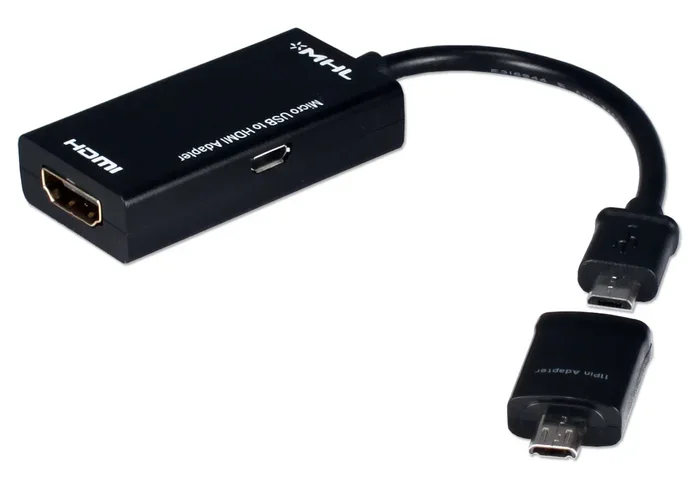
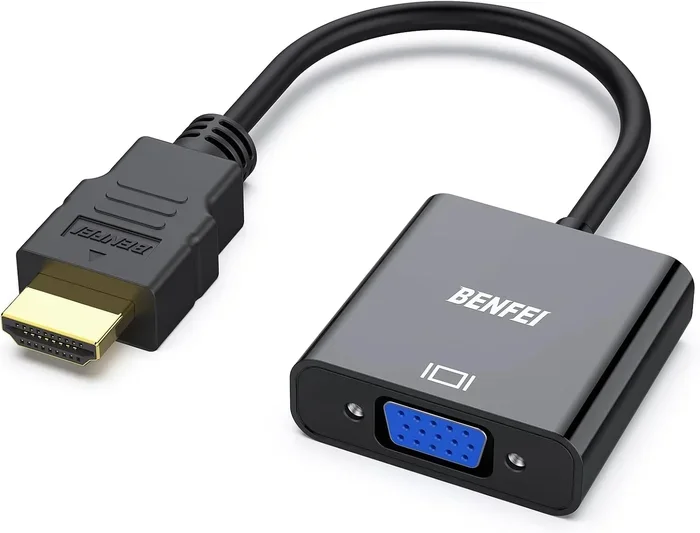
You need a device that converts the analog signal from VGA into a digital signal that HDMI can understand. This device is called a VGA to HDMI converter or a VGA to HDMI adapter. These two terms are often used interchangeably, but there is a difference. We will get into that in a moment.
The key thing to remember is that you cannot skip the conversion step. Any claim that a simple cable can do the job is misleading. You need active conversion hardware to make this work properly.
How to Convert VGA to HDMI
Converting VGA to HDMI is straightforward once you have the right equipment. Let me walk you through the whole process step by step.
What You Will Need
Here is a simple list of what you need to get started:
- A device with a VGA output (like an older laptop or desktop)
- A display with an HDMI input (like a modern monitor or TV)
- A VGA to HDMI converter or VGA to HDMI adapter
- A VGA cable to connect your source device
- An HDMI cable to connect your display
- A USB cable for power (if the converter requires it)
Step by Step Setup
Follow these steps to get your VGA device connected to an HDMI display:
- Plug your VGA cable into the VGA port on your source device.
- Connect the other end of the VGA cable to the VGA input on your converter or adapter.
- Plug an HDMI cable into the HDMI output on the converter.
- Connect the other end of the HDMI cable to your monitor or TV.
- If your converter needs external power, plug in the USB cable.
- Turn on your display and select the correct HDMI input source.
- Power on your source device and check for a picture.
That is it. Most converters are plug and play. You do not need to install any drivers or software. Just plug everything in and the signal should appear on your screen.
Audio Considerations
One important thing to keep in mind. VGA does not carry audio. If your converter does not have built-in audio extraction, you will not get any sound through HDMI. Some higher-end VGA to HDMI converters include a 3.5mm audio input. This lets you plug in a separate audio cable from your source device.
If you need sound, look for a converter that has an audio input port. Otherwise, you may need to connect speakers directly to your source device or use a separate audio solution.
Active vs Passive VGA to HDMI Adapters
Not all adapters are created equal. There are two main types you will encounter when shopping for a VGA to HDMI adapter. Understanding the difference can save you a lot of frustration.
Active Adapters
An active adapter has built-in electronics. It actually converts the analog VGA signal into a digital HDMI signal. This is what you need in most cases. Active adapters require external power, usually through a USB cable. They do the real work of signal conversion.
Active adapters are more expensive than passive ones. But they are also far more reliable. If you want a dependable connection with good image quality, go with an active converter.
Passive Adapters
A passive adapter does not have any conversion electronics. It simply changes the physical shape of the connector. A passive VGA to HDMI cable or adapter will not convert the signal. It will not give you a working picture in most cases.
Some people sell passive adapters claiming they work. In reality, they rarely deliver a usable connection. Avoid them. Stick with an active converter for a real solution.
Quick Comparison
| Feature | Active Adapter | Passive Adapter |
|---|---|---|
| Signal Conversion | Yes | No |
| Needs Power | Yes | No |
| Picture Quality | Good | None or poor |
| Price | Higher | Lower |
| Reliability | High | Very low |
| Audio Support | Often yes | No |
The clear winner here is the active adapter. Always choose an active VGA to HDMI converter for a working setup.
Best VGA to HDMI Converters and Adapters
When shopping for a VGA to HDMI adapter, you have many options. Let me share some tips on what to look for and what brands tend to deliver good results.
What to Look For
Not all converters are the same quality. Here are the features I always check before buying:
- Active conversion: Make sure it is an active adapter, not passive.
- Audio support: Look for a 3.5mm audio input if you need sound.
- Resolution support: Check if it supports at least 1080p for clear picture quality.
- Build quality: Metal housings tend to last longer than plastic ones.
- Plug and play: Avoid adapters that require software or drivers.
- Cable length: Consider how far apart your devices are.
Popular Brands
Some brands have built a good reputation for reliable VGA to HDMI converters. Brands like Cable Matters, Sabrent, and UGREEN offer solid options. They are widely available online and come with good customer support. Reading reviews before you buy is always a smart move.
Price ranges vary. You can find basic active converters for around 15 to 25 dollars. More advanced models with audio extraction and better build quality may cost 30 to 50 dollars. The extra cost is usually worth it for a stable, hassle free connection.
Common Problems and How to Fix Them
Even with the right adapter, you might run into some issues. Here are the most common problems people face when using a VGA to HDMI adapter and how to solve them.
No Picture at All
If your screen stays blank, try these steps:
- Check that all cables are firmly plugged in.
- Make sure your display is set to the correct HDMI input.
- Verify that your source device is outputting through VGA.
- Try a different HDMI cable.
- Make sure the converter is powered on if it needs external power.
Fuzzy or Distorted Image
A blurry picture is a common issue with VGA connections. Here is what you can do:
- Adjust the resolution on your source device. Lowering it can sharpen the image.
- Check your VGA cable for damage. A worn out cable causes signal degradation.
- Keep the VGA cable as short as possible. Longer cables lose more signal quality.
- Make sure the converter is not overheating. Give it some airflow.
No Sound
Remember that VGA does not carry audio. If you are not getting sound:
- Check if your converter has an audio input. Use it if it does.
- Connect a separate 3.5mm audio cable from your source to speakers or headphones.
- Make sure your TV or monitor volume is turned up.
- Check your display audio settings to ensure HDMI audio is enabled.
Resolution Limitations
VGA has a maximum resolution it can handle. Most VGA connections max out around 1080p or 2048 x 1536 depending on the cable and equipment. If you need 4K resolution, VGA will not get you there. This is one of the main limitations of using a VGA to HDMI converter. For most everyday tasks like presentations and office work, 1080p is more than enough.
Is VGA to HDMI Worth It
You might be wondering if buying a VGA to HDMI adapter is really worth it. After all, you could just buy a new device with HDMI.
Here is the thing. Sometimes replacing old equipment is not practical or affordable. You might have a perfectly good projector that only has VGA. Or a desktop computer that still works fine but only outputs through VGA. In these cases, a converter is a smart and cost effective solution.
Can vga go to hdmi is a question with a clear and useful answer. Yes, it can. And with the right active converter, you can connect your older devices to modern displays without any hassle. It is a small investment that can extend the life of your equipment by years.
Think about it this way. A VGA to HDMI converter costs a fraction of what a new monitor or projector would cost. It is one of the best accessories you can own if you work with legacy equipment. Whether you are in a classroom, a boardroom, or a home office, having a reliable VGA to HDMI converter on hand is a great move.
Expert Tips for the Best Results
Here are a few extra tips to help you get the most out of your VGA to HDMI setup:
- Use high quality cables: Cheap cables can introduce interference and degrade your signal. Invest in good quality VGA and HDMI cables.
- Keep it cool: Active converters generate heat. Do not place them in enclosed spaces where air cannot circulate.
- Update your display settings: After connecting, go into your display settings and make sure the resolution matches your screen.
- Test before important meetings: Always test your setup before you need it for a presentation or important event.
- Consider upgrading long term: If you find yourself converting signals often, it may be time to upgrade your source device to one with native HDMI output.
These simple steps can make a big difference in your daily experience. A little preparation goes a long way when you are dealing with analog to digital conversion.
Frequently Asked Questions
Can I get audio through a VGA to HDMI adapter?
Standard VGA does not carry audio. However, many active VGA to HDMI converters include a 3.5mm audio input. You can plug in a separate audio cable from your device to get sound through your HDMI display. Always check the product specs before you buy.
Do I need to install drivers for a VGA to HDMI adapter?
Most VGA to HDMI adapters are plug and play. You do not need to install any drivers or software. Just connect everything and the signal should appear. If you run into issues, check the manufacturer website for optional drivers.
What resolution can I expect from a VGA to HDMI connection?
Most VGA to HDMI converters support up to 1080p or sometimes higher. The actual resolution depends on your source device, the VGA cable quality, and the converter itself. VGA has inherent limitations compared to digital connections like HDMI alone.
Can I use a VGA to HDMI cable instead of a converter box?
A simple VGA to HDMI cable is usually a passive adapter and will not work. You need an active converter with built in signal conversion electronics. A cable alone cannot convert analog to digital signals.
Will a VGA to HDMI adapter work with a projector?
Yes. Many projectors still have VGA inputs. You can use a VGA to HDMI converter to connect a modern laptop or device to an older projector. Just make sure the projector supports the resolution your converter outputs.
Why is my VGA to HDMI picture flickering?
Flickering is often caused by a loose cable connection, signal interference, or resolution mismatch. Try tightening all connections, using a shorter VGA cable, or lowering the output resolution on your source device. A quality VGA to HDMI adapter should eliminate most flickering issues.
Conclusion
The question can vga go to hdmi comes up a lot. And the answer is a clear yes. You just need the right equipment to make it happen. A quality VGA to HDMI converter bridges the gap between old and new technology. It lets you connect legacy devices to modern displays without any headaches.
Remember the key points from this guide. Always choose an active converter over a passive one. Check for audio support if you need sound. Use good quality cables. And test your setup before you rely on it for something important.
With the right VGA to HDMI adapter and a little patience, you can make almost any combination of devices work together. Do not let outdated ports hold you back. A small investment in a converter opens up a world of connectivity options. Now you have everything you need to get it working the right way.