Can Usb Be Used For Audio Output And How To Connect
Yes, USB can absolutely be used for audio output. You can connect headphones, speakers, microphones, and audio interfaces directly through a USB port. This guide shows you exactly how to set up USB audio output on any device, the best devices to use, and how to get the best sound quality.
Key Takeaways
- USB audio output is widely supported and works with most computers, laptops, and even some smart TVs and phones.
- USB sound cards and DACs can dramatically improve audio quality over built-in audio chips.
- Connecting USB audio devices is simple — just plug and play in most cases.
- USB Type-C and USB 3.0 offer better bandwidth for high-resolution audio streaming.
- Common issues like no sound or static are usually easy to fix with driver updates or port changes.
- USB audio interfaces are essential for podcasters, musicians, and content creators who need professional-grade sound.
- Latency can be a concern with USB audio, but proper setup and drivers minimize delays effectively.
📑 Table of Contents
- Can USB Be Used For Audio Output? The Short Answer Is Yes
- How USB Audio Output Works
- Types of USB Audio Devices
- How To Connect USB Audio Devices
- USB Audio Quality: How Does It Compare?
- Common USB Audio Problems and How To Fix Them
- USB Audio for Different Use Cases
- Should You Invest in a USB Audio Device?
- Conclusion
Can USB Be Used For Audio Output? The Short Answer Is Yes
If you have ever looked at your computer or phone and wondered whether you can use a USB port for audio output, the answer is a clear yes. USB technology has made it possible to send high-quality audio signals from your device to speakers, headphones, microphones, and professional audio gear. Whether you are a casual listener, a gamer, a podcaster, or a musician, USB audio output offers a flexible and reliable way to get sound from your device.
In the past, audio relied on 3.5mm jacks and analog connections. Today, digital audio output through USB has become the standard for many devices. Laptops, desktops, tablets, and even some smart TVs now include USB ports that handle both data and audio. This shift has opened up a world of possibilities for anyone who wants better sound without the hassle of tangled cables and adapters.
So how does it all work? What types of USB audio devices can you use? And what is the best way to connect them? This guide answers all of those questions and more. We will walk you through everything you need to know about USB audio connectivity in simple, practical terms.
By the end of this article, you will understand exactly how to set up USB audio output on your device, which devices give you the best results, and how to troubleshoot common problems. Let us dive in.
How USB Audio Output Works
Understanding how USB audio output works helps you make better decisions about your setup. At its core, USB audio is a digital signal sent from your device through a USB cable to an external audio device. That device then converts the digital signal into analog sound that your ears can hear.
The Digital-to-Analog Conversion Process
Your computer or phone stores audio as digital data — ones and zeros. When you send that data through a USB cable, it travels to a USB audio device like a sound card or DAC (Digital-to-Analog Converter). The DAC takes those digital numbers and turns them into an electrical signal that drives your headphones or speakers.
Built-in audio chips on most computers do this conversion too. But external USB audio devices often do it much better. They use higher-quality components that produce cleaner, richer sound with less noise and distortion.
USB Audio Classes Explained
USB audio devices follow specific standards called USB audio classes. These standards ensure that devices work with your operating system without needing extra software.
- USB Audio Class 1 (UAC1): The older standard. Supports basic audio up to 16-bit/48kHz. Still works fine for casual listening.
- USB Audio Class 2 (UAC2): A major upgrade. Supports higher sample rates up to 32-bit/384kHz. Most modern USB DACs use this standard.
- USB Audio Class 3 (UAC3): Designed for low-power devices like smartphones and tablets. Optimized for battery life while maintaining good audio quality.
Most USB audio interfaces you buy today support UAC2, which means they deliver excellent sound quality out of the box. You rarely need to install special drivers, though some advanced devices do benefit from them.
Types of USB Audio Devices
Not all USB audio output devices are the same. Different devices serve different purposes. Here is a breakdown of the most common types you will encounter.
USB Sound Cards
A USB sound card is a small adapter that plugs into your USB port and provides audio input and output. These are great for laptops that lack a 3.5mm audio jack or for desktops where the built-in sound is mediocre. Most USB sound cards cost between $10 and $30. They are an easy, affordable way to improve your audio setup.
USB DACs (Digital-to-Analog Converters)
A USB DAC is the gold standard for digital audio output. It takes the digital audio signal from your computer and converts it to analog with high precision. Audiophiles love DACs because they deliver noticeably better sound than built-in audio chips. Popular brands like Fiio, Sabaj, and AudioQuest make excellent USB DACs at various price points.
USB Audio Interfaces
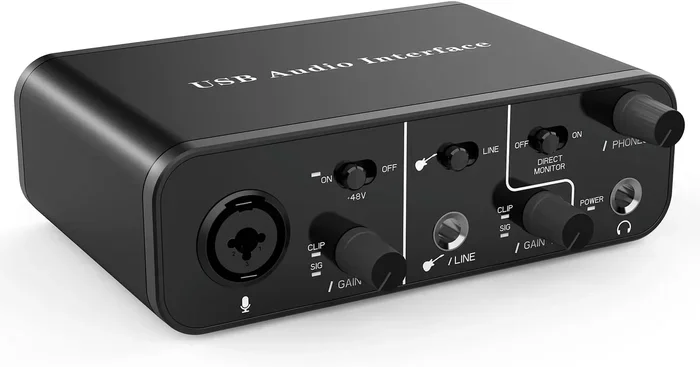
If you are into music production, podcasting, or streaming, a USB audio interface is a must-have. These devices offer multiple inputs and outputs, including microphone jacks, instrument inputs, and headphone outputs. They also include built-in preamps and converters that deliver studio-quality sound. Brands like Focusrite, PreSonus, and Behringer are well-known in this space.
USB Speakers and Headphones
Some speakers and headphones connect directly via USB without needing a separate sound card or DAC. These are convenient for users who want a simple setup. USB-powered headphones are especially popular among gamers because they often include built-in surround sound processing.
USB Microphones
While primarily an input device, many USB microphones also serve as audio output devices. You can monitor your voice through headphones connected to the microphone or use the mic for calls and recordings. Popular choices include the Blue Yeti, Audio-Technica AT2020USB, and Rode NT-USB.
| Device Type | Best For | Price Range | Audio Quality |
|---|---|---|---|
| USB Sound Card | Basic audio output replacement | $10 – $30 | Good |
| USB DAC | Audiophile listening | $30 – $300+ | Excellent |
| USB Audio Interface | Music production, podcasting | $50 – $500+ | Professional |
| USB Speakers/Headphones | Casual listening, gaming | $15 – $150 | Good to Very Good |
| USB Microphone | Voice recording, calls | $30 – $200 | Good to Excellent |
How To Connect USB Audio Devices
Setting up USB audio output is easier than most people think. In many cases, it is truly plug and play. Here is a step-by-step guide that works for most devices.
Step 1: Check Your USB Port
Before you buy anything, check what type of USB port your device has. Most modern laptops have USB Type-C ports, while older computers may have standard USB Type-A ports. Some devices also support USB 3.0 or USB 3.1, which offer better bandwidth for high-resolution audio streaming.
If your device only has USB Type-A ports, you can use a simple USB Type-A to Type-C cable or adapter. These are inexpensive and widely available.
Step 2: Plug In Your Device
Connect your USB audio device to an available port. Once plugged in, your operating system should recognize it automatically. You will usually hear a notification sound or see a pop-up confirming the device is connected.
Step 3: Set the Audio Output
Go to your device’s sound settings and select the USB audio device as your default output. On Windows, right-click the speaker icon in your taskbar and choose “Open Sound Settings.” On macOS, go to System Preferences > Sound > Output. On most phones and tablets, you will find audio output settings in the Bluetooth and device connection menu.
Step 4: Install Drivers (If Needed)
Most USB audio devices work without drivers. However, some advanced interfaces and DACs may require you to install a driver from the manufacturer’s website. Always check the product page or manual for driver instructions before assuming something is broken.
Quick Tips for a Smooth Setup
- Always use the USB cable that came with your device. Cheap cables can cause audio dropouts and static.
- Avoid using USB hubs for audio devices. Direct connections give the best performance and lowest USB audio latency.
- If you experience no sound, try a different USB port. Some ports share bandwidth and can cause conflicts.
- Restart your computer after installing new drivers. This ensures all changes take effect properly.
USB Audio Quality: How Does It Compare?
One of the most common questions about USB audio output is whether it sounds better than traditional 3.5mm connections. The answer depends on several factors, but in most cases, USB audio delivers superior quality.
Why USB Audio Often Sounds Better
Built-in audio chips on computers are designed to be cheap and functional. They use low-quality components that pick up electrical interference from other parts of the motherboard. This interference shows up as a hissing or buzzing noise in your audio.
External USB audio devices isolate the audio processing from your computer’s internals. They have their own dedicated components and shielding, which results in cleaner, quieter sound. For USB headphones and speakers, this means less background noise and more detail in the music.
Resolution and Sample Rates
USB audio supports much higher sample rates than standard analog connections. While a typical 3.5mm output is limited to 16-bit/48kHz, a good USB DAC can handle 24-bit/192kHz or even higher. This means more detail, wider dynamic range, and a more accurate reproduction of the original recording.
For most casual listeners, the difference between 16-bit and 24-bit audio is subtle. But if you are an audiophile or a professional musician, the improvement is very noticeable. High-resolution USB audio streaming lets you hear every nuance in your favorite tracks.
USB Audio Latency: What You Need to Know
USB audio latency refers to the delay between when audio is sent and when you hear it. In most listening scenarios, latency is not a problem. But for musicians recording in real time or gamers who need instant audio feedback, latency matters.
You can reduce USB audio latency by using a USB audio interface with a dedicated driver. These drivers create a direct, low-latency path between your software and the audio hardware. Most consumer USB sound cards and DACs have higher latency, but it is rarely noticeable for general listening.
Common USB Audio Problems and How To Fix Them
Even though USB audio output is reliable, you may run into issues from time to time. Here are the most common problems and their solutions.
No Sound After Plugging In
This is the most common issue. First, check that the device is recognized by your operating system. Go to your sound settings and make sure the USB audio device is selected as the default output. If it is not listed, try unplugging and replugging the device into a different USB port.
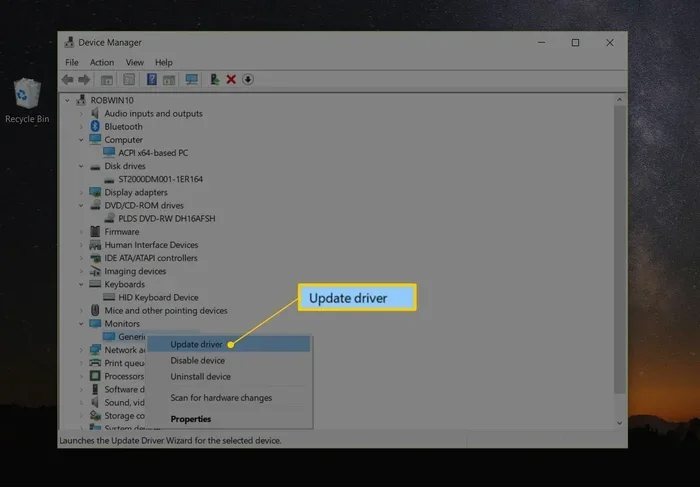
If the device still does not appear, you may need to update your USB drivers. On Windows, open Device Manager, expand “Sound, video and game controllers,” and look for any devices with a yellow warning icon. Right-click and select “Update driver.”
Distorted or Crackling Audio
Distorted sound usually points to a driver issue or a problem with the USB port. Try these steps:
- Uninstall the current audio driver and reinstall the latest version from the manufacturer’s website.
- Try a different USB port, preferably one directly on the computer (not on a hub).
- Lower the audio sample rate in your sound settings. Sometimes the default 24-bit/96kHz setting overloads certain devices.
Audio Cuts Out Intermittently
Intermittent dropouts are often caused by power management settings. USB ports on some computers go to sleep to save energy, which interrupts audio. To fix this, go to your power settings and disable USB selective suspend. On Windows, this is found in Power Options > Change plan settings > Change advanced power settings > USB settings.
Also, avoid using long USB cables for audio. Keep cables under 6 feet (about 2 meters) for the best signal integrity. If you need a longer run, use an active USB repeater cable.
Device Not Recognized on macOS or Linux
Some USB audio devices work better on certain operating systems. If your device is not recognized on macOS or Linux, check the manufacturer’s website for OS-specific drivers or firmware updates. In many cases, a firmware update resolves compatibility issues entirely.
USB Audio for Different Use Cases
USB audio output serves many different needs. Here is how it applies to various scenarios.
For Casual Listeners
If you just want better sound from your laptop for music and videos, a simple USB sound card or USB-powered headphones will do the trick. These are affordable and require zero setup. You plug them in and start listening.
For Gamers
Gamers benefit from USB audio devices that offer surround sound and low latency. Many gaming headsets connect via USB and include their own sound processing software. This lets you customize EQ settings and spatial audio for a more immersive experience.
For Podcasters and Content Creators
If you record voice content, a USB audio interface is your best friend. It gives you clean microphone input, monitor output through headphones, and the ability to connect professional studio equipment. Many successful podcasters started with a simple USB interface and built from there.
For Musicians and Producers
Professional musicians need the best possible digital audio output with minimal latency. A high-quality USB audio interface with dedicated drivers provides studio-grade conversion and real-time monitoring. This is essential for recording instruments, vocals, and producing music at home.
For Telemedicine and Remote Work
In recent years, USB audio devices have become essential in healthcare settings. Computers are used in medicine for telemedicine consultations, remote patient monitoring, and medical training. Clear audio is critical for these applications. A reliable USB audio output ensures that doctors and patients can communicate clearly during virtual appointments. The same technology that supports 10 ways computers are used in medicine depends on dependable audio connectivity for effective patient care.
Similarly, in the world of electronic commerce, clear communication is vital. Many businesses use value added networks to facilitate secure communication for online transactions and customer service. These networks rely on stable audio and data connections, and USB audio devices play a supporting role in ensuring that communication channels remain clear and reliable. You can learn more about the pros and cons of these networks and how they support audio communication in this article about advantages and disadvantages of using a value added network for electronic commerce communication.
Should You Invest in a USB Audio Device?
The answer depends on your needs and budget. If you are happy with the sound from your built-in audio, you may not need anything extra. But if you notice static, weak volume, or poor quality, a USB audio device can make a noticeable difference.
For under $30, a basic USB sound card gives you a significant upgrade over built-in audio. For $50 to $150, a USB DAC delivers audiophile-grade sound that rivals expensive equipment. And for $100 to $500, a USB audio interface opens up professional-level recording and production capabilities.
Think of USB audio output as an investment in your listening experience. Whether you are enjoying music, taking calls, recording podcasts, or producing music, better audio makes everything more enjoyable.
The beauty of USB audio is its simplicity. You do not need technical expertise to get started. Plug in the device, select it as your output, and you are good to go. The technology has matured to the point where USB audio connectivity is seamless and dependable across all major platforms.
As more devices move away from traditional audio jacks, USB audio output will only become more important. Apple has already removed the headphone jack from iPhones. Many modern laptops are following suit. Investing in USB audio now future-proofs your setup and ensures you are ready for whatever comes next.
Conclusion
USB audio output is a practical, high-quality, and increasingly essential way to get sound from your devices. Whether you use a simple USB sound card, a premium DAC, or a full audio interface, the technology delivers clear, reliable audio for virtually any purpose.
Connecting a USB audio device is straightforward. You plug it in, set it as your default output, and enjoy improved sound. When issues arise, they are usually easy to fix with driver updates or port changes. The wide variety of USB audio devices means there is a solution for every budget and every need.
We have covered how USB audio output works, the types of devices available, how to connect them, how to compare audio quality, common problems and fixes, and practical use cases. With this knowledge, you can confidently choose the right USB audio device for your setup and get the best possible sound from your computer or mobile device.
Start exploring your options today. A better audio experience is just one USB cable away.
Frequently Asked Questions
Can I use any USB device for audio output?
Most USB audio devices work right out of the box on Windows, macOS, and Linux. However, always check compatibility before buying. Some specialized audio interfaces may need specific drivers or firmware updates for certain operating systems.
Is USB audio better than a 3.5mm jack?
In most cases, yes. USB audio output bypasses your computer’s low-quality built-in audio chip and uses a dedicated DAC for cleaner, more detailed sound. The difference is most noticeable with good headphones or speakers.
Does USB audio have latency issues?
For casual listening, latency is not noticeable. But for real-time recording or gaming, you may want a USB audio interface with low-latency drivers. These create a direct audio path that minimizes delay significantly.
Can I connect USB speakers to a smart TV?
Some smart TVs support USB audio output directly. Check your TV’s manual or settings menu for audio output options. If USB audio is not supported natively, you may need a compatible USB sound card or DAC.
Do I need to install drivers for a USB sound card?
Most modern USB sound cards and DACs use standard USB audio class drivers built into your operating system. This means no installation is needed. Only advanced audio interfaces or specialized devices typically require manual driver installation.
Can USB Type-C carry audio?
Yes, USB Type-C fully supports audio output. Many modern laptops and phones use USB-C as their primary audio connection. You can plug in USB-C headphones, DACs, or audio interfaces directly for high-quality digital audio.