Do Dvd Players Have Hdmi Connections And Ports Available
Do DVD players have HDMI? The answer is yes for most modern models, but older players may need an adapter. DVD players HDMI support delivers the best picture and sound quality when paired with an HDTV. Understanding your DVD player connections helps you get the most out of every disc.
Do DVD players have HDMI? The short answer is yes, but it depends on the model and age of the player. Many modern DVD players HDMI ready devices come with built-in HDMI ports, while older units may need an adapter or converter. Understanding your DVD player connections helps you get the best picture quality on your HDTV. In this guide, we break down everything you need to know about HDMI ports on DVD players, from setup tips to common mistakes. Whether you have a new or older DVD model, you will find practical advice here to improve your setup.
If you are setting up a home theater or just trying to connect your DVD player to a new TV, the question of HDMI compatibility comes up fast. Most people assume all DVD players have HDMI, but that is not always true. The truth is, it depends on when the player was made and what type of model you own. DVD players HDMI support has become more common over the years, but there is still a wide range of options out there. Some players come with HDMI ports right out of the box, while others need extra hardware to work with modern displays. Let us walk through what you need to know.
Key Takeaways
- Most modern DVD players include HDMI ports: Players made after 2007 typically come with built-in HDMI for easy HDTV connection.
- Older DVD models may need an adapter: If your player lacks HDMI, an HDMI adapter or converter can bridge the gap.
- HDMI delivers superior quality: A single HDMI cable carries both high definition video and digital audio, outperforming older cable types.
- Blu-ray players offer the best HDMI experience: For the sharpest picture, a Blu-ray player HDMI setup supports 1080p and beyond.
- Upscaling players enhance standard DVDs: An upscaling DVD player can improve the look of standard definition DVDs on modern screens.
- Check your ports before buying: Always verify the DVD player ports listed on the back panel or in the product specs.
- Common issues are easy to fix: Most DVD players HDMI problems like no signal or sync issues have simple solutions.
📑 Table of Contents
Do DVD Players Have HDMI Ports?
Not every DVD player comes with an HDMI port. The presence of an HDMI port on DVD player depends largely on the manufacturing date and the model line. Newer players almost always include HDMI, but older ones may only offer AV cables or component cables. Knowing what to look for saves you time and frustration when setting up your entertainment center.
What to Look for on the Back of Your DVD Player
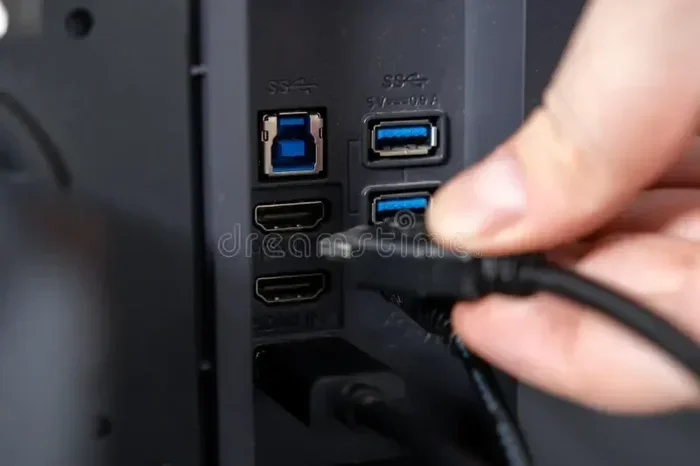
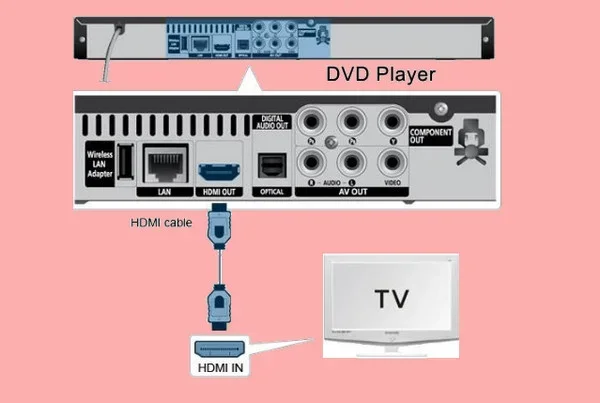
Before you buy or connect anything, take a look at the back panel. You are looking for a rectangular port labeled “HDMI.” It is usually a single port, though some high-end models may have two or even three.
DVD player ports can vary widely depending on the brand and price point. Here is what you might find on the back of a typical DVD player:
- HDMI port (digital video and audio in one cable)
- Composite AV ports (red, white, and yellow RCA jacks)
- Component video ports (red, green, and blue RCA jacks)
- Optical audio output (for surround sound systems)
- Coaxial digital output
- USB port (on some modern models)
If you see an HDMI port, you are in luck. If not, do not worry. There are still ways to get great picture quality from your player. The key is knowing what your player supports and what your TV needs.
New vs. Older Models
Newer DVD models released after about 2007 almost always include HDMI. This was the industry standard by then, and manufacturers quickly dropped older connection types from their newer lines. If you bought a DVD player in the last fifteen years, there is a very good chance it has HDMI.
Older DVD models from the late 1990s and early 2000s typically rely on composite or component cables. These analog connections work fine, but they do not deliver the same crisp image as a digital connection like HDMI. The picture may look slightly softer or have color bleeding on larger screens.
If you are unsure about your model, check the user manual or look up the model number online. Most manufacturers list the available ports in the product specifications. A quick search takes less than a minute and saves you from buying the wrong cable or adapter.
Types of DVD Players and Their HDMI Options
Not all DVD players HDMI setups are the same. Different types of players offer different levels of video quality and connection options. Let us break them down so you know exactly what to expect.
Standard DVD Players
A standard definition DVD player plays discs at 480p resolution. These are the basic players you find at most retail stores. Many standard players made before 2008 do not have HDMI ports.
However, some standard players from the mid-2000s onward do include HDMI. These are great for casual viewers who want a simple setup without extra hardware. The HDMI connection delivers the 480p signal cleanly and clearly to your TV.
Quick Tip: Even if your standard DVD player has HDMI, the disc itself is limited to standard definition. The HDMI connection will deliver that 480p signal cleanly, but it will not magically upgrade the resolution. Think of HDMI as the best way to deliver what is on the disc, not a way to create detail that is not there.
Upscaling DVD Players
An upscaling DVD player takes the standard 480p signal and stretches it to fit a high definition display. This does not add real detail, but it can make the picture look smoother and cleaner on a modern TV. The player uses internal processing to match the disc resolution to your screen.
Many upscaling players come with HDMI built in. They are a popular choice for people who want better visuals without buying a Blu-ray player. The HDMI cable carries the upscaled signal directly to your TV, giving you the best possible output from a standard DVD.
Quick Tip: Look for players that upscale to 1080p. This gives you the best match with most modern HDTVs and ensures your movies look as sharp as possible on a large screen.
Blu-ray Players with HDMI
If you want the best high definition video from your discs, a Blu-ray player HDMI setup is the way to go. Blu-ray players natively support 1080p and even 4K on some models. They also support advanced audio formats that standard DVD players cannot handle.
Blu-ray player HDMI connections deliver full HD quality through a single cable. The audio video output is rich and detailed, making it ideal for a true home theater setup. You get cinema-quality sound and picture without running a tangle of cables behind your entertainment center.
Expert Insight: If you are buying a new player today, a Blu-ray or 4K UHD player is almost always a better investment than a standard DVD player. The HDMI cable quality matters less than having a player that can output high resolution signals in the first place. Invest in a good player and a decent HDMI cable, and you will be set for years.
How to Connect a DVD Player to HDMI
Connecting a DVD player to an HDMI-ready TV is usually straightforward. But the exact steps depend on what kind of player you have and what ports are available.
Step-by-Step Connection Guide
Here is how to set up your DVD player connections using HDMI:
- Locate the HDMI port on the back of your DVD player.
- Take your HDMI cable and plug one end into the DVD player.
- Plug the other end into an available HDMI port on your TV.
- Switch your TV input to the matching HDMI channel.
- Turn on the DVD player and test the picture and sound.
That is it. In most cases, the audio and video will come through the single HDMI cable automatically. There is no need for extra audio wires or adapters when both devices have HDMI support.
Quick Tips for a Smooth Setup
Quick Tips:
- Use a high-speed HDMI cable to ensure the best signal quality and support for higher resolutions.
- Avoid running HDMI cables near power cords to reduce electromagnetic interference.
- If your TV has multiple HDMI ports, label them so you know which one your DVD player uses.
- Make sure both the DVD player and TV are turned off before plugging in the cable.
- Firmly push the HDMI connector in until it clicks into place for a secure connection.
- Keep your HDMI cable as short as possible for the best signal strength.
What If Your DVD Player Does Not Have HDMI?
If your older DVD model lacks an HDMI port, you have a few practical options to get it working with a modern TV:
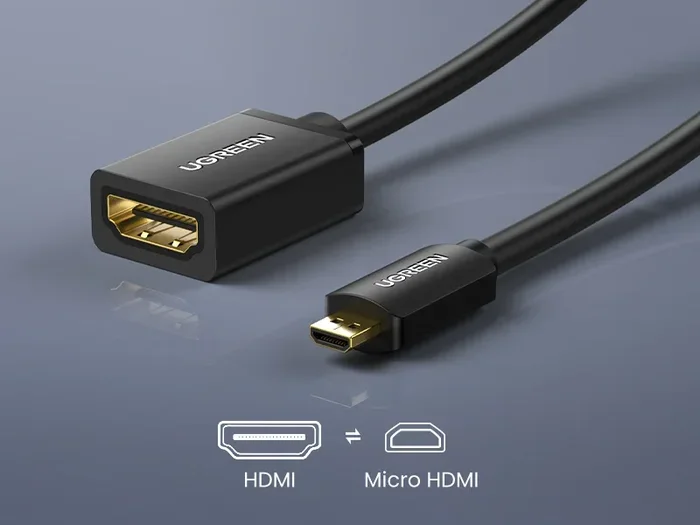
- HDMI adapter: Some adapters convert composite or component outputs to HDMI. These are affordable and easy to find online. They plug right into the back of your player and provide a clean digital output.
- AV-to-HDMI converter: A small box that takes older AV cables and converts them to a digital HDMI signal. This is the most reliable option for older DVD models that only have composite or component outputs.
- Component to HDMI converter: This gives better quality than composite since component cables carry a higher resolution signal. It is a middle ground that works well for players with component but no HDMI.
Common Mistake: Do not buy cheap, no-name converters. They often produce poor image quality or no signal at all. Stick with reputable brands and read reviews before purchasing an HDMI adapter or converter box. A quality converter makes a huge difference in picture clarity.
HDMI vs Other Connection Types
HDMI is not the only way to connect a DVD player to a TV. Understanding the differences helps you decide which connection is best for your situation and your setup.
Composite and Component Cables
Composite cables use a single yellow RCA plug for video and red and white plugs for audio. They are the most basic connection type and are found on nearly every DVD player ever made. They are simple to use, but the video quality is limited to standard definition.
Component cables split the video signal into three separate cables (red, green, and blue). This gives a noticeably better picture than composite, though it still falls short of high definition video quality. Component cables are a good option if your player does not have HDMI but you want the best analog picture possible.
Here is a quick side-by-side comparison of the three main connection types:
| Connection Type | Video Quality | Audio Quality | Number of Cables |
|---|---|---|---|
| Composite | Standard Definition | Basic stereo | 3 (1 video + 2 audio) |
| Component | Enhanced Standard Definition | Basic stereo | 5 (3 video + 2 audio) |
| HDMI | High Definition (up to 1080p) | Digital surround sound | 1 |
When HDMI Makes the Biggest Difference
The difference between HDMI and older connections is most noticeable on larger TVs. If you have a 50-inch or larger display, HDMI will give you a much sharper and cleaner image. The digital signal does not degrade over distance the way analog signals do.
HDMI also carries both audio and video in a single cable. This means fewer cords on your entertainment center and a cleaner look overall. For a home theater setup, HDMI is really the only practical choice. You get everything you need in one simple connection.
Another big advantage is the audio video output quality. HDMI supports digital surround sound formats like Dolby Digital and DTS. Older cable types only carry basic stereo audio. If you care about sound quality, HDMI is the clear winner.
Quick Tip: If you are using a soundbar or surround sound system, HDMI with ARC (Audio Return Channel) lets you control the volume with your TV remote. It is a small feature that makes a big difference in your daily viewing experience.
Common Issues with DVD HDMI Connections
Even with the right setup, you may run into problems. Most DVD players HDMI issues are easy to fix once you know what to look for.
No Signal Problems
If your TV shows no signal when you switch to the HDMI input, try these steps in order:
- Check that the HDMI cable is firmly plugged into both the DVD player and the TV.
- Try a different HDMI port on your TV. Sometimes a single port may not work properly.
- Test the HDMI cable with another device to rule out a bad cable.
- Make sure your DVD player is powered on and set to the correct output mode.
Sometimes the simplest fix is just unplugging and replugging the cable. This resets the digital handshake between the devices and often solves the problem immediately.
Audio and Video Sync Issues
In some cases, the audio and video may be out of sync. This is more common with older DVD models or when using a converter box. The audio might start before the video or lag behind it.
Quick Fix: Check your TV settings for any audio delay or sync adjustment options. Many modern TVs have a “lip sync” feature that lets you fine-tune the timing. Adjust it in small increments until the sound matches the picture.
HDTV Compatibility Concerns
Not all DVD players work perfectly with all TVs. Some older players may not output a signal that a modern flat-screen TV recognizes. This is especially true for very early DVD players that were designed for older CRT televisions.
If you are having trouble, check the HDTV compatibility listed on the DVD player’s box or manual. Most players sold after 2005 are designed to work with HDTVs, but there are always exceptions. A quick call to the manufacturer can also clarify compatibility questions.
Expert Insight: If you own a really old DVD player and a brand new TV, an analog to digital converter is your best friend. It bridges the gap between old and new technology and can save you from buying a whole new player. These converters are affordable and widely available online.
Do You Need an HDMI-Compatible DVD Player?
The answer depends on your TV and your viewing habits. Let us look at who benefits most from HDMI-equipped DVD players and when an upgrade makes sense.
Who Benefits Most from HDMI DVD Players
- HDTV owners: If you have a modern TV, HDMI is the best way to get the clearest picture from your DVDs. You simply cannot beat the quality of a digital connection.
- Home theater enthusiasts: HDMI supports both high-quality video and multi-channel audio through one cable. It is the backbone of any serious home theater setup.
- Families with kids: HDMI makes it easy to hook up a DVD player to a TV in the playroom or bedroom without a mess of cables. One cable does it all.
- People with limited ports: HDMI combines video and audio into one port, saving you space on your TV. This matters if you have multiple devices competing for HDMI inputs.
Expert Insights on Future-Proofing Your Setup
Expert Insight: The world of physical media is changing fast. While DVD players HDMI setups work great today, streaming services are now the dominant way people watch movies. If you are buying a DVD player just for occasional use, consider whether a Blu-ray player HDMI or a streaming device might serve you better in the long run.
That said, DVDs are still widely available and many people have large collections of discs they love. An HDMI-compatible player keeps that collection alive and enjoyable on modern screens. There is something special about putting in a disc and watching a movie the way it was meant to be seen.
Common Mistake: Do not assume that an HDMI connection will automatically improve the quality of a standard definition DVD. The disc quality limits the output. HDMI delivers the best possible version of what is on the disc, but it cannot create detail that is not there. The disc is the bottleneck, not the connection.
Quick Tip: If you have a mix of DVDs and Blu-rays, consider getting a combo player. These devices handle both formats and come with HDMI built in. They give you the most flexibility without taking up extra space on your entertainment center.
Conclusion
So, do DVD players have HDMI connections? The answer is yes for most modern players, but it is not universal. Newer models almost always include HDMI ports, while older players may need an adapter or converter to work with today’s HDTVs.
DVD players HDMI support makes a real difference in picture and sound quality. Whether you have a standard player, an upscaling model, or a Blu-ray player, HDMI gives you the cleanest and simplest connection possible. A single HDMI cable replaces a tangle of older cables and delivers the best audio video output your player can produce.
Take a moment to check your current setup. If your player does not have HDMI and you have an HDTV, an adapter or converter is an easy and affordable upgrade. Your movie nights will look and sound better for it. The investment is small, and the improvement is noticeable every single time you watch a movie.
Key takeaway: HDMI is the best way to connect any DVD player to a modern TV. It delivers high definition video and digital audio through a single cable, making it the go-to choice for any home entertainment setup. Check your ports, grab the right cable, and enjoy your movies the way they were meant to be seen.
Frequently Asked Questions
Do all DVD players come with HDMI ports?
No, not all DVD players have HDMI. Players made before 2007 often lack HDMI and rely on composite or component cables instead. Always check the back panel or product specs to confirm what ports are available on your specific model.
Can I connect a DVD player without HDMI to an HDTV?
Yes, you can use an HDMI adapter or an AV-to-HDMI converter to connect a non-HDMI DVD player to an HDTV. These converters take the older analog signal and turn it into a digital HDMI output. The picture quality will not match a native HDMI connection, but it will still work well.
Does HDMI improve the quality of standard DVDs?
HDMI delivers the best possible version of the signal from your DVD, but it does not add detail that is not on the disc. A standard definition DVD is limited to 480p, and HDMI simply transmits that signal cleanly without the quality loss that can happen with older cable types.
What is the difference between a standard DVD player and an upscaling DVD player?
A standard DVD player outputs the disc’s native 480p resolution. An upscaling DVD player uses internal processing to stretch that signal to fit a 1080p HDTV screen. The upscaled picture looks smoother and cleaner, though it does not add true high definition detail.
Do I need a special HDMI cable for my DVD player?
Any standard high-speed HDMI cable will work with a DVD player. You do not need an expensive premium cable for standard DVD playback. A basic HDMI cable from a reputable brand will deliver excellent results for DVD and even Blu-ray content.
Can I use an HDMI splitter with my DVD player?
Yes, an HDMI splitter lets you connect one DVD player to multiple TVs. This is useful if you want to watch DVDs in different rooms. Just make sure your splitter supports the resolution your player outputs and that you have enough HDMI cables for each display.