Can You Output Video Through Thunderbolt 3 or 4 Ports
Yes, you can absolutely output video through Thunderbolt 3 and Thunderbolt 4 ports. Both port types support video output to external monitors, displays, and projectors using native protocols or adapters. Thunderbolt 4 even guarantees dual 4K display support, making it a powerful single-cable solution for work, gaming, and creative tasks.
You just plugged a brand new monitor into your laptop’s Thunderbolt port. You wait. Nothing happens. You start to wonder, can you output video through Thunderbolt? The short answer is yes. But the full story has some important details you need to know. Whether you are a freelancer connecting to a second screen or a gamer chasing high refresh rates, understanding how Thunderbolt handles video output can save you time, money, and frustration.
This guide covers everything you need to know about video output through Thunderbolt 3 and Thunderbolt 4 ports. We will break down compatibility, adapters, docking stations, and common mistakes. By the end, you will feel confident setting up your display the right way, every time.
The world of connectivity has changed fast. USB-C has become the universal port on most modern laptops. But not all USB-C ports are created equal. Thunderbolt 3 and Thunderbolt 4 are special versions of USB-C that do much more. They handle data, power delivery, and video output all through a single cable. That is what makes them so powerful. Let us dive into how this works and what it means for your setup.
Key Takeaways
- Thunderbolt 3 and 4 both support video output: You can connect external monitors directly or through adapters.
- Thunderbolt 4 offers stronger video guarantees: It supports dual 4K displays or a single 8K display by default.
- You need the right cable or adapter: Not every cable or dock will carry a video signal properly.
- USB-C and Thunderbolt are not the same: USB-C alone may not support video output without Thunderbolt capability.
- Daisy chaining works with Thunderbolt: You can connect multiple monitors and devices through one port.
- Mac and Windows both support Thunderbolt video output: Compatibility depends on your device, not your operating system.
- Check your device specs before buying: Not every laptop or desktop with a Thunderbolt port outputs video the same way.
📑 Table of Contents
- What Is Thunderbolt and Why Does It Matter for Video?
- Can You Connect Monitors Directly to Thunderbolt Ports?
- Docking Stations and Their Role in Thunderbolt Video Output
- Thunderbolt Video Output on Mac vs. Windows
- Common Mistakes and Troubleshooting Tips
- Quick Tips for the Best Thunderbolt Video Setup
- Thunderbolt vs. USB-C for Video Output
- Future of Thunderbolt Video Output
- Final Thoughts
What Is Thunderbolt and Why Does It Matter for Video?
Thunderbolt is a hardware interface developed by Intel in partnership with Apple. It combines several connection types into one compact port. Thunderbolt 3 uses the USB-C connector shape. Thunderbolt 4 uses the same connector but offers better performance guarantees. Both versions were designed to be a single cable solution for almost everything.
When we talk about Thunderbolt video output, we are really talking about two underlying protocols. The first is DisplayPort, which is built into the Thunderbolt specification. The second is HDMI, which requires an adapter. Understanding these protocols helps you choose the right accessories for your setup.
How Thunderbolt 3 Handles Video
Thunderbolt 3 supports one external display natively. It can drive a single 4K display at 60Hz or a single 5K display on certain Mac computers. The bandwidth of Thunderbolt 3 is 40 Gbps, which is plenty for high-resolution video. However, it does not guarantee support for multiple monitors out of the box. You may need a docking station or a specific adapter to run two displays.
Here are the key video specs for Thunderbolt 3:
- Max resolution: 4K at 60Hz or 5K at 60Hz
- Protocol: DisplayPort 1.2
- Daisy chaining: Supported with compatible displays
- Bandwidth: 40 Gbps
- Power delivery: Up to 100W through the same cable
How Thunderbolt 4 Improves on Video Output
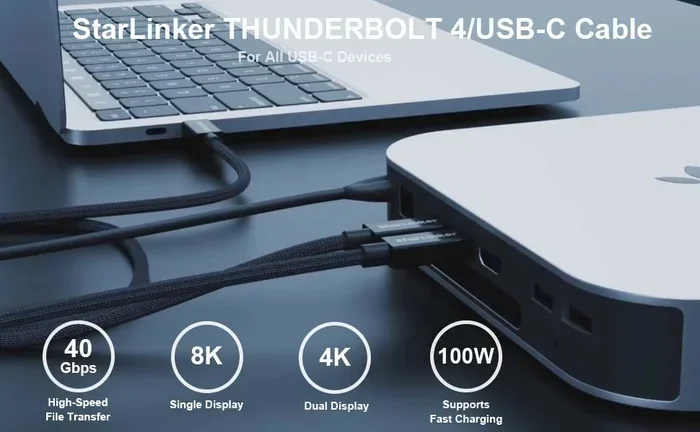
Thunderbolt 4 is the newer standard, and it brings meaningful upgrades for video users. The biggest advantage is the guaranteed support for dual 4K displays or a single 8K display. Intel set this as a minimum requirement, so every Thunderbolt 4 device must meet it. This removes the guesswork that sometimes comes with Thunderbolt 3.
Thunderbolt 4 also supports DisplayPort 1.4, which allows for higher color depth and better HDR performance. If you are a video editor or a designer who needs accurate colors, this matters. Here is a quick look at Thunderbolt 4 video specs:
- Max resolution: Dual 4K at 60Hz or single 8K
- Protocol: DisplayPort 1.4
- Daisy chaining: Supported with up to 6 devices
- Bandwidth: 40 Gbps
- Power delivery: Up to 100W
Can You Connect Monitors Directly to Thunderbolt Ports?
Yes, you can connect monitors directly to Thunderbolt ports in most cases. Because Thunderbolt uses the USB-C connector, any monitor with a USB-C input will work. Many modern monitors now include USB-C ports specifically designed for Thunderbolt video output. This makes setup incredibly simple. You just plug one cable in, and your display springs to life.
However, not every monitor has USB-C input. In those cases, you need an adapter or a cable with the right connector on one end. Let us look at the different ways you can connect an external monitor to a Thunderbolt port.
Direct USB-C Connection
The easiest setup is a direct connection. If your monitor has a USB-C port that supports DisplayPort Alt Mode, you can use a Thunderbolt cable to connect it directly. This gives you video and sometimes even data and power through one cable. It is the cleanest setup possible.
Some popular monitors that support direct Thunderbolt connection include the Dell UltraSharp series, the LG UltraFine lineup, and the Apple Pro Display XDR. If you own a Mac, the Apple Thunderbolt Display and the LG UltraFine 5K or 4K displays are excellent choices. These monitors were designed specifically to work with Thunderbolt video output.
Using Adapters for HDMI and DisplayPort Monitors
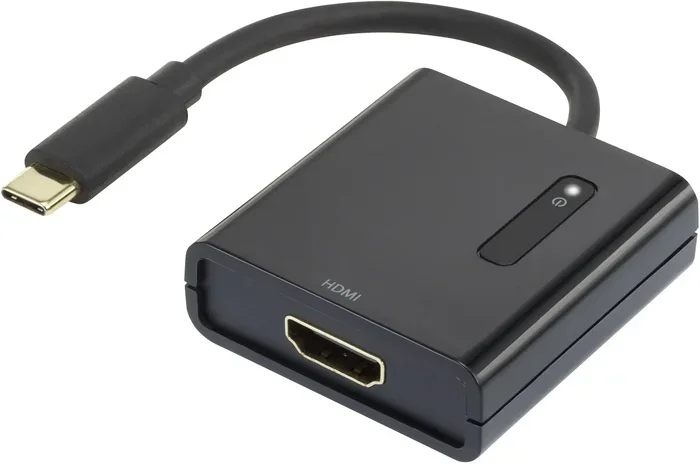
Most people have an existing monitor with an HDMI or DisplayPort input. That is totally fine. You just need the right adapter or cable. A USB-C to HDMI adapter will let you connect to any HDMI monitor. Similarly, a USB-C to DisplayPort cable works with DisplayPort monitors directly.
When choosing an adapter, make sure it supports Thunderbolt or DisplayPort Alt Mode. Cheap adapters that only support data transfer will not carry a video signal. Look for adapters that explicitly mention video support. Brands like CalDigit, Belkin, and Anker make reliable options that work consistently with Thunderbolt 3 and Thunderbolt 4 ports.
Docking Stations and Their Role in Thunderbolt Video Output
A docking station is one of the best ways to use Thunderbolt for video output. It gives you multiple ports in one device. You plug one Thunderbolt cable from your laptop to the dock, and then connect as many monitors as the dock supports. This is especially useful for people who work with multiple screens every day.
Thunderbolt docking stations are different from standard USB-C hubs. A hub might give you extra USB ports, but it may not support video output. A Thunderbolt dock is specifically designed to handle data, power, and video all at once. Always check the specs before you buy to make sure the dock supports your desired resolution and number of displays.
Top Thunderbolt Dock Brands
Several brands stand out in the Thunderbolt dock market. CalDigit offers the TS4, which supports dual 4K displays and is a favorite among Mac users. Anker makes the PowerExpand Elite, which is more affordable but still delivers solid video output performance. OWC and Belkin also produce high-quality docks that work well with both Windows and Mac laptops.
When shopping for a dock, look for these features:
- Number of video outputs: How many monitors do you need?
- Max resolution per port: Does it support 4K at 60Hz?
- Power delivery: Can it charge your laptop while you work?
- Thunderbolt version: Is it Thunderbolt 3 or Thunderbolt 4?
- Daisy chain support: Can you connect multiple devices in a chain?
Thunderbolt Video Output on Mac vs. Windows
One of the most common questions people ask is whether Thunderbolt video output works the same on Mac and Windows. The short answer is yes, with some differences in how the systems handle it. Both platforms support Thunderbolt 3 and Thunderbolt 4 for external displays. But the experience can vary depending on your specific device.
Thunderbolt Video on Mac
Apple was one of the first companies to embrace Thunderbolt technology. MacBooks from 2016 onward use Thunderbolt 3 ports. MacBook Pro and MacBook Air models can drive external monitors through these ports. M1 and M2 Macs support one external display natively, while M2 Pro and M2 Max chips can handle up to four displays. This makes Macs incredibly powerful for creative professionals who need multiple monitor setups.
If you use a Mac, you will find that Thunderbolt monitors work seamlessly. The Plug and Play experience is smooth. You rarely need to install extra drivers. Just connect the monitor, and it should work immediately. This is one of the biggest advantages of the Apple ecosystem when it comes to Thunderbolt video output.
Thunderbolt Video on Windows
Windows laptops with Thunderbolt ports are also capable of excellent video output. Brands like Dell, Lenovo, HP, and Microsoft Surface all offer Thunderbolt-enabled models. However, the experience can sometimes be less plug-and-play than on a Mac. You may need to update your graphics drivers or install specific software from your laptop manufacturer.
For Windows users, the key is to make sure your Thunderbolt controller is properly configured. Some Windows laptops have Thunderbolt ports that are disabled by default in the BIOS. You may need to go into your system settings and enable Thunderbolt support. Once enabled, you can connect external monitors just like on a Mac.
Common Mistakes and Troubleshooting Tips
Even with the right equipment, things can go wrong. Many users run into issues when trying to output video through a Thunderbolt port. Most of these problems are easy to fix once you know what to look for.
Using the Wrong Cable
The most common mistake is using a cable that does not support video. Not all USB-C cables are the same. Some cables are designed only for data transfer or power delivery. They cannot carry a video signal. You need a cable that supports Thunderbolt or at least supports DisplayPort Alt Mode. Look for cables that are rated for 40 Gbps or explicitly mention video support.
Forgetting to Check Adapter Compatibility
Not every adapter works with every Thunderbolt port. Some adapters only work with specific versions of Thunderbolt. Others may not support the resolution you need. Always check that your adapter supports the resolution and refresh rate of your monitor. A cheap adapter that only supports 1080p will not give you the 4K experience you paid for.
Ignoring Display Settings
Sometimes the problem is not your hardware, it is your software. On both Mac and Windows, you need to go into your display settings and configure the external monitor properly. On Mac, go to System Settings and look for Displays. On Windows, right-click your desktop and select Display Settings. Make sure the external monitor is detected and set to the correct resolution.
Daisy Chain Issues
If you are trying to connect multiple monitors through a daisy chain, make sure your devices support it. Not every Thunderbolt monitor can be daisy chained. Check the manufacturer’s specs. Also, make sure you are using the correct port on each monitor. Usually, the port labeled “In” connects to your computer, and the port labeled “Out” connects to the next device in the chain.
Quick Tips for the Best Thunderbolt Video Setup
Setting up a great Thunderbolt video configuration does not have to be complicated. Follow these simple tips to get the best results every time.
- Use certified Thunderbolt cables: They are tested to handle the full 40 Gbps bandwidth needed for high-resolution video.
- Buy from reputable brands: Stick with known brands for adapters and docks. Cheap knockoffs often fail to deliver reliable video output.
- Update your firmware and drivers: Keep your laptop firmware, Thunderbolt controller, and graphics drivers up to date for the best compatibility.
- Check your laptop specs first: Before buying any accessory, confirm that your laptop supports Thunderbolt video output and what resolutions it can handle.
- Use a docking station for multi-monitor setups: A single Thunderbolt dock is much cleaner and more reliable than multiple adapters.
- Test with one monitor first: If you are having trouble, start with a single monitor connection before trying daisy chaining or multiple displays.
Thunderbolt vs. USB-C for Video Output
It is easy to confuse Thunderbolt and USB-C because they share the same connector shape. But they are different technologies with different capabilities. USB-C is just a connector type. It can carry data, power, and video, but only if the device supports it. Thunderbolt is a protocol that runs through USB-C connectors and guarantees video output capabilities.
If your laptop has a USB-C port that does not say Thunderbolt on it, it may or may not support video output. Many modern laptops with USB-C ports do support video through USB-C Alternate Mode. But the experience is less consistent than with Thunderbolt. You may encounter compatibility issues or limited resolution support. When in doubt, check for the Thunderbolt symbol next to the port. It looks like a lightning bolt. That is your guarantee that the port supports full video output.
Future of Thunderbolt Video Output
The future looks bright for Thunderbolt video output. Intel continues to develop new versions of the Thunderbolt standard. Each new version brings better bandwidth, higher resolution support, and improved compatibility. Thunderbolt 5 is already on the horizon, promising even faster speeds and support for higher-resolution displays.
As more devices adopt Thunderbolt technology, the ecosystem of compatible accessories will continue to grow. Docking stations, monitors, and adapters are becoming more affordable and more capable. If you are investing in a Thunderbolt setup today, you are making a choice that will serve you well for years to come. The single cable convenience, combined with blazing fast data transfer and reliable video output, makes Thunderbolt one of the best connectivity solutions available.
Final Thoughts
Can you output video through Thunderbolt? Absolutely. Both Thunderbolt 3 and Thunderbolt 4 ports support video output to external monitors, displays, and projectors. Thunderbolt 3 handles single 4K or 5K displays, while Thunderbolt 4 guarantees dual 4K support and even single 8K in some cases. With the right cable, adapter, or docking station, you can build a powerful and clean workspace that meets any professional or creative need.
The key takeaway is to always check your device specifications and choose accessories that match your needs. Whether you are a Mac user or a Windows user, a freelancer or a creative professional, Thunderbolt video output gives you a reliable and versatile solution. Invest in quality cables and adapters, keep your drivers updated, and enjoy the seamless experience that Thunderbolt was designed to deliver.
Frequently Asked Questions
Can I use a regular USB-C cable for video output on a Thunderbolt port?
Not always. Regular USB-C cables may only support data transfer or power. You need a cable that supports video, such as a Thunderbolt cable or a USB-C cable rated for DisplayPort Alt Mode. Check the cable specifications before purchasing to make sure it can carry a video signal.
How many monitors can I connect through one Thunderbolt port?
Thunderbolt 3 supports one external display natively, while Thunderbolt 4 guarantees dual 4K displays. With a docking station, you can connect even more monitors. Some Thunderbolt docks support three or four displays depending on the model and your computer’s capabilities.
Do I need a special adapter to connect an HDMI monitor to a Thunderbolt port?
Yes, you need a USB-C to HDMI adapter that supports video output. Not all adapters work with Thunderbolt ports. Look for adapters that explicitly mention Thunderbolt compatibility or DisplayPort Alt Mode support to ensure they carry a video signal properly.
Is Thunderbolt 4 backward compatible with Thunderbolt 3 monitors?
Yes, Thunderbolt 4 is fully backward compatible with Thunderbolt 3 devices. You can connect a Thunderbolt 3 monitor to a Thunderbolt 4 port and it will work perfectly. The connection will operate at Thunderbolt 3 speeds and capabilities.
Why is my Thunderbolt monitor not showing video even though it is connected?
This can happen for several reasons. Check that you are using a Thunderbolt-certified cable, not a regular USB-C cable. Make sure your display settings on your computer detect the external monitor. Also, try updating your Thunderbolt controller drivers and restarting your computer. Sometimes a simple reboot fixes the issue.
Can I daisy chain multiple Thunderbolt monitors together?
Yes, Thunderbolt supports daisy chaining, which means you can connect multiple monitors in a chain from a single port. Each monitor in the chain must support Thunderbolt and have an output port. Check your monitor’s specifications to confirm daisy chain capability before setting up a chain of displays.