Do All Hdmi Cables Work With All Hdmi Ports Answered
Not every HDMI cable fits every HDMI port, and using the wrong one can cause poor picture quality or no signal at all. HDMI cables and ports come in different versions, each with specific capabilities for resolution, refresh rate, and bandwidth. This guide breaks down everything you need to know about HDMI compatibility so you never buy the wrong cable again.
You plug in an HDMI cable, and nothing happens. The screen stays black. You try another cable, and it works. Sound familiar? This frustrating moment happens to millions of people every day. The truth is, not all HDMI cables work with all HDMI ports. There are different versions, different speeds, and different capabilities. Understanding these differences saves you time, money, and a whole lot of headache.
In this article, we break down everything you need to know about HDMI compatibility. We will cover cable types, port versions, and how to match them correctly. By the end, you will never buy the wrong cable again. Let us get into it.
Key Takeaways
- HDMI cables are not universal: Different cable versions support different features like 4K, HDR, and high refresh rates.
- Port versions matter just as much as cables: Your HDMI port version determines what signals it can accept and pass through.
- Backward compatibility exists: Older HDMI cables can often work in newer ports, but you lose access to advanced features.
- Buying the wrong cable leads to frustration: You may experience no signal, low resolution, or intermittent connectivity.
- Check both your cable and port specifications: Matching version numbers ensures you get the best performance.
- Wireless alternatives exist: If running cables is a hassle, wireless display options like those discussed in our WiFi antenna guide can complement your setup, though wired HDMI remains superior for reliability.
📑 Table of Contents
- What Are HDMI Ports and Cables?
- Types of HDMI Cables Explained
- Types of HDMI Ports and Versions
- Do All HDMI Cables Work With All HDMI Ports?
- Common HDMI Compatibility Issues
- How to Choose the Right HDMI Cable for Your Setup
- Common Mistakes People Make With HDMI Cables
- Expert Insights on HDMI Compatibility
- Key Takeaways
- Conclusion
What Are HDMI Ports and Cables?
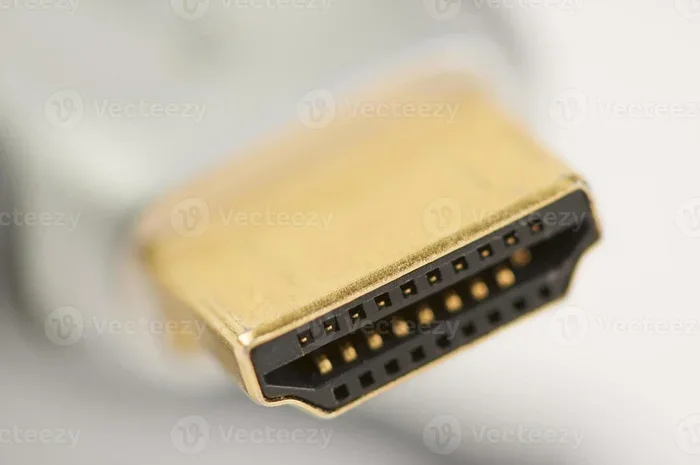
HDMI stands for High-Definition Multimedia Interface. It is the standard connector used to carry both audio and video signals from one device to another. Whether you are connecting a laptop to a TV or a gaming console to a monitor, HDMI handles it all through a single cable.
The HDMI standard has evolved a lot over the years. Early versions could only handle standard definition. Today, the latest cables support 8K resolution and incredibly high refresh rates. Each new version brought better bandwidth, which means more data can travel through the cable at once.
Why HDMI Compatibility Matters
Here is the core issue. A cable that came with a device five years ago might not support the features of a brand-new TV. Similarly, an older HDMI port on your laptop might not pass through a 4K signal from a newer source. HDMI compatibility depends on both the cable and the port working together.
Think of it like a water pipe. A small pipe can still carry water, but it cannot deliver the same volume as a large pipe. The same idea applies to HDMI data transfer. The cable and port must both support the same standard for full performance.
Types of HDMI Cables Explained
Not all HDMI cables are created equal. The HDMI Forum and HDMI Licensing define different cable categories. Each category supports specific features and performance levels. Let us look at the main types you will encounter.
Standard HDMI Cable
The Standard HDMI cable is the basic option. It supports resolutions up to 1080p, which is full HD. It handles standard audio formats and works fine for everyday tasks like watching regular TV or connecting a DVD player. These cables usually have a bandwidth of up to 4.95 Gbps.
Standard cables are fine for older devices. If you have a basic setup and do not need 4K or HDR, a Standard HDMI cable does the job. They are also the most affordable option.
High Speed HDMI Cable
High Speed HDMI cables are a big step up. They support resolutions up to 4K at 30Hz and can carry deeper color depths. These cables have a bandwidth of 10.2 Gbps. Most modern devices use High Speed cables, making them the most common choice for home entertainment setups.
If you have a 4K TV and want to watch streaming content, a High Speed HDMI cable is the minimum you need. It handles most gaming and movie watching without any issues.
Premium High Speed HDMI Cable
Premium High Speed HDMI cables go even further. They support 4K at 60Hz and can handle HDR content. With a bandwidth of 18 Gbps, these cables are designed for demanding applications like gaming consoles and Blu-ray players. Look for the Premium certification label on the packaging to be sure.
Ultra High Speed HDMI Cable
The Ultra High Speed HDMI cable is the current top-tier option. It supports 8K resolution at 60Hz and even 4K at 120Hz. With a massive bandwidth of 48 Gbps, these cables are built for the latest HDMI 2.1 features. If you have a gaming PC or a next-gen console, this is the cable you want.
Types of HDMI Ports and Versions
Just like cables, HDMI ports also come in different versions. The port version determines what signals it can process. Here is a breakdown of the main HDMI port versions you will find on devices today.
HDMI 1.4
HDMI 1.4 was a major update that introduced 4K support at 30Hz. It also added the ARC (Audio Return Channel) feature, which lets audio travel back through the cable to a soundbar or receiver. HDMI 1.4 ports are common on TVs and monitors from around 2009 to 2015.
HDMI 2.0
HDMI 2.0 brought 4K at 60Hz and increased bandwidth to 18 Gbps. This version made 4K gaming and smooth video playback possible on home TVs. Most mid-range TVs and monitors from the last several years use HDMI 2.0 ports.
HDMI 2.1
HDMI 2.1 is the latest standard. It supports 4K at 120Hz and 8K at 60Hz. The bandwidth jumps to 48 Gbps. HDMI 2.1 also introduced features like Variable Refresh Rate (VRR) and Auto Low Latency Mode (ALLM), which are game-changers for gamers. High-end TVs and monitors now come with HDMI 2.1 ports.
Do All HDMI Cables Work With All HDMI Ports?
This is the big question. The short answer is no, but it is more nuanced than that. Let us break it down clearly.
When They Work Together
A newer cable can work in an older port, but you will only get the performance the older port supports. For example, plugging an Ultra High Speed HDMI cable into an HDMI 1.4 port will not give you 8K. You will only get what HDMI 1.4 can deliver, which is 4K at 30Hz. The cable is capable of more, but the port limits it.
Similarly, an older cable in a newer port works, but again, you are limited by the older cable’s capabilities. A Standard HDMI cable in an HDMI 2.1 port will only carry 1080p signals. The port is ready for more, but the cable cannot handle it.
When They Do Not Work
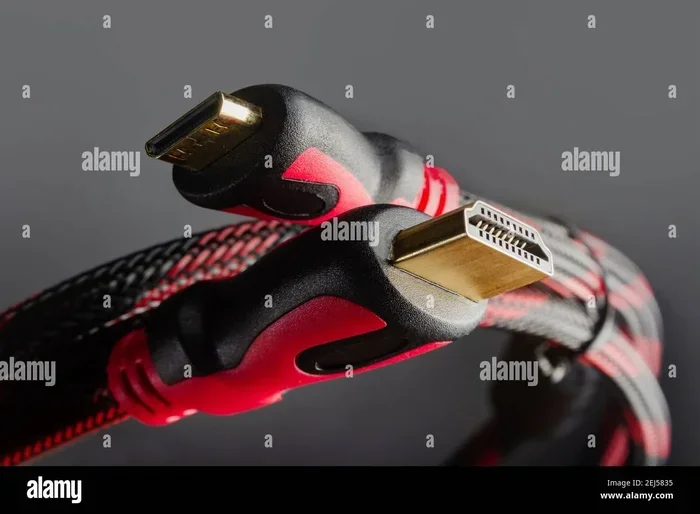
Sometimes, a cable and port simply do not work together at all. This usually happens when the cable is damaged or when the connector type does not match. For instance, a full-size HDMI plug will not fit into a micro HDMI port without an adapter. Also, some very old cables may not support the digital signal requirements of newer ports.
Another common issue is when a cable claims to support a certain resolution but does not actually meet the HDMI certification standards. Cheap, uncertified cables often fail to deliver what they promise. This is why buying from reputable brands matters.
The Role of HDMI Adapters
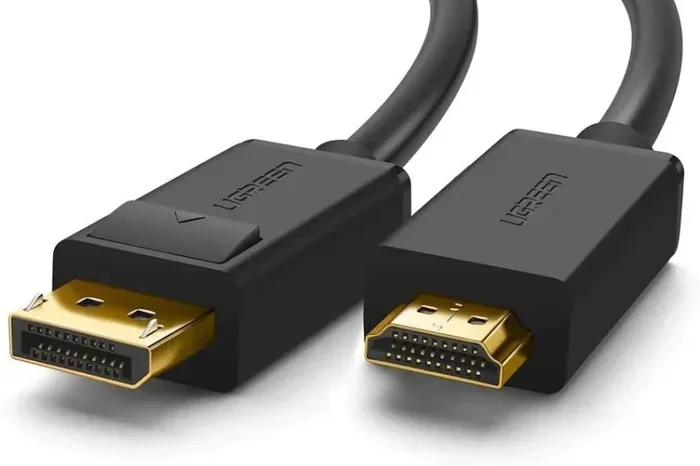
Adapters can bridge the gap between different connector types. You can use a full-size to micro HDMI adapter to connect devices with different ports. However, adapters can sometimes cause signal loss or reduce quality. If you need to use an adapter, go for a high-quality one to minimize problems.
It is also worth noting that wireless HDMI alternatives exist for those who want to avoid cables altogether. While wireless solutions can be convenient, they often introduce latency and lower quality compared to a direct wired connection. For the best experience, a proper HDMI cable connection is hard to beat.
Common HDMI Compatibility Issues
Even when you pick the right cable, problems can still happen. Here are some of the most common HDMI compatibility issues and how to fix them.
No Signal or Black Screen
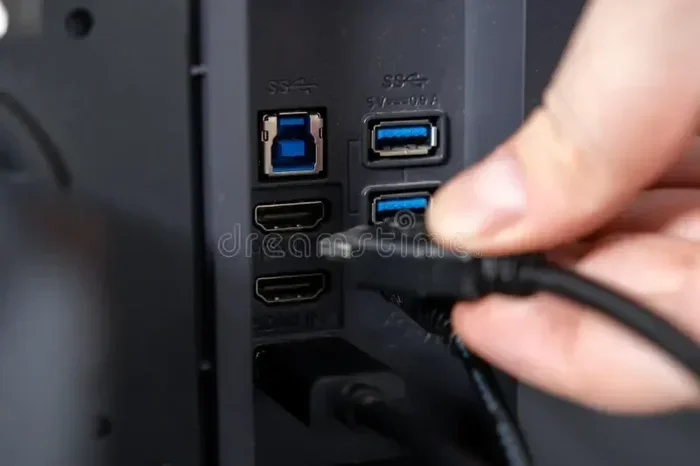
This is the most common issue. It usually means the cable is not making proper contact or the port is not sending a signal. Try unplugging the cable and plugging it back in firmly. If that does not work, try a different cable or a different port on your TV or monitor.
Flickering or Intermittent Signal
A flickering screen often points to a damaged cable or a loose connection. Check the cable ends for bent pins or dirt. A High Speed HDMI cable that is frayed or kinked can cause these issues. Replacing the cable usually solves the problem quickly.
Low Resolution Despite 4K Support
If your TV shows a 1080p image even though both your source and TV support 4K, the cable is likely the culprit. A Standard HDMI cable cannot carry a 4K signal. You need at least a High Speed or Premium High Speed cable for 4K content.
No Audio Through HDMI
Sometimes video works but audio does not come through the HDMI cable. This can happen when the audio settings on your source device are set to output through a different method. Check your device settings and make sure HDMI audio output is enabled.
How to Choose the Right HDMI Cable for Your Setup
Choosing the right cable is simpler than it seems. Follow these steps to make sure you get the right HDMI cable for your needs.
Step 1: Check Your Port Version
Look at your TV, monitor, or device manual to find out what HDMI version the port supports. This tells you the maximum resolution and features available. If your port is HDMI 2.1, you can take full advantage of the latest cables.
Step 2: Determine What You Need
Think about what you will be doing. Are you just watching regular TV? A Standard cable is fine. Are you gaming in 4K at 120Hz? You need an Ultra High Speed HDMI cable. Match your needs to the cable category.
Step 3: Buy Certified Cables
Always look for HDMI-certified cables. Certified cables meet the official standards for their category. They are more reliable and less likely to cause problems. Avoid ultra-cheap cables from unknown brands, as they often fail to meet the stated specifications.
Step 4: Consider Cable Length
Longer cables can sometimes lose signal quality. For runs over 15 feet, consider a cable with better shielding or an active HDMI signal booster. This keeps your picture and sound crisp over longer distances.
Quick Tips for HDMI Cable Shopping
- Always check the cable’s bandwidth rating before buying.
- Look for the HDMI Certification logo on the packaging.
- Brands like Belkin, Cable Matters, and Monoprice are reliable choices.
- Do not pay extra for “gold-plated” cables unless you specifically need corrosion resistance.
- Keep your old cables if they still work, but upgrade when you need new features.
Common Mistakes People Make With HDMI Cables
Avoid these common mistakes to get the best performance from your HDMI setup.
Assuming All Cables Are the Same
This is the biggest mistake. Not all cables support the same features. Buying a cheap cable for a 4K setup will leave you disappointed. Always match your cable to your device capabilities.
Ignoring Cable Length
Longer cables can degrade the signal. If you need a cable longer than 15 feet, invest in a quality longer cable or use a signal repeater. A weak signal leads to a poor viewing experience.
Using Damaged Cables
Bent connectors, frayed sleeves, and exposed wires are signs of a damaged cable. Using a damaged cable can cause intermittent issues and even damage your devices over time. Replace worn cables promptly.
Not Checking the HDMI Port Version
Buying an expensive Ultra High Speed cable will not help if your port only supports HDMI 1.4. Always check both the cable and the port before making a purchase.
Overlooking Firmware Updates
Sometimes the issue is not the cable at all. Device firmware updates can improve HDMI compatibility and fix handshake issues. Always keep your devices updated to the latest firmware.
Expert Insights on HDMI Compatibility
Industry experts agree that matching your HDMI cable to your port version is the single most important factor for a reliable setup. According to the HDMI Licensing Administrator, using a certified cable ensures you get the performance promised by your devices. They also recommend checking both ends of the connection, not just the cable itself.
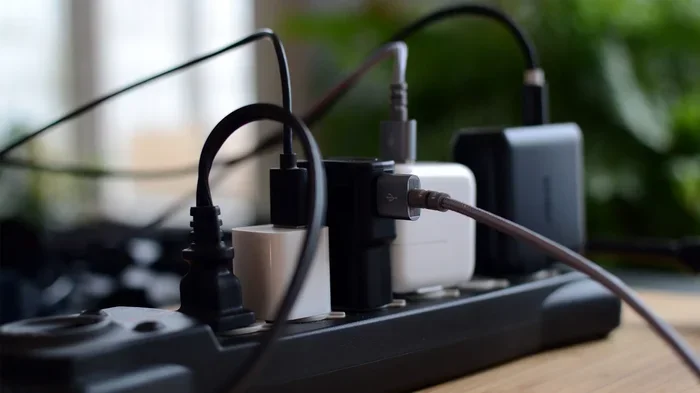
Another expert tip is to avoid running HDMI cables alongside power cables. Electrical interference from power cords can degrade the HDMI signal quality. Keep your HDMI cables separated from power cables by at least a few inches for the best results.
When in doubt, go one step up from what you think you need. If you are not sure whether you need a High Speed or Premium High Speed cable, the Premium option gives you a safety margin. Technology moves fast, and today’s premium cable is tomorrow’s standard.
Key Takeaways
- HDMI cables and ports come in different versions: Always check both before purchasing.
- Newer cables work in older ports but only deliver the older port’s capabilities.
- Older cables work in newer ports but limit you to the cable’s maximum performance.
- Ultra High Speed HDMI cables are needed for 8K and 4K at 120Hz.
- Certified cables from reputable brands are more reliable than cheap alternatives.
- Common problems like no signal or low resolution are often caused by cable-port mismatches.
- Matching cable and port versions ensures the best experience for your display setup.
Conclusion
The answer to whether all HDMI cables work with all HDMI ports is not a simple yes or no. The truth is, compatibility depends on both the cable and the port. A mismatched pair leads to poor performance or no signal at all. By understanding the different HDMI cable types and port versions, you can make smart buying decisions every time.
Always check the version of your HDMI port first. Then choose a cable that matches or exceeds that version. This simple step saves you from frustration and ensures you get the best picture and sound quality your devices can deliver. The right HDMI cable makes all the difference in your home entertainment or workspace setup.
Take a few minutes to understand your setup. Check your ports, review your cable options, and invest in quality connections. Your eyes and ears will thank you every time you turn on your TV, monitor, or gaming console. HDMI compatibility is not complicated once you know what to look for.
Frequently Asked Questions
Can I use any HDMI cable with any HDMI port?
In most cases, a physical connection will work, but you may not get the full performance you expect. An older cable in a newer port will only deliver what the cable supports. Likewise, a newer cable in an older port will be limited by the port’s capabilities. Always check both the cable and port versions for the best results.
What happens if I use the wrong HDMI cable?
Using the wrong HDMI cable can cause several issues. You might see no signal, a lower resolution than expected, flickering, or no audio. In some cases, the device and display will not communicate at all. This is why matching your cable to your port version is so important.
Do I need an Ultra High Speed HDMI cable for 4K?
For basic 4K at 30Hz, a High Speed HDMI cable is enough. But if you want 4K at 60Hz, HDR, or 4K at 120Hz for gaming, you need an Ultra High Speed HDMI cable. Check what features your devices support before buying.
Are expensive HDMI cables worth it?
Expensive does not always mean better, but certified cables from reputable brands are worth the investment. They meet official standards and are more reliable. Avoid the cheapest options, as they often fail to deliver the bandwidth they promise.
Can HDMI cables affect audio quality?
Yes, HDMI cables carry both audio and video. A good quality cable ensures both are transmitted without loss. If you have audio issues, the cable might be the cause. Try a certified High Speed or Premium High Speed cable to improve audio performance.
How do I know what HDMI version my port is?
Check your device manual or look for the HDMI version number in the device settings under display or input information. You can also visit the manufacturer’s website and search for your device model. Knowing your port version helps you choose the right cable.