Can You Switch From Wi Fi To Ethernet For Better Speed
Yes, you can switch from Wi-Fi to Ethernet for better speed, and the difference can be dramatic. A wired connection delivers faster, more stable internet with lower latency compared to wireless signals. Whether you are gaming, streaming, or working from home, switching to Ethernet can transform your online experience. This guide covers everything you need to know, from setup steps to troubleshooting tips.
Have you ever noticed your Wi-Fi signal dropping at the worst possible moment? Maybe you are in the middle of a competitive game, or your video call keeps freezing. It is frustrating. Many people wonder if there is a better way to connect to the internet. The answer is simple: you can switch from Wi-Fi to Ethernet for better speed and reliability.
A wired connection has been around for decades, but it is still one of the best ways to get a fast, stable internet connection. In this article, we will walk you through everything you need to know about making the switch. We will cover the differences between Wi-Fi and Ethernet, the steps to switch, and the real-world benefits you can expect. Let us dive in.
Key Takeaways
- Faster Speeds: Ethernet connections consistently outperform Wi-Fi in both download and upload speeds.
- Lower Latency: A wired setup reduces ping, making it ideal for gaming and video calls.
- Easy Setup: Switching from Wi-Fi to Ethernet is simple and requires minimal equipment.
- Better Stability: Wired connections are not affected by wireless interference or distance from the router.
- Worth the Effort: Even a basic Ethernet cable can noticeably improve your network performance.
📑 Table of Contents
- What Is the Difference Between Wi-Fi and Ethernet?
- Can You Switch From Wi-Fi to Ethernet for Better Speed?
- How to Switch From Wi-Fi to Ethernet on Your Device
- Benefits of Switching to a Wired Connection
- When Should You Stick With Wi-Fi?
- Common Mistakes People Make When Switching to Ethernet
- Quick Tips for the Best Ethernet Experience
- Expert Insights on Wired vs Wireless Connections
- Key Takeaways
- Conclusion
What Is the Difference Between Wi-Fi and Ethernet?
Before we talk about switching, it helps to understand what sets these two connection types apart. Wi-Fi uses radio waves to send data between your router and your device. Ethernet uses a physical cable to do the same job. Both connect you to the internet, but they work in very different ways.
How Wi-Fi Works
Wi-Fi sends data through the air using radio frequencies. Your router broadcasts a signal, and your device picks it up. This is convenient because you can move around freely. However, Wi-Fi signals can weaken over distance. Walls, furniture, and even other electronic devices can interfere with the signal.
Wi-Fi speeds vary depending on your router model, your distance from it, and the number of devices connected. In a perfect setup, modern Wi-Fi can deliver very fast speeds. But in real-world conditions, the connection often falls short of its potential.
How Ethernet Works
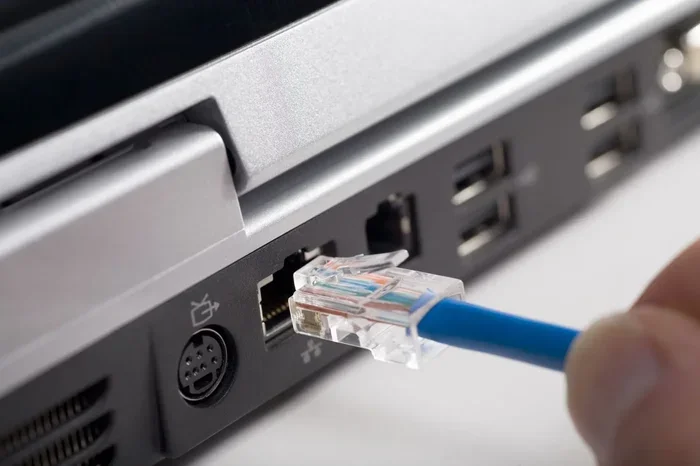
Ethernet uses a physical cable, usually called an RJ45 cable, to connect your device directly to the router or modem. This creates a direct path for data to travel. Because there is no air involved, the signal is stronger and more consistent. Ethernet cables come in different categories, such as Cat5e, Cat6, and Cat7, each offering different speed capabilities.
A Cat6 Ethernet cable can handle speeds up to 10 Gbps over short distances. That is significantly faster than most Wi-Fi connections. The physical connection also means there is almost no latency, which is the time it takes for data to travel from your device to the server and back.
Can You Switch From Wi-Fi to Ethernet for Better Speed?
The short answer is yes. Switching from Wi-Fi to Ethernet can dramatically improve your internet speed and stability. But the exact improvement depends on several factors, including your current Wi-Fi setup, the Ethernet cable you use, and your internet plan.
Speed Comparison: Wi-Fi vs Ethernet
In most real-world tests, Ethernet connections deliver faster speeds than Wi-Fi. Here is a general comparison:
- Wi-Fi (802.11ac): Typical speeds range from 200 Mbps to 1 Gbps, depending on distance and interference.
- Wi-Fi 6: Can reach up to 1.2 Gbps under ideal conditions.
- Cat5e Ethernet: Supports up to 1 Gbps consistently.
- Cat6 Ethernet: Supports up to 10 Gbps over short distances (up to 55 meters).
- Cat7 Ethernet: Supports up to 10 Gbps over longer distances.
As you can see, even a basic Ethernet cable can match or exceed the best Wi-Fi speeds. And the higher the cable category, the greater the potential speed. But speed is not the only advantage.
Latency and Ping Differences
Latency, often measured as ping, is the time it takes for data to travel from your device to a server and back. Wi-Fi typically adds 1 to 5 milliseconds of latency compared to a wired connection. For most browsing and streaming, this difference is unnoticeable. But for online gaming or live video streaming, even a small delay can matter.
When you switch from Wi-Fi to Ethernet, you will often see your ping drop by several milliseconds. This can make a real difference in fast-paced games where every millisecond counts. Competitive gamers almost always prefer a wired connection for this reason.
Stability and Reliability
One of the biggest advantages of Ethernet is stability. Wi-Fi signals can fluctuate based on environmental factors. A neighbor might start using their microwave, and suddenly your connection drops. A new device connecting to your network can slow things down. With Ethernet, none of these issues apply.
A wired connection provides a consistent data stream. You will not experience random speed drops or disconnections. This makes Ethernet ideal for work-from-home setups, where a stable connection is essential for video conferences and file uploads.
How to Switch From Wi-Fi to Ethernet on Your Device
Switching from Wi-Fi to Ethernet is easier than most people think. The process is slightly different depending on your device, but the basic steps are similar. Let us walk through the setup for common devices.
Switching on a Desktop Computer
Desktop computers are the easiest devices to switch to Ethernet. Most desktops come with a built-in Ethernet port on the motherboard. Here is what you need to do:
- Plug one end of your Ethernet cable into the port on your computer.
- Plug the other end into an available port on your router.
- Wait a few seconds for the connection to establish.
- You should see a small icon on your taskbar indicating a wired connection.
That is it. Your computer will automatically prioritize the Ethernet connection over Wi-Fi. You can go ahead and turn off your Wi-Fi if you want to save a little battery power, though desktops do not rely on battery anyway.
Switching on a Laptop
Many laptops still have an Ethernet port, but some newer models do not. If your laptop has a built-in port, the process is the same as for a desktop. Just plug in the cable and wait for the connection to activate.
If your laptop does not have an Ethernet port, you have options:
- USB Ethernet Adapter: A small adapter that plugs into your USB port and provides an Ethernet jack. These are affordable and widely available.
- USB-C to Ethernet Adapter: For newer laptops with only USB-C ports, this adapter does the same job.
- Thunderbolt to Ethernet: Some high-end laptops support Thunderbolt docks that include Ethernet ports.
Once you have the right adapter, the setup process is the same. Plug it in, connect the cable, and your wired connection is active.
Switching on a Smart TV or Gaming Console
Smart TVs and gaming consoles like the PlayStation and Xbox also benefit from Ethernet connections. Most of these devices have a built-in Ethernet port on the back. Simply run a cable from your router to the device, and you are good to go.
For smart TVs placed far from the router, you might need a longer cable. Ethernet cables can run up to 100 meters without signal loss. If running a cable across the room is not practical, consider using a powerline adapter. This device uses your home’s electrical wiring to carry the Ethernet signal to another room.
Benefits of Switching to a Wired Connection
Now that you know how to make the switch, let us talk about why you should. The benefits of a wired connection go beyond just speed. Here are the key advantages you will notice.
1. Consistently Faster Download and Upload Speeds
Wi-Fi speeds can vary throughout the day. When many devices are connected, your speed drops. Ethernet bypasses this problem entirely. You get the full speed of your internet plan, every time. This is especially important if you regularly download large files, upload videos, or back up data to the cloud.
2. Improved Online Gaming Experience
Online gamers know how frustrating lag can be. A wired connection reduces lag significantly. Your inputs register faster, and you experience fewer disconnections. If you play competitive games, switching to Ethernet can give you a real edge over players on Wi-Fi.
3. Better Video Call Quality
Remote work has made video calls a daily part of life. A Wi-Fi connection can cause your video to freeze or your audio to cut out. Ethernet provides a smooth, uninterrupted connection. Your colleagues will notice the difference, and you will avoid those awkward moments of frozen screens.
4. Reduced Interference
Wi-Fi signals share the airwaves with many other devices. Microwaves, baby monitors, Bluetooth devices, and neighboring networks can all cause interference. Ethernet is immune to all of these. Your connection stays clean and strong no matter what else is happening in your home.
5. Enhanced Security
Wi-Fi signals can be picked up by devices outside your home. Even with strong encryption, there is always a small risk of unauthorized access. An Ethernet connection requires physical access to your network. This makes it inherently more secure than wireless connections.
When Should You Stick With Wi-Fi?
Ethernet is great, but it is not always the best choice. There are situations where Wi-Fi makes more sense. Let us look at when you might want to keep your wireless connection.
When Mobility Matters
If you use your phone or tablet while moving around the house, Wi-Fi is the obvious choice. You cannot very well drag an Ethernet cable behind you as you walk from room to room. Wi-Fi gives you the freedom to stay connected anywhere in your home.
When You Have Multiple Devices
Most homes have many connected devices. Smart speakers, security cameras, and smart home gadgets all rely on Wi-Fi. Running Ethernet cables to every single device is impractical. In these cases, Wi-Fi is the right solution for most devices, and you can reserve Ethernet for the ones that need the best performance.
When Your Router Supports Wi-Fi 6 or Wi-Fi 7
Modern Wi-Fi standards like Wi-Fi 6 and Wi-Fi 7 have closed the speed gap with Ethernet. If you have a high-end router and are not experiencing speed issues, Wi-Fi might be perfectly fine for your needs. The convenience of wireless connectivity still holds strong value for many users.
When Running Cables Is Not Feasible
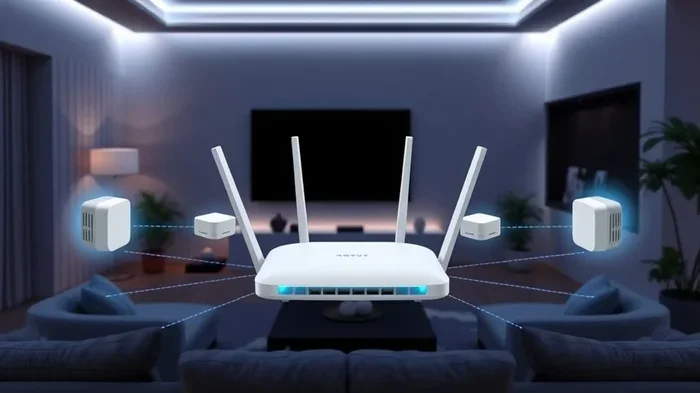
Some homes have thick walls, long distances, or layouts that make running Ethernet cables difficult. In these cases, a powerline adapter or a mesh Wi-Fi system might be a better solution than trying to wire the entire house.
Common Mistakes People Make When Switching to Ethernet
Switching to Ethernet is straightforward, but people often make a few common mistakes. Avoiding these pitfalls will help you get the most out of your wired connection.
Using the Wrong Ethernet Cable
Not all Ethernet cables are created equal. A Cat5 cable is outdated and can only handle 100 Mbps. If your internet plan offers faster speeds, you need at least a Cat5e or Cat6 cable. Always check the cable specifications before purchasing. Using the wrong cable can bottleneck your speed and defeat the purpose of switching.
Ignoring the Router’s Ethernet Ports
Some routers have multiple Ethernet ports, but not all of them support the same speeds. Older routers may have ports that only support 100 Mbps instead of 1 Gbps. Check your router’s specifications to make sure you are getting the full speed of your wired connection.
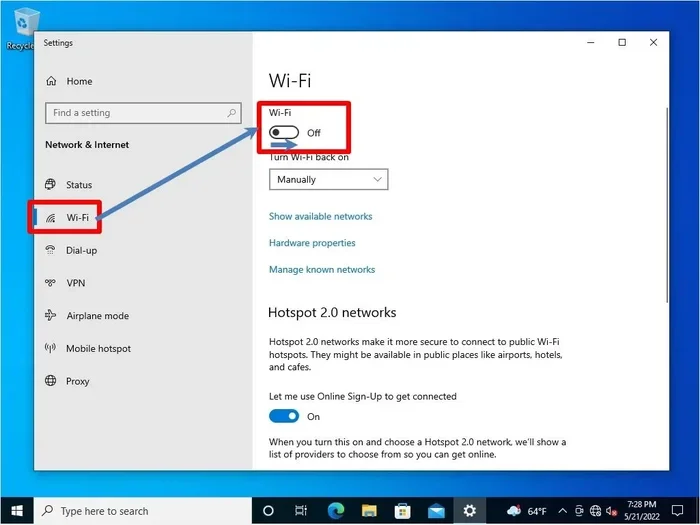
Forgetting to Disable Wi-Fi
When you plug in an Ethernet cable, most devices will automatically switch to the wired connection. But some devices may keep both connections active, which can cause routing issues. If you notice any strange behavior after switching, try turning off your Wi-Fi temporarily to see if it helps.
Not Testing Your Speed After the Switch
Many people switch to Ethernet and assume everything is better without actually checking. Always run a speed test after making the switch. Use a tool like Speedtest.net to compare your wired and wireless speeds. This will help you confirm that the switch is actually improving your connection.
Quick Tips for the Best Ethernet Experience
Want to get the most out of your wired connection? Here are some quick tips to keep in mind:
- Use the shortest cable needed: Longer cables can cause slight signal loss. Keep your cable as short as practical.
- Buy quality cables: Cheap cables may not support the speeds advertised. Look for reputable brands.
- Keep cables away from power cords: Running Ethernet cables parallel to power cords can cause interference.
- Update your network drivers: Outdated drivers can prevent your device from getting the full benefit of a wired connection.
- Use a surge protector: Ethernet switches and routers can be damaged by power surges. A surge protector adds a layer of protection.
Expert Insights on Wired vs Wireless Connections
Network professionals have long debated the merits of wired versus wireless connections. The consensus is clear: for pure performance, Ethernet wins every time. But Wi-Fi has its place in modern homes and offices.
The best approach, according to many experts, is a hybrid setup. Use Ethernet for devices that need the most speed and stability, such as desktop computers, gaming consoles, and smart TVs. Use Wi-Fi for mobile devices and smart home gadgets that prioritize convenience over raw performance.
This hybrid approach gives you the best of both worlds. You get the speed and reliability of a wired connection where it matters most, and the convenience of Wi-Fi for everything else.
Key Takeaways
- Faster Speeds: Ethernet connections consistently deliver faster and more stable speeds than Wi-Fi.
- Lower Latency: A wired setup reduces ping, making it ideal for gaming and video calls.
- Easy Setup: Switching from Wi-Fi to Ethernet requires just a cable and a port on your device.
- Better Stability: Wired connections are not affected by wireless interference or distance from the router.
- Enhanced Security: Ethernet requires physical access, making it more secure than wireless signals.
- Hybrid Approach: Use Ethernet for critical devices and Wi-Fi for mobile devices for the best overall experience.
Conclusion
So, can you switch from Wi-Fi to Ethernet for better speed? Absolutely. The process is simple, the equipment is affordable, and the benefits are significant. Whether you are a gamer, a remote worker, or just someone who values a fast and reliable internet connection, making the switch to Ethernet is one of the best upgrades you can make.
Start with one device and see the difference for yourself. You will likely notice faster speeds, lower latency, and a more stable connection right away. From there, you can decide if you want to expand your wired setup to other devices. The internet is fast, and your connection should be too. Make the switch and experience the difference a wired connection can make.
Frequently Asked Questions
Is switching from Wi-Fi to Ethernet really worth it?
Yes, for most users, switching to Ethernet provides noticeably faster speeds, lower latency, and a more stable connection. If you game, stream, or work from home, the improvement is well worth the small effort of plugging in a cable.
Do I need any special equipment to switch from Wi-Fi to Ethernet?
You need an Ethernet cable and a port on your device or router. If your laptop lacks an Ethernet port, a USB Ethernet adapter is all you need. These adapters are inexpensive and easy to find online or at any electronics store.
Will switching to Ethernet slow down other devices on my network?
No, switching one device to Ethernet will not slow down other devices. In fact, it can improve overall network performance by reducing the load on your Wi-Fi signal. Other devices will continue to connect wirelessly as before.
What type of Ethernet cable should I use?
For most home users, a Cat5e or Cat6 Ethernet cable is perfect. Cat5e supports speeds up to 1 Gbps, while Cat6 can handle up to 10 Gbps over short distances. Avoid older Cat5 cables as they are limited to 100 Mbps.
Can I use both Wi-Fi and Ethernet at the same time?
Yes, most devices can use both connections simultaneously. However, the device will typically prioritize the Ethernet connection. If you want to use Wi-Fi for some devices and Ethernet for others, a hybrid setup works great and is recommended by network experts.
How much faster is Ethernet compared to Wi-Fi?
The speed difference varies, but Ethernet is typically 20 to 50 percent faster than Wi-Fi in real-world conditions. You will also experience lower latency and fewer speed fluctuations, making Ethernet the superior choice for performance-critical tasks.