Do I Plug Eero Into Router Or Modem And Get Online
Do I Plug Eero Into Router Or Modem? The answer depends on your current network setup. This guide walks you through the correct way to connect your Eero device to get online fast. You will learn the difference between modem and router connections, plus step-by-step setup tips for a smooth Eero setup experience.
If you just got an Eero device, you might be staring at the box and wondering what to do next. One of the most common questions people ask is, do I plug Eero into router or modem? The answer is simpler than you think, but it does depend on how your home network is currently set up.
Eero is a popular mesh WiFi system made by Amazon. It replaces your old router and gives you strong, steady WiFi coverage in every room. But before you can enjoy that fast, reliable connection, you need to know where to plug it in. Getting this step wrong can lead to slow speeds, dropped signals, and a lot of frustration.
This guide will walk you through everything you need to know. We will cover the difference between a modem and a router, show you exactly where to plug in your Eero gateway, and give you a step-by-step setup plan. By the end, you will feel confident about your Eero setup and ready to get online.
Key Takeaways
- Plug Eero into the modem directly for the simplest and most reliable mesh WiFi system setup.
- Using Eero behind an existing router is possible but requires bridge mode to avoid double NAT issues.
- The Eero app makes the entire network configuration process quick and easy for beginners.
- Eero placement matters a lot for strong WiFi coverage throughout your home.
- Common mistakes like using the wrong cable or skipping firmware updates can cause connection problems.
- An Ethernet cable is the best way to connect your primary Eero node to the modem for stable speeds.
- Expert insights show that a proper broadband connection setup can boost your internet speed significantly.
📑 Table of Contents
What Is Eero and Why Does It Matter?
Eero is a mesh WiFi system designed to replace your traditional router. Instead of one box sending out a signal, Eero uses multiple mesh network nodes that work together. Each node, called a beacon or satellite, spreads the WiFi signal further. This means no more dead zones in your house.
The Eero app is what makes this whole thing so easy. You download it on your phone, follow the on-screen steps, and the app handles all the network configuration for you. There is no need to be a tech expert. The Eero LED light on each unit tells you if everything is working correctly. A solid white light means good connection. A red light means there is a problem you need to fix.
People choose Eero because it is simple, fast, and reliable. It works great with any broadband connection from your internet service provider. Whether you have Eero Pro, Eero Plus, or the basic Eero model, the setup process is the same. The key question is always about where to plug it in.
Do I Plug Eero Into Router Or Modem?
This is the big question, and the answer really comes down to your home setup. In most cases, you should plug your Eero device directly into the modem. But there are situations where you might plug it into a router first. Let us break down each option so you know exactly what to do.
Plugging Eero Directly Into the Modem
This is the easiest and most common way to set up Eero. You take an Ethernet cable, plug one end into the modem, and plug the other end into the back of your primary Eero node. That is it. Your Eero unit now talks directly to the modem and creates your new mesh WiFi network.
When you plug Eero directly into the modem, your Eero unit acts as both the router and the gateway. It handles all the network configuration tasks on its own. This setup gives you the best internet speed because there is nothing in between slowing things down.
Here is why this works so well:
- The modem brings the internet signal into your home from your ISP (Internet Service Provider).
- The Eero unit takes that signal and turns it into a strong WiFi network.
- There is no extra device creating a bottleneck or causing conflicts.
- Your Eero app can set up the network from scratch without any interference.
If you are renting a modem from your internet provider, this direct connection is almost always the way to go. Just make sure your modem is compatible with Eero before you start.
Connecting Eero Behind an Existing Router
Now, what if you already have a router and you do not want to get rid of it? Maybe you have a really good router that you do not want to replace. In that case, you can plug Eero behind your existing router. But there is a catch.
When you connect Eero to another router, you need to put the old router into bridge mode. Bridge mode turns off the router part of the old device. It stops the old router from doing its own network configuration. Without bridge mode, you will run into something called double NAT, which can cause all kinds of connection problems.
Here is how double NAT happens:
- Your modem gives you one public IP address.
- Your old router tries to create its own private network behind that.
- Then Eero tries to create another private network behind the old router.
- The result is a mess where devices cannot connect properly to the internet.
So if you want to plug Eero behind your existing router, make sure you enable bridge mode first. This is usually found in the old router settings through a web browser. It is a simple step, but skipping it is one of the biggest common mistakes people make.
Using Eero as a Gateway Device
When you plug Eero directly into the modem, the Eero unit becomes your Eero gateway. A gateway is the device that connects your home network to the outside world. It handles both the modem and router functions in one box.
Using Eero as a gateway has some great benefits:
- Simplified setup with just one device to manage.
- Better performance because there are fewer devices in the signal path.
- Easier troubleshooting since there is only one point of contact for your broadband connection.
- Built-in security features that come with the Eero system.
If you are using an Eero extender or additional Eero beacon units, they all connect wirelessly back to the primary Eero gateway. The gateway is the heart of your mesh WiFi system. It is the device that plugs directly into the modem and does the heavy lifting.
Modem vs Router: What Is the Difference?
A lot of people confuse modems and routers, and that is totally fine. They do different jobs, and understanding the difference helps you know exactly where to plug in your Eero.
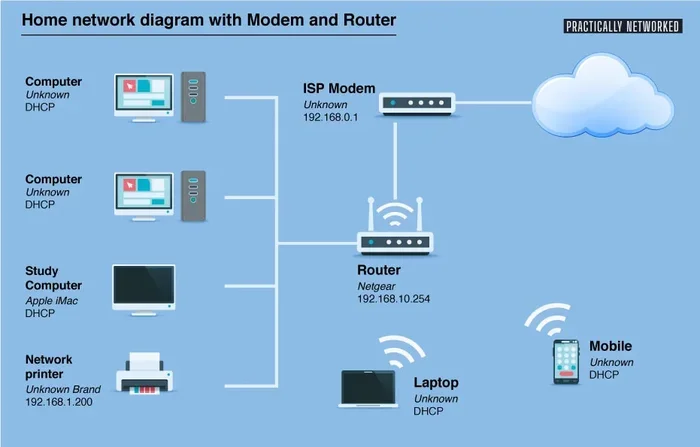
A modem is the device that brings the internet into your home. It connects to your ISP through a phone line, cable, or fiber connection. The modem takes that signal and turns it into data your devices can use. Think of the modem as the door that lets the internet into your house.
A router is the device that takes that internet data and shares it with your devices. It creates a WiFi network and sends the signal around your home. Think of the router as the person who hands out keys to everyone in the house so they can get through the door.
Some devices combine both functions. These are called gateway devices. When you plug Eero directly into the modem, your Eero unit becomes the new gateway. It replaces your old router entirely. If you have a separate modem and router, you will want to remove the old router from the equation or put it in bridge mode.
Here is a quick comparison to make things clear:
| Device | What It Does | Where Eero Plugs In |
|---|---|---|
| Modem | Brings internet into your home from ISP | Plug Eero directly here |
| Router | Shares internet with your devices via WiFi | Plug Eero here only if in bridge mode |
| Gateway (Combo) | Does both modem and router jobs | Plug Eero here and let Eero take over |
Understanding this difference is key to getting your Eero setup right the first time. If you are unsure which device you have, check with your internet provider. They can tell you exactly what equipment you are using.
Step-by-Step Setup Guide
Now that you know where to plug in your Eero, let us walk through the actual setup process. This is simple and should only take about 10 to 15 minutes.
What You Need Before You Start
Before you begin, make sure you have everything ready. Here is a quick checklist:
- Your Eero primary unit (the main Eero node).
- An Ethernet cable (usually included in the box).
- Your modem or ISP gateway device.
- A smartphone or tablet with the Eero app downloaded.
- A power outlet near your modem.
Make sure your modem is already plugged in and powered on. Wait about a minute for it to fully start up. You want the modem lights to be steady before you connect anything to it.
Connecting Eero to Your Modem
Here is the actual plugging-in process:
- Take the Ethernet cable and plug one end into the modem.
- Plug the other end into the back of your primary Eero node. Look for the port labeled “Internet” or “WAN.”
- Plug the Eero power adapter into the Eero unit.
- Plug the power adapter into a wall outlet.
- Wait for the Eero LED light to turn on. It will usually pulse white while starting up.
Once the light becomes solid white, your Eero is ready to be set up through the app. This whole process takes just a few minutes and is much easier than most people expect.
Setting Up Through the Eero App
Now it is time to configure your network. Open the Eero app on your phone. Follow these steps:
- Create an Eero account or sign in if you already have one.
- The app will detect your primary Eero node automatically.
- Follow the on-screen prompts to name your network and set a password.
- Choose your network configuration preferences, like creating a guest network.
- If you have additional mesh network nodes, the app will guide you through adding them one by one.
The app is very intuitive and makes the whole process feel effortless. You do not need any technical knowledge to get everything running. Just follow the prompts and you will be online in no time.
Common Mistakes When Plugging In Eero
Even though the setup is simple, people still make mistakes. Here are the most common ones to avoid:
Plugging Eero into the wrong port. Always use the Internet or WAN port on the Eero unit. Using a regular LAN port will not work correctly and will cause connection issues.
Skipping bridge mode on an old router. If you are keeping your old router, you must enable bridge mode. Otherwise, you will face double NAT problems that block certain apps and devices from connecting properly.
Using a low-quality Ethernet cable. A cheap or damaged cable can slow down your connection or cause intermittent dropouts. Use a good quality Cat5e or Cat6 cable for the best results.
Placing the primary Eero node in a bad spot. Eero placement matters a lot. Do not put your primary node in a closet or behind a TV. Keep it in an open area near the modem for the best WiFi coverage.
Forgetting to update firmware. After setup, check the Eero app for any firmware updates. These updates often include important bug fixes and performance improvements for your mesh WiFi system.
Not restarting the modem first. Always power cycle your modem before connecting Eero. A fresh start ensures the modem is ready to hand off a clean signal to your Eero unit.
Expert Insight
Networking experts agree that plugging Eero directly into the modem is the gold standard for home setups. It removes unnecessary complexity and gives you the fastest possible internet speed. If you have been struggling with slow WiFi or dead zones, a direct modem-to-Eero connection is often the fix you need.
Expert Tips for the Best Eero Performance
Once your Eero is plugged in and working, there are a few things you can do to get the most out of your mesh WiFi system.
Place your primary Eero node centrally. The best WiFi coverage comes from a central location. Put your main Eero unit in the middle of your home if possible. This lets the signal spread evenly to all mesh network nodes.
Keep your Eero units in the open. Walls, furniture, and appliances can block WiFi signals. Do not hide your Eero units behind bookshelves or inside cabinets. Open spaces let the signal travel freely and reach every corner of your home.
Add Eero beacons for larger homes. If you have a big house or one with thick walls, a single Eero unit might not be enough. Add Eero beacon units in rooms where the signal is weak. These extend your WiFi coverage without any extra wiring.
Use the Eero app to monitor your network. The app shows you which devices are connected, how fast your speeds are, and if there are any issues. You can also set up Eero parental controls and pause the internet for specific devices.
Restart your Eero system regularly. Just like any tech device, Eero units benefit from occasional restarts. The app makes this easy with a one-tap restart feature. A simple reboot can fix minor glitches and keep things running smoothly.
Check your broadband speed regularly. Even with a great mesh WiFi system, your internet speed depends on what your ISP is providing. Use a speed test tool to make sure you are getting the speeds you are paying for. If your speeds are slow, the issue might be with your modem or ISP, not your Eero setup.
Quick Tips
- Always use the Internet/WAN port when connecting Eero to your modem.
- Keep your Eero LED light on solid white for a healthy connection.
- Update your Eero firmware through the app for the best performance.
- Use a short, high-quality Ethernet cable between the modem and Eero.
- Place your primary node in an open, central location for the best WiFi coverage.
Frequently Asked Questions
Can I plug Eero into a router instead of a modem?
Yes, you can plug Eero into a router, but only if that router is in bridge mode. Without bridge mode, you will get double NAT issues that can cause connection problems. The best setup is to plug Eero directly into the modem for a clean, simple connection.
Do I need a special modem for Eero?
No, you do not need a special modem. Any standard modem from your internet service provider will work with Eero. Just make sure your modem is compatible with your ISP’s current network type, whether that is cable, DSL, or fiber.
Can I use Eero with my ISP-provided gateway?
Yes, you can use Eero with an ISP gateway. However, you will need to put the ISP gateway into bridge mode first. This allows the Eero unit to take over the routing functions and give you better WiFi coverage and performance.
How do I know if my Eero is connected correctly?
Check the Eero LED light on your primary unit. A solid white light means everything is connected and working properly. A pulsing white light means it is still starting up. A red light means there is a problem, and you should check your connections or restart the unit.
Can I add more Eero units after the initial setup?
Absolutely. One of the best things about the Eero mesh WiFi system is that you can add more units anytime. Just open the Eero app, tap add a new Eero, and follow the prompts. Each new node extends your WiFi coverage further.
Will plugging Eero into the modem slow down my internet speed?
No, plugging Eero directly into the modem will not slow down your speed. In fact, it often improves it because there are fewer devices in the signal path. Eero handles all the routing and gives you the full speed of your broadband connection.
Conclusion
So, do I plug Eero into router or modem? The answer is clear: plug it directly into the modem for the best results. This gives you a clean, simple, and fast connection that lets your mesh WiFi system do its job. You get strong WiFi coverage, easy setup through the Eero app, and reliable internet speed throughout your home.
Remember the key steps: connect your Ethernet cable from the modem to the Internet port on your primary Eero node, power it up, and use the app to finish the network configuration. Avoid common mistakes like skipping bridge mode on an old router or using a bad cable. With the right setup, your Eero system will deliver the fast, steady connection you deserve.
Now that you know exactly how to get started, go ahead and set up your Eero. You will wonder how you ever lived without a mesh WiFi system that just works. Your Eero setup is the foundation of your home network, and getting it right from the beginning makes everything else easier.