Advantages and Disadvantages of Secondary Storage Devices
Secondary storage devices are essential for keeping your data safe and accessible when the power is off. They come in many forms, from traditional hard drives to modern SSDs and cloud solutions. This guide covers the real pros and cons of each type so you can choose wisely. Understanding secondary storage helps you protect your files and boost your system’s performance.
Every computer needs a place to store data beyond its short-term memory. That is where secondary storage comes in. Whether you are saving family photos, work documents, or massive video files, you rely on secondary storage devices every single day.
But not all storage is created equal. Some devices are fast but expensive. Others hold tons of data but run slowly. In this article, we will break down the advantages and disadvantages of secondary storage in simple terms. You will learn how each type works, what makes them different, and which one fits your needs best.
By the end, you will have a clear picture of storage devices and how they impact your daily computing experience. Let us dive in.
Key Takeaways
- Non-Volatile Memory: Secondary storage keeps your data safe even when the device is turned off, unlike primary storage (RAM).
- Multiple Types Available: From HDDs and SSDs to USB drives and optical discs, there is a storage option for every need and budget.
- Speed Varies Widely: SSDs offer much faster read and write speeds compared to traditional magnetic hard drives.
- Cost vs. Capacity Trade-Off: Higher storage capacity often means lower cost per gigabyte, especially with HDDs and tape drives.
- Portability Matters: External and removable storage options make it easy to carry your data anywhere.
- Durability Differs: Some storage media are more prone to physical damage than others, so choose wisely based on your use case.
- Future-Proofing: Understanding the strengths and weaknesses of each type helps you plan for long-term data storage needs.
📑 Table of Contents
- What Is Secondary Storage?
- Types of Secondary Storage Devices
- Advantages of Secondary Storage Devices
- Disadvantages of Secondary Storage Devices
- Comparing Secondary Storage Types
- How to Choose the Right Secondary Storage
- Common Mistakes to Avoid
- Expert Insights on Secondary Storage
- Key Takeaways
- Conclusion
What Is Secondary Storage?
Understanding the Basics
Secondary storage refers to any non-volatile memory that holds data permanently. Unlike RAM, which wipes clean when you turn off your computer, secondary storage keeps your files intact. This is the key difference that makes it so valuable.
Think of it this way. Your computer’s primary memory (RAM) is like a workbench. It holds the tools you are using right now. Secondary storage is like a filing cabinet. It stores everything for the long haul.
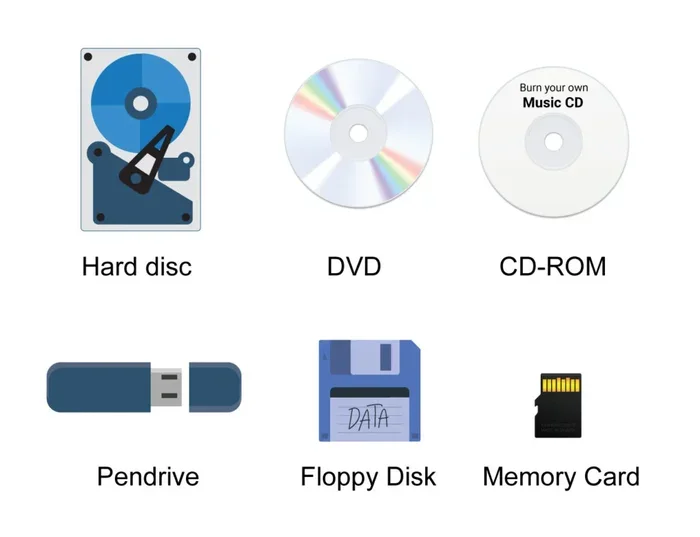
Common examples include hard disk drives, solid state drives, USB flash drives, optical discs, and tape cartridges. Each type has its own strengths. Some excel at speed. Others shine when it comes to raw capacity.
Why Secondary Storage Matters
Without secondary storage, you would lose every file the moment you shut down your PC. Imagine rebuilding your entire digital life from scratch every time you restarted your computer. That is exactly what would happen without it.
Data retention is the core benefit. Whether it is a single document or a terabyte of family videos, secondary storage ensures your data survives power cycles, crashes, and restarts. It also allows you to back up files, transfer them between devices, and archive old projects you still need.
Types of Secondary Storage Devices
Hard Disk Drives (HDDs)
HDDs have been around for decades. They use spinning magnetic disks to read and write data. Because of this design, they offer large capacities at low prices. A typical HDD can store anywhere from 500 gigabytes to 20 terabytes or more.
They are reliable for long-term archiving. However, the moving parts inside make them slower and more fragile than newer alternatives. If you drop an HDD while it is running, you risk losing data forever.
Solid State Drives (SSDs)
SSDs use flash memory with no moving parts. This makes them significantly faster than HDDs. Boot times shrink. File transfers happen in seconds. Applications load almost instantly.
The trade-off? Solid state drives cost more per gigabyte. They also have a limited number of write cycles, though for most users, this is not a practical concern. SSDs are the go-to choice for anyone who values speed.
USB Flash Drives
These small, portable devices plug right into a USB port. They are perfect for quick file transfers between computers. You can carry a USB drive in your pocket and take your files anywhere.
However, they are easy to lose. Their storage capacity is also limited compared to HDDs and SSDs. They work best for small to medium files like documents and presentations.
Optical Discs (CDs, DVDs, Blu-Ray)
Optical discs use lasers to read and write data. CDs hold about 700 megabytes. DVDs can store up to 4.7 gigabytes. Blu-ray discs push that to 25 gigabytes or more.
They are cheap and widely compatible. But their capacity is small by today’s standards. They are also slow to access. Many modern computers no longer include disc drives at all.
Magnetic Tape Storage
Tape storage might sound old-school, but it is still widely used in enterprise environments. It offers massive capacity at a very low cost per gigabyte. A single tape cartridge can hold several terabytes of data.
The downside is speed. Tape drives have slow read and write times. They are not practical for everyday use. They are best suited for backup and archival purposes where speed does not matter as much.
Advantages of Secondary Storage Devices
1. Permanent Data Storage
The biggest advantage of secondary storage is non-volatile data retention. Your files stay put even when the power is off. This makes it possible to save documents, install software, and keep your operating system on a permanent medium.
You never have to worry about losing data just because the computer is off. This permanence gives users peace of mind and a reliable foundation for all their computing tasks.
2. Large Storage Capacity
Modern storage devices can hold enormous amounts of data. A single external hard drive can store 10 terabytes or more. That is enough room for millions of photos, thousands of movies, and years of work documents.
HDDs and tape drives especially shine in this area. For businesses and individuals who need to store massive libraries of files, large capacity is a game-changer.
3. Portability and Convenience
Many secondary storage options are highly portable. USB flash drives, external SSDs, and memory cards fit in your pocket. You can carry your entire digital library from one computer to another.
This portability makes sharing files easy. It also supports remote work and on-the-go productivity. You are never tied to a single machine when your data travels with you.
4. Cost-Effective Solutions
When it comes to price per gigabyte, secondary storage is incredibly affordable. A 4 terabyte external HDD can cost under $100. That works out to just a few cents per gigabyte.
Even SSDs have become more affordable over the years. For the average user, the cost of adding extra storage is minimal compared to the value it provides. This makes it accessible to virtually everyone.
5. Data Backup and Recovery
Secondary storage is essential for creating backups. By copying important files to a separate device, you protect yourself against data loss from hardware failures, viruses, or accidental deletions.
Many users follow the 3-2-1 backup rule. That means keeping three copies of your data, on two different types of media, with one copy stored offsite. Backup storage devices make this strategy practical and reliable.
6. Compatibility and Versatility
Most storage media work across different devices and operating systems. A USB drive formatted as exFAT can be used on Windows, Mac, and Linux machines. External drives connect via standard interfaces like USB and Thunderbolt.
This wide compatibility means you are not locked into one ecosystem. You can move files freely between your laptop, desktop, gaming console, and smart TV.
Disadvantages of Secondary Storage Devices
1. Slower Access Speeds
Not all secondary storage is fast. HDDs, in particular, suffer from slow read and write speeds because of their mechanical parts. The spinning disk and moving read head create a physical bottleneck.
Even optical discs and tape drives are much slower than RAM or modern SSDs. If you need to access large files quickly, some types of storage devices will hold you back. Speed is one of the most noticeable disadvantages.
2. Physical Vulnerability
Mechanical drives have moving parts that can break. Dropping an HDD while it spins can cause permanent damage. Even SSDs are not immune to physical stress, though they are far more rugged.
Environmental factors also matter. Extreme heat, moisture, and magnetic fields can corrupt data on certain media. Optical discs scratch easily. Tape cartridges degrade over time if stored improperly. Physical durability is a real concern for secondary storage.
3. Limited Lifespan
Every type of storage media has a finite lifespan. Flash memory in SSDs and USB drives wears out after a certain number of write cycles. Magnetic disks degrade over time. Optical discs can fade and become unreadable after years of exposure to light and heat.
Tape storage requires periodic migration to newer media. This means you cannot simply set and forget your backups. You need to actively manage and refresh your storage devices to avoid data loss.
4. Security Risks
Portable secondary storage devices are easy to lose or steal. A lost USB drive containing sensitive business files can lead to a serious data breach. Unlike cloud storage with encryption, a physical device offers no built-in protection.
Malware can also spread through infected external drives. If you plug a compromised device into your computer, your entire system could be at risk. Security is a serious disadvantage that many users overlook.
5. Capacity Limitations in Some Types
While HDDs and SSDs offer huge capacities, other types of secondary storage are limited. CDs and DVDs hold very little data by today’s standards. Even high-capacity Blu-ray discs pale in comparison to a modern hard drive.
USB flash drives max out at a few terabytes at best, and they are expensive at that point. If you need to store massive amounts of data, some media simply cannot keep up.
6. Performance Degradation Over Time
Storage devices do not perform the same way forever. HDDs develop bad sectors as they age. Flash memory in SSDs slows down as cells wear out. Optical discs become unreadable after years of storage.
This degradation means you must monitor the health of your secondary storage and replace devices before they fail. Ignoring this can result in irreversible data loss. Regular maintenance is essential.
Comparing Secondary Storage Types
Choosing the right secondary storage depends on your needs. Speed, capacity, durability, and cost all play a role. Here is a closer look at how the most common types compare.
- HDDs: Best for large, affordable storage. Ideal for bulk data, backups, and media libraries. Slower but reliable for long-term archiving.
- SSDs: Best for speed and performance. Perfect as a boot drive or for applications that need fast access. More expensive but far superior in speed.
- USB Flash Drives: Best for portability and quick transfers. Great for small files and on-the-go use. Not ideal for long-term storage due to limited lifespan.
- Optical Discs: Best for cheap, permanent archival of small files. Very slow and limited in capacity. Useful for software distribution and offline backups.
- Magnetic Tape: Best for enterprise-level backup and archiving. Extremely high capacity at low cost. Too slow for everyday use.
Your choice should match your priorities. If speed matters most, go with an SSD. If capacity and budget matter most, an HDD is the way to go. For portability, a USB drive or compact external SSD works well.
How to Choose the Right Secondary Storage
Consider Your Use Case
Think about what you will use the storage device for. Are you storing large media files? Backing up your entire system? Carrying documents between offices? Each use case points to a different type of secondary storage.
For everyday computing, an SSD as your primary drive paired with an HDD for bulk storage is a popular and effective setup. This combination gives you speed and capacity without breaking the bank.
Think About Longevity
How long do you need the data to last? If you are archiving family photos for decades, choose durable media and make multiple copies. For temporary files, a USB flash drive works fine.
Always have a backup plan. Even the best storage devices can fail. Redundancy is your best defense against unexpected data loss.
Budget Wisely
Set a realistic budget before you shop. Secondary storage prices vary widely. A small SSD might cost $50, while a high-capacity HDD could be $150 or more. Balance your needs with what you can afford.
Remember that the cheapest option is not always the best value. Consider the cost per gigabyte, the device lifespan, and the importance of your data when making a decision.
Common Mistakes to Avoid
1. Skipping Backups
Many users rely on a single storage device for all their data. If that device fails, everything is gone. Always maintain at least one backup copy on a separate storage medium.
2. Ignoring Drive Health
Do not wait until your drive fails to check its condition. Use built-in tools like SMART monitoring to track the health of your HDDs and SSDs. Early warning signs can save you from sudden data loss.
3. Using the Wrong Type of Media
Not every storage device suits every task. Using an optical disc for a 50-gigabyte video collection is impractical. Using a USB drive for long-term archival is risky. Match the media to the job.
4. Neglecting Data Security
Portable drives can be lost or stolen. Always encrypt sensitive data before storing it on removable secondary storage. Use strong passwords and consider hardware encryption for extra protection.
Expert Insights on Secondary Storage
What Industry Professionals Say
Data storage professionals emphasize the importance of a layered approach. No single type of secondary storage is perfect for every situation. The best strategy combines different media types for different purposes.
For example, an SSD for your operating system and active projects, an HDD for bulk storage and media, and cloud backup for offsite protection. This layered approach maximizes both performance and safety.
Experts also recommend periodically testing your backups. A backup is only useful if you can actually restore from it. Make it a habit to verify your storage devices at least once every few months.
The field of secondary storage continues to evolve. New technologies like NVMe drives and advanced flash memory are pushing speed and capacity boundaries. Staying informed helps you make smarter decisions about your data storage strategy.
Key Takeaways
- Non-Volatile Memory: Secondary storage keeps your data safe even when the device is turned off, unlike primary storage (RAM).
- Multiple Types Available: From HDDs and SSDs to USB drives and optical discs, there is a storage option for every need and budget.
- Speed Varies Widely: SSDs offer much faster read and write speeds compared to traditional magnetic hard drives.
- Cost vs. Capacity Trade-Off: Higher storage capacity often means lower cost per gigabyte, especially with HDDs and tape drives.
- Portability Matters: External and removable storage options make it easy to carry your data anywhere.
- Durability Differs: Some storage media are more prone to physical damage than others, so choose wisely based on your use case.
- Future-Proofing: Understanding the strengths and weaknesses of each type helps you plan for long-term data storage needs.
Conclusion
Secondary storage is a fundamental part of modern computing. It gives us the ability to keep our data safe, organized, and accessible long after the power is turned off. From the classic HDD to the blazing-fast SSD, each type of secondary storage device brings its own set of advantages and disadvantages.
The key is understanding what you need. If you want speed, an SSD is your best bet. If you need massive capacity on a budget, an HDD delivers. For quick file transfers on the go, a USB flash drive is hard to beat. And for long-term archival, tape or optical media still has a place.
By weighing the pros and cons of each option, you can build a storage setup that works for you. Consider your budget, your data size, your performance needs, and your tolerance for risk. A smart approach to secondary storage protects your files and keeps your digital life running smoothly.
Take the time to evaluate your current setup. Ask yourself whether your storage devices are meeting your needs. If not, it might be time to upgrade, add redundancy, or switch to a different type of secondary storage. Your future self will thank you when disaster strikes and your data is still safe.
Stay informed, stay prepared, and never underestimate the power of a good backup strategy. The right secondary storage setup is one of the best investments you can make for your digital life.
Frequently Asked Questions
What is the main difference between primary and secondary storage?
Primary storage, like RAM, is fast but volatile, meaning it loses data when the power is off. Secondary storage is non-volatile and retains your files permanently. It is slower than primary storage but offers much larger capacity and permanent data retention.
Which secondary storage device is the fastest?
Solid state drives (SSDs) are the fastest type of secondary storage available today. NVMe SSDs in particular offer incredible read and write speeds that far exceed traditional hard drives and other storage media.
Can secondary storage devices fail?
Yes, all storage devices can fail eventually. HDDs have mechanical parts that wear out. SSDs have a limited number of write cycles. Optical discs degrade over time. This is why maintaining backups on multiple devices is so important.
Is cloud storage considered secondary storage?
Cloud storage functions similarly to secondary storage because it provides non-volatile, persistent data storage. However, it relies on internet connectivity and remote servers. Many experts consider it a form of network-attached secondary storage rather than a traditional local device.
How long do secondary storage devices last?
The lifespan varies by type. HDDs typically last 3 to 5 years. SSDs can last 5 to 10 years or more. USB flash drives last around 10 years with normal use. Optical discs and tape cartridges can last decades if stored properly in ideal conditions.
What is the best secondary storage for everyday use?
For most everyday users, an SSD for the operating system and applications paired with an HDD for bulk storage offers the best balance of speed, capacity, and cost. This combination covers most storage needs without overspending.