Are All Hard Drives Compatible With All Laptops Not Always
Are All Hard Drives Compatible With All Laptops? The answer is no. Different laptops use different drive types, sizes, and connectors, so compatibility depends on your specific model and needs. Understanding form factor, interface type, and laptop specifications before buying is essential to avoid wasted money and frustration.
Are All Hard Drives Compatible With All Laptops? The short answer is no. Not all hard drives work with every laptop, and understanding why can save you time, money, and a lot of frustration. When you plan to upgrade or replace your laptop hard drive, you need to consider several important factors. These include the form factor, interface type, and the specific laptop model you own.
This guide breaks down everything you need to know about hard drive compatibility. Whether you want a simple HDD upgrade or a lightning-fast SSD upgrade, reading this first will help you make the right choice. We will walk you through the types of drives, the key compatibility factors, and how to check if a drive fits your machine. By the end, you will feel confident shopping for the perfect storage upgrade.
Key Takeaways
- Not all hard drives fit all laptops: Form factor, thickness, and connector type vary by model.
- SSD upgrades are the most popular choice: They offer faster speeds and better reliability than traditional HDDs.
- Check your laptop manual or specs online: This tells you exactly what drive type and size your laptop supports.
- M.2 and SATA are the two main interfaces: They are not interchangeable, so match the right one to your laptop.
- Always back up your data before swapping drives: A simple step that prevents permanent data loss.
- Cloning your old drive saves time: You can transfer your operating system and files without reinstalling everything.
📑 Table of Contents
- Why Hard Drive Compatibility Matters
- Types of Hard Drives for Laptops
- Key Factors That Determine Compatibility
- How to Check If a Hard Drive Fits Your Laptop
- Common Mistakes When Upgrading a Laptop Hard Drive
- Expert Tips for a Smooth Hard Drive Upgrade
- Comparison: HDD vs SSD vs NVMe for Laptops
- Conclusion
Why Hard Drive Compatibility Matters
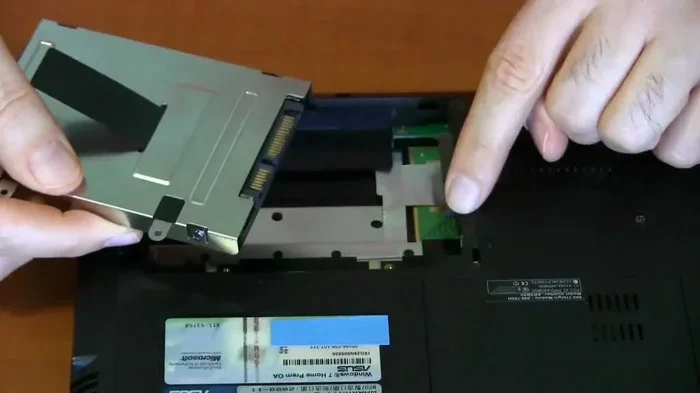
Many people assume any hard drive will work in any laptop. This is a common misconception. Laptops are built with specific storage bays that accept only certain sizes and connector types. Putting the wrong drive into your laptop can damage both the drive and the computer. It can also prevent the system from booting up at all.
Understanding SSD compatibility and HDD compatibility is the first step toward a successful upgrade. The right drive improves performance, gives you more space, and extends the life of your laptop. The wrong drive simply will not work. So taking a few minutes to research before you buy is always worth it.
Here are some reasons why compatibility matters so much:
- Physical size differences: Laptop drives come in specific dimensions that must fit inside the storage bay.
- Connector types vary: Some laptops use SATA connectors while others use M.2 slots. They are not the same.
- BIOS and firmware limits: Older laptops may not support newer drive technologies like NVMe.
- Drive thickness matters: Even drives with the same length and width can differ in height, which affects fit.
Types of Hard Drives for Laptops
Before you can check compatibility, you need to know what types of drives exist. Laptops use a few different kinds of storage devices, and each has its own strengths and limitations. Let us look at the main options available today.
Traditional Hard Disk Drives (HDDs)
HDDs are the older type of storage. They use spinning metal discs to read and write data. These drives offer large storage capacity at low prices. A typical laptop HDD stores between 500GB and 2TB of data.
HDDs are still found in many budget laptops. They are also commonly used as external storage devices. However, they are slower than newer options. The spinning parts make them more prone to damage from drops and bumps. If you want speed, an HDD is not the best choice.
Solid State Drives (SSDs)
SSDs have no moving parts. They use flash memory to store data, which makes them much faster and more durable. SSD compatibility has improved a lot over the years, and most modern laptops support them. They are now the standard choice for laptop storage upgrades.
SSDs come in two main sizes for laptops. The 2.5 inch drive looks similar to a small notebook and replaces a traditional HDD. The other type is the M.2 drive, which is a small stick that plugs directly into the motherboard. Both offer a huge speed boost over HDDs.
M.2 and NVMe Drives
M.2 SSDs are the newest and fastest option. They connect directly to the motherboard through a small slot. NVMe drives use the PCIe interface, which is much faster than SATA. If your laptop supports NVMe, you will get the best performance possible from a storage upgrade.
However, not all laptops have M.2 slots. Some older models only support 2.5 inch drives. And even among M.2 drives, there are different key types (B-key and M-key) that must match your slot. Always double-check what your laptop supports before buying.
Key Factors That Determine Compatibility
Several factors decide whether a hard drive will work in your laptop. Let us go through each one so you know exactly what to look for.
Form Factor and Physical Size
The form factor refers to the physical dimensions of the drive. The two most common sizes for laptops are 2.5 inches and M.2. A 2.5 inch drive is about the size of a small book, while an M.2 drive is roughly the size of a stick of gum.
You must match the form factor to your laptop’s drive bay. You cannot put a 2.5 inch drive into an M.2 slot, and you cannot put an M.2 drive into a 2.5 inch bay without an adapter. Always check your laptop’s manual or the manufacturer website to confirm the correct form factor.
Interface and Connector Type
The interface is how the drive connects to the laptop. The two main interfaces are SATA and PCIe (used with NVMe). SATA interface speeds top out at about 600MB per second, while NVMe drives can reach speeds over 3,000MB per second.
Here is a simple comparison of the most common interfaces:
| Interface | Max Speed | Common Drive Type | Best For |
|---|---|---|---|
| SATA III | 600 MB/s | 2.5 inch SSD, HDD | Budget upgrades, older laptops |
| NVMe PCIe 3.0 | 3,500 MB/s | M.2 SSD | Fast boot and load times |
| NVMe PCIe 4.0 | 7,000 MB/s | M.2 SSD | High-performance tasks |
| mSATA | 600 MB/s | mSATA SSD | Older ultrabooks |
Matching the connector type to your laptop is critical. A SATA drive will not work in an NVMe slot, and vice versa. Some laptops support both, but you still need to buy the correct physical drive.
Storage Capacity and Speed
Storage capacity refers to how much data the drive can hold. Modern laptop drives range from 128GB to 4TB or more. For most users, 500GB to 1TB is a good sweet spot. If you store lots of videos or games, you may want 2TB or more.
Interface speed affects how quickly your laptop can read and write data. A faster drive makes your laptop feel snappier. Boot times, app loading, and file transfers all improve. But speed only matters if your laptop’s interface can keep up with the drive.
BIOS and Firmware Support
Your laptop’s BIOS settings must recognize the new drive. Older laptops sometimes have BIOS limitations that prevent them from using very large or very new drives. Before purchasing, check if your laptop’s BIOS has been updated to support the drive type you want.
Some laptops also require specific partition alignment for optimal performance. This is especially true for SSDs. Most modern operating systems handle this automatically, but it is worth knowing about if you run into issues after installation.
How to Check If a Hard Drive Fits Your Laptop
Now that you know the key factors, let us look at how to actually check compatibility for your specific laptop. This process is simpler than it sounds.
Check Your Laptop Model Specifications
The easiest way to find compatible drives is to look up your laptop model online. Visit the manufacturer’s website and search for your exact model number. The specifications page will list the supported drive types, sizes, and interfaces.
You can also check the laptop specifications on retail sites like Amazon or Best Buy. Look for terms like “storage type,” “drive interface,” and “maximum supported capacity.” Write these down before you start shopping.
Use Diagnostic Tools
Several free tools can scan your laptop and tell you exactly what drives it supports. Crucial’s Scanner and Kingston’s Memory Search are two popular options. You simply download the tool, run it, and it gives you a list of compatible drives.
These tools remove the guesswork. They show you the exact part numbers and links to purchase compatible drives. This is one of the fastest ways to ensure hard drive replacement goes smoothly.
Consult the Manufacturer
If you cannot find the information online, contact the laptop manufacturer directly. Their support team can tell you exactly which drives are compatible with your model. Keep your laptop’s serial number handy when you reach out.
You can also check user forums and communities. Many people share their upgrade experiences and recommend specific drives for specific models. This real-world feedback can be very helpful.
Common Mistakes When Upgrading a Laptop Hard Drive
Even with the best intentions, people sometimes make mistakes when upgrading their laptop drives. Avoiding these common errors will help you have a smooth experience.
Ignoring Drive Thickness
One of the most overlooked factors is drive thickness. 2.5 inch drives come in 7mm and 9.5mm heights. Many modern laptops only have room for a 7mm drive. Putting a 9.5mm drive in a 7mm bay will not work. Always check the thickness before you buy.
Forgetting About the Operating System
When you swap in a new drive, you need to install or transfer your operating system. Simply putting the new drive in will not make your laptop boot up. You need to either clone your old drive or install Windows from scratch. Skipping this step is a very common mistake.
Skipping Data Backup
Before you remove your old drive, back up all your important files. Hardware swaps can sometimes go wrong, and data loss can happen. Use an external drive or cloud storage to keep your files safe during the upgrade process.
Buying the Wrong Key Type for M.2 Drives
M.2 drives come in different key types (B-key, M-key, and B+M key). Your laptop’s M.2 slot only accepts one key type. Buying the wrong one means the drive will not fit or will not work. Always confirm the key type before purchasing.
Expert Tips for a Smooth Hard Drive Upgrade
Upgrading your laptop drive does not have to be stressful. Follow these tips to make the process as easy as possible.
Clone Your Old Drive
Using cloning software is the best way to transfer everything from your old drive to the new one. Programs like Macrium Reflect, Clonezilla, and Acronis True Image make this simple. You connect both drives, start the clone, and your new drive becomes an exact copy of the old one.
Cloning saves you from reinstalling Windows and all your programs. It also preserves your settings and files exactly as they are. This is the method most experts recommend for a hard drive replacement.
Check the Drive Enclosure
If you are buying an external drive or using a drive enclosure, make sure it matches your drive type. A SATA enclosure will not work with an NVMe M.2 drive. Enclosures are cheap and widely available, but you must match the right one to your drive.
Update Your BIOS First
Before installing a new drive, update your laptop’s BIOS to the latest version. This ensures the best SSD compatibility and can fix issues with newer drive technologies. BIOS updates are usually free and available on the manufacturer’s website.
Let the Drive Warm Up
If you are installing an M.2 NVMe drive, give it a few minutes to reach operating temperature after you boot up. Some drives run very slowly for the first few minutes until they warm up. This is normal and not a sign of a problem.
Comparison: HDD vs SSD vs NVMe for Laptops
Choosing between an HDD, a standard SSD, and an NVMe drive can be tricky. Here is a side-by-side look at the three options to help you decide.
| Feature | HDD | SATA SSD | NVMe SSD |
|---|---|---|---|
| Speed | Slow | Fast | Very Fast |
| Price per GB | Low | Medium | Higher |
| Durability | Low (moving parts) | High (no moving parts) | High (no moving parts) |
| Power Usage | High | Low | Low |
| Best For | Bulk storage on a budget | Everyday use and upgrades | Gaming, video editing, power users |
| Form Factor | 2.5 inch | 2.5 inch or M.2 | M.2 |
For most laptop users, an SSD is the best choice. It offers a great balance of speed, price, and reliability. NVMe drives are excellent for power users who need maximum performance. HDDs still make sense for people who need a lot of storage and do not mind slower speeds.
Conclusion
The answer to are all hard drives compatible with all laptops is a clear no. Compatibility depends on your laptop’s form factor, interface, and BIOS support. Taking the time to check these details before you buy will save you from headaches and wasted money.
Whether you choose an HDD, a SATA SSD, or an NVMe drive, make sure it matches your laptop’s requirements. Use diagnostic tools, check your model specifications, and always back up your data before making any changes. A storage upgrade can breathe new life into an older laptop and make it feel fast again.
Now that you understand the basics of hard drive compatibility, you are ready to shop with confidence. Pick the right drive for your machine, follow the installation steps carefully, and enjoy the improved performance. Your laptop will thank you for it.
Frequently Asked Questions
Can I put any 2.5 inch hard drive in my laptop?
Not necessarily. While most 2.5 inch drives share the same physical size, you still need to check the interface type and thickness. Some laptops only support SATA drives, while others use different connectors. Always verify the specifications before purchasing.
How do I know if my laptop supports NVMe drives?
Check your laptop’s manual or look up the model number on the manufacturer’s website. The specifications will list the supported storage interfaces. You can also use diagnostic tools like Crucial’s Scanner to find compatible NVMe drives automatically.
Is it hard to swap a laptop hard drive yourself?
For most laptops, the process is straightforward and takes about 15 to 30 minutes. You typically need a small screwdriver and a bit of care. Just make sure you back up your data first and follow a step-by-step guide for your specific model.
What happens if I put the wrong hard drive in my laptop?
The drive simply will not fit or the laptop will not recognize it. In some cases, using the wrong connector can cause damage. This is why checking compatibility before you buy is so important. Never force a drive into a slot it does not fit.
Do I need to reinstall Windows after replacing my hard drive?
Not if you clone your old drive to the new one. Cloning copies everything including the operating system, programs, and files. If you buy a brand new drive without cloning, you will need to install Windows from scratch.
Can I use an external hard drive to expand my laptop storage?
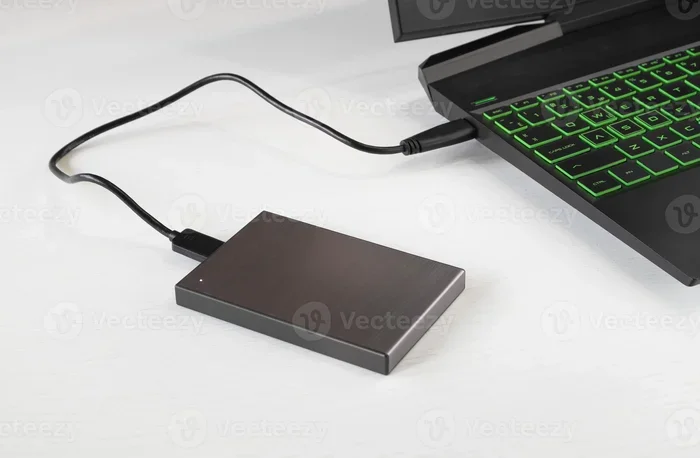
Yes, external drives are a great way to add extra storage without opening your laptop. They connect through USB and work with any laptop. However, they are slower than internal drives, so they are best for storing files rather than running programs directly from them.