Are Laptop Hard Drives Removable And Easy To Replace
Yes, laptop hard drives are removable, and replacing them is easier than most people think. Whether you have a traditional HDD or a modern M.2 SSD, you can swap out your storage drive in under thirty minutes with basic tools. This guide covers everything from removing your old drive to choosing the right replacement and migrating your data safely.
Have you ever opened up your laptop and wondered what is inside that little metal box holding all your files? Are laptop hard drives removable? The answer is a clear yes, and knowing this can open up a world of possibilities for your device.
Many people think that laptop storage is sealed shut and cannot be touched. That is simply not true. Most laptops are designed with user-accessible storage slots. Whether you have an older model or a brand-new machine, you can usually remove and replace the internal hard drive without needing a computer science degree.
The process is much simpler than you might expect. With just a few basic tools and about fifteen minutes of your time, you can swap out a slow drive for a blazing-fast one. You can also add extra storage or rescue data from a failing drive. This article will walk you through every step of the way.
Key Takeaways
- Laptop hard drives are removable: Most laptops have accessible storage bays designed for user upgrades.
- Replacement is straightforward: You only need a screwdriver, an anti-static strap, and about fifteen minutes.
- SSD upgrades deliver the best performance boost: Switching from an HDD to an SSD can make your laptop feel brand new.
- Backup your data first: Always clone or back up your files before removing any drive.
- Different laptops use different drive types: Some use 2.5 inch hard drives, while others use M.2 SSDs or NVMe drives.
- You can reuse your old drive: Place it in a hard drive enclosure to create a portable external storage solution.
📑 Table of Contents
- What Is a Laptop Hard Drive and How Does It Work?
- Are Laptop Hard Drives Removable?
- How Easy Is It to Replace a Laptop Hard Drive?
- HDD vs SSD: Which Drive Should You Choose?
- What Can You Do With Your Old Hard Drive?
- How Does Hard Drive Removal Affect Your Laptop Warranty?
- Expert Tips for a Smooth Hard Drive Replacement
- Conclusion
What Is a Laptop Hard Drive and How Does It Work?
Before we dive into the removal process, let us understand what a laptop hard drive actually does. Think of it as the brain’s long-term memory. Every photo, document, app, and operating system file lives on this small component inside your machine.
Your internal hard drive stores everything permanently, even when the laptop is turned off. When you open a file or launch a program, the drive reads the data and sends it to the processor. The speed of your drive directly affects how fast your laptop feels.
Types of Internal Hard Drives
There are two main types of storage drives found in laptops today. Understanding the difference helps you make better decisions about laptop storage upgrade and hard drive replacement.
Hard Disk Drives (HDD) use spinning metal disks to read and write data. They offer large storage capacity at a lower price. A typical HDD might store 500 gigabytes, 1 terabyte, or even 2 terabytes of data.
Solid State Drives (SSD) have no moving parts. They use flash memory chips to store data. This makes them much faster and more durable. An SSD upgrade is the single best improvement you can make to an older laptop.
How Hard Drives Connect to Your Laptop
The drive bay is the slot where your storage drive sits inside the laptop. Different laptops use different connections. Older machines typically use a SATA interface with a 2.5 inch hard drive. Newer laptops often use M.2 slots for NVMe drives.
Some laptops have a single drive slot. Others come with two slots, allowing you to use both an HDD and an SSD at the same time. Check your laptop model to see what setup it has. This information is usually in the user manual or on the manufacturer’s website.
Are Laptop Hard Drives Removable?
Are laptop hard drives removable? Yes, they absolutely are. In fact, removing a laptop hard drive is one of the simplest hardware tasks you can perform. Most laptops are built with removable storage drives right from the factory.
Manufacturers design laptops with user-upgradeable components for a reason. They know that storage needs change over time. You might start with a small drive and later need more space. Or you might want to speed up an old laptop with a fresh SSD. The ability to remove and replace your drive makes all of this possible.
Removing Traditional 2.5 Inch Hard Drives
Laptops that use a 2.5 inch hard drive are the easiest to work with. These drives sit in a dedicated bay, usually secured with one or two screws. Here is what the removal process looks like.
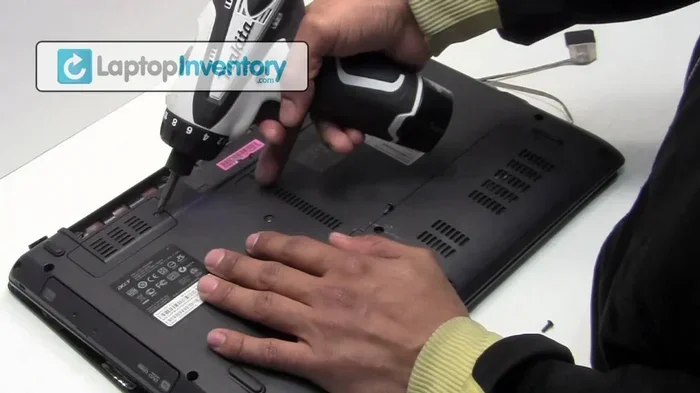
First, power off your laptop completely. Unplug the charger and remove any external devices. Flip the laptop over and locate the hard drive panel. This is usually a small rectangular cover on the bottom of the machine.
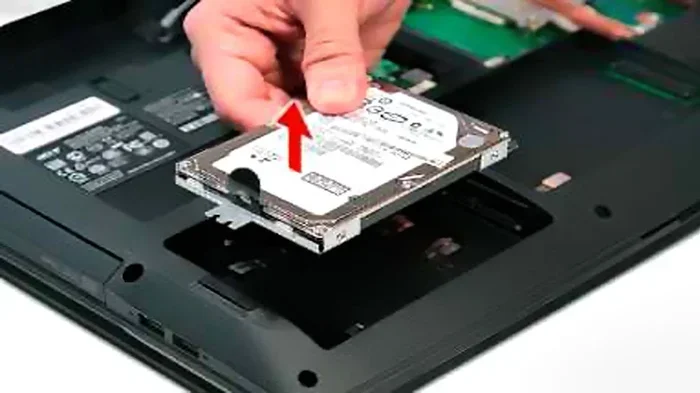
Use a Phillips screwdriver to remove the screws. Carefully slide the cover off. You will see the drive sitting in its slot, connected by a SATA cable or a small bracket. Disconnect the cable, remove any mounting screws, and slide the drive out gently.
Working With M.2 SSDs and NVMe Drives
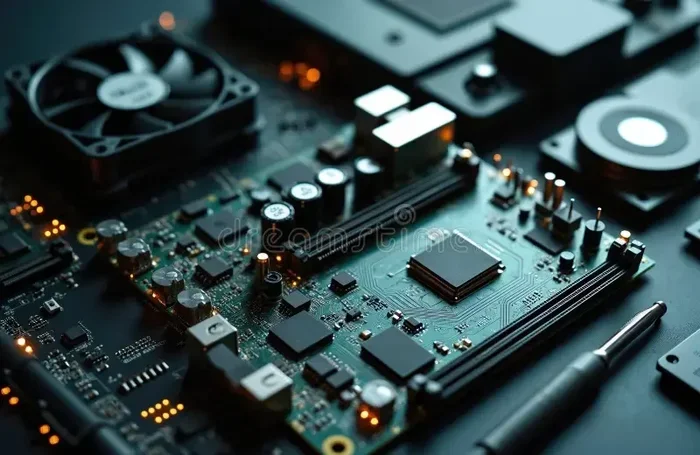
Modern laptops often use M.2 SSDs or NVMe drives. These are small, flat cards that plug directly into the motherboard. They do not have cables or brackets. Removing them is even simpler.
Locate the M.2 slot on your motherboard. There is usually a small retention screw holding the drive in place. Loosen the screw, and the drive will angle up slightly. Slide it out gently. That is all it takes.
Some laptops have a protective cover over the M.2 slot, while others leave it exposed. Check your specific model before starting. Watching a quick video tutorial for your laptop model can also be very helpful.
Quick Tips for Safe Removal
- Always power off your laptop completely before opening it up.
- Use an anti-static wrist strap to prevent static damage to sensitive components.
- Keep all screws in a small container so you do not lose them.
- Take photos before disassembly to help you remember how everything connects.
- Work on a clean, flat surface away from carpet or fabric.
How Easy Is It to Replace a Laptop Hard Drive?
The hard drive replacement process is surprisingly easy. Most people complete it in fifteen to thirty minutes. You do not need expensive tools or advanced technical skills. Let us walk through what you will need and how to do it.
Tools You Will Need
Here is a short list of tools for your laptop disassembly project:
- A small Phillips head screwdriver (size #1 or #2 works for most laptops)
- An anti-static wrist strap (optional but recommended)
- A plastic spudger or pry tool for opening clips
- A clean, soft cloth to place your laptop on
- Your new replacement drive, ready to go
That is it. You do not need a full tool kit or any specialized equipment. A basic screwdriver set from around your house will do the job perfectly.
Step-by-Step Replacement Process
Follow these steps for a smooth hard drive replacement:
- Back up your data. Use an external drive or cloud storage to save your important files. This is the most important step.
- Power down and unplug. Turn off your laptop and disconnect the charger.
- Open the access panel. Remove the screws and slide off the bottom cover.
- Disconnect the old drive. Carefully remove cables or unscrew the bracket holding the drive in place.
- Install the new drive. Place it in the slot, connect any cables, and secure it with screws.
- Close everything up. Replace the bottom cover and screw it back in.
- Power on and set up. Boot into your BIOS or operating system and initialize the new drive.
Data Migration: Moving Your Files to the New Drive
Data migration is the process of copying everything from your old drive to the new one. You have several options for this.
You can use cloning software like Macrium Reflect or Clonezilla. These tools create an exact copy of your old drive on the new one. Simply connect both drives to the same laptop using a hard drive adapter or by placing the old drive in an external hard drive enclosure.
Another option is a fresh installation of your operating system. This takes more time but gives you a clean start. You can then manually copy your important files over.
Expert Insights
Tech professionals recommend cloning your old drive before replacement. This way, your new drive boots up with everything exactly as it was. You will not lose any settings, apps, or files. It is the fastest and safest approach to laptop maintenance and upgrades.
HDD vs SSD: Which Drive Should You Choose?
When replacing your storage drive, you will need to choose between an HDD and an SSD. Each has its strengths. Here is a detailed comparison to help you decide.
| Feature | HDD (Hard Disk Drive) | SSD (Solid State Drive) |
|---|---|---|
| Speed | Slower read/write speeds | Much faster read/write speeds |
| Price per TB | Lower cost per terabyte | Higher cost per terabyte |
| Durability | Moving parts can break easily | No moving parts, very durable |
| Power Usage | Higher power consumption | Lower power consumption |
| Noise | Can be audible when working | Completely silent |
| Best For | Mass storage on a budget | Speed and performance upgrades |
For most users, an SSD upgrade is the clear winner. A new SSD can make an old laptop feel brand new. Boot times drop from minutes to seconds. Apps open almost instantly. Your entire computing experience improves dramatically.
If you need a lot of storage space for movies, photos, or backups, you might consider a smaller SSD for your main drive and a larger HDD for extra storage. Some laptops even have room for both drives at the same time.
Common Mistakes to Avoid When Replacing a Laptop Hard Drive
Even simple tasks can go wrong if you are not careful. Here are the most common mistakes people make during hard drive replacement:
- Skipping the backup. Always save your important files before you start. A single mistake can cost you everything.
- Using the wrong screwdriver. A stripped screw can turn a simple job into a frustrating one. Use the correct size.
- Forcing components. If something does not fit or slide out easily, stop and check. You might be missing a screw or clip.
- Not grounding yourself. Static electricity can damage sensitive electronics. Wear an anti-static strap or touch a metal surface first.
- Forgetting to initialize the new drive. A brand new drive will not work until you format and initialize it in your operating system.
- Mixing up SATA and NVMe drives. These are not interchangeable. Make sure your new drive matches your laptop’s slot type.
Quick Tips for a Flawless Installation
- Keep your laptop manual handy. It often has specific diagrams for your model.
- Take your time. Rushing leads to mistakes.
- Test the new drive before reassembling the laptop fully.
- Label your screws if different sizes are involved.
- Keep your old drive safe. It can serve as a backup or be repurposed.
What Can You Do With Your Old Hard Drive?
Once you have your new drive installed, do not throw away your old one. There are many great uses for a retired internal hard drive.
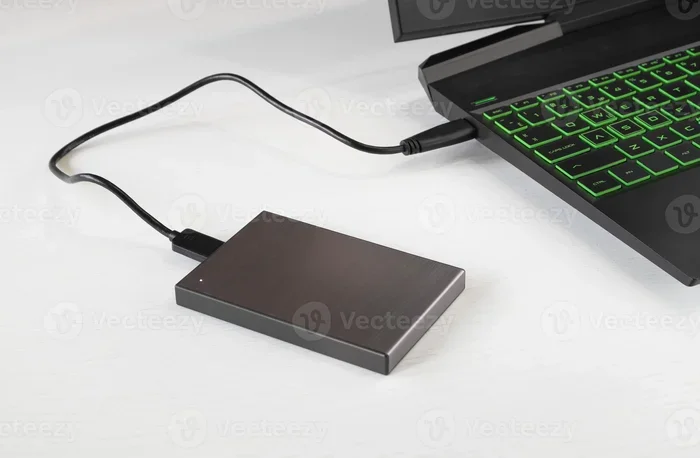
One popular option is placing it in a hard drive enclosure. This turns it into a portable external storage device. You can use it for backups, extra file storage, or transferring large files between computers.
Another option is using it as a dedicated external hard drive for media files like movies and music. This frees up space on your new internal drive for important work files and applications.
If the old drive is still in good working condition, you can also install it in an older laptop as a secondary storage drive. This gives that machine a second life and extra storage capacity at no extra cost.
How Does Hard Drive Removal Affect Your Laptop Warranty?
This is a common concern, and the answer depends on your specific situation. Most laptop manufacturers allow users to remove and replace removable hard drives without voiding the warranty. These components are considered user-serviceable.
However, if you accidentally damage other parts during the process, that damage might not be covered. Always check your warranty terms before opening up your laptop. If you are unsure, consider having a professional handle the hard drive replacement.
Some brands offer upgrade-friendly warranties that explicitly allow drive swaps. Others are more restrictive. When in doubt, contact the manufacturer directly. A quick phone call can save you from future headaches.
Expert Tips for a Smooth Hard Drive Replacement
Professional technicians share these insider tips to make your laptop storage upgrade as smooth as possible:
- Watch a video tutorial first. Seeing the process done helps you understand the steps better than reading alone.
- Prepare your workspace. A clean, well-lit table with good ventilation makes the job much easier.
- Keep your laptop cool. Work in a room with moderate temperature. Heat can affect sensitive components.
- Use quality replacement drives. Stick with reputable brands like Samsung, Western Digital, or Crucial for reliability.
- Update your operating system after installation. New drives sometimes need the latest drivers and firmware updates.
- Test thoroughly. Run a disk check tool after installation to make sure everything is working correctly.
Following these tips ensures that your SSD upgrade or HDD replacement goes smoothly from start to finish. The more prepared you are, the fewer surprises you will encounter.
Conclusion
Are laptop hard drives removable? Absolutely yes. Every step of the process, from removal to replacement, is designed to be user-friendly. You do not need to be a tech expert to swap out your storage drive and breathe new life into your laptop.
Whether you choose a traditional HDD or a modern NVMe drive, the key is to backup your data first, use the right tools, and take your time. A simple hard drive replacement can transform a sluggish laptop into a fast, responsive machine.
Do not let fear of the unknown stop you. Thousands of people upgrade their laptop storage every single day. With the knowledge you have gained from this guide, you are fully prepared to do the same. Start your laptop storage upgrade today and experience the difference for yourself.
Frequently Asked Questions
Can I remove my laptop hard drive without losing data?
Yes, you can remove your laptop hard drive without losing any data. The drive stores all your files independently of the laptop. As long as you handle the drive carefully and do not damage it, your data remains intact. Just make sure to back up your files before removal as a safety precaution.
What tools do I need to replace a laptop hard drive?
You only need a small Phillips screwdriver and an anti-static wrist strap for most laptops. A plastic pry tool helps with opening clips. If you are doing a data migration, you will also need a hard drive adapter or an external hard drive enclosure to connect the old drive to your new one.
Is it hard to replace a laptop hard drive?
No, replacing a removable hard drive is one of the easiest laptop maintenance tasks. Most people complete the process in fifteen to thirty minutes. The steps are straightforward: back up your data, open the access panel, disconnect the old drive, install the new one, and close everything up.
Can I use an external hard drive instead of an internal one?
Yes, you can use an external hard drive as your main storage. However, external drives connect through USB, which is slower than internal connections. For the best performance, especially for your operating system and frequently used apps, an internal drive is always the better choice.
How do I clone my old hard drive to a new one?
You can use free cloning software like Macrium Reflect or Clonezilla. Connect both drives to your laptop, run the cloning software, and follow the on-screen instructions. The software creates an exact copy of your old drive on the new one, including your operating system, apps, and all your files.
What should I do with my old hard drive after replacement?
There are several great options. Place it in a hard drive enclosure to create a portable external drive. Use it for extra storage in an older laptop. Or securely wipe it and donate or recycle it. A retired internal hard drive still has plenty of useful life left in it.
=== CONCLUSION ===
Are laptop hard drives removable and easy to replace? The answer is a confident yes. Throughout this guide, we have shown you that hard drive replacement is a straightforward process anyone can handle. From understanding the different drive types to choosing the right upgrade and performing the swap, you now have all the knowledge you need.
A simple SSD upgrade can completely transform your laptop experience. Faster boot times, quicker app launches, and a more responsive system are all within your reach. Do not let a slow laptop hold you back any longer.
Take action today. Back up your files, gather your tools, and give your laptop the storage upgrade it deserves. Your future self will thank you every time you turn on your fast, refreshed machine.