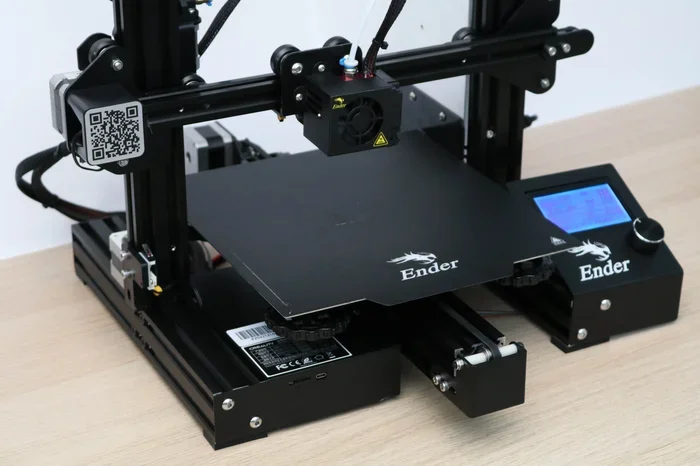
Can Ender 3 Print Over Wifi And How To Make It Work
Yes, the Ender 3 can print over WiFi, and setting it up is easier than most people think. Whether you use a direct WiFi connection, OctoPrint, or a cloud-based solution, wireless 3D printing opens up a world of convenience. This guide walks you through every method, common fixes, and pro tips to make your Ender 3 WiFi setup work flawlessly.
The Ender 3 is one of the most popular budget 3D printers on the market. Thousands of hobbyists and beginners love it for its low price and solid performance. But one question keeps coming up in forums and groups: can Ender 3 print over WiFi?
The short answer is yes. The longer answer is that there are several ways to make it happen, and each method has its own benefits. Some users want to print directly from their phone. Others want to start a print from work or while they are away from home. Whatever your reason is, wireless 3D printing on the Ender 3 is absolutely possible.
In this guide, I will walk you through every method, every setup step, and every troubleshooting fix you need. By the end, you will know exactly how to set up Ender 3 WiFi connectivity and make it work reliably. Let us dive in.
Key Takeaways
- The Ender 3 supports WiFi printing through built-in modules and external tools like OctoPrint.
- Direct WiFi connection lets you send files wirelessly from your phone or computer without extra hardware.
- OctoPrint is the most popular option for remote 3D printing over WiFi and offers powerful features.
- WiFi signal strength matters a lot for reliable wireless 3D printing on the Ender 3.
- Common WiFi issues like drops and slow transfers can be fixed with simple router adjustments.
- Ethernet can be more stable than WiFi for large print jobs on the Ender 3.
- Cloud printing services add another layer of convenience for Ender 3 wireless connectivity.
📑 Table of Contents
Understanding Ender 3 WiFi Setup Basics
Does the Ender 3 Have Built-In WiFi?
The Creality Ender 3 does not come with built-in WiFi in the stock configuration. The base model uses an SD card or USB connection to load print files. However, Creality added WiFi support through firmware updates and optional hardware modules. The newer versions of the Ender 3, especially those with the 4.2.7 mainboard, have better wireless capabilities built right in.
If you have an older Ender 3 model, you can still add WiFi support. You just need a WiFi adapter or a wireless print server. These small devices plug into the USB port or connect to the printer’s mainboard and create a local network for wireless communication.
The Role of the Ender 3 WiFi Module
The Ender 3 WiFi module is a small accessory that Creality sells separately. It slots into a dedicated connector on the printer’s mainboard. Once installed, the printer can connect to your home WiFi network. This module enables the wireless print server function, which lets you send G-code files over the air.
There are also third-party options. ESP32-based devices and Raspberry Pi setups can turn any Ender 3 into a WiFi-enabled printer. The choice depends on your budget and how much control you want over your Ender 3 wireless connectivity setup.
How to Connect Your Ender 3 to WiFi
Step-by-Step WiFi Setup Process
Setting up Ender 3 WiFi printing is straightforward once you have the right hardware. Here is the basic process:
- Install the WiFi module or wireless print server on your Ender 3.
- Power on the printer and navigate to the network settings on the touchscreen.
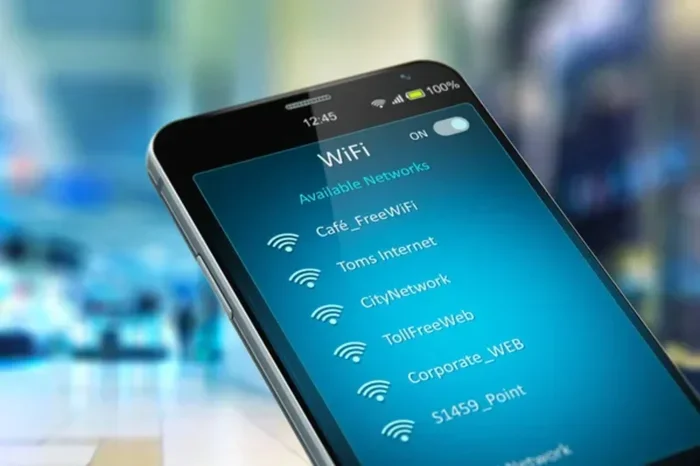
- Scan for available WiFi networks.
- Select your home network and enter the password.
- Wait for the connection to establish. You should see a WiFi icon on the screen.
- Download a compatible app or software on your phone or computer.
- Connect to the printer’s network or use the cloud service to send files.
Once connected, you can send print files without touching a cable. This is the magic of wireless 3D printing with the Ender 3.
Using the Touchscreen to Connect
The Ender 3 touchscreen makes the WiFi setup process simple. Go to the settings menu and look for the network or WiFi option. The printer will scan for nearby networks. Select yours, type in the password using the on-screen keyboard, and tap connect.
If the connection fails, check these common issues:
- Your WiFi password is incorrect or contains unsupported characters.
- The router uses a 5GHz band, but the Ender 3 WiFi module only supports 2.4GHz.
- The signal is too weak in the printer’s location.
- The firmware needs updating to support WiFi features.
Fixing any of these usually solves the problem quickly. Most users get connected within 10 minutes on their first try.
Wireless 3D Printing Methods for Ender 3
Direct WiFi Connection
The simplest method for printing over WiFi is a direct connection. The Ender 3 creates its own wireless network, and your phone or computer connects to it directly. You do not need an internet connection for this method.
Creality offers the Creality CloudPrint app for this purpose. You can also use third-party apps like Printoid or Mainsail. These tools let you browse your files, select a print, and send it to the printer wirelessly.
The advantage of a direct connection is speed and reliability. There is no internet delay, and your print job stays local. The downside is range. You need to be within WiFi range of the printer, which is usually about 30 to 50 feet depending on your router.
Using OctoPrint for Remote Printing
OctoPrint is the gold standard for remote 3D printing with the Ender 3. It is a free, open-source software that runs on a Raspberry Pi or any small computer. You connect OctoPrint to your Ender 3 via USB, and then access the printer from any device on your WiFi network.
OctoPrint gives you a web interface where you can:
- Upload G-code files and start prints remotely.
- Monitor the print with a webcam feed.
- Control the printer’s temperature and movement from your phone.
- Set up plugins for notifications, timelapse videos, and more.
Many Ender 3 owners consider OctoPrint essential for Ender 3 WiFi setup. It transforms the printer into a fully wireless device. The learning curve is gentle, and the community support is outstanding.
Cloud Printing Options
Cloud printing services like Creality Cloud and AstroPrint let you send files to your Ender 3 from anywhere with an internet connection. You upload your G-code to the cloud, and the service relays it to your printer through your home WiFi network.
This is perfect for remote 3D printing. You can start a print from your office, a coffee shop, or even while on vacation. The only requirement is that your Ender 3 stays connected to WiFi at home.
Cloud printing does add a slight delay compared to direct methods. But for most users, the convenience far outweighs this minor limitation. It is one of the best ways to experience Ender 3 wireless connectivity in everyday use.
Common WiFi Printing Problems and How to Fix Them
Slow Transfer Speeds
One of the most common complaints about Ender 3 WiFi printing is slow file transfers. Large G-code files can take a while to upload over a wireless connection. This is especially true if your WiFi signal is weak or your router is far from the printer.
Here are some fixes for slow transfer speeds:
- Move your router closer to the printer location.
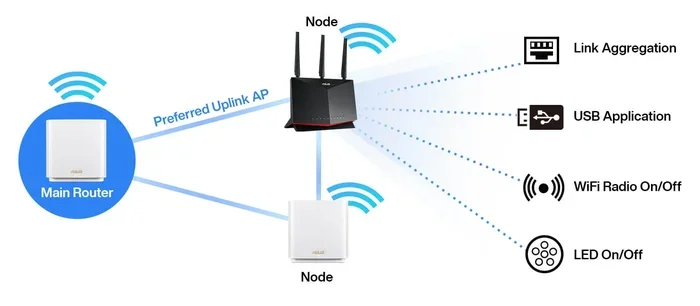
- Use a WiFi range extender or mesh system to boost the signal.
- Switch to the 2.4GHz band if your router uses both 2.4 and 5GHz frequencies.
- Compress or optimize your G-code files before uploading.
- Use an Ethernet cable for large files and switch to WiFi for smaller jobs.
Most users see a big improvement just by moving the router or switching to the 2.4GHz band. The Ender 3 WiFi module works best on 2.4GHz networks because the hardware is designed for that frequency range.
Connection Drops During Printing
A WiFi connection drop during a long print can be frustrating. If the connection breaks, your print may pause or fail entirely. This is one of the biggest concerns people have about wireless 3D printing.
To prevent connection drops:
- Keep your router in a central location, away from metal objects and microwaves.
- Reduce interference by limiting the number of devices on the same channel.
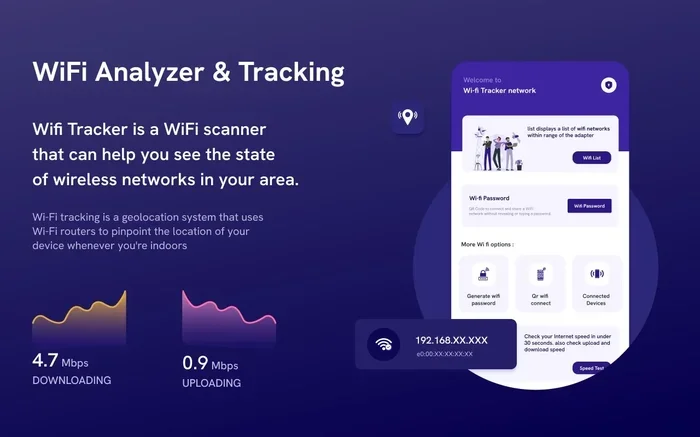
- Use a WiFi analyzer app to find the least congested channel.
- Update your printer firmware to the latest version for better WiFi stability.
- Consider using a WiFi bridge or access point placed near the printer.
If you still experience drops, an Ethernet cable is a reliable backup. Many users run a cable for overnight prints and use WiFi for shorter jobs during the day. This hybrid approach gives you the best of both worlds.
Ender 3 WiFi vs Ethernet: Which is Better?
Comparing Wired and Wireless Options
When it comes to Ender 3 network connection, you have two main options: WiFi and Ethernet. Both have pros and cons, and the best choice depends on your setup and needs.
| Feature | WiFi | Ethernet |
|---|---|---|
| Convenience | No cables needed | Requires a cable |
| Speed | Good for small files | Faster for large files |
| Reliability | Can be affected by interference | Very stable |
| Range | Up to 50 feet indoors | Limited by cable length |
| Setup | Easy and wireless | Requires running a cable |
| Cost | No extra hardware needed | Ethernet cable and possibly adapter |
For most home users, WiFi is the clear winner for convenience. You can print from anywhere in your house without dragging a cable across the room. But if you need rock-solid reliability for long prints, Ethernet is hard to beat.
Many experienced users use both. They connect via WiFi for everyday printing and switch to Ethernet for multi-day jobs where a dropped connection would be disastrous. This flexible approach gives you maximum freedom with your Ender 3 wireless connectivity.
Expert Tips for Reliable Wireless 3D Printing
Optimizing Your WiFi Signal for the Ender 3
A strong WiFi signal is the foundation of reliable Ender 3 WiFi printing. Here are some expert tips to optimize your signal:
- Place your router as close to the printer as possible without cluttering your workspace.
- Use a WiFi range extender or mesh node in the printer room if the signal is weak.
- Avoid placing the printer near thick walls, metal shelves, or large appliances that block signals.
- Keep your router firmware updated for the best performance.
- Set your router to use a fixed channel instead of auto-switching, which can cause brief disconnections.
These small changes can make a huge difference in your wireless print quality and reliability. A stable connection means fewer failed prints and less frustration.
Keeping Your Connection Stable for Long Prints
Long prints can last 10, 20, or even 50 hours. Keeping the WiFi connection stable over that time requires a bit of planning. Here is what works best:
- Use a wired connection as the primary method for long prints if possible.
- If using WiFi, enable keep-alive settings in your print server software.
- Set up notifications so you get alerted immediately if the connection drops.
- Use a UPS (uninterruptible power supply) to keep your router and printer running during power fluctuations.
- Monitor the print remotely through a webcam or OctoPrint dashboard.
With these precautions, you can print overnight or even over a weekend with confidence. The Ender 3 WiFi setup becomes truly reliable when you put these practices in place.
Quick Tips for Getting Started
- Start with the Creality CloudPrint app for the easiest wireless setup.
- Update your Ender 3 firmware before enabling WiFi features.
- Always test with a small print before starting a large job wirelessly.
- Keep your WiFi password simple and free of special characters that the printer may not accept.
- Bookmark your OctoPrint or cloud dashboard on your phone for quick access.
- Label your WiFi network with the printer name so you can identify it easily.
- Join Ender 3 community groups to get real-time help with WiFi issues.
Conclusion
Can Ender 3 print over WiFi? Absolutely. The Ender 3 is fully capable of wireless 3D printing through several methods, from direct WiFi connections to powerful setups like OctoPrint and cloud printing services. The key is choosing the right method for your needs and taking the time to set it up properly.
Whether you want to send prints from your phone, monitor your printer remotely, or start a job from across the house, Ender 3 WiFi connectivity makes it all possible. The setup is straightforward, and the benefits are real. No more running SD cards back and forth. No more standing next to the printer during every print.
Start with the basics, troubleshoot any issues that come up, and build your setup over time. Soon, wireless 3D printing with your Ender 3 will feel like second nature. The freedom of printing without cables is a game changer, and now you have everything you need to make it work.
Frequently Asked Questions
Do I need a WiFi module to print wirelessly on the Ender 3?
It depends on your Ender 3 model. Newer versions with the 4.2.7 mainboard have WiFi built in. Older models need a separate WiFi module or a wireless print server like a Raspberry Pi to enable Ender 3 WiFi printing. Check your printer’s specs before buying extra hardware.
Is WiFi printing as reliable as USB or SD card printing?
WiFi printing is very reliable for most users, but it can be affected by signal strength and interference. For critical long prints, many users prefer Ethernet or SD cards as a backup. With the right setup, wireless 3D printing on the Ender 3 works just as well as wired methods.
Can I use OctoPrint to print over WiFi with the Ender 3?
Yes, OctoPrint is one of the best tools for remote 3D printing with the Ender 3. It runs on a Raspberry Pi and connects to your printer via USB. You then access it through your WiFi network using any web browser or mobile app. It is free and has a huge community.
Why does my Ender 3 lose WiFi connection during prints?
Connection drops usually happen because of weak signal strength, router interference, or 5GHz band incompatibility. The Ender 3 WiFi module works best on the 2.4GHz band. Moving your router closer or using a WiFi extender usually fixes this issue with Ender 3 wireless connectivity.
Can I print from my phone using the Ender 3 WiFi feature?
Yes, you can print directly from your phone using apps like Creality CloudPrint, Printoid, or Mainsail. These apps connect to your Ender 3 over WiFi and let you upload files, start prints, and monitor progress from anywhere in your home.
What is the best WiFi setup for Ender 3 wireless printing?
The best setup combines a strong 2.4GHz WiFi signal with reliable print server software. Most users find that OctoPrint on a Raspberry Pi or the Creality CloudPrint app provides the best balance of convenience and reliability for Ender 3 WiFi setup. Start simple and upgrade as you get more comfortable.