Can A Raspberry Pi Run Without A Monitor Heres How
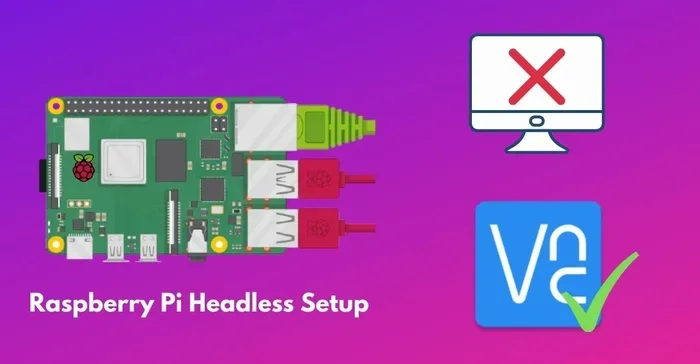
Can A Raspberry Pi Run Without A Monitor? Absolutely yes. You can run your Raspberry Pi in headless mode with no display attached at all. This guide walks you through SSH setup, remote desktop access, and practical uses for a monitor-free Raspberry Pi. Whether you want a home server, automation hub, or media center, running your Pi without a monitor saves money, space, and power.
Have you ever wondered if you can use a Raspberry Pi without plugging in a monitor? The answer is a resounding yes. Can A Raspberry Pi Run Without A Monitor? It absolutely can, and thousands of people do it every day. Running your Pi in what experts call headless mode means you operate it entirely through a network connection. No screen. No keyboard. No mouse attached directly to the board.
This approach opens up a world of possibilities. You can turn your Pi into a home server, a media center, a smart home hub, or a lightweight web server. The best part? You save money on a monitor and free up desk space. Whether you are a beginner or a seasoned tinkerer, learning how to run your Raspberry Pi without a monitor is a valuable skill. This guide covers everything you need to know, from initial setup to remote access and practical use cases.
Running a headless Raspberry Pi is simpler than most people think. With just a few steps, you can have your Pi up and running, accessible from your laptop, phone, or tablet. Let us dive into the details and show you exactly how to make it happen.
Key Takeaways
- Headless Mode Works Great: A Raspberry Pi can run fully without a monitor using SSH and remote access tools.
- Setup Is Simple: You only need an SD card, power supply, and basic network connection to get started.
- Multiple Access Options: SSH, VNC, and web interfaces let you control your Pi from any device on your network.
- All Models Support It: From the Raspberry Pi 4 to the tiny Pi Zero, every model can run headless.
- Common Uses Abound: Home automation, media centers, web servers, and network tools all work perfectly without a monitor.
- Avoid Common Pitfalls: Forgetting to enable SSH or misconfiguring your network are the top mistakes beginners make.
📑 Table of Contents
- What Does It Mean to Run a Raspberry Pi Without a Monitor?
- How to Set Up a Headless Raspberry Pi
- Remote Access Options for Your Raspberry Pi
- Which Raspberry Pi Models Work Without a Monitor?
- Common Uses for a Monitor-Free Raspberry Pi
- Quick Tips and Common Mistakes
- Expert Insights on Running a Raspberry Pi Headless
- Conclusion
What Does It Mean to Run a Raspberry Pi Without a Monitor?
When we say a Raspberry Pi runs without a monitor, we mean it operates in headless mode. The term headless simply means the device runs without a attached display. Instead of interacting with the Pi through a screen, you connect to it over a network using another device.
Understanding Headless Mode
Headless mode is not a special setting you need to buy. It is a built-in capability of every Raspberry Pi. The Pi does not need a monitor to function. It boots up, loads the operating system, and connects to your network just fine on its own. You simply access it remotely from another computer or phone.
Think of it like a remote control car. The car works perfectly fine on its own. You just need a controller to steer it. In the same way, your Raspberry Pi works perfectly without a monitor. You just need a way to send commands to it remotely.
Many people set up their Pis this way from the very start. They never even connect a monitor during the initial configuration. This is especially common for Raspberry Pi projects that run 24/7, like home servers or automation controllers.
Why People Choose to Go Monitor-Free
There are several great reasons to run your Pi without a display. First, it saves money. Monitors cost money, and if you do not need one full-time, why buy one? Second, it saves space. A tiny Pi board looks much cleaner sitting on a shelf or inside a case with nothing attached to it.
Third, it saves power. Monitors use electricity even when they are on standby. By cutting out the monitor, you reduce your overall power consumption. This matters if you plan to run your Pi 24/7 for projects like a home automation server or a network monitoring tool.
Finally, headless mode is simply more convenient for many use cases. If your Pi is serving files, hosting a website, or running automation scripts, you do not need to look at a screen. You manage everything from your phone or laptop from anywhere in your home.
How to Set Up a Headless Raspberry Pi
Setting up your Pi for headless operation is straightforward. You will need a few basic items and about 15 minutes of your time. Let us walk through the entire process step by step.
What You Need to Get Started
Before you begin, gather these items:
- A Raspberry Pi board (any model works)
- A microSD card (at least 8 GB, Class 10 or better)
- A power supply (official Raspberry Pi power adapter recommended)
- A computer with an SD card reader
- A stable Wi-Fi network or Ethernet cable
- The Raspberry Pi Imager tool (free, from the official website)
That is it. You do not need a monitor, keyboard, or mouse for the setup. Everything is done through your main computer and the SD card.
Step-by-Step Setup Process
Follow these steps to prepare your Pi for headless operation:
- Download Raspberry Pi Imager. This free tool makes flashing your SD card easy. It works on Windows, Mac, and Linux.
- Insert your microSD card into your computer using a card reader.
- Open Raspberry Pi Imager and select your Pi model from the list.
- Choose your operating system. Raspberry Pi OS (the official OS) is the best choice for most users.
- Click the gear icon (Advanced Options) before writing the image. This is where the magic happens.
- Enable SSH. Toggle on “Set hostname” and “Enable SSH.” This allows remote access from day one.
- Set your Wi-Fi credentials. Enter your network name and password so the Pi connects automatically.
- Set a username and password for your Pi. Do not use the default “pi” username for security reasons.
- Write the image to your SD card and wait for it to finish.
- Insert the SD card into your Pi, connect power, and place it on your network.
That is all there is to it. Your Pi boots up, connects to Wi-Fi, and enables SSH automatically. You can now access it from another computer on the same network.
Quick Tips for a Smooth Setup
- Always use a fresh, properly formatted SD card for best results.
- Write down your Pi IP address once it boots. You will need it to connect via SSH.
- If you are unsure of the IP address, check your router admin panel. It lists all connected devices.
- Use an Ethernet cable for the most stable connection, especially during initial setup.
- Keep your Pi firmware updated after the first boot for security and performance.
Remote Access Options for Your Raspberry Pi
Once your Pi is running headless, you need a way to interact with it. Several remote access methods work great for this purpose. Each has its own strengths, and you can even use more than one at the same time.
SSH Access (Command Line)
SSH stands for Secure Shell. It is the most common way to access a headless Raspberry Pi. Through SSH, you get a command line interface that lets you type commands directly into your Pi. It is fast, lightweight, and perfect for managing files, running scripts, and configuring your system.
To connect via SSH, open a terminal on your computer (Command Prompt on Windows, Terminal on Mac) and type:
ssh your-pi-username@your-pi-ip-address
You will be prompted for your password. After entering it, you are in. From here, you can do almost anything you would do with a monitor attached. Install software, edit configuration files, manage services, and more.
SSH uses very little bandwidth and resources. It is ideal for servers and automation tasks where you do not need a graphical interface at all.
VNC and Remote Desktop
If you prefer a graphical desktop experience, VNC (Virtual Network Computing) is the way to go. VNC mirrors your Pi desktop on another screen, so you see the same interface as if a monitor were attached. This is great for projects where you want to see what you are doing visually.
To use VNC, you need to enable it in your Pi settings or through the Raspberry Pi Configuration tool. Then install a VNC viewer on your controlling device. Popular options include RealVNC Viewer, TightVNC, and TigerVNC.
VNC does use more resources than SSH because it transmits the full desktop interface. On older Pi models like the Raspberry Pi 3, you might notice some lag. On the Raspberry Pi 4, the experience is much smoother and very usable.
Web-Based Interfaces
Some Pi projects come with their own web interfaces. For example, Home Assistant (a popular smart home platform) provides a full dashboard you can access through any web browser. Similarly, Pi-hole (a network-wide ad blocker) has a clean web interface for managing your DNS settings.
These web interfaces are incredibly convenient. You can manage your project from your phone while sitting on the couch. No special software is needed on the controlling device, just a web browser.
Comparison of Remote Access Methods
| Method | Type | Resource Usage | Best For | Setup Difficulty |
|---|---|---|---|---|
| SSH | Command Line | Very Low | Server management, scripting | Easy |
| VNC | Graphical Desktop | Medium | Visual projects, desktop use | Easy |
| Web Interface | Browser-Based | Low to Medium | Smart home, ad blocking, media | Easy |
| FTP/SFTP | File Transfer | Very Low | Moving files to and from Pi | Easy |
Which Raspberry Pi Models Work Without a Monitor?
The great news is that every Raspberry Pi model supports headless operation. From the latest Raspberry Pi 5 to the tiny and affordable Pi Zero, all of them can run without a monitor. Let us look at the most popular models and how they perform in headless mode.
Raspberry Pi 4 and Pi 5
The Raspberry Pi 4 and Pi 5 are the most powerful options for headless projects. They have enough processing power to handle multiple tasks at once. You can run a web server, a media center, and a home automation platform simultaneously without breaking a sweat.
The Pi 4 supports up to 8 GB of RAM, which is plenty for server tasks. The newer Pi 5 is even faster, with a more powerful processor and improved networking. Both models handle VNC remote desktop very smoothly, making them excellent choices if you want a graphical interface without a physical monitor.
Raspberry Pi 3 and Older Models
The Raspberry Pi 3 and older models like the Pi 2 and Pi 1 also work well in headless mode. They are slightly slower, but for most basic tasks like running a Pi-hole ad blocker, hosting a simple website, or managing smart home devices, they are more than capable.
If you are using an older Pi, SSH is the best remote access method. It is lightweight and runs smoothly even on limited hardware. Avoid running VNC on older models unless you only need basic desktop access, as the graphical interface can feel sluggish.
Raspberry Pi Zero and Pi Zero W
The Pi Zero and Pi Zero W are tiny, affordable boards that excel in headless setups. They are perfect for small, dedicated tasks like a single-purpose sensor, a small web server, or a compact automation controller. Because they have limited resources, SSH is the recommended access method for these boards.
The Pi Zero W includes built-in Wi-Fi, which makes headless setup even easier. You do not need to plug in an Ethernet cable. Just flash your SD card with the right settings, and the Pi connects to your wireless network automatically.
Raspberry Pi Model Comparison for Headless Use
| Model | CPU Cores | RAM Options | Wi-Fi Built-In | Headless Performance | Price Range |
|---|---|---|---|---|---|
| Raspberry Pi 5 | 4 (Cortex-A76) | 4GB / 8GB | Yes | Excellent | $60 – $80 |
| Raspberry Pi 4 | 4 (Cortex-A72) | 2GB / 4GB / 8GB | Yes | Excellent | $35 – $75 |
| Raspberry Pi 3B+ | 4 (Cortex-A53) | 1GB | Yes | Good | $35 |
| Raspberry Pi Zero W | 1 (Cortex-A53) | 512MB | Yes | Adequate for light tasks | $10 – $15 |
| Raspberry Pi Zero | 1 (Cortex-A53) | 512MB | No (needs adapter) | Adequate for light tasks | $5 – $10 |
Common Uses for a Monitor-Free Raspberry Pi
One of the best things about running a Raspberry Pi without a monitor is the sheer variety of projects you can build. Here are some of the most popular and practical uses for a headless Pi setup.
Home Automation Server
Platforms like Home Assistant and OpenHAB run beautifully on a headless Raspberry Pi. You can control all your smart home devices from a single dashboard accessed through your phone or computer. The Pi acts as the brain of your smart home, running 24/7 without ever needing a monitor attached.
Many people set up their home automation server and then forget about it. It just works in the background, managing lights, thermostats, sensors, and locks. This is the perfect use case for a monitor-free setup because you never need to see the Pi’s desktop.
Media Center
Software like Kodi and Plex turns your headless Pi into a powerful media center. You stream movies, music, and TV shows to your television or other devices. The Pi itself sits quietly in a cabinet or on a shelf, doing its job without any display needed.
You control the media center from your phone or a separate remote control device. The Pi receives commands over the network and sends video output to your TV through HDMI. The Pi itself never needs a monitor because all the interaction happens through your controlling device.
Web Server and Network Tool
Running a web server with Apache or Nginx is one of the most common headless Pi projects. You can host a personal website, a blog, or even a small business site. The Pi serves web pages to visitors over your local network or the internet, all without a monitor connected.
Network tools like Pi-hole and AdGuard Home run perfectly headless. Pi-hole blocks ads across your entire home network by filtering DNS requests. You manage it through a simple web interface, and the Pi works silently in the background, improving your browsing experience for every device on your network.
Network Monitoring and Security
Tools like Nagios, Zabbix, and Uptime Kuma can run on a headless Pi to monitor your network. These tools alert you when devices go offline, when bandwidth usage spikes, or when a service stops responding. You view the dashboards from your phone or computer, making a physical monitor completely unnecessary.
Quick Tips and Common Mistakes
Quick Tips for Headless Raspberry Pi Success
- Always set a static IP address for your Pi. This ensures you can always find it on your network. You can do this through your router settings or by editing the dhcpcd.conf file on the Pi.
- Use a UPS (Uninterruptible Power Supply) for critical Pi projects. A sudden power loss can corrupt your SD card and cause data loss.
- Enable automatic updates through the terminal to keep your Pi secure and running smoothly.
- Use a high-quality microSD card from a reputable brand. Cheap cards fail more often and can corrupt your system.
- Back up your SD card regularly using tools like Win32 Disk Imager or the dd command on Linux.
- Use descriptive hostnames for your Pi so you can easily identify it on your network. For example, name it “pi-homeserver” or “pi-media” instead of the default “raspberrypi”.
- Consider using a USB Wi-Fi adapter if your Pi model does not have built-in Wi-Fi. The setup process is the same.
Common Mistakes to Avoid
Even experienced users sometimes make mistakes when setting up a headless Pi. Here are the most common ones to watch out for:
- Forgetting to enable SSH. If you do not enable SSH before first boot, you cannot access your Pi remotely. Always use the Raspberry Pi Imager advanced options to turn it on.
- Using the default “pi” username. The default username is well known and a security risk. Always create a custom username and a strong password during setup.
- Not knowing your Pi IP address. If you cannot find your Pi on the network, you cannot connect to it. Use your router admin panel or a network scanning tool like Advanced IP Scanner to locate it.
- Using a slow or unreliable SD card. This causes boot failures and data corruption. Invest in a quality card from brands like SanDisk or Samsung.
- Overloading the power supply. If your Pi shuts down randomly or shows a lightning bolt icon, your power supply is insufficient. Always use the official Raspberry Pi power adapter or a high-quality third-party alternative.
- Ignoring software updates. Outdated software has security vulnerabilities. Run sudo apt update and sudo apt upgrade regularly to keep your system current.
Expert Insights on Running a Raspberry Pi Headless
Running a Raspberry Pi without a monitor has become a standard practice in the maker community. Many experienced Pi users never connect a monitor to their boards at all. The headless approach aligns perfectly with how modern servers and embedded devices are managed.
One thing experts emphasize is the importance of proper network configuration. A headless Pi is only as useful as its network connection. If your Wi-Fi drops or your IP address changes, you lose access. Setting a static IP or using DHCP reservation on your router solves this problem permanently.
Another expert tip is to use SSH keys instead of passwords for authentication. SSH keys are more secure and more convenient. Once you set them up, you can connect to your Pi without typing a password every time. This is especially useful if you manage multiple Pis on your network.
Finally, experts recommend keeping your headless Pi projects well documented. Since you cannot just glance at the screen to check status, having clear notes about what each Pi does, its IP address, and its configuration saves you time and frustration down the road.
Conclusion
Can A Raspberry Pi Run Without A Monitor? The answer is a definitive yes, and now you know exactly how to make it happen. Running your Pi in headless mode is practical, cost-effective, and incredibly versatile. Whether you are building a home server, a media center, a smart home hub, or a network monitoring tool, a monitor-free setup works beautifully.
The setup process is straightforward. You need an SD card, the Raspberry Pi Imager tool, and a network connection. From there, SSH, VNC, and web interfaces give you full control over your Pi from any device. Every Raspberry Pi model supports headless operation, from the powerful Pi 5 to the tiny and affordable Pi Zero.
Remember to follow the quick tips we shared, avoid common mistakes, and always keep your system updated. With a little planning and the right configuration, your Raspberry Pi will run reliably without ever needing a monitor attached. Start your headless Pi project today and discover how versatile and powerful this tiny computer really is.
Frequently Asked Questions
Do I need any special equipment to run a Raspberry Pi without a monitor?
No special equipment is needed. You only require a Raspberry Pi board, a microSD card, a power supply, and a network connection. You can set everything up using your regular computer and the Raspberry Pi Imager tool. A monitor is never required for the Pi to function.
Can I set up SSH on a Raspberry Pi without connecting a monitor?
Yes, absolutely. The Raspberry Pi Imager tool lets you enable SSH before you even write the operating system to your SD card. You simply click the advanced options gear icon, toggle SSH on, set your Wi-Fi credentials, and write the image. When the Pi boots, SSH is ready to use.
Is it safe to run a Raspberry Pi headless 24/7?
Yes, running a Raspberry Pi headless 24/7 is safe and very common. Many people use their Pis as always-on servers for home automation, media streaming, and network tools. Just make sure you use a quality power supply and a reliable SD card to ensure long-term stability.
What is the best remote access method for a headless Raspberry Pi?
SSH is the best and most popular method for headless access. It is lightweight, secure, and works on every Raspberry Pi model. If you need a graphical interface, VNC is the next best option. For specific projects like Pi-hole or Home Assistant, their built-in web interfaces are the most convenient choice.
Can I control my headless Raspberry Pi from my phone?
Yes, you can. You can use SSH apps like Termius or JuiceSSH on your phone to connect to your Pi. For VNC, apps like RealVNC Viewer work great. Many Pi projects also have web interfaces that you can access through your phone browser, making management easy from anywhere.
Will running my Raspberry Pi without a monitor affect its performance?
No, running without a monitor actually improves performance slightly because the Pi does not need to render a desktop display. Headless mode uses fewer system resources, which means more processing power is available for your actual projects and tasks.