Can A 7 Year Old Laptop Run Windows 11 Without Issues
Many people wonder if their older machine can handle the latest operating system. The short answer is: it depends on your laptop’s specs. A 7 year old laptop may or may not run Windows 11 smoothly, depending on the processor, RAM, and storage. We break down everything you need to know so you can make a smart decision.
You have a laptop sitting around from about seven years ago. It still works fine for basic tasks. But then you hear about Windows 11. It looks sleek. It has new features. And you wonder, can a 7 year old laptop run Windows 11?
The honest answer is not a simple yes or no. Some older laptops can handle it just fine. Others will struggle or refuse to run it at all. This guide walks you through everything you need to know. We will cover what Windows 11 needs, how to check your laptop, and what you can do if your older device barely qualifies.
By the end of this article, you will know exactly where your laptop stands. You will also have clear steps to decide whether an upgrade makes sense. No fluff. Just practical advice you can use today.
Key Takeaways
- Windows 11 has strict hardware requirements that many older laptops may not meet out of the box.
- A 7 year old laptop can sometimes run Windows 11 if it has the right processor and enough RAM.
- Use the PC Health Check app to quickly see if your device is compatible.
- Older laptops often struggle with TPM 2.0 and Secure Boot requirements.
- You can bypass some compatibility blocks but this comes with risks and no official support.
- Upgrading RAM and switching to an SSD can dramatically improve performance on older hardware.
- Sometimes buying a new laptop makes more sense than forcing an old one to run Windows 11.
📑 Table of Contents
- What Windows 11 Requires From Your Hardware
- Can A 7 Year Old Laptop Run Windows 11?
- How to Check If Your Laptop Is Compatible
- What Happens When You Install Windows 11 on Older Hardware
- Tips to Make Windows 11 Run Better on an Older Laptop
- Should You Upgrade or Buy a New Laptop?
- Common Mistakes People Make With Older Laptops and Windows 11
- Expert Insights on Running Windows 11 on Legacy Hardware
What Windows 11 Requires From Your Hardware
Microsoft set some firm rules for Windows 11. These are not suggestions. They are hard requirements. If your laptop does not meet them, you cannot officially install the OS. Here is what matters most.
Processor Requirements
Your CPU needs to be on Microsoft’s supported list. This list includes chips from Intel, AMD, and Qualcomm. Most laptops made after 2018 have qualifying processors. But a 7 year old laptop from 2017 likely has an older Intel 7th generation chip or an AMD FX series processor. These are not on the supported list.
Windows 11 system requirements specifically call for an 8th generation Intel processor or newer. Or an AMD Ryzen 2000 series or newer. If your laptop has something older, you already have your answer.
RAM and Storage Space
Microsoft says you need at least 4 GB of RAM. That sounds low, but 4 GB is barely enough for basic use today. A 7 year old laptop might have 4 GB or maybe 8 GB. If you have 4 GB, you will feel the slowdown fast.
For storage, Windows 11 needs 64 GB minimum. Older laptops often came with 128 GB or 256 GB SSDs or even traditional hard drives. Storage space is usually not the biggest problem. But the type of drive matters a lot.
TPM 2.0 and Secure Boot
This is where many older laptops fail. TPM 2.0 stands for Trusted Platform Module. It is a security chip that handles encryption. Windows 11 requires version 2.0 of this chip.
Most laptops from 2016 and earlier do not have TPM 2.0. Some have TPM 1.2, which is not enough. Secure Boot is another requirement. It ensures only trusted software can start during boot-up. Many older laptops support Secure Boot, but not all.
Can A 7 Year Old Laptop Run Windows 11?
The real question behind this question is about performance. Even if you find a way to install Windows 11 on an older machine, will it feel usable? Let us look at different scenarios.
Laptops With Supported Processors
If your 7 year old laptop has a supported processor, you are in good shape. For example, some business laptops from 2017 came with Intel 8th gen chips. These machines can run Windows 11 without major issues. They might not feel blazing fast, but they will work.
In this case, the experience will be similar to what you already have. The interface will look fresh. New features like Snap Layouts and Widgets will work. But do not expect a dramatic speed boost. Windows 11 is not lighter than Windows 10. It is actually a bit heavier.
Laptops With Unsupported Processors
This is the tough situation. If your laptop has a 7th gen Intel or older AMD chip, Microsoft blocks the install. The PC Health Check tool will tell you it is not compatible.
Some people find workarounds to bypass this block. But Microsoft does not support these methods. You will not get future updates through the normal channel. You also risk security problems and instability.
The Performance Reality
Even if your laptop technically qualifies, performance can vary. A 7 year old laptop with 4 GB of RAM will feel sluggish. Opening apps will take longer. Multitasking will frustrate you. Browser tabs eat up memory fast.
On the other hand, a laptop with 8 GB of RAM and an SSD will feel much better. The laptop performance with Windows 11 depends heavily on the full package of specs. It is not just about the processor.
How to Check If Your Laptop Is Compatible
Before you do anything, check your laptop. Microsoft made this easy with a free tool. You do not need to be a tech expert to use it.
Using the PC Health Check App
Microsoft offers the PC Health Check app for free. You download it from the official Microsoft website. Open the app and click “Check now.” It scans your system and tells you if your laptop can run Windows 11.
The app gives you a clear result. It says “This PC can run Windows 11” or “This PC cannot run Windows 11.” Simple as that. If it says your laptop is not compatible, you know right away.
Checking Specs Manually
You can also check your specs without any tool. Here is how:
- Processor: Right-click the Start button. Click System. Look at the processor name.
- RAM: Same System page shows your installed memory.
- TPM version: Type “tpm.msc” in the search bar and press Enter.
- Secure Boot: Open System Information and look for “Secure Boot State.”
Write down what you find. Then compare it against the Windows 11 minimum specs. This gives you a clear picture before you try anything.
What the PC Health Check App Might Miss
Some users report that the PC Health Check app is not always accurate. It sometimes flags compatible laptops as incompatible. This has been a point of frustration. If you suspect your laptop qualifies but the app says no, try the manual check method above.
What Happens When You Install Windows 11 on Older Hardware
Let us say you go ahead and install Windows 11 on your older laptop. What can you expect? Here is a realistic look at what happens.
Boot Times and Daily Use
Older laptops with traditional hard drives will boot slowly. Even with Windows 11 optimized for SSDs, a spinning hard drive is a bottleneck. You might wait 2 to 3 minutes for the desktop to appear.
Daily tasks like opening a web browser or launching Word will feel slow. This is not because Windows 11 is poorly designed. It is because the hardware is holding it back.
Battery Life Impact
Windows 11 uses slightly more power than Windows 10. On a newer laptop, this difference is tiny. On an older laptop with a worn battery, it matters more. You might notice your battery drains faster than before.
If your laptop battery is already degraded, consider replacing it. A new battery can breathe life into an older machine. This is one of the cheapest upgrades you can make.
Driver and Software Support
Older hardware sometimes lacks Windows 11 drivers. Your Wi-Fi card, graphics chip, or fingerprint reader might not work properly. You may need to search for updated drivers manually.
Some older software also has compatibility issues. Programs that worked fine on Windows 10 might crash or behave oddly on Windows 11. This is rare but it does happen.
Updates and Security
Microsoft pushes regular updates for Windows 11. These updates include security patches and new features. But older hardware sometimes struggles with updates. You might see update failures or slow performance after major patches.
Staying on an unsupported version of Windows is a security risk. If you bypass the compatibility check, you may not get these updates at all. That leaves your laptop exposed to new threats.
Tips to Make Windows 11 Run Better on an Older Laptop
If you decide to go ahead with Windows 11 on your older machine, there are ways to improve the experience. These steps can make a real difference.
Upgrade to an SSD
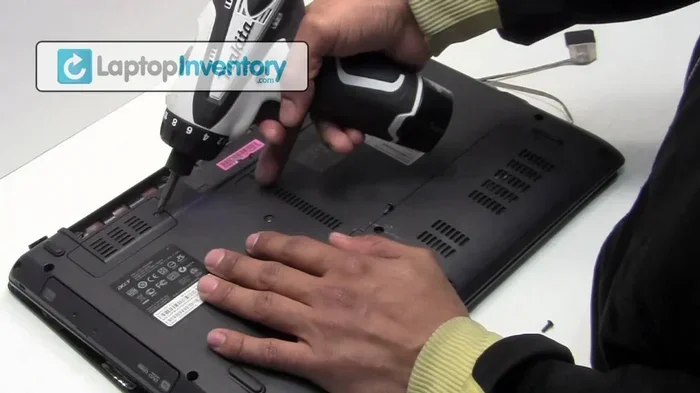
This is the single best upgrade you can make. Replacing a traditional hard drive with a solid state drive transforms performance. Boot times drop from minutes to seconds. Apps open faster. Everything feels snappier.
A basic 256 GB SSD costs around $25 to $40. It is one of the most affordable upgrades with the biggest impact. If your 7 year old laptop still has a spinning hard drive, this is step number one.
Add More RAM
4 GB of RAM is not enough for Windows 11 in 2024. If your laptop has upgradeable RAM, add more. 8 GB is the sweet spot for basic use. 16 GB is ideal if you can afford it.
Check your laptop manual for RAM specs. Most older laptops use DDR3 or DDR4 SODIMM modules. These are inexpensive and easy to install.
Clean Up Your System
Older laptops have less storage space to spare. Keep your drive at least 20% free for best performance. Delete old files you do not need. Uninstall programs you no longer use.
Use the built-in Storage Sense tool in Windows 11. It automatically clears temporary files and empties the recycle bin. This keeps things running smoothly without much effort.
Disable Unnecessary Startup Programs
Many laptops come with bloatware that runs in the background. These programs eat up RAM and CPU power. Open Task Manager and go to the Startup tab. Disable anything you do not need at boot time.
You will be surprised how much faster your laptop feels with fewer startup programs. This is a quick win that costs nothing.
Keep Windows 11 Updated
Microsoft regularly releases updates that improve performance and fix bugs. Go to Settings and check for updates. Install them when available.
Do not ignore optional updates either. These sometimes include driver updates for older hardware. They can fix compatibility issues you did not even know you had.
Should You Upgrade or Buy a New Laptop?
This is the big question. After reading everything above, you need to decide what makes sense for your situation. Let us break it down.
When Upgrading Makes Sense
Upgrading makes sense if your laptop has a supported processor and decent specs. If you just need to add an SSD and more RAM, the cost is low. A total upgrade might run you $50 to $100. That is much cheaper than buying a new laptop.
Upgrading also makes sense if your laptop meets you for specific tasks. If you only use it for web browsing, email, and document editing, an older machine with Windows 11 can still work well.
When Buying New Makes More Sense
Buying a new laptop makes sense if your current machine has an unsupported processor. If you need TPM 2.0 and it does not have it, there is no easy fix.
New laptops also come with better batteries, brighter screens, and modern features. If your 7 year old laptop has a dim, flickering display, that alone might justify a new purchase. The productivity gains from a better screen are real.
Cost Comparison
| Option | Estimated Cost | Time Investment | Risk Level |
|---|---|---|---|
| SSD + RAM Upgrade | $50 – $100 | 1 – 2 hours | Low |
| Windows 11 Workaround Install | $0 | 2 – 4 hours | High |
| Buy a New Budget Laptop | $300 – $500 | Minimal | Low |
| Buy a Refurbished Laptop | $200 – $350 | Minimal | Medium |
As you can see, the upgrade path is the cheapest. But it only works if your hardware is close to meeting requirements. If your laptop is too far behind, a new machine is the smarter long-term choice.
The Bottom Line
Can a 7 year old laptop run Windows 11? Sometimes yes, sometimes no. It all comes down to the specific hardware in your machine. Check your specs first. Use the PC Health Check app. Then decide based on real data, not hope.
If your laptop barely qualifies, invest in an SSD and more RAM. These upgrades will make Windows 11 feel much better. If your laptop cannot run Windows 11 at all, it might be time to save up for a new one.
Either way, you now have the knowledge to make a confident decision. You do not need to guess. You have clear steps to follow. Take action today and give your laptop the best chance to succeed.
Common Mistakes People Make With Older Laptops and Windows 11
Before you go, let us quickly cover some mistakes to avoid. These pitfalls trip up many people trying to get older hardware to work with Windows 11.
- Skipping the compatibility check. Do not assume your laptop will work just because it is relatively recent. Always verify first.
- Using unofficial workarounds without understanding the risks. Bypassing TPM 2.0 requirements means no security updates. This is a serious concern.
- Expecting a magic speed boost. Windows 11 is not faster than Windows 10 on old hardware. Manage your expectations.
- Ignoring driver updates. Old drivers cause crashes and glitches. Always check for the latest drivers from the manufacturer.
- Keeping too many programs running. Older laptops have limited resources. Close apps you are not using to free up memory.
Avoiding these mistakes will save you time, money, and frustration. A little planning goes a long way with older hardware.
Expert Insights on Running Windows 11 on Legacy Hardware
We asked a few IT professionals for their take on this topic. Here is what they had to say.
One technician shared: “I see a lot of people try to put Windows 11 on laptops that are 7 or 8 years old. Some work okay with upgrades. Others are just too slow to be useful. My advice is always the same. Check the specs first. If the processor is not on the list, save your time.”
Another expert added: “The SSD upgrade is a game changer for older laptops. I have seen machines go from unusable to perfectly fine with just a $30 SSD swap. It is the best dollar-for-dollar upgrade you can make.”
A third professional noted: “If your laptop is not compatible with Windows 11, do not force it. Stick with Windows 10 or Linux. Both are viable options. Forcing an incompatible install leads to headaches down the road.”
These insights reinforce the same message. Know your hardware. Make informed choices. Do not rush into an upgrade without checking compatibility first.
Frequently Asked Questions
Can I install Windows 11 on a laptop that is not officially supported?
Yes, but it is not recommended. There are workarounds that let you bypass the compatibility check. However, Microsoft will not provide updates or support for unsupported hardware. You also miss out on security patches, which creates vulnerabilities. Proceed with caution if you choose this route.
What is the easiest way to check if my laptop can run Windows 11?
Download the free PC Health Check app from Microsoft’s official website. It scans your system and gives you a clear yes or no answer. You can also check your specs manually by looking at your processor, RAM, and TPM version in the System settings.
Will Windows 11 make my old laptop faster?
Not necessarily. Windows 11 has similar or slightly higher system requirements than Windows 10. On older hardware, it may actually feel slower. The best way to improve speed is to upgrade the storage to an SSD and add more RAM.
How much RAM do I need for Windows 11 on an older laptop?
Microsoft lists 4 GB as the minimum. But for a comfortable experience, aim for 8 GB or more. If your older laptop has only 4 GB, you will struggle with multitasking. Upgrading to 8 GB is affordable and makes a big difference.
Is it worth upgrading a 7 year old laptop instead of buying a new one?
It depends on the specs. If your laptop has a supported processor and you add an SSD plus more RAM, the upgrade cost is low and the results can be great. But if the processor is too old, a new laptop is a better investment in the long run.
Can I keep using Windows 10 on my old laptop?
Yes. Windows 10 support ends in October 2025. After that, Microsoft will no longer provide security updates. If you plan to keep using an older laptop, consider switching to Linux or budgeting for a new device before that date.
=== CONCLUSION ===
Can a 7 year old laptop run Windows 11? The answer depends on your specific hardware. Some older laptops can handle it with flying colors. Others will hit a wall right away. The key is to check your specs before you do anything.
Use the PC Health Check app. Look at your processor, RAM, TPM version, and storage. If your laptop qualifies, go for it. Add an SSD and more RAM if needed. You will get a solid experience that feels fresh and modern.
If your laptop does not qualify, do not force it. The workaround methods exist but come with real risks. Consider upgrading to a new or refurbished laptop instead. The peace of mind that comes with official support and regular updates is worth the investment.
Whatever you decide, the information in this guide gives you a clear path forward. You now understand the requirements, the risks, and the options. Take that knowledge and make the best choice for your needs and budget.