Can I Connect 3 Monitors To My Laptop Everything You Need
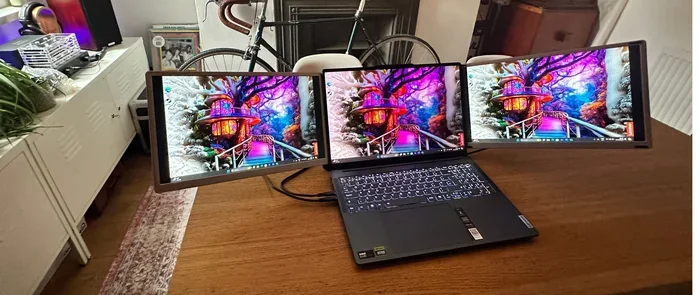
Yes, you can connect 3 monitors to your laptop, but it depends on your laptop’s ports, graphics capabilities, and the right accessories. Whether you use an HDMI port, USB-C docking station, or DisplayPort, setting up a triple monitor workspace is more achievable than most people think. This guide walks you through every step, from checking compatibility to troubleshooting common issues.
Can I connect 3 monitors to my laptop? That is a question many professionals, gamers, and multitaskers ask every day. The short answer is yes, but the full answer depends on a few key factors. Your laptop model, graphics card, available ports, and the right accessories all play a role.
Setting up a triple monitor workspace can seriously boost your productivity. More screen space means more room for open windows, smoother workflows, and less window switching. But getting three monitors working with a laptop is not always plug-and-play. You need to know what your laptop supports and which tools to use.
This guide covers everything you need to know. We will walk through compatibility checks, port types, docking stations, setup steps, and common problems. By the end, you will know exactly how to connect three monitors to your laptop and get them running smoothly.
Key Takeaways
- Check your ports first: Not every laptop supports three external displays. Know what your laptop offers before buying anything.
- A docking station makes it easier: USB-C and Thunderbolt docks are the simplest way to run three monitors from a single laptop connection.
- Graphics capability matters: Your laptop’s GPU determines how many displays it can handle at once. Integrated graphics often limit you to two.
- Cable types vary: HDMI, DisplayPort, USB-C, and VGA are the main options. Each has pros and cons for multi-monitor setups.
- Windows and macOS handle multi-display differently: macOS is more restrictive with three monitors, while Windows offers more flexibility.
- Troubleshooting is common: Issues like flickering, no signal, or mirrored displays happen often. Most have simple fixes.
📑 Table of Contents
- Why Connect Three Monitors to Your Laptop?
- Understanding Your Laptop’s Display Capabilities
- Port Types and What You Need
- Docking Stations: Your Best Friend for Triple Monitors
- How to Set Up Three Monitors on Your Laptop
- Common Problems and How to Fix Them
- Quick Tips for the Best Triple Monitor Experience
- Laptop Brands and Their Triple Monitor Support
- Frequently Asked Questions
- Conclusion
Why Connect Three Monitors to Your Laptop?
More people are choosing a multi-monitor setup for work and play. A single laptop screen simply is not enough for many tasks. Adding two extra displays opens up a world of possibilities.
Here are some of the main reasons people want a triple monitor setup:
- Better multitasking: Keep your email on one screen, your browser on another, and your main work document on the third. No more constant tab switching.
- Improved productivity: Studies show that multiple monitors can increase工作效率 by up to 30%. You spend less time minimizing and maximizing windows.
- Gaming immersion: Three screens create a wider field of view that makes games feel more immersive and engaging.
- Content creation: Video editors, graphic designers, and music producers benefit from having their tools on one screen and their timeline or canvas on another.
- Video conferencing: You can see your meeting participants on one screen while sharing your presentation or notes on the others.
Whatever your reason, a laptop with 3 monitors can transform how you work and play. The key is setting it up correctly.
Understanding Your Laptop’s Display Capabilities
Before you buy any cables or docks, you need to understand what your laptop can handle. Not every laptop supports three external displays. The number of monitors you can connect depends on your laptop’s hardware and software.
Check Your Graphics Card
Your laptop’s graphics card is the biggest factor. Most laptops have either integrated graphics or a dedicated GPU. Integrated graphics, like Intel UHD or Iris, often support only two external displays. Dedicated graphics cards from NVIDIA or AMD usually support three or more.
Here is how to check your graphics card on Windows:
- Right-click on your desktop.
- Select “Display settings.”
- Scroll down to “Multiple displays.”
- Look for options to detect and arrange external screens.
On macOS, click the Apple menu, then “System Settings,” then “Displays.” If your Mac supports three monitors, you will see the option to arrange them.
Integrated vs. Dedicated Graphics
Integrated graphics share memory with your CPU. They are energy-efficient but limited in display output. Dedicated graphics have their own memory and processing power. They handle multiple displays much better.
If your laptop has integrated graphics, you might be limited to two external monitors. In that case, you can use one external monitor and your laptop screen as the third display. This is a common workaround for many users.
Port Types and What You Need
Your laptop’s ports determine how you connect your monitors. Different ports carry video signals in different ways. Let us look at the most common options.
HDMI Ports
HDMI is the most common video port on laptops and monitors. Most modern laptops have at least one HDMI port. HDMI cables carry both video and audio through a single cable.
HDMI 1.4 supports up to 4K at 30Hz. HDMI 2.0 supports 4K at 60Hz. If you want high resolution on all three monitors, make sure your HDMI ports and cables support the refresh rate you need.
USB-C and Thunderbolt
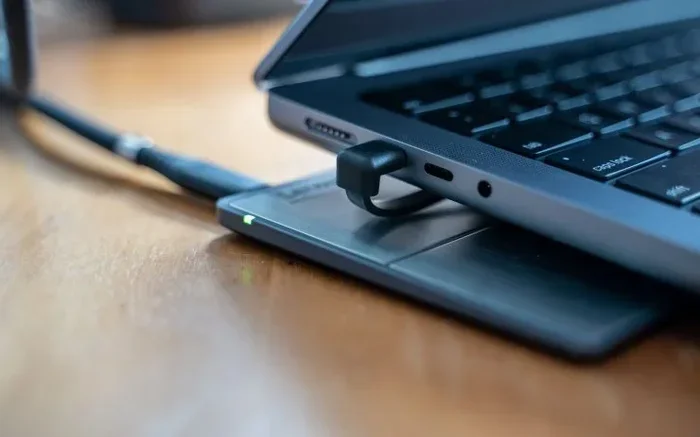
USB-C ports are versatile. They can carry video signals through something called USB-C Alt Mode. Thunderbolt 3 and Thunderbolt 4 ports are even more powerful. They support daisy-chaining and can power your monitors while charging your laptop.
A single Thunderbolt 4 port can support up to two 4K displays or one 8K display. This makes USB-C docks the go-to solution for most triple monitor setups.
DisplayPort
DisplayPort offers excellent bandwidth for high-resolution displays. Some laptops come with a full-size DisplayPort or a Mini DisplayPort. DisplayPort 1.4 supports 4K at 120Hz or even 8K at 60Hz.
DisplayPort is less common on laptops but very common on desktop monitors. You may need an adapter to connect a DisplayPort cable to your monitor.
VGA and DVI (Older Ports)
VGA and DVI are older analog and digital video standards. They are still found on some monitors but offer lower quality and no audio. Avoid these if you want the best image quality on all three screens.
Docking Stations: Your Best Friend for Triple Monitors
If your laptop does not have enough ports for three monitors, a docking station is your best solution. A laptop docking station connects to a single port on your laptop and provides multiple video outputs.
USB-C Docking Stations
USB-C docking stations are the most popular choice. They plug into a single USB-C or Thunderbolt port on your laptop and offer HDMI and DisplayPort outputs for your monitors.
Look for a dock that explicitly supports three external displays. Not all USB-C docks can run three monitors. Check the specifications before you buy.
Thunderbolt Docking Stations
Thunderbolt docks are more powerful and reliable. They offer higher bandwidth, which means better performance and higher resolutions. If your laptop has a Thunderbolt port, a Thunderbolt dock is the ideal choice.
Popular Thunderbolt dock brands include CalDigit, OWC, and Anker. These docks are built specifically for multi-monitor setups and work seamlessly with most laptops.
What to Look for in a Docking Station
Here are the key features to consider when choosing a dock for your triple monitor setup:
- Number of video outputs: Make sure it has at least three outputs (HDMI, DisplayPort, or VGA).
- Resolution support: Check that the dock supports the resolution you want on each monitor.
- Power delivery: Many docks can charge your laptop through the same USB-C cable.
- Compatibility: Make sure the dock works with your laptop brand and operating system.
- Build quality: A well-built dock ensures stable connections and long-lasting use.
How to Set Up Three Monitors on Your Laptop
Once you have the right hardware, setting up three monitors is straightforward. Here is a step-by-step guide.
Step 1: Connect Your Monitors
Plug each monitor into your laptop or docking station using the appropriate cable. Make sure all monitors are powered on before you proceed.
Step 2: Configure Display Settings
On Windows, right-click your desktop and select “Display settings.” You will see boxes representing each display. Drag them to match the physical arrangement of your monitors.
On macOS, go to “System Settings” then “Displays.” Arrange the displays by dragging them to match your physical setup.
Step 3: Choose Display Mode
You have two main options for how your displays work:
- Extend display: Each screen shows different content. This is the most common setup for productivity.
- Duplicate display: All screens show the same image. This is useful for presentations.
For a triple monitor workspace, you almost always want to extend your display.
Step 4: Adjust Resolution and Scaling
Make sure each monitor is set to its native resolution. If the text looks too small or too large, adjust the scaling in your display settings. Consistent scaling across all three screens makes the experience much smoother.
Common Problems and How to Fix Them
Setting up three monitors is not always perfect. Here are some common issues and their solutions.
One Monitor Shows No Signal
This usually means the cable is loose or the wrong input is selected on the monitor. Check all connections and make sure each monitor is set to the correct input source (HDMI 1, HDMI 2, DisplayPort, etc.).
Monitors Are Flickering
Flickering often happens when the cable is damaged or the refresh rate is too high for the cable type. Try using a different cable or lowering the refresh rate in your display settings.
Laptop Screen Goes Black When Monitors Are Connected
Some laptops turn off their built-in screen when external monitors are connected. Go to your display settings and make sure “Show only on external displays” is not selected. You want to extend, not replace, your laptop screen.
Windows Does Not Detect the Third Monitor
Click “Detect” in the display settings. If that does not work, try disconnecting and reconnecting the cable. Also check that your graphics drivers are up to date.
Quick Tips for the Best Triple Monitor Experience
Here are some practical tips to get the most out of your three-monitor setup:
- Use matching monitors: Monitors with the same size, resolution, and refresh rate create a more seamless experience.
- Use a monitor arm: A monitor arm saves desk space and lets you position each screen at the perfect height and angle.
- Keep your drivers updated: Updated graphics drivers fix compatibility issues and improve performance.
- Use a cable management solution: A docking station reduces cable clutter and makes it easy to connect and disconnect all three monitors.
- Adjust brightness and color: Match the brightness and color settings across all three monitors for a consistent viewing experience.
Laptop Brands and Their Triple Monitor Support
Different laptop brands handle multi-monitor setups differently. Here is a quick overview of popular brands and their capabilities.
| Laptop Brand | Typical Max External Displays | Best Connection Method |
|---|---|---|
| Dell XPS | 3 (with Thunderbolt dock) | USB-C / Thunderbolt dock |
| MacBook Pro | 2 external + 1 built-in (M1/M2/M3) | USB-C / Thunderbolt |
| HP Spectre | 3 (with docking station) | USB-C / HDMI |
| Lenovo ThinkPad | 3 (with USB-C dock) | USB-C / Thunderbolt dock |
| ASUS ZenBook | 3 (with USB-C dock) | USB-C / HDMI |
| Acer Swift | 2 external + 1 built-in | HDMI / USB-C |
Note that macOS laptops, especially those with Apple Silicon chips (M1, M2, M3), have more restrictions. Most MacBooks support only two external monitors at a time, with the laptop screen acting as the third. Windows laptops tend to be more flexible and can support three external displays more easily.
Frequently Asked Questions
Can any laptop connect to 3 monitors?
Not every laptop can connect to three monitors. It depends on your graphics card, available ports, and operating system. Check your laptop specifications or contact the manufacturer to confirm support for three external displays before purchasing any equipment.
Do I need a docking station to connect 3 monitors?
You do not always need a dock, but it makes the process much easier. If your laptop has three separate video outputs (like HDMI, DisplayPort, and USB-C), you can connect directly. However, most laptops do not have that many ports, so a docking station is the simplest and most reliable solution.
Can I use a USB-C hub instead of a docking station?
A standard USB-C hub usually does not support three monitors. You need a USB-C dock or Thunderbolt dock that explicitly supports multiple video outputs. Regular hubs are designed for data and charging, not for driving multiple high-resolution displays.
Does connecting 3 monitors slow down my laptop?
Running three monitors uses more GPU resources. If your laptop has a dedicated graphics card, you should not notice any slowdown. However, if you have integrated graphics, you may experience reduced performance, especially when running demanding applications across all three screens.
Can I mix different monitor brands and sizes?
Yes, you can mix different monitors, but matching brands, sizes, and resolutions gives the best experience. Mixed monitors can cause differences in brightness, color accuracy, and scaling. You can adjust these settings individually in your operating system display settings.
Why does macOS only support 2 external monitors?
Apple Silicon Macs (M1, M2, M3) have a hardware limitation that supports only two external displays at a time. The built-in MacBook screen counts as a third display in the overall workspace. Some workarounds exist using DisplayLink adapters, but they may have limitations with performance and compatibility.
Conclusion
So, can I connect 3 monitors to my laptop? The answer is yes, in most cases. With the right ports, a capable graphics card, and a good docking station, you can set up a triple monitor workspace that boosts your productivity and workflow significantly.
Start by checking your laptop’s specifications. Understand what ports you have and what your graphics card supports. Then choose the right cables or a docking station that fits your needs. Follow the setup steps carefully, and troubleshoot any issues that come up along the way.
A three-monitor setup with your laptop is a game-changer for professionals, students, and creatives alike. Once you experience the extra screen space, you will wonder how you ever worked with just one screen. Take the time to set it up right, and you will enjoy the benefits every single day.