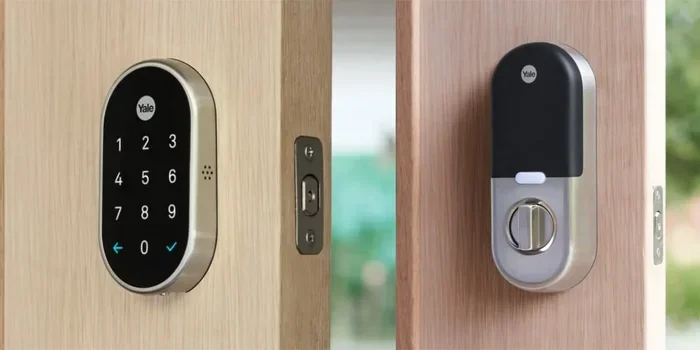
Do You Need Wi Fi To Set Up Your New Yale Smart Lock
You do not always need Wi-Fi to set up a Yale Smart Lock. Many Yale smart locks use Bluetooth for initial pairing and basic functions. However, Wi-Fi unlocks remote access, voice control, and smart home integration. This guide walks you through every setup method so you can get your Yale Smart Lock running regardless of your network situation.
Installing a new lock on your front door can feel exciting and a little overwhelming. If you just bought a Yale Smart Lock, you might be wondering whether you need a Wi-Fi connection to get it running. The short answer is no, but the full story is more interesting than that.
Yale Smart Locks are designed to be flexible. You can set them up using Bluetooth alone, and then add Wi-Fi later if you want more features. This means you are never stuck waiting for your network to be ready. Whether you live in an apartment with weak signals or a house far from your router, there is a setup path that works for you.
In this guide, we will walk through every detail of Yale Smart Lock setup. You will learn what you need, what you do not need, and how to get the most out of your new keyless entry system. Let us get into it.
Key Takeaways
- Bluetooth Setup Is Possible: You can pair and configure most Yale Smart Locks using Bluetooth without any Wi-Fi connection.
- Wi-Fi Adds Powerful Features: Connecting to Wi-Fi enables remote locking, auto-unlock, and integration with smart home systems.
- 2.4GHz Network Matters: Yale Smart Locks typically require a 2.4GHz Wi-Fi band for stable connectivity.
- The Yale App Guides You Through Setup: The step-by-step app interface makes installation straightforward for most users.
- Range Extenders Help: If your Wi-Fi signal is weak near the door, a Wi-Fi extender can solve the problem.
- No Internet Still Means Local Access: Even without internet, your lock works via Bluetooth, keypad, or physical key.
- Smart Home Compatibility Boosts Value: Wi-Fi connectivity lets your lock work with Alexa, Google Home, and Apple HomeKit.
📑 Table of Contents
What Is a Yale Smart Lock?
A Yale Smart Lock is a modern door lock that replaces or works alongside your existing deadbolt. It lets you lock and unlock your door using your phone, a keypad code, a physical key, or even automatically when you walk up to your door. These locks are part of the growing smart home ecosystem that makes daily life more convenient and secure.
Yale is one of the most trusted names in door locks. They have been making locks for over 180 years. Their smart locks combine that legacy of quality with modern technology like Bluetooth, Wi-Fi, and Z-Wave connectivity. The result is a lock that feels simple to use but is packed with powerful features.
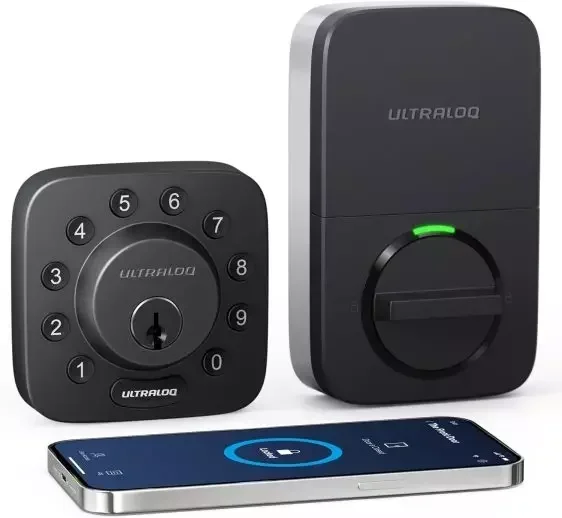
Most Yale Smart Lock models include a touchscreen keypad, a backup physical key, and a mobile app for your phone. Some models also support voice assistants like Amazon Alexa and Google Assistant. The features you get depend largely on how you set up the lock and whether you connect it to your home network.
Do You Need Wi-Fi To Set Up a Yale Smart Lock?
This is the question most people ask, and the answer might surprise you. You do not need Wi-Fi to set up a Yale Smart Lock for basic operation. The lock communicates with your phone using Bluetooth during the initial setup process. This means you can install and configure your lock even if you do not have a Wi-Fi network or if your router is far away from your front door.
However, Wi-Fi becomes important once you want to go beyond basic functions. Without Wi-Fi, you are limited to Bluetooth range, which is typically around 30 feet. With Wi-Fi, you can control your lock from anywhere in the world, receive alerts, and set up automations. So while Wi-Fi is not required for setup, it is essential for unlocking the full potential of your Yale Smart Lock.
Bluetooth Setup vs Wi-Fi Setup
When you first unbox your Yale Smart Lock, you will use Bluetooth to pair it with your phone. This is the fastest and easiest way to get started. You simply download the Yale Home app, follow the on-screen prompts, and hold your phone near the lock. Within minutes, your lock is paired and ready to use.
Wi-Fi setup comes next if you choose to add it. To connect your lock to Wi-Fi, you need a 2.4GHz network. Many modern routers broadcast both 2.4GHz and 5GHz bands, and the Yale lock only works with the 2.4GHz band. If your phone is connected to a 5GHz network, the lock might not find it during setup. You may need to force your phone to use the 2.4GHz Wi-Fi band temporarily during setup.
Here is a quick comparison of the two setup methods:
- Bluetooth Setup: No internet needed. Range is about 30 feet. Quick and simple. Works for basic lock and unlock functions.
- Wi-Fi Setup: Requires a 2.4GHz network. Unlimited range through the internet. Enables remote access, alerts, and smart home integration.
What You Need Before Starting Setup
Before you begin installing your Yale Smart Lock, gather a few things. Having everything ready makes the process smooth and fast. You do not want to pause halfway through to hunt down a missing item.
First, you need your smartphone. Both iOS and Android devices work with the Yale Home app. Make sure your phone is charged and has the latest operating system installed. Next, download the Yale Home app from the App Store or Google Play Store before you start the physical installation.
You will also need your existing door key. The Yale Smart Lock usually fits over your existing deadbolt, so you need the key to remove your old lock. Some models come with a conversion kit that includes all the hardware you need. Check the box to make sure you have everything listed in the instructions.
Finally, if you plan to use Wi-Fi features, make sure you know your Wi-Fi network name and password. You will need the 2.4GHz network credentials during setup. If you are unsure whether your router broadcasts on 2.4GHz, check your router settings or contact your internet provider.
Tools You May Need
The installation is straightforward, but a few tools help. You will need a screwdriver, typically a Phillips head. Some users also find a tape measure useful for aligning the lock properly. A small level can help ensure the keypad is straight on your door. Most people complete the installation in under 30 minutes with basic household tools.
Step-by-Step Setup Process
Setting up your Yale Smart Lock follows a clear sequence. Whether you use Bluetooth or Wi-Fi, the steps are similar with a few differences along the way. Let us walk through each phase.
Step 1: Remove Your Old Lock
Start by using your existing key to unlock the door. Remove the old deadbolt from the inside of the door. You will see two screws holding the lock body in place. Unscrew them and pull the old lock out. Keep the screws and any remaining hardware in a safe place in case you need them later.
Step 2: Install the Yale Smart Lock
Insert the new Yale Smart Lock deadbolt into the door. Align the screw holes and tighten the screws firmly. Make sure the lock slides smoothly and the bolt extends and retracts properly. If the lock feels stiff, check that the strike plate on the door frame is aligned correctly.
Step 3: Pair Using Bluetooth
Open the Yale Home app on your phone. Tap the option to add a new lock. The app will search for nearby Bluetooth devices. Hold your phone close to the lock and follow the on-screen instructions. You will be asked to create a master code and set up your admin account. This process takes about five minutes.
Step 4: Add Wi-Fi (Optional)
If you want to enable remote features, go to the app settings and select Wi-Fi setup. Choose your 2.4GHz network and enter the password. The lock will connect to your network. If it does not connect on the first try, make sure you are on the correct band. You can also check if a Wi-Fi booster might help strengthen the signal near your door.
Once connected, you can explore features like auto-unlock, activity logs, and guest access codes. The app walks you through each feature with clear instructions.
What Happens If You Do Not Have Wi-Fi?
Not having Wi-Fi does not mean your Yale Smart Lock is useless. In fact, many users love their Yale locks without ever connecting to Wi-Fi. The lock works perfectly fine using Bluetooth alone. You can lock and unlock your door from your phone as long as you are within Bluetooth range.
Without Wi-Fi, you lose some convenient features. You cannot receive lock alerts when you are away from home. You cannot use voice commands through Alexa or Google Assistant. You also cannot grant temporary access codes to guests remotely. But the core function of the lock remains fully operational.
For many people, Bluetooth-only operation is more than enough. If you are comfortable walking up to your door with your phone to unlock it, you do not need Wi-Fi at all. The lock also comes with a physical key as a backup, so you are never completely locked out.
When Wi-Fi Becomes Important Later
You can always add Wi-Fi to your Yale Smart Lock later. If you move to a new home with better internet coverage or decide you want remote access, the setup process is simple. Just open the app, go to settings, and connect to your Wi-Fi network. There is no need to reset the entire lock or start the setup over.
Some users set up their lock with Bluetooth first and then add Wi-Fi after they have had time to test the basic functions. This approach lets you get comfortable with the lock before adding more complexity. It is a smart way to ease into smart lock technology without feeling overwhelmed.
Tips For A Smooth Yale Smart Lock Setup
Setting up a Yale Smart Lock is generally easy, but a few tips can save you time and frustration. These practical insights come from real-world setup experiences and common issues users face.
Keep your phone close during Bluetooth pairing. The lock uses Bluetooth Low Energy to communicate. If your phone is in another room, the pairing might fail. Stay within a few feet of the lock during setup.
Check your Wi-Fi band before starting. Many routers use both 2.4GHz and 5GHz bands. The Yale Smart Lock only works with 2.4GHz. If your phone automatically connects to 5GHz, you might need to switch networks temporarily. This is one of the most common setup issues, and it is easy to fix.
Update the Yale Home app before you begin. App updates often include bug fixes and new setup features. Running the latest version ensures a smoother installation experience. You can check for updates in the App Store or Google Play Store.
Test the lock before mounting it on the door. Some users skip this step and run into alignment issues later. Hold the lock in your hand, turn it on, and test the keypad and Bluetooth connection before drilling any screws. This simple step can save a lot of rework.
Set up a master code and a guest code. The master code lets you access the lock even if your phone battery dies. A guest code is useful for family members, dog walkers, or house cleaners. Setting these up during initial configuration saves time later.
Consider your Wi-Fi signal strength near the door. If your router is far from your front door, the Wi-Fi signal might be weak. This can cause connection drops and delayed responses. A Wi-Fi extender placed near the front door can solve this problem effectively.
Common Setup Mistakes to Avoid
- Skipping the firmware update that the app prompts you to install.
- Forgetting to remove the battery tab before pairing the lock.
- Using a 5GHz network instead of 2.4GHz during Wi-Fi setup.
- Not saving the master code in a safe place.
- Rushing through the installation without reading the manual.
Yale Smart Lock Features You Can Access With Wi-Fi
Connecting your Yale Smart Lock to Wi-Fi opens up a world of convenience. These features make the lock feel truly smart and integrate it into your daily routine.
Remote Lock and Unlock: You can lock or unlock your door from anywhere using the Yale Home app. Forgot to lock up before leaving for vacation? Just open the app and secure your door with a tap. This feature gives you peace of mind and control over your home security no matter where you are.
Auto-Unlock: Some Yale Smart Lock models support auto-unlock. When you approach your door with your phone, the lock detects your presence and unlocks automatically. It is like having a digital key that always knows when you are home.
Activity Logs: Wi-Fi connectivity lets the lock keep a detailed log of who locked and unlocked your door and when. This is incredibly useful for monitoring who comes and goes. You can review the activity history right in the app.
Voice Assistant Integration: With Wi-Fi, your Yale Smart Lock works with Amazon Alexa, Google Assistant, and Apple HomeKit. You can say “Hey Google, lock the front door” and it happens instantly. This hands-free control is especially handy when your arms are full of groceries.
Guest Access Codes: You can create temporary codes for visitors, delivery drivers, or house sitters. Set a code to expire after a certain date or number of uses. This is far more secure than hiding a spare key under a doormat.
Final Thoughts
Setting up a Yale Smart Lock is simpler than most people expect. You do not need Wi-Fi to get started, and Bluetooth handles the initial setup with ease. The flexibility of these locks means you can begin using them right away and add Wi-Fi features whenever you are ready.
Whether you are a tech enthusiast who wants full smart home integration or someone who simply wants keyless entry without the hassle, the Yale Smart Lock delivers. The setup process is designed to be user-friendly, and the app provides clear guidance every step of the way.
Take your time during installation, follow the steps carefully, and enjoy the convenience of your new lock. A Yale Smart Lock is a worthwhile upgrade that improves both the security and the daily experience of entering your home.
Frequently Asked Questions
Can I set up a Yale Smart Lock without a smartphone?
You need a smartphone for the initial Bluetooth setup and app configuration. However, once set up, you can use the keypad or physical key to operate the lock without your phone. The app is only required during the setup phase and for remote features.
What Wi-Fi frequency does a Yale Smart Lock use?
Yale Smart Locks use the 2.4GHz Wi-Fi band. Most home routers broadcast both 2.4GHz and 5GHz networks. Make sure your phone is connected to the 2.4GHz network during setup to avoid connection issues.
Can I control my Yale Smart Lock when the internet goes down?
Yes. Bluetooth connectivity works independently of the internet. You can still lock and unlock your door using your phone as long as you are within Bluetooth range. The physical key also works without any internet or power.
How long does the Yale Smart Lock battery last?
Most Yale Smart Locks run on batteries that last between 6 and 12 months depending on usage. The app sends a low-battery notification well before the lock dies, giving you plenty of time to replace the batteries.
Is a Wi-Fi booster necessary for Yale Smart Lock setup?
A Wi-Fi booster is not necessary for setup, but it can help if your router is far from your front door. Weak Wi-Fi signals near the door can cause connection issues. A booster ensures a stable connection for remote features and real-time alerts.
Can I install a Yale Smart Lock myself?
Absolutely. Yale Smart Locks are designed for DIY installation. The process typically takes 20 to 30 minutes and requires only a screwdriver. The included instructions and app guide make it easy even if you have never installed a lock before.