Does Apple Keychain Save Wi Fi Passwords Automatically
Yes, Apple Keychain does save Wi-Fi passwords automatically across all your Apple devices. When you connect to a wireless network, iCloud Keychain stores the login credentials securely and syncs them through your Apple ID. This means your Wi-Fi password is available on your iPhone, iPad, and Mac without you ever needing to remember it.
Does Apple Keychain Save Wi-Fi Passwords Automatically
We all hate typing in Wi-Fi passwords. You know the drill — you walk into a new room, open your phone, and then you stare at that tiny password field wondering what you even typed last time. It’s frustrating. The good news is that Apple built a system to handle this for you. But does Apple Keychain save Wi-Fi passwords automatically? The short answer is yes. Let’s dig into exactly how it works, what you need to know, and how to get the most out of it.
Apple Keychain is one of the most underrated features on your iPhone, iPad, and Mac. Most people use it without even realizing it. It quietly stores your passwords, credit card details, and network information so you don’t have to. When it comes to wireless networks, Keychain makes life a lot easier. But there’s more going on behind the scenes than most users think.
So let’s break it all down. We’ll cover how Keychain saves your Wi-Fi passwords, how to find them when you need them, and what security measures Apple has in place to keep your data safe. By the end of this guide, you’ll know exactly what happens every time you tap “Connect” on a new network.
Key Takeaways
- Apple Keychain saves Wi-Fi passwords automatically whenever you connect to a new network.
- iCloud Keychain syncs your wireless network credentials across all Apple devices signed into the same Apple ID.
- You can view, edit, and delete saved Wi-Fi passwords directly from your iPhone, iPad, or Mac settings.
- Apple uses end-to-end encryption to protect your login credentials stored in Keychain.
- If Keychain isn’t syncing properly, you can troubleshoot by checking your Apple ID settings and network connections.
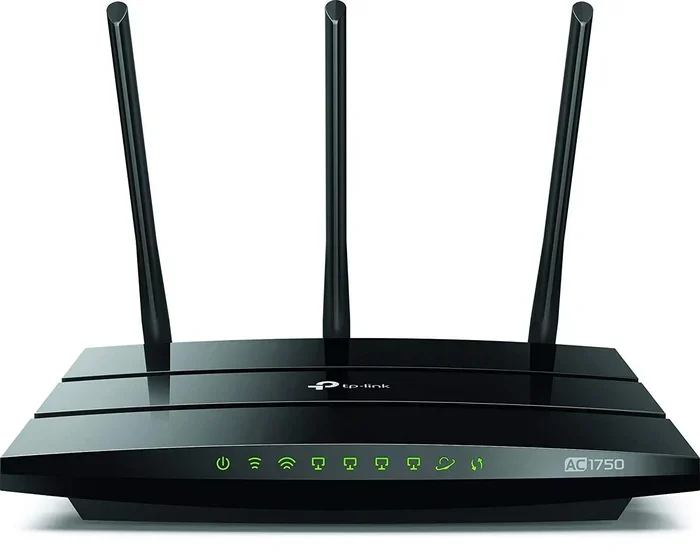
- Using a Wi-Fi booster can help maintain strong signals that keep your Keychain syncing smoothly across devices.
📑 Table of Contents
- What Is Apple Keychain and How Does It Work?
- Does Apple Keychain Save Wi-Fi Passwords Automatically?
- How to Check Saved Wi-Fi Passwords in Apple Keychain
- How iCloud Keychain Syncs Your Wi-Fi Passwords Across Devices
- Security Features Protecting Your Wi-Fi Credentials
- Troubleshooting Common Apple Keychain Wi-Fi Issues
- Tips for Getting the Most Out of Apple Keychain
- How Apple Keychain Compares to Other Password Managers
- Common Mistakes People Make With Apple Keychain
- Final Thoughts
What Is Apple Keychain and How Does It Work?
Apple Keychain is a built-in password manager that lives on every Apple device you own. Think of it as a secure vault that holds all your login information. When you save a password on your iPhone, it doesn’t just stay on that phone. It travels with you through iCloud.
The way it works is simple. Whenever you enter a password — whether it’s for a website, an app, or a wireless network — Apple asks if you want to save it. If you say yes, Keychain stores it. Then, through iCloud Keychain sync, it pushes that same password to your other Apple devices.
This means you can connect to a network on your Mac and find that same password waiting for you on your iPad later. It’s seamless. It’s automatic. And most of the time, you don’t even notice it’s happening.
But here’s the thing — not everyone knows this feature exists. Apple doesn’t exactly shout about it. So if you’ve ever wondered where your Wi-Fi passwords go after you connect, now you know. They live in Keychain, safe and ready for whenever you need them again.
Does Apple Keychain Save Wi-Fi Passwords Automatically?
Yes. Apple Keychain saves Wi-Fi passwords automatically the moment you connect to a network. You don’t need to take any extra steps. You don’t need to tap “Save Password” like you do with websites in Safari. It just happens in the background.
Here’s what makes this so convenient. Let’s say you set up a new wireless network at home. You type in the password once, and your iPhone remembers it. Later that same day, you open your MacBook and walk into the same room. Your Mac connects to the network without asking for the password. Keychain already has it stored.
This works across all your Apple devices as long as you’re signed into the same Apple ID and have iCloud Keychain turned on. It doesn’t matter if you’re using an iPhone 15 or a five-year-old iPad. The syncing works the same way.
But there’s a catch. If you turn off iCloud Keychain, your devices won’t share passwords anymore. Each device will still remember the networks it connected to, but they won’t sync with your other gadgets. So if you want the full automatic experience, make sure iCloud Keychain stays enabled.
When Does Keychain Save a Wi-Fi Password?
Keychain saves a Wi-Fi password every time you successfully connect to a network. Here are the specific moments when this happens:
- You tap “Join” on a new wireless network and enter the correct password.
- Your device auto-connects to a saved network after a restart.
- You share a Wi-Fi password with another Apple device nearby using AirDrop or the sharing prompt.
- A guest device connects through your router’s guest network and you later add those credentials to your device.
Each time one of these things happens, Apple Keychain locks that password away in your secure vault. It doesn’t ask for confirmation. It just saves it and moves on.
How to Check Saved Wi-Fi Passwords in Apple Keychain
Sometimes you need to find a Wi-Fi password you saved earlier. Maybe you’re setting up a new device, or a friend asks for your network key. Either way, Apple makes it easy to pull up saved passwords from Keychain.
On your iPhone or iPad, go to Settings, then Wi-Fi. Tap the blue “i” icon next to the network you’re connected to. Look for the password field — it will be hidden by default. Tap “Password” and authenticate with Face ID, Touch ID, or your device passcode. The password will appear on screen.
On your Mac, the process is slightly different. Open System Settings and go to Wi-Fi. Click “Details” next to your connected network. Then select the “Password” tab. You’ll need your Mac password or Touch ID to view it.
If you want to see all your saved Wi-Fi networks at once, you can use the Keychain Access app on your Mac. Open it from your Applications folder under Utilities. Search for “Wi-Fi” and you’ll see a list of every network your Mac has ever connected to. This is especially helpful if you’ve forgotten which password goes with which network.
Keep in mind that Apple does not let you export your Keychain data easily. The passwords stay locked inside the Apple ecosystem. This is by design — it keeps your login credentials safer than if they were sitting in a plain text file somewhere.
How iCloud Keychain Syncs Your Wi-Fi Passwords Across Devices
iCloud Keychain is the engine behind the automatic syncing. It uses your Apple ID to push password data between your devices securely. When you save a Wi-Fi password on one device, iCloud Keychain encrypts it and sends it to Apple’s servers. From there, it gets pushed to your other devices.
The whole process happens in seconds. You connect to a network on your phone, and within moments, your iPad and Mac have the same password ready to go. You don’t need to do anything. You don’t need to wait for a manual sync.
But this only works when all your devices meet a few basic requirements:
- All devices must be signed into the same Apple ID.
- iCloud Keychain must be turned on in settings for each device.
- Each device needs an active internet connection during the sync process.
- Your devices should be running updated versions of iOS, iPadOS, or macOS.
If any of these conditions aren’t met, the syncing might not work. For example, if your iPhone is offline when you connect to a new network, it will save the password locally. But it won’t send it to iCloud until you’re back online. Once you reconnect, the sync kicks in automatically.
It’s also worth noting that iCloud Keychain doesn’t just save Wi-Fi passwords. It stores passwords for websites, apps, and even credit card information. So it acts as a full password manager, not just a Wi-Fi tool. This makes it one of the most convenient security tools Apple offers.
Security Features Protecting Your Wi-Fi Credentials
You might wonder — is it safe to store all these passwords in one place? Apple thinks so. And they’ve built some strong protections into Keychain to back that up.
First, Apple uses end-to-end encryption for all Keychain data. This means that even Apple can’t read your passwords. Only your trusted devices can decrypt them. If someone somehow intercepts the data in transit, all they get is scrambled nonsense.
Second, Keychain requires authentication before showing any saved password. On your iPhone, you need Face ID, Touch ID, or your device passcode. On your Mac, you need your login password or Touch ID. This adds a strong layer of protection so that anyone who picks up your device can’t just open Keychain and see everything.
Third, Apple ties Keychain to your Apple ID with two-factor authentication. This means even if someone knows your Apple ID password, they still can’t access your Keychain without a second form of verification. It’s one of the reasons why Apple’s password management system is considered so reliable.
Of course, no system is perfect. If someone gains physical access to your unlocked device, they could potentially view saved passwords. That’s why it’s important to keep your devices locked with a strong passcode and biometric security enabled at all times.
Also, if you ever sell or give away an Apple device, make sure you sign out of iCloud Keychain first. This removes all stored passwords from that device and prevents the new owner from accessing your network credentials or any other saved login information.
Troubleshooting Common Apple Keychain Wi-Fi Issues
Even though Apple Keychain works well most of the time, things can go wrong. Here are the most common issues people run into and how to fix them.
Wi-Fi Passwords Not Syncing Between Devices
This is the number one complaint people have. You connect to a network on your iPhone, but your Mac doesn’t have the password. Usually, this comes down to iCloud Keychain being turned off on one of the devices. Go to Settings, tap your name at the top, then tap iCloud, and make sure Keychain is enabled.
Another common cause is that the devices aren’t using the same Apple ID. Double-check that both devices are logged in with the exact same account. Even a small difference in the email address can break the sync.
Keychain Not Saving New Wi-Fi Passwords
If Keychain suddenly stops saving passwords, try restarting your device first. Sometimes a simple reboot fixes the issue. If that doesn’t work, go to Settings, tap your name, then iCloud, and toggle Keychain off and back on. This resets the sync connection without deleting your saved passwords.
Make sure your device has enough storage space too. iCloud needs room to sync data. If your iCloud storage is full, Keychain might stop saving new information until you free up some space.
Forgotten Wi-Fi Password on a New Device
If you set up a brand new Apple device and it doesn’t have your old Wi-Fi passwords, don’t panic. During the setup process, Apple gives you the option to restore from an iCloud backup. If you choose this option, your Keychain data — including saved Wi-Fi passwords — gets transferred to the new device.
If you didn’t restore from a backup, you can still find your Wi-Fi password on a device that’s already connected to that network. Check the password on that device, then manually enter it on the new one.
Tips for Getting the Most Out of Apple Keychain
Apple Keychain is powerful, but it works even better when you use it the right way. Here are some practical tips to make the most of this feature.
- Keep iCloud Keychain on at all times. Turning it off breaks the automatic syncing between your devices.
- Use the same Apple ID on every device. This is the foundation of the entire sync system.
- Enable two-factor authentication for your Apple ID. This adds a critical extra layer of security to your Keychain data.
- Review your saved passwords periodically. Go to Settings, then Passwords, and delete any networks you no longer use.
- Don’t rely on Keychain alone for security. Use strong, unique passwords for each network, and consider adding extra router-level protections like WPA3 encryption.
- Keep your devices updated. Apple regularly patches security vulnerabilities that could affect Keychain and iCloud sync.
- Use a Wi-Fi booster if your signal is weak. A stronger, more stable connection helps Keychain sync more reliably across your home or office.
These simple habits will keep your Keychain running smoothly and your Wi-Fi credentials safe. Most people never think about their password manager until something goes wrong. A little proactive care goes a long way.
How Apple Keychain Compares to Other Password Managers
Apple Keychain isn’t the only password manager out there. Apps like LastPass, 1Password, and Dashlane offer similar features. But Apple’s built-in solution has some clear advantages — and a few limitations.
The biggest advantage is convenience. You don’t need to download anything or create a separate account. Keychain is already on your iPhone, iPad, and Mac. It works automatically without any setup. For most people, that’s all they need.
Other password managers often offer more features. They let you share passwords with family members, store secure notes, and work across non-Apple platforms like Windows and Android. If you use a mix of devices, a third-party manager might be a better fit.
But if you live entirely inside the Apple ecosystem, Keychain is hard to beat. It’s free, it’s secure, and it handles Wi-Fi passwords effortlessly. You don’t need to think about it. It just works.
Common Mistakes People Make With Apple Keychain
Even though Keychain is designed to be effortless, people still make mistakes that cause problems. Here are a few to watch out for.
- Not checking that iCloud Keychain is enabled. Many people assume it’s on by default, but it’s not always the case. Go ahead and verify in your settings.
- Using the same weak password for multiple networks. Keychain makes it easy to reuse passwords because you don’t have to remember them. But reusing passwords is a security risk. Try to use unique passwords for each network.
- Ignoring Keychain sync errors. If you see a message saying Keychain can’t sync, don’t ignore it. Fix it right away so your passwords stay up to date across all devices.
- Failing to sign out before selling a device. This is one of the biggest security mistakes. Always wipe your Keychain data before passing your device to someone else.
- Not updating your device software. Outdated software can cause Keychain sync issues and may expose you to security vulnerabilities that Apple has already patched.
Avoiding these mistakes keeps your Keychain working the way it should. And it keeps your Wi-Fi credentials safe from accidental exposure.
Final Thoughts
So, does Apple Keychain save Wi-Fi passwords automatically? Absolutely. It’s one of those features that works quietly in the background, making your life easier without you ever having to think about it. From the moment you type in a wireless network password, Keychain takes over. It stores the credentials, encrypts them, and syncs them across every Apple device you own.
The system is secure, convenient, and deeply integrated into everything Apple does. Whether you’re setting up a new device, sharing a network with a friend, or just trying to remember which password you used last time, Keychain has you covered.
Just remember to keep iCloud Keychain enabled, use strong and unique passwords, and stay on top of your device updates. Follow these simple habits, and your Wi-Fi credentials will always be right where you need them — safe, synced, and ready to go.
Apple built a system that removes one of the biggest daily frustrations of modern life. And most people don’t even realize it’s working. Now that you know how it all fits together, you can take full advantage of this powerful feature every time you connect to a network.
Frequently Asked Questions
Can I see all my saved Wi-Fi passwords in Apple Keychain?
Yes, you can view all saved Wi-Fi passwords stored in Apple Keychain. On your iPhone, go to Settings, tap Wi-Fi, and select the network you want to check. On your Mac, use the Keychain Access app to see every network your device has ever connected to. You’ll need to authenticate with Face ID, Touch ID, or your device passcode before the password is revealed.
Does Apple Keychain work on non-Apple devices?
No, Apple Keychain is designed exclusively for Apple devices. It syncs between iPhones, iPads, Macs, and Apple Watches. If you use Windows or Android devices, you won’t be able to access Keychain passwords directly. In that case, you might want to consider a cross-platform password manager instead.
Is it safe to store Wi-Fi passwords in Apple Keychain?
Yes, it’s very safe. Apple uses end-to-end encryption to protect all data stored in Keychain. This means your Wi-Fi passwords are scrambled and can only be decrypted by your trusted devices. Even Apple cannot access your stored credentials. Just make sure you use a strong Apple ID password and enable two-factor authentication for the best protection.
What happens to my Keychain Wi-Fi passwords if I reset my device?
If you reset your device and restore from an iCloud backup, your Keychain data — including saved Wi-Fi passwords — will be restored automatically. However, if you set up your device as new without restoring from a backup, you will lose all stored Keychain data. Always back up your device regularly to avoid losing important passwords.
Can I manually add a Wi-Fi password to Apple Keychain?
Apple Keychain doesn’t let you manually add Wi-Fi passwords through a dedicated form. Instead, it saves them automatically when you connect to a network. If you need to add a password for a network your device hasn’t connected to yet, you’ll need to connect to that network first and enter the password. Keychain will then save it automatically.
Why isn’t my Wi-Fi password syncing to my other Apple devices?
The most common reason is that iCloud Keychain is turned off on one or more of your devices. Go to Settings, tap your name, then tap iCloud, and make sure Keychain is enabled on every device. Also check that all devices are signed into the same Apple ID and have an active internet connection. Restarting the devices can sometimes kick-start the sync process as well.