Can I Reset My Internet Modem Simple Guide To Follow
Can I reset my internet modem? Yes, and it is one of the easiest ways to fix slow speeds, dropped connections, and other network headaches. This guide walks you through every type of reset, from a simple power cycle to a full factory reset, so you can restore your internet connection in minutes. You will learn when to reset, how to avoid common mistakes, and what to do if problems persist after the reset.
Have you ever stared at a dark screen and wondered, can I reset my internet modem and get things working again? The answer is a resounding yes. Whether your internet connection keeps dropping, your internet speed has tanked, or your modem lights are acting strange, a reset often fixes the problem. It is one of the simplest and most effective modem troubleshooting steps you can take at home.
But here is the thing many people miss. Not all resets are the same. A quick power cycle takes 60 seconds and fixes 80 percent of issues. A factory reset wipes everything and requires you to set up your device from scratch. Knowing which one to use and when to use it saves time, frustration, and sometimes even money on unnecessary service calls.
This guide covers everything you need to know about resetting your broadband modem. You will learn the difference between a soft reset and a factory reset, how to do each one safely, what to check beforehand, and how to avoid mistakes that make things worse. By the end, you will feel confident handling your own network settings like a pro.
Key Takeaways
- A soft reset (power cycle) is safe and solves most connectivity issues: Simply unplug the modem, wait 30 seconds, and plug it back in.
- A factory reset erases all custom settings: Use it only when other fixes fail, and make sure you have your login credentials ready.
- Check your modem lights before resetting: Blinking or off lights can tell you exactly what is wrong with your network.
- Always contact your ISP provider before a factory reset: Some providers need to re-sync the modem remotely after a full reset.
- Back up your network configuration first: Saving settings takes minutes but saves hours of reconfiguring later.
- Resetting is not the same as restarting your router: A router reset affects Wi-Fi only, while a modem reset affects your entire broadband connection.
- Firmware updates can prevent the need for frequent resets: Keeping your device updated reduces connectivity problems significantly.
📑 Table of Contents
- What Does It Mean to Reset a Modem?
- When Should You Reset Your Modem?
- How to Perform a Soft Reset (Power Cycle)
- How to Perform a Factory Reset
- Common Mistakes People Make When Resetting a Modem
- How to Prevent Future Connectivity Issues
- When to Call a Professional
- Comparison: Soft Reset vs Factory Reset
- Expert Insights on Modem Resets
- Key Takeaways
- Frequently Asked Questions
- Conclusion
What Does It Mean to Reset a Modem?
Before you grab the power cord, it helps to understand what a reset actually does. A reset restores your modem to a specific state. But the word “reset” covers two very different actions.
Soft Reset (Power Cycle)
A soft reset simply means turning the device off and back on again. You unplug it, wait a short time, and plug it back in. This clears the modem’s temporary memory, refreshes the network settings, and re-establishes the connection with your ISP provider. Nothing gets deleted. All your configurations stay intact.
Think of it like restarting your phone. Your apps are still there, your photos are safe, but the device runs a little smoother afterward. A power cycle works the same way for your modem.
Factory Reset
A factory reset goes much deeper. It wipes all custom settings and returns the modem to the exact state it was in when you first took it out of the box. Your Wi-Fi name, password, port forwarding rules, and any other configurations get erased. You will need to log into the admin panel and set everything up again.
Factory resets are powerful tools, but they are also nuclear options. You should only use them when a soft reset does not fix the problem and you have exhausted other modem troubleshooting steps.
When Should You Reset Your Modem?
Not every internet problem requires a reset. But certain signs clearly point to one. Here are the most common situations where resetting your internet modem makes sense.
Slow Internet Speeds
If your internet speed has dropped significantly, a reset can help. Over time, modems accumulate temporary data that can slow things down. A power cycle clears this backlog and often restores normal speeds. If the problem persists after a reset, the issue may be with your ISP provider or your plan.
Frequent Connection Drops
Does your Wi-Fi signal keep cutting out? Are you constantly reconnecting devices? A connectivity issue like this often stems from a overloaded modem. Resetting gives the device a fresh start and can stabilize the connection.
Modem Lights Acting Strange
Your modem has several indicator lights that tell you its status. If you see blinking red lights, no power light, or an online light that keeps going on and off, these are warning signs. A reset often clears these error states and gets the lights back to normal.
After a Power Outage
Sometimes a power outage confuses the modem. Even after power returns, the device may not reconnect properly. A quick reset forces it to re-establish the connection with your provider’s network.
Before Selling or Giving Away Equipment
If you are getting rid of a modem, always perform a factory reset first. This protects your personal network information and ensures the next user starts with a clean device.
How to Perform a Soft Reset (Power Cycle)
A soft reset is the safest and easiest method. Anyone can do it in under two minutes. Here is exactly how to do it.
Step-by-Step Power Cycle Instructions
- Unplug the modem from the power outlet. Do not just turn it off with a switch. Pull the plug directly from the wall.
- Wait at least 30 seconds. This lets the capacitors fully discharge and clears the temporary memory. Some experts recommend waiting a full minute for best results.
- Plug the modem back in. Make sure the power cable is firmly connected.
- Wait for the lights to stabilize. This usually takes 2 to 5 minutes. The online light should turn solid, not blinking.
- Test your connection. Open a browser and try loading a webpage. Check your internet speed with a speed test tool.
Quick Tips for Power Cycling
- Always unplug the modem directly from the wall outlet, not from a power strip.
- If you have a separate router, reset that device 30 seconds after the modem.
- Write down your Wi-Fi name and password before resetting so you do not forget them.
- Do not rush the process. Waiting the full 30 to 60 seconds makes a big difference.
A power cycle resolves most connectivity issues without any risk. It is always the first step you should try before anything more drastic.
How to Perform a Factory Reset
A factory reset is more involved and should be treated with care. Here is a complete guide to doing it correctly.
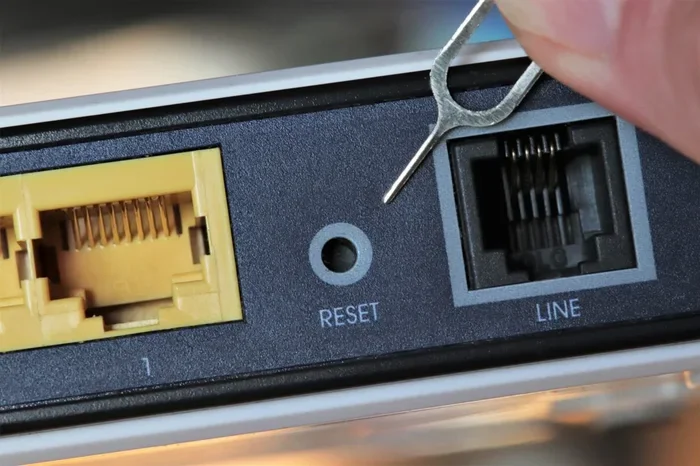
Method 1: Reset Button
Most modems have a small reset button on the back or bottom. It is often recessed so you do not press it by accident.
- Locate the reset button. Use a paperclip or a small pin to press it.
- Press and hold for 10 to 15 seconds. Watch the modem lights. They will usually blink and then go dark before turning back on.
- Release the button once the lights start changing.
- Wait for the modem to fully reboot. This can take 3 to 5 minutes.
- Log in to the admin panel using the default credentials printed on the bottom of the device.
Method 2: Admin Panel Reset
Some modems allow you to perform a factory reset through the web interface.
- Connect to your modem using an Ethernet cable or Wi-Fi.
- Open a browser and type the modem’s IP address (usually 192.168.1.1 or 10.0.0.1).
- Log in with your admin username and password.
- Navigate to the settings or maintenance tab. Look for a “Factory Reset” or “Restore Defaults” option.
- Confirm the reset and wait for the device to reboot.
What to Do After a Factory Reset
After a factory reset, your modem is essentially brand new. You will need to:
- Log in with the default login credentials
- Reconfigure your network settings, including Wi-Fi name and password
- Re-enter any DNS settings or port forwarding rules you had before
- Reconnect all your devices to the new Wi-Fi network
- Check for a firmware update to ensure the device is running the latest software
Keep your ISP provider’s customer service number handy. They can walk you through the setup if you get stuck.
Common Mistakes People Make When Resetting a Modem
Resetting a modem is simple, but people still make errors that cause more problems. Here are the most common mistakes and how to avoid them.
Resetting Too Often
If you find yourself resetting your modem every week, something deeper is wrong. Frequent resets can wear out the device and indicate an underlying connectivity issue that a reset will not fix. Contact your ISP provider to investigate the root cause.
Not Waiting Long Enough
Many people plug the modem back in after only 10 seconds. The device needs time to fully clear its memory. Waiting at least 30 seconds, ideally 60, ensures a proper reset.
Forgetting to Contact Your ISP
After a factory reset, your modem needs to re-sync with your provider’s network. Some ISP providers require you to call them or use their app to complete the re-sync process. Skipping this step can leave you without internet even after the reset.
Using the Wrong Reset Method
Pressing the reset button for only 5 seconds might perform a “reboot” instead of a true factory reset. You typically need to hold it for 10 to 15 seconds. Check your modem’s manual for the exact timing.
Ignoring the Router
Your modem and router are separate devices, even if they are combined into one unit. Resetting the modem does not always reset the router. If your Wi-Fi signal is still not working after a modem reset, you may need to reset the router separately.
How to Prevent Future Connectivity Issues
Resetting your modem fixes problems, but prevention keeps them from happening in the first place. Here are simple habits that keep your internet connection stable.
Keep Your Modem Cool
Overheating is a leading cause of modem problems. Place your device in a well-ventilated area. Do not stack books or boxes around it. Keep it away from direct sunlight and heating vents.
Update Firmware Regularly
Manufacturers release firmware updates that fix bugs and improve performance. Check for updates in your admin panel every few months. Many modern modems update automatically, but it does not hurt to verify.
Use Quality Cables
A loose or damaged Ethernet cable can cause intermittent connectivity issues. Replace old cables every couple of years and make sure all connections are firm.
Restart Your Modem Weekly
A weekly power cycle keeps things running smoothly. It clears temporary data and refreshes the connection. Set a reminder on your phone to do it every Sunday morning.
Protect Against Power Surges
Use a surge protector for your modem. Power surges can damage the internal components and cause persistent network settings problems. A small surge protector costs much less than a replacement modem.
When to Call a Professional
Most modem troubleshooting can be done at home. But some situations require expert help. Call your ISP provider or a technician if:
- Your modem resets itself randomly without you pressing the button
- You get no internet connection after multiple reset attempts
- The modem makes unusual clicking or buzzing sounds
- The device overheats even in a cool room
- Your internet speed remains slow even after a full reset and proper setup
A professional can run diagnostic tests that go beyond what you can do at home. They can check the signal strength from your provider’s end and identify hardware failures that a reset will never fix.
Comparison: Soft Reset vs Factory Reset
Not sure which type of reset to use? This table breaks down the differences clearly.
| Feature | Soft Reset (Power Cycle) | Factory Reset |
|---|---|---|
| What it does | Restarts the modem | Wipes all custom settings |
| Time required | 1-2 minutes | 10-20 minutes |
| Data loss | None | All settings erased |
| Difficulty level | Very easy | Moderate |
| When to use | Connection drops, slow speeds | Persistent issues, selling device |
| Reconfiguration needed | No | Yes |
| Risk level | None | Low (if you back up settings) |
As you can see, a soft reset should be your go-to solution for most problems. Reserve the factory reset for situations where nothing else works.
Expert Insights on Modem Resets
Networking professionals agree on a few key principles when it comes to resetting modems. Here are some insights that can help you get the best results.
Always start with a soft reset. Most connectivity issues resolve with a simple power cycle. There is no reason to jump straight to a factory reset. Give the soft reset at least two or three tries before escalating.
Document your settings. Before performing any reset, take screenshots or write down your current configuration. This saves enormous time when you need to reconfigure the device afterward. It is a small step that most people skip and later regret.
Keep your modem firmware updated. Many network settings problems are actually caused by outdated firmware. A simple update can eliminate the need to reset your modem entirely.
Know your equipment. Different modems have different reset procedures. The brand and model matter. Read your user manual or check the manufacturer’s website for specific instructions before you begin.
Key Takeaways
- A soft reset (power cycle) is safe and solves most connectivity issues: Simply unplug the modem, wait 30 seconds, and plug it back in.
- A factory reset erases all custom settings: Use it only when other fixes fail, and make sure you have your login credentials ready.
- Check your modem lights before resetting: Blinking or off lights can tell you exactly what is wrong with your network.
- Always contact your ISP provider before a factory reset: Some providers need to re-sync the modem remotely after a full reset.
- Back up your network configuration first: Saving settings takes minutes but saves hours of reconfiguring later.
- Resetting is not the same as restarting your router: A router reset affects Wi-Fi only, while a modem reset affects your entire broadband connection.
- Firmware updates can prevent the need for frequent resets: Keeping your device updated reduces connectivity problems significantly.
Frequently Asked Questions
How often should I reset my modem?
There is no need to reset your modem regularly. A monthly power cycle can help keep things running smoothly, but frequent resets may indicate a deeper problem. If you find yourself resetting weekly, contact your ISP provider to investigate the root cause.
Will resetting my modem delete my Wi-Fi password?
A soft reset will not delete your Wi-Fi password or any other settings. However, a factory reset will erase all custom configurations, including your Wi-Fi name and password. After a factory reset, you will need to set up a new password using the default admin credentials.
How long does it take for a modem to reset?
A soft reset takes about 1 to 2 minutes from start to finish. A factory reset takes longer, usually 5 to 10 minutes, because the device needs to reboot and reinitialize all systems. Wait until all the lights stabilize before testing your connection.
Can resetting my modem improve internet speed?
Yes, in many cases. A reset clears temporary data and refreshes the connection to your ISP provider. This can restore lost speed, especially if your modem has been running for weeks or months without a restart. However, a reset will not fix speed issues caused by your internet plan or network congestion.
What is the difference between resetting a modem and a router?
A modem reset affects your entire broadband connection to the internet. A router reset affects only your local Wi-Fi network. Resetting the modem will disconnect all devices from the internet. Resetting the router will disconnect devices from Wi-Fi but the modem remains online. They are different devices with different roles in your network settings.
Should I call my ISP before resetting my modem?
It is a good idea, especially before a factory reset. Some ISP providers need to re-sync the modem on their end after a full reset. Calling them first can save you from getting stuck with no internet access after the reset. For a simple power cycle, you do not need to contact them.
Conclusion
Can I reset my internet modem? Absolutely, and now you know exactly how to do it the right way. A simple power cycle can bring your internet connection back to life in minutes. A factory reset can solve even the most stubborn problems, as long as you are prepared to reconfigure your device afterward.
The key is knowing which type of reset to use and when. Start with a soft reset every time. Only move to a factory reset when the soft reset does not work. Avoid the common mistakes that turn a simple fix into a bigger problem. And when in doubt, reach out to your ISP provider for guidance.
Taking care of your broadband modem with regular maintenance and occasional resets keeps your Wi-Fi signal strong and your internet speed reliable. You do not need to be a tech expert to handle these steps. With the knowledge from this guide, you are now equipped to troubleshoot and fix most connectivity issues on your own. Go ahead, give your modem the reset it needs, and enjoy a smooth, fast internet connection once again.