Can Dash Cam Connect To WiFi And Why It Is A Game Changer
Yes, your dash cam can connect to WiFi, and this feature changes everything for drivers. A WiFi enabled dash cam lets you wirelessly share footage, stream live video to your phone, and update firmware without removing the SD card. This guide covers setup steps, top benefits, common problems, and the best models on the market today.
Have you ever wondered if your dash cam can connect to WiFi? The short answer is yes, and this feature is a real game changer for drivers everywhere. A dash cam that connects to WiFi lets you wirelessly transfer footage, view live streams, and even update firmware without pulling out your SD card. This guide covers everything you need to know about WiFi-enabled dash cams and why this feature matters so much today. Whether you are a daily commuter or a road trip enthusiast, understanding WiFi connectivity on your dash cam will level up your driving safety setup.
Not long ago, dash cams were simple recording devices. You parked them on your windshield, hit record, and hoped the footage was there when you needed it. Now things are very different. Modern wireless dash cams come packed with smart features that make your driving experience safer and more convenient. The WiFi dash cam setup process is straightforward, and the benefits are huge. Let us dive into how this technology works and why you should care.
Key Takeaways
- WiFi connectivity is now standard: Most modern dash cams include WiFi built right in, making wireless features easy to access.
- Footage sharing becomes instant: You can clip and send videos straight to your phone or cloud storage in seconds.
- Live streaming is possible: Some models let you view your dash cam feed remotely through a dedicated app.
- Firmware updates are wireless: No need to connect to a computer anymore for software upgrades.
- Setup is simple: Connecting your dash cam to WiFi usually takes under five minutes with the companion app.
- Range matters: Most dash cam WiFi hotspots work within 30 to 50 feet, so keep your phone nearby.
- Not all WiFi dash cams are equal: Check for WiFi speed, app quality, and cloud integration before buying.
📑 Table of Contents
- What Does It Mean When A Dash Cam Connects To WiFi?
- How WiFi Connectivity Works In Dash Cams
- Top Benefits Of A WiFi-Enabled Dash Cam
- How To Set Up WiFi On Your Dash Cam
- Best WiFi Dash Cams Worth Your Money
- Common WiFi Problems And How To Fix Them
- Expert Insights On Dash Cam WiFi Technology
- Key Takeaways
What Does It Mean When A Dash Cam Connects To WiFi?
When a dash cam connects to WiFi, it creates a small wireless network. Your phone or tablet can then connect to that network directly. This is called a WiFi hotspot mode. The dash cam acts like a tiny router, and your device becomes the remote control. You do not need an internet connection for this to work. The dash cam and your phone communicate directly through a local wireless signal.
How WiFi Dash Cams Work
Here is how it works in simple terms. Your dash cam has a built-in WiFi module. When you turn on the dash cam, it broadcasts a WiFi signal. You open the companion app on your phone. The app finds the dash cam’s network. You enter a password if needed, and boom, you are connected. Now you can browse recorded clips, download footage, change settings, and even live stream what the camera sees.
This mobile app connectivity is what makes WiFi dash cams so powerful. Instead of pulling the SD card out and plugging it into your computer, you just use your phone. Everything happens wirelessly. It saves time and keeps things simple.
WiFi Versus Non-WiFi Dash Cams
So what is the big difference between a WiFi dash cam and a regular one? A regular dash cam records footage and stores it on an SD card. To get that footage off the card, you need to remove it and plug it into a computer or card reader. A WiFi enabled dash cam skips all that hassle. You can pull footage right from your phone while still in the car.
Here is a quick look at the key differences:
- Regular dash cam: Records to SD card only. Requires physical removal for file access. No remote viewing. No over-the-air updates.
- WiFi dash cam: Records to SD card and streams wirelessly to your phone. Instant file access. Remote viewing possible. Firmware updates happen automatically.
The WiFi dash cam setup process is also much easier than you might think. Most brands walk you through it step by step in their app. You do not need any technical skills. If you can connect to a home WiFi network, you can set up a dash cam WiFi connection.
How WiFi Connectivity Works In Dash Cams
Understanding how WiFi works on your dash cam helps you get the most out of it. The technology is not complicated, but knowing the basics makes troubleshooting much easier later on.
Creating A WiFi Hotspot From Your Dash Cam
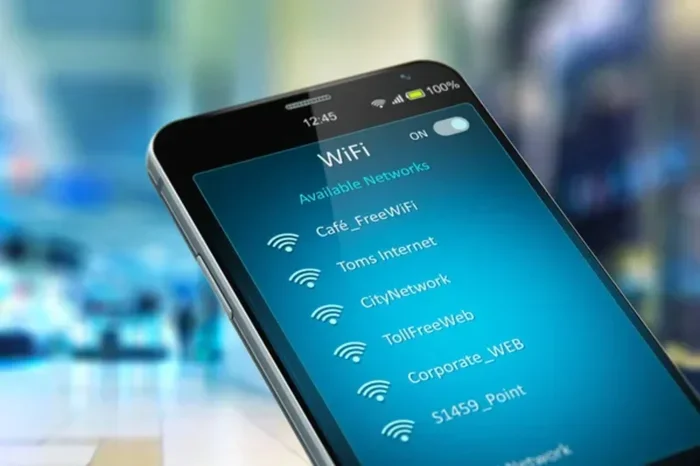
Most dash cams with WiFi create what is called an access point. Think of it like a mini router built into the camera. When the dash cam is powered on, it starts broadcasting its own WiFi network. The network name usually starts with the brand name, like “DashCam_XXXX.” Your phone sees this network just like it sees your home WiFi.
The dash cam WiFi hotspot does not need an active internet connection to work. It creates a local network between the dash cam and your device. This means you can use these features even in areas with no cell signal or internet access. That is a huge advantage when you are driving through remote areas or tunnels.
Connecting Through The Mobile App
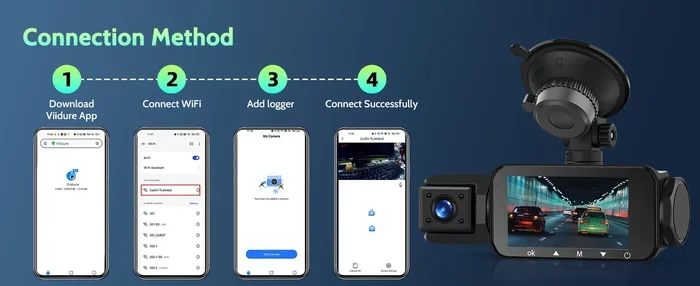
Every WiFi dash cam comes with a companion app. These apps are available for both iPhone and Android. You download the app from the App Store or Google Play. Then you open the app, tap the connect button, and select your dash cam from the list of available networks.
The dash cam app is the brain of your wireless connection. Through the app, you can do many things:
- Preview live footage from the dash cam lens
- Download recorded clips to your phone
- Share footage directly to social media or messaging apps
- Adjust recording settings like resolution and loop length
- Check the GPS dash cam WiFi data for location tags
- Update the dash cam firmware wirelessly
The dash cam wireless transfer speed depends on a few factors. The WiFi standard your dash cam uses matters. Most modern dash cams use WiFi 4 or WiFi 5. This gives you decent speeds for transferring short clips. Larger files like 4K recordings may take a bit longer, but they still transfer much faster than pulling an SD card out and using a computer.
WiFi Range And Signal Strength
The dash cam WiFi range is usually between 30 and 50 feet. This means your phone needs to be within that distance to stay connected. In practice, this is not a problem. You will typically have your phone in your pocket or on the dashboard, which is well within range.
Signal strength can be affected by a few things. Metal car bodies can block WiFi signals. If your dash cam is mounted behind the rearview mirror, the signal has to travel through the headliner, which is usually fine. But if you have a lot of electronic devices in the car, there could be some interference. Keeping your phone close to the dash cam helps maintain a strong connection.
Top Benefits Of A WiFi-Enabled Dash Cam
Why should you care about WiFi on your dash cam? The benefits go way beyond just convenience. Let us look at the biggest reasons this feature is worth having.
Instant Footage Sharing
The most immediate benefit of dash cam footage sharing is speed. Imagine you are in a minor fender bender. With a regular dash cam, you would need to remove the SD card, plug it into a computer, find the right file, and then email or message it. That takes several minutes and can be stressful after an accident.
With a WiFi dash cam, you just open the app, find the clip, and share it directly from your phone. You can send it to your insurance company, your lawyer, or a friend in seconds. Some apps even let you clip a specific segment of footage and share that exact piece. This dash cam WiFi capability can save you a lot of time and hassle during stressful situations.
Live Streaming And Remote Viewing
Some advanced dash cams offer live streaming through WiFi. This means you can see what your dash cam sees from your phone in real time. This is especially useful for checking on your parked car. With parked dash cam WiFi features, you can glance at your phone and see if someone is near your vehicle.
The dash cam remote viewing feature also works when you are away from the car. If your dash cam is connected to a cloud service, you can access the live feed from anywhere with an internet connection. This is a game changer for parents who want to monitor their teenagers driving or for business owners tracking fleet vehicles.
Over-The-Air Firmware Updates
One of the most overlooked benefits of WiFi connectivity is automatic firmware updates. Dash cam manufacturers regularly release software improvements. These updates can fix bugs, improve recording quality, and add new features. Without WiFi, you would need to connect the dash cam to a computer and manually install updates.
With a WiFi enabled dash cam, updates happen over the air. The dash cam checks for updates when connected to WiFi, downloads them, and installs them automatically. This keeps your dash cam running at peak performance without any effort on your part. The dash cam firmware update process becomes seamless and invisible.
Cloud Upload And Backup
Many WiFi dash cams support cloud upload. This means your footage gets backed up to an online server automatically. If your dash cam is stolen or the SD card gets damaged, your footage is still safe in the cloud. This adds a layer of security that non-WiFi dash cams simply cannot match.
The cloud upload dash cam feature works by connecting your dash cam to your home WiFi network when you park at night. The dash cam then uploads the day’s footage to the cloud. You can access these recordings from any device with internet access. This is incredibly useful for insurance claims and legal situations.
How To Set Up WiFi On Your Dash Cam
Setting up WiFi on your dash cam is simpler than you might expect. Most brands make the process very user-friendly. Here is a general walkthrough that applies to most WiFi dash cams.
Step-By-Step Setup Guide
- Power on your dash cam. Make sure it is properly mounted and receiving power from your car’s cigarette lighter or hardwire kit.
- Download the companion app. Search for your dash cam brand in the App Store or Google Play. Install the app on your phone.
- Enable WiFi on the dash cam. Go to the settings menu on the dash cam screen and turn on the WiFi hotspot feature.
- Open the app on your phone. The app will search for nearby dash cams. Your dash cam should appear in the list.
- Connect to the dash cam. Tap on the dash cam name. If prompted, enter the default password. This is usually printed on the dash cam or in the manual.
- Test the connection. Try previewing the live feed or downloading a clip. If it works, you are all set.
The entire WiFi dash cam setup process usually takes less than five minutes. Once connected, your phone will remember the dash cam and reconnect automatically the next time you turn on the camera.
Quick Tips For A Smooth Connection
- Keep your phone within 30 feet of the dash cam for the strongest signal.
- Restart the dash cam app if the connection drops unexpectedly.
- Make sure your dash cam firmware is up to date for the best WiFi performance.
- If your dash cam supports dual-band WiFi, connect to the 5GHz band for faster speeds.
- Turn off other Bluetooth devices in the car if you experience interference.
Best WiFi Dash Cams Worth Your Money
The market is full of WiFi dash cams, and picking the right one can feel overwhelming. Here is a closer look at what to consider and some top picks.
Comparison Table
| Feature | Basic WiFi Model | Mid-Range WiFi Model | Premium WiFi Model |
|---|---|---|---|
| Resolution | 1080p | 2K QHD | 4K Ultra HD |
| WiFi Standard | WiFi 4 (2.4GHz) | WiFi 5 (Dual Band) | WiFi 5 (Dual Band) |
| Live Streaming | No | Yes | Yes |
| Cloud Upload | No | Yes (via app) | Yes (auto backup) |
| GPS WiFi Data | No | Yes | Yes |
| App Quality | Basic | Good | Excellent |
| Price Range | $40-$80 | $80-$200 | $200-$400 |
The right WiFi enabled dash cam depends on your budget and needs. If you just want basic wireless footage transfer, a budget model works great. If you want live streaming and cloud backup, you will need to spend a bit more.
What To Look For When Shopping
When shopping for a wireless dash cam, pay attention to these key features:
- WiFi speed: Faster WiFi means quicker file transfers. Look for WiFi 5 support if possible.
- App reliability: Read reviews about the companion app. A buggy app ruins the WiFi experience.
- Cloud integration: Some dash cams work with popular cloud services like Google Drive or Dropbox.
- Dual dash cam WiFi: If you have a front and rear camera, check if both can connect wirelessly.
- GPS dash cam WiFi: Some models sync GPS data through the WiFi connection, giving you speed and location overlays.
- WiFi coverage: Check how far the WiFi signal reaches. Longer range means more flexibility with phone placement.
Common WiFi Problems And How To Fix Them
Even the best WiFi dash cams can have connection issues sometimes. Here are the most common problems and simple fixes.
Slow Transfer Speeds
If your dash cam WiFi speed feels slow, there are a few things you can try. First, make sure your phone is close to the dash cam. Distance weakens the signal. Second, check if your dash cam is using the 2.4GHz or 5GHz band. The 5GHz band is faster but has a shorter range. Third, make sure no other apps are running in the background that might be using bandwidth.
Also, the file size matters. Transferring a 1-minute 4K clip will take longer than a 1-minute 1080p clip. If speed is critical, lower the resolution before transferring. This is a quick fix that makes a big difference.
Connection Drops And Disconnects
If your dash cam keeps disconnecting from the app, try these steps. First, restart both the dash cam and your phone. This fixes most temporary glitches. Second, delete the dash cam from your phone’s saved WiFi networks and reconnect fresh. Third, check for firmware updates. Manufacturers often release patches that fix connection bugs.
Interference from other car electronics can also cause drops. If you have a lot of devices plugged into your car, try unplugging some and see if the connection improves. The dash cam WiFi coverage can be affected by other wireless signals in the car, so reducing interference helps.
WiFi Not Turning On
If the WiFi function on your dash cam will not turn on, try a factory reset. This is usually done through the dash cam settings menu. If that does not work, the WiFi module may be faulty. Contact the manufacturer for support or check if your unit is still under warranty.
Remember, the dash cam WiFi hotspot feature only works when the dash cam is powered on. Make sure your car is running or the dash cam is connected to a power source. Some dash cams also have a parking mode that disables WiFi to save battery. Check your settings if WiFi seems unresponsive.
Expert Insights On Dash Cam WiFi Technology
Industry experts agree that WiFi connectivity is becoming a standard feature, not a luxury anymore. According to automotive tech reviewers, the dash cam WiFi feature has evolved rapidly in just the past few years. Early WiFi dash cams were slow and unreliable. Today’s models offer fast transfers, stable connections, and intuitive apps.
One thing experts emphasize is the importance of the companion app. The dash cam hardware is only half the equation. A great app makes the WiFi experience seamless. Look for brands that invest heavily in their app ecosystem. Regular app updates mean better compatibility and new features over time.
Another expert tip is to use a high-quality WiFi card if your dash cam supports it. Some models allow you to upgrade the WiFi module for better performance. This is especially useful if you frequently transfer large files or use live streaming features.
Security experts also recommend enabling encryption on your dash cam WiFi network. Most dash cams offer WPA2 or WPA3 encryption options. This prevents unauthorized devices from connecting to your dash cam. It is a small step that adds an important layer of privacy protection.
Key Takeaways
- WiFi connectivity is now standard: Most modern dash cams include WiFi built right in, making wireless features easy to access.
- Footage sharing becomes instant: You can clip and send videos straight to your phone or cloud storage in seconds.
- Live streaming is possible: Some models let you view your dash cam feed remotely through a dedicated app.
- Firmware updates are wireless: No need to connect to a computer anymore for software upgrades.
- Setup is simple: Connecting your dash cam to WiFi usually takes under five minutes with the companion app.
- Range matters: Most dash cam WiFi hotspots work within 30 to 50 feet, so keep your phone nearby.
- Not all WiFi dash cams are equal: Check for WiFi speed, app quality, and cloud integration before buying.
Frequently Asked Questions
Can any dash cam connect to WiFi?
Not all dash cams have WiFi built in. However, most modern dash cams from reputable brands now include WiFi as a standard feature. When shopping, check the product specifications for WiFi or wireless connectivity. If you already own a dash cam without WiFi, you can sometimes add a separate WiFi module, but compatibility varies by model.
Is it safe to connect my phone to a dash cam WiFi network?
Yes, it is generally safe. Dash cam WiFi networks are local networks that do not connect to the internet. This means your data stays between your phone and the dash cam. For extra safety, choose a dash cam that offers WPA2 or WPA3 encryption. This prevents unauthorized devices from joining the network.
How far can my phone be from the dash cam while connected to WiFi?
Most dash cams have a WiFi range of about 30 to 50 feet. In practice, this means your phone can be in your pocket, on the dashboard, or in the center console and still stay connected. Walls and metal surfaces can reduce the range slightly, so keeping your phone reasonably close helps maintain a stable connection.
Can I use my dash cam WiFi while driving?
Yes, you can connect to your dash cam WiFi while driving. However, it is important to remember that interacting with your phone while driving is dangerous and often illegal. Use the WiFi connection while parked to review footage, download clips, or adjust settings. Some dash cams also support background WiFi, so the camera continues recording while your phone is connected.
Does WiFi on a dash cam drain the battery faster?
WiFi does use more power than a non-WiFi dash cam, but the impact is minimal. Most dash cams are designed to run continuously from your car’s power supply, so battery drain is not a real concern while driving. If you use parking mode with WiFi enabled, the battery may drain faster. It is best to disable WiFi in parking mode if you notice battery issues.
Can I connect multiple phones to the same dash cam WiFi?
Most dash cams only support one connected device at a time. If you need multiple people to access the dash cam footage, you will need to take turns connecting. Some premium models support multi-device connections, but this is still relatively rare. Check your specific dash cam’s specifications to confirm.
=== CONCLUSION ===
The answer to “can dash cam connect to WiFi” is a clear yes, and this feature has transformed how drivers use their cameras. From instant footage sharing to live streaming and wireless firmware updates, a WiFi enabled dash cam adds tremendous value to any vehicle. The dash cam WiFi setup process is quick and easy, and the benefits compound over time as you get used to accessing your footage without any cables or SD card swaps.
Whether you choose a budget-friendly model or a premium unit, WiFi connectivity gives you more control and peace of mind on the road. You get faster access to important footage, better backup options through cloud uploads, and a smarter overall driving experience. The wireless dash cam revolution is here, and it is only getting better from here.
If you have not yet explored WiFi dash cam options, now is the perfect time. Check out the latest models, read reviews, and find one that fits your needs and budget. Your dash cam can do so much more than just record. With WiFi, it becomes a complete safety and convenience tool that puts you in control of your footage whenever and wherever you need it.