Do All Laptops Use The Same Ssd Or Are They Different
Do all laptops use the same ssd? The answer is no. Laptops use different SSD sizes, types, and interfaces, so you must check your device before buying a new drive.
Do all laptops use the same ssd? The short answer is no. Laptops come in many shapes and sizes. Because of this, they need different parts. The solid state drive is a key part of any laptop. It holds your files, apps, and operating system. Not every laptop uses the same one. You must know what kind your laptop needs. Do all laptops use the same ssd? They do not. Each laptop has its own storage rules.
When you want to upgrade laptop SSD, you need to be careful. Picking the wrong drive will not work. You might waste your money. This guide will help you understand the differences. We will look at sizes, types, and speeds. By the end, you will know exactly what to buy. Do All Laptops Use The Same Ssd Or Are They Different? Yes, they are very different. Let us explore why. Knowing the facts helps you make a smart choice.
Key Takeaways
- Not all SSDs are equal: Laptops require different sizes and interfaces.
- Form factors matter: M.2 and 2.5-inch are the two main types.
- Interfaces differ: NVMe and SATA offer different speeds.
- Check your manual: Always verify your laptop’s storage specs before buying.
- Upgrades are possible: Most laptops allow SSD replacements.
- Speed varies: Newer NVMe drives are much faster than older SATA options.
📑 Table of Contents
Understanding Laptop Storage Basics
Before we dive into the differences, let us look at the basics. Every laptop needs a boot drive. This is where your computer starts up. Old laptops used hard disk drives. These drives had spinning disks inside. They were slow and often broke. Today, almost all new laptops use a solid state drive. There are no moving parts inside an SSD. This makes them faster and safer. Storage speed is much better with these drives.
A solid state drive uses flash memory. It stores your data without power. You can turn off your laptop, and your files stay safe. This is very convenient. You do not have to save everything every time. The laptop memory works fast because of this design. It feels instant compared to old drives. If you have a slow laptop, an SSD can fix it. You will be amazed at the difference.
What Makes Up Your Laptop Storage?
Your laptop storage is not just one thing. It has a few parts working together. The controller manages the data. It tells the drive where to put files. The flash memory holds the data. It keeps your photos and videos safe. The interface connects the drive to the laptop. All of these parts matter. They decide how fast your laptop runs. If one part is slow, the whole system slows down. You want a good laptop storage setup. This gives you the best experience every day.
Think of it like a kitchen. The controller is the chef. The flash memory is the pantry. The interface is the doorway. If the doorway is narrow, food moves slowly. If the pantry is small, you can only cook a little. A good SSD has a wide doorway and a big pantry. This gives you great storage speed. Your apps open fast. Your games load quickly. You will not have to wait around anymore.
The type of flash memory also matters. Most SSDs use TLC or QLC. TLC stands for Triple-Level Cell. It stores three bits per cell. QLC stands for Quad-Level Cell. It stores four bits per cell. TLC is faster and lasts longer. QLC is cheaper but slower. For most people, TLC is the best choice. It gives you a good balance of speed and price. Do all laptops use the same ssd with TLC memory? No, some use QLC. Check the specs before you buy.
The Two Main Ssd Form Factors
The SSD form factor is the physical shape of the drive. Laptops use two main shapes today. You cannot swap them easily. You must match the shape to your laptop slot. Here are the two types you will see in stores.
The M.2 Ssd: Small And Fast
The M.2 SSD is very popular today. It looks like a small stick of gum. It plugs right into the motherboard. Many modern laptops only use M.2 drives. They take up very little space. This is great for thin laptops. The M.2 SSD is about 22 millimeters wide. It can be 30, 42, 60, or 80 millimeters long. You must check the length before buying. A drive that is too long will not fit. A drive that is too short will also not work.
M.2 drives are very light. They add almost no weight to your laptop. This is perfect for ultrabooks. You can carry your laptop around all day. It will not feel heavy. Also, M.2 drives do not need cables. They plug in directly. This makes them very reliable. There are fewer parts that can break. Do all laptops use the same ssd in M.2 form? No, they do not. Some M.2 drives are SATA. Others are NVMe. You must check the type. Also, look at the key notch. The B key and M key are different. They fit in different slots. Make sure you buy the right key.
The 2.5 Inch Ssd: The Classic Shape
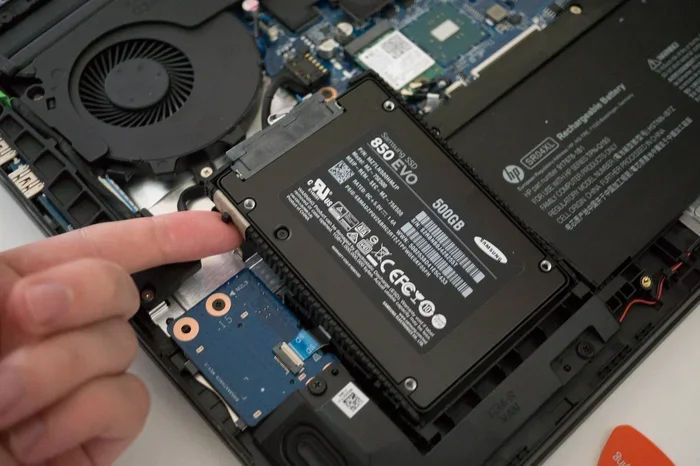
The 2.5-inch SSD looks like a small metal box. It is the same size as an old laptop hard drive. Many older laptops still use this type. You slide it into a special bay. You then screw it in place. This drive is thicker than an M.2. But it is still very reliable. If you have an older laptop, you might need this one. Do all laptops use the same ssd in this size? No, they do not. Newer laptops rarely use 2.5-inch drives anymore.
You can also use a 2.5-inch SSD to replace a broken hard drive. It is a great laptop upgrade. Your old laptop will feel brand new. The 2.5-inch drive costs very little money. You can find them easily online. They come in many storage sizes. You can get 128 gigabytes or 2 terabytes. Pick the size that fits your needs and your budget. A 2.5-inch drive is also very easy to install. Anyone can do it in just a few minutes.
Storage Interfaces Nvme Vs Sata
The storage interface is how the drive talks to the laptop. Think of it like a road. A wider road lets more cars pass. A faster interface moves data quicker. There are two main interfaces today. They are NVMe and SATA. Both fit in M.2 slots, but they work very differently. You must know which one your laptop uses.
How Nvme Drives Work
NVMe stands for Non-Volatile Memory Express. It is a very fast protocol. It uses the PCIe lane on the motherboard. This gives it huge speed advantages. An NVMe drive can read data at 3,500 megabytes per second. Some even go faster than 7,000 megabytes per second. This means your laptop boots in seconds. Apps open almost instantly. If you want the fastest laptop upgrade, choose NVMe. It is the best choice for most users today.
NVMe is perfect for big tasks. Video editing needs fast speeds. Gaming needs fast speeds. If you move large files, NVMe is great. It saves you a lot of time. You will not wait around for files to copy. The storage interface makes a big difference. Always pick NVMe if your laptop supports it. You will be very happy with the speed. It makes your whole system feel faster.
How Sata Drives Work
SATA stands for Serial Advanced Technology Attachment. It is an older interface. It was designed for spinning hard drives. SATA is much slower than NVMe. A SATA SSD reads at about 550 megabytes per second. This is still faster than an old hard drive. But it cannot keep up with NVMe. Some laptops only have SATA M.2 slots. You must check your laptop specs. Buying an NVMe drive for a SATA slot will not work.
SATA drives are still very good. They are much faster than old hard drives. They make laptops boot up quickly. They make apps open fast. If you just browse the web, SATA is fine. You do not need the fastest drive. SATA drives are also very cheap. They cost less than NVMe drives. If you have a tight budget, SATA is a smart choice. It is a big step up from a hard drive.
Laptop Ssd Compatibility What To Check
Laptop SSD compatibility is very important. You cannot just buy any drive. You must check your laptop manual. The manual tells you what fits. It also tells you what speeds you can use. Here is how you find this information before you buy.
Checking Your Laptop Model
First, find your laptop model number. It is usually on a sticker on the bottom. You can also find it in your system settings. Once you have the model, search online. Look up the service manual. The service manual lists all parts. It tells you the storage interface you need. It also tells you the maximum capacity. Do not guess. Always check the manual first. This saves you time and money.
You can also use a free tool to check your laptop. CrystalDiskInfo is a great program. It tells you the exact model of your current drive. It also tells you the interface type. You can see if you have NVMe or SATA. This is very helpful when shopping. Do all laptops use the same ssd in terms of tools? No, they do not. Different tools work for different drives. This software makes it easy to find out what you have.
Maximum Storage Capacity
Every laptop has a limit on how much storage it can hold. Some laptops only support 512 gigabytes. Others can hold 1 or 2 terabytes. A few high-end models can hold 4 terabytes or more. Check what your laptop supports before you buy a huge drive. You might pay extra for a drive that does not work. Do all laptops use the same ssd capacity? No, they do not. The limit depends on your laptop model.
Think about your needs. Do you store lots of movies? You need a big drive. Do you only use web apps? A small drive is fine. Cloud storage can help too. You can store files online. This frees up space on your drive. A good rule is to buy the biggest drive you can afford. More space is always better. You will not run out of room.
BIOS And AHCI Settings
Sometimes, your laptop BIOS needs a setting change. The BIOS is the basic software on your motherboard. It controls how the laptop starts. You need to check the SATA mode. It should be set to AHCI. If it is set to IDE, your SSD will be slow. AHCI allows the drive to use its full speed. You can change this in the BIOS menu. Restart your laptop and press F2 or Del. Look for the storage settings. Change it to AHCI. Save and exit. Your drive will now work its best.
Another important thing to check is the enclosure type. Some M.2 drives come in a B&M key enclosure. This means they work in both B and M key slots. This is very convenient. It gives you more flexibility when buying. If you are not sure, an B&M key drive is a safe bet. It will fit most laptops that use M.2 drives.
How To Upgrade Your Laptop Ssd
Upgrading your laptop is easier than you think. You do not need to be a computer expert. With the right tools, anyone can do it. It can save you a lot of money. A new drive makes an old laptop feel new again. Here is how you replace your old drive with a new one.
Step By Step Replacement Guide
First, gather your tools. You need a small screwdriver. A microfiber cloth is also helpful. Next, turn off your laptop. Unplug the power cable. Remove the battery if you can. Find the storage bay. It is usually under a metal cover on the bottom. Remove the screws and take off the cover. Carefully pull out the old drive. Do not force it. Slide the new drive into the slot. Push it gently until it clicks. Put the cover back on. Screw it in place. Turn on your laptop. Your new drive is now your boot drive.
Before you start, back up your files. Copy your important photos to a USB drive. This way, you do not lose anything. Replacing the drive is safe. But accidents can happen. Having a backup is always smart. You can also use cloning software. This copies everything from the old drive to the new one. You do not have to reinstall Windows. It saves you a lot of time. Macrium Reflect is a great free tool for cloning.
Quick Tips For A Smooth Upgrade
- Always ground yourself: Touch a metal object before touching the drive. This stops static electricity. Static can damage your laptop parts.
- Keep the screws safe: Put them in a small cup. You do not want to lose them.
- Use a flashlight: Look inside the laptop to see the drive clearly.
- Read the manual: Your laptop brand has an online guide. It shows you exactly how to open the case.
- Take your time: Do not rush. Rushing can lead to mistakes. Be gentle with all the parts.
Common Mistakes To Avoid
Many people make mistakes when they upgrade. Do not buy the wrong size. A drive that is too long will not fit. Do not forget to clone your old drive. You do not want to reinstall Windows. Use cloning software to copy your old drive to the new one. Also, check the TRIM support on your new drive. TRIM helps the SSD stay fast over time. It tells the drive which data blocks are empty. This keeps the drive running smoothly.
Avoid touching the gold connectors on the drive. Oils from your fingers can cause problems. The drive might not work properly. Hold the drive by the edges. If you are not careful, you might damage the new drive. Take your time and be gentle. Rushing leads to mistakes. Also, make sure you have enough space on the new drive. If the new drive is smaller than the old one, cloning will fail.
Why Ssds Are Better Than Hard Drives And How To Choose
Some people still use old hard drives. They wonder why their laptop is slow. A hard drive vs SSD comparison shows a big difference. SSDs have no moving parts. Hard drives have spinning disks. This means SSDs are much faster. They also use less power. This means your laptop battery lasts longer. SSDs are also quieter. You will not hear any clicking sounds. Upgrading from a hard drive to an SSD is the best thing you can do. It is a great laptop upgrade that costs very little.
You will notice the difference right away. Your laptop boots in seconds. You do not wait for the screen to appear. Your apps open instantly. You do not see the spinning wheel. Games load much faster. You spend more time playing and less time waiting. If you replace laptop hard drive with an SSD, you will love it. It is a simple change. But it makes a huge difference. Your old laptop will feel like a new machine.
The Cost Of Laptop Ssds
SSD prices have dropped a lot over the years. They are very affordable now. A 500 gigabyte SATA SSD costs about 30 to 40 dollars. A 1 terabyte NVMe SSD costs about 60 to 80 dollars. A 2 terabyte drive costs around 120 to 150 dollars. The price depends on the brand and speed. NVMe drives cost a little more than SATA drives. But the speed is worth it. Do all laptops use the same ssd cost? No, prices vary a lot. Shop around for the best deals.
Do not buy the cheapest drive you find. Very cheap drives might use poor flash memory. They might fail early. Stick to trusted brands like Samsung, Crucial, or Kingston. These brands offer good warranties. A warranty gives you peace of mind. If the drive dies, they will replace it. Spending a little extra money is always smart. It protects your important files and data.
How Long Should A Laptop Ssd Last
A good SSD can last for many years. Most SSDs last about 5 to 7 years. Some last even longer. The lifespan depends on how you use it. Writing lots of data wears out the flash memory. Reading data does not wear it out much. For normal use, an SSD will last a long time. You do not need to worry about it breaking soon.
You can check the health of your drive. Use the CrystalDiskInfo tool we mentioned. It shows the drive temperature and health. If the health drops, you should back up your files. You might need to replace the drive soon. Taking care of your drive helps it last longer. Keep your laptop cool. Heat can shorten the life of an SSD. Use a cooling pad if your laptop gets hot.
After you install the new drive, you need to set it up. If you cloned your old drive, it should boot right up. If you installed a brand new drive, you need to install Windows. You can use a USB installer for this. Just follow the on-screen instructions. Your laptop will be as good as new in no time.
So, do all laptops use the same ssd? They absolutely do not. Laptops use different sizes, shapes, and speeds. You must know what your laptop needs. Check the form factor first. Then check the interface. Finally, check the maximum capacity. Taking the time to do this saves you money and frustration. A good laptop storage setup makes your computer much faster. Do not settle for slow speeds. Upgrade your storage today and feel the difference. Your laptop will thank you for it. Happy computing!
Frequently Asked Questions
Can I use any SSD in my laptop?
No, you cannot use just any SSD. Laptops require specific sizes and interfaces. You must check if your laptop uses an M.2 or 2.5-inch drive. Also, check if it supports NVMe or SATA. Buying the wrong type will not work.
What is the difference between NVMe and SATA SSDs?
NVMe is much faster than SATA. It uses the PCIe lane for higher speeds. SATA is an older interface and is slower. NVMe can reach speeds over 3,500 megabytes per second. SATA maxes out around 550 megabytes per second.
How do I know if my laptop has an M.2 or 2.5-inch slot?
You can check your laptop manual or use a tool like CrystalDiskInfo. You can also look up your laptop model online. The service manual will list the exact storage specs. If you are unsure, open the laptop carefully and look inside.
Is it hard to replace a laptop SSD?
No, it is usually very easy. Most laptops have a removable storage bay. You just need a small screwdriver. You pull out the old drive and slide in the new one. Just be sure to back up your files first.
Does upgrading to an SSD speed up my laptop?
Yes, absolutely. It is one of the best upgrades you can make. An SSD makes boot times and app loading much faster. It brings new life to an old laptop. You will notice the difference right away.
How long do laptop SSDs last?
A good SSD can last 5 to 7 years or more. The lifespan depends on how much you write to the drive. For normal use, it will last a very long time. Keeping your laptop cool also helps the drive last longer.