Do All Chromebooks Have Touch Screens On Every Device
Not all Chromebooks come with touch screens. Some models include touchscreen displays while others stick to traditional non-touch laptops. Your choice depends on your budget, needs, and how you plan to use the device. This guide breaks down everything you need to know.
Do all Chromebooks have touch screens? The short answer is no. Many people assume that every laptop in the Chromebook family comes with a touchscreen display. But that is far from the truth. In fact, a large number of Chromebooks sold every year are non-touch devices.
If you are shopping for a new laptop and want a touchscreen, you need to do a little research. Not every Chromebook touchscreen model looks the same. Some are cheap and basic. Others are premium machines built for creativity and productivity. Understanding what is available helps you make a smart buying decision.
This guide covers everything you need to know. We will look at which Chromebooks have touch screens, which do not, and how to choose the right one for your needs. By the end, you will feel confident about your next purchase.
Key Takeaways
- Touchscreens are optional on most Chromebooks: Many models do not include touch capability, especially budget-friendly options.
- Touchscreen Chromebooks cost more: You can expect to pay extra for a touch-enabled display compared to non-touch models.
- 2-in-1 and convertible designs often include touch: These devices are built to support both laptop and tablet modes.
- Chrome OS supports touch input well: The operating system handles touch gestures smoothly and intuitively.
- Not every brand offers touchscreen options: Some manufacturers focus on non-touch Chromebooks for education and basic use.
- Check specs before buying: Always verify the display type in the product listing to avoid surprises.
- Touchscreens add versatility: They make drawing, scrolling, and navigating more natural for many users.
📑 Table of Contents
- What Exactly Is a Chromebook?
- Do All Chromebooks Have Touch Screens?
- Types of Touchscreen Chromebooks
- Pros and Cons of Touchscreen Chromebooks
- How to Tell If a Chromebook Has a Touch Screen
- Best Touchscreen Chromebooks Worth Considering
- Common Mistakes People Make When Buying a Chromebook
- Expert Insights on Chromebook Touchscreens
- How Touchscreen Technology Works on Chromebooks
- Final Thoughts
What Exactly Is a Chromebook?
A Chromebook is a laptop that runs Google Chrome OS. Unlike Windows or Mac laptops, Chromebooks rely mostly on web-based apps and cloud storage. They are known for being fast, affordable, and easy to use. Many students and professionals prefer them for everyday tasks.
Chromebooks come in all shapes and sizes. Some look like traditional clamshell laptops. Others flip and fold into tablets. The display is one of the biggest differences between models. Chromebook display options range from basic HD panels to sharp 4K screens. And the touch capability varies just as much.
How Chrome OS Handles Touch Input
Google designed Chrome OS with touch support built in. The operating system recognizes tap, swipe, pinch, and zoom gestures naturally. You do not need to install extra software to use touch on a touchscreen Chromebook. It works right out of the box.
Chrome OS updates have made touch even better over the years. Google added features like touch-friendly virtual keyboards and gesture navigation. These improvements make using a touch Chromebook feel smooth and responsive. Even older Chromebook models benefit from these updates.
Do All Chromebooks Have Touch Screens?
This is the big question, and the answer is no. Not every Chromebook has a touchscreen. In fact, many popular models are built without touch capability. These non-touch laptops focus on affordability, durability, and battery life.
Chromebooks are used in schools and businesses around the world. Many of these institutions prefer non-touch devices. They are cheaper to produce and easier to maintain. A non-touch screen also means fewer points of failure. The display lasts longer without scratches or wear from constant touching.
Why Some Chromebooks Skip Touchscreen
There are several reasons manufacturers leave touch off certain models. Cost is the biggest factor. Adding a touchscreen layer to a display increases the build cost. For budget Chromebooks, that extra cost can push the price beyond what buyers want to pay.
Battery life is another concern. Touchscreen panels use slightly more power than non-touch displays. This can reduce the overall battery life of the device. For users who need all-day battery, a non-touch Chromebook display might be the better choice.
Weight and thickness also play a role. Touchscreen layers add a tiny bit of weight to the laptop. While the difference is small, it matters for ultra-portable designs. Some manufacturers keep things light and slim by skipping the touch feature.
Which Chromebook Brands Offer Touchscreen Models
Most major Chromebook brands offer at least some touch-enabled models. Here is a quick look at what you can expect:
- Acer: Offers several touchscreen Chromebooks in the Spin and Switch lines.
- ASUS: Has a range of 2-in-1 touchscreen Chromebooks at different price points.
- HP: Provides touchscreen options in the Chromebook x360 series.
- Lenovo: Offers touch-enabled models in the IdeaPad and Flex lines.
- Samsung: Has touchscreen Chromebooks, though their selection is smaller.
- Google: The Pixelbook and Pixelbook Go include touch support on select models.
Not every model from these brands is touch-enabled. You still need to check the specific product before buying. A brand may offer both touch and non-touch versions of the same laptop.
Types of Touchscreen Chromebooks
When you do decide to go with a touchscreen Chromebook, you have several options. Each type serves a different purpose. Knowing the differences helps you pick the right one.
2-in-1 Convertible Chromebooks
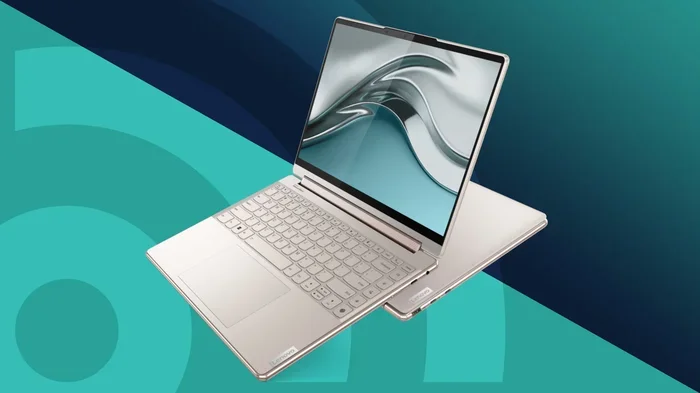
Convertible Chromebooks are the most popular touch-enabled models. These devices have a 360-degree hinge that lets you fold the screen all the way back. When folded, they work like a tablet. When opened, they function like a regular laptop.
These are great for people who want flexibility. You can type a report in laptop mode. Then switch to tablet mode for reading or drawing. The touch screen laptop experience feels natural in both modes.
Popular examples include the Acer Chromebook Spin series and the HP Chromebook x360. These models are well-reviewed and widely available. They offer a good balance of performance and price.
Traditional Clamshell Touchscreen Chromebooks
Some Chromebooks have touchscreens but do not fold into tablets. These are traditional clamshell designs with a touchscreen display. They look like regular laptops but respond to touch input.
This design is great if you mostly use the laptop in its standard form. You get the benefits of touch without the bulk of a convertible hinge. The Chromebook touchscreen works well for scrolling, zooming, and tapping.
One downside is that you cannot use these as tablets. The screen does not fold back far enough. But for users who prefer a laptop shape, this is a perfectly fine trade-off.
Tablet-Style Chromebooks
A smaller number of Chromebooks are designed purely as tablets. These devices do not have a keyboard attached. They rely entirely on touch input for navigation and typing. The on-screen keyboard takes the place of physical keys.
Tablet Chromebooks are less common than 2-in-1 models. But they are excellent for media consumption and light tasks. They are also very portable and easy to carry around.
Pros and Cons of Touchscreen Chromebooks
Like any technology choice, touchscreen Chromebooks come with advantages and disadvantages. Let us break them down so you can weigh what matters most to you.
Benefits of a Touchscreen Chromebook
- More natural interaction: Tapping and swiping feels intuitive, especially for users familiar with smartphones and tablets.
- Better for creative work: Touchscreens make drawing and note-taking easier, especially when paired with a stylus.
- Easier navigation: Scrolling through web pages and documents feels faster with touch gestures.
- Versatile use: You can use the device in multiple modes, including tent mode and tablet mode.
- Future-proofing: More apps and websites are optimized for touch, so a touchscreen display stays relevant longer.
Drawbacks of a Touchscreen Chromebook
- Higher price: Touchscreen models usually cost more than their non-touch counterparts. The price difference can range from $50 to $200 or more.
- Shorter battery life: The touchscreen panel uses extra power, which can reduce how long the device lasts on a single charge.
- Glare and reflections: Touchscreen displays often have glossy coatings that reflect more light, which can be distracting in bright rooms.
- Smudges and fingerprints: Touch screens get dirty faster. You may need to clean them more often to keep the display clear.
- Added weight: Even a small increase in weight can matter if you carry your laptop around all day.
Quick Tips: Touchscreen vs Non-Touchscreen
Still not sure which type you need? Here are some quick tips to help you decide:
- Think about your primary use. If you mostly type documents and browse the web, a non-touch model may be enough.
- Consider your budget. Touchscreen Chromebooks cost more. If you are on a tight budget, skip the touch feature.
- Think about portability. If you carry your laptop everywhere, a lighter non-touch model might be better.
- Consider creative tasks. If you draw, take notes, or work with images, touch adds real value.
- Check the battery specs. Compare battery life numbers between touch and non-touch models of the same brand.
How to Tell If a Chromebook Has a Touch Screen
Before you buy a Chromebook with touchscreen, you should verify the specs. It sounds simple, but many buyers get confused by product listings. Here is how to make sure you are getting a touch-enabled model.
Check the Product Specifications
Go to the product page and look for the display section. Manufacturers usually list whether the screen supports touch. Look for phrases like “touchscreen display” or “10-point touch.” If you do not see these terms, the model likely does not have touch.
Some brands use abbreviations like “T” or “TS” in the model number to indicate touch. For example, the Acer Chromebook Spin 714 and the Acer Chromebook Spin 714 T may have different display options. Always read the full description to be sure.
Read Customer Reviews
Customer reviews can be very helpful. Look for mentions of touch capability in the reviews section. Real users often share details about the display that you will not find in the official specs.
Watch out for reviews that mention “no touch” or “wish it had touch.” These comments can help you confirm whether a model includes a touchscreen. Reviews are especially useful for spotting differences between similar model names.
Visit the Manufacturer’s Website
The safest way to confirm touch support is to visit the manufacturer’s official website. Product pages there are detailed and accurate. You can also compare models side by side to see which ones include touch and which do not.
Google’s Chrome OS support page also lists which devices support touch input. This is a great resource if you are comparing models from different brands. It saves you time and helps you avoid buying the wrong device.
Best Touchscreen Chromebooks Worth Considering
If you have decided that a touchscreen Chromebook is right for you, here are some popular models to look at. These devices cover a range of budgets and use cases.
Budget-Friendly Touchscreen Options
You do not need to spend a lot to get a touch-enabled Chromebook. The Acer Chromebook Spin 314 offers solid performance and a touchscreen display at an affordable price. It is a great choice for students and casual users.
Another good budget pick is the Lenovo IdeaPad Flex 3 Chromebook. It provides a convertible design with touch support at a very reasonable cost. These models prove that you do not have to break the bank to enjoy touch input on a Chromebook.
Mid-Range Touchscreen Models
For a step up in quality, the HP Chromebook x360 14a is a strong contender. It offers a bright touchscreen display, solid build quality, and good battery life. It handles everyday tasks with ease and is well-suited for both work and school.
The ASUS Chromebook Flip C434 is another excellent mid-range option. It features a sleek aluminum design and a crisp touch screen. The build quality feels premium for the price, making it a popular choice among buyers.
Premium Touchscreen Chromebooks
If you want the best of the best, the Google Pixelbook Go offers a high-resolution touchscreen and excellent performance. It is lightweight, fast, and built with quality materials. The touch experience on this device is smooth and responsive.
For those who want a detachable design, the Google Pixelbook Tablet mode provides a true tablet experience. It supports the Pixel Pen for drawing and note-taking. This is one of the most premium touchscreen Chromebook options available today.
Common Mistakes People Make When Buying a Chromebook
Buying a new laptop can be confusing, especially with so many options available. Here are some common mistakes to avoid when shopping for a Chromebook touchscreen or any Chromebook model.
Assuming All Models Have Touch
The biggest mistake is assuming every Chromebook includes a touchscreen. As we covered earlier, many models do not. Always check the specifications before you buy. Do not rely on product images alone to confirm touch capability.
Ignoring Battery Life
Touchscreen panels use more power than standard displays. Some buyers focus only on the touch feature and ignore battery specs. A touchscreen Chromebook with poor battery life can be frustrating to use on the go. Always compare battery ratings between touch and non-touch versions of the same model.
Overpaying for Touch
Not everyone needs a touchscreen. If you mostly type, browse, and stream, a non-touch Chromebook might serve you just as well. Paying extra for touch when you do not really need it is a waste of money. Be honest about how you will use the device.
Skipping the Return Policy
Even after reading all the specs, you might not like the feel of a touchscreen in person. Always check the return policy before you buy. This gives you a safety net if the device does not meet your expectations. Many retailers offer 30-day return windows.
Expert Insights on Chromebook Touchscreens
We asked a few tech experts about their thoughts on touchscreen Chromebooks. Here is what they had to say.
“Touchscreens on Chromebooks have come a long way,” says one industry reviewer. “Chrome OS handles touch input better than it did just a few years ago. The gestures are smooth, and the on-screen keyboard works well. If you are considering a touch model, now is a great time to buy.”
Another expert adds that touch makes the most sense on 2-in-1 devices. “A touchscreen on a clamshell laptop is nice but not essential. On a convertible, it becomes a core part of the experience. You use it every day for navigation and interaction.”
The consensus among experts is clear. Touchscreens add value for the right user. But they are not essential for everyone. Assess your own needs and decide accordingly.
How Touchscreen Technology Works on Chromebooks
Understanding how touchscreens work can help you appreciate the technology more. Most touchscreen Chromebooks use a technology called capacitive touch. This is the same technology found in smartphones and tablets.
Capacitive touchscreens detect the electrical charge from your finger. When you tap the screen, the panel registers the contact and sends a signal to the processor. This happens almost instantly, making the touch response feel fast and natural.
Some higher-end Chromebooks support stylus input as well. These devices use active pen technology that detects pressure and tilt. This opens up possibilities for drawing, note-taking, and precise navigation. If you plan to use a stylus, look for models that specifically support pen input.
The quality of the touch experience depends on several factors. Screen brightness, responsiveness, and the number of touch points all matter. A good touchscreen Chromebook will feel smooth and accurate every time you use it.
Final Thoughts
So, do all Chromebooks have touch screens? No, they do not. Many excellent Chromebooks are available without touch capability. These models tend to be more affordable and offer great battery life. They are perfect for users who focus on typing, web browsing, and basic tasks.
On the other hand, touchscreen Chromebooks offer a more interactive and versatile experience. They shine for users who want to draw, take notes, or switch between laptop and tablet modes. The extra cost is worth it for those who will use the touch feature regularly.
Your best choice depends on your personal needs and budget. Think about how you will use the device most of the time. If touch matters to you, go for a touchscreen model. If you prefer simplicity and savings, a non-touch Chromebook is a solid option either way.
Whichever path you choose, you are getting a reliable and user-friendly device. Chromebooks continue to improve with every new generation. And with touch support built right into Chrome OS, both touch and non-touch models deliver a great experience.
Frequently Asked Questions
Do Chromebooks with touch screens cost more than non-touch models?
Yes, touchscreen Chromebooks usually cost more. The price difference can range from $50 to $200 depending on the model and brand. You are paying extra for the touchscreen display layer and the additional manufacturing process. However, prices have come down over the years, and many affordable touch options are now available.
Can I use a stylus on all touchscreen Chromebooks?
No, not all touchscreen Chromebooks support stylus input. Some models include a digitizer or pen support, while others only respond to finger touch. If you plan to use a stylus, check the product specifications carefully. Look for terms like “stylus compatible” or “pen support” in the listing.
Is Chrome OS optimized for touchscreen use?
Yes, Google has optimized Chrome OS for touch input. The operating system supports tap, swipe, pinch-to-zoom, and other touch gestures natively. Chrome OS updates regularly improve the touch experience. Most websites and apps also work well with touch on a Chromebook.
Are touchscreen Chromebooks heavier than non-touch models?
Touchscreen models tend to be slightly heavier. The touchscreen layer adds a small amount of weight to the display assembly. The difference is usually minimal, often less than half a pound. If portability is a top priority, compare the weight of touch and non-touch versions of the same model.
Do all 2-in-1 Chromebooks have touch screens?
Most 2-in-1 Chromebooks include touchscreen displays because the touch feature is essential for tablet mode. However, there are rare exceptions. Always check the product specifications to confirm touch support before purchasing a 2-in-1 Chromebook.
Can I add a touchscreen to a non-touch Chromebook?
No, you cannot add a touchscreen to a non-touch Chromebook after purchase. The touchscreen layer is built into the display during manufacturing. It is not a separate accessory that can be added later. If you need touch capability, you must buy a model that includes it from the start.