Does Pro Z690 P Have Wifi And What You Need To Know
The Intel Pro Z690 P motherboard does not come with built-in WiFi. You will need to purchase a separate WiFi adapter or use a PCIe wireless card to get wireless connectivity. This guide covers everything from understanding why the P variant lacks WiFi to the best ways to add it yourself.
If you are building or upgrading a PC and looking at the Intel Pro Z690-P motherboard, one of the first questions that probably comes to mind is: does Pro Z690 P have WiFi? The short answer is no. But there is a lot more to the story, and this guide will walk you through every detail you need to know.
Whether you are a casual user, a gamer, or a professional who needs reliable wireless connectivity, understanding what this motherboard offers and how to add WiFi is essential. The Pro Z690 P is a solid board with great features, but wireless networking is not one of them by default. Let us break down everything you need to know.
Key Takeaways
- The Pro Z690 P lacks built-in WiFi: This is a deliberate design choice by Intel, and the board relies on a wired Ethernet connection out of the box.
- Adding WiFi is simple and affordable: A PCIe wireless card or USB WiFi adapter can get you online in minutes.
- The WiFi version of the Z690 exists: Intel offers the Pro Z690-P WiFi as a separate model with wireless support built in.
- Your choice depends on your needs: Consider speed, convenience, and budget when deciding how to add WiFi.
- Driver setup matters: Proper installation of WiFi drivers ensures stable and fast wireless performance.
- You can check your current connection type: Use Windows settings to see whether your system is using WiFi or Ethernet.
- Future-proofing is easy: WiFi 6 and WiFi 6E adapters are widely available and compatible with the Z690 chipset.
📑 Table of Contents
- Understanding the Intel Pro Z690 P Motherboard
- Does Pro Z690 P Have WiFi? The Clear Answer
- How to Add WiFi to the Pro Z690 P
- Comparing WiFi Options for the Pro Z690 P
- WiFi Standards Explained: What to Look For
- Installing a WiFi Card in the Pro Z690 P
- Common Mistakes to Avoid
- Do You Really Need WiFi on a Desktop?
- Pro Z690 P WiFi vs. Other Z690 Boards
- Expert Insights: Getting the Best WiFi Performance
- Final Thoughts
Understanding the Intel Pro Z690 P Motherboard
The Intel Pro Z690-P is part of Intel’s 12th and 13th generation chipset lineup. It is designed for desktop PCs that use LGA 1700 processors. This board offers strong performance, multiple PCIe slots, and support for DDR4 and DDR5 memory depending on the revision.
One thing that sets the Pro Z690-P apart from other boards in the Z690 family is the absence of integrated wireless features. The “P” in the name stands for a specific board configuration that prioritizes wired connectivity. This is a common pattern with Intel’s naming conventions, and knowing what it means can save you a lot of confusion.
What Does the “P” Stand For?
The “P” designation in Intel motherboard names typically means the board does not include built-in WiFi. Intel often releases two versions of the same chipset board: one with WiFi and one without. The WiFi-free version is usually more affordable, which is a big selling point for budget-conscious builders.
For example, the Pro Z690-P WiFi model includes an Intel WiFi 6E card right on the board. The standard Pro Z690-P does not. This distinction matters a lot if you are planning a wireless setup and want to avoid extra hardware purchases.
Key Features of the Pro Z690 P
Even without WiFi, the Pro Z690-P comes packed with features that make it a great choice for many users. Here are some of the highlights:
- LGA 1700 socket for 12th and 13th Gen Intel Core processors
- DDR4 and DDR5 memory support depending on the specific board revision
- PCIe 5.0 support for next-gen graphics cards and NVMe SSDs
- Multiple M.2 slots for fast storage
- Gigabit Ethernet port for wired internet
- USB 3.2 and USB-C ports for fast data transfer
- Audio Boost features for enhanced sound quality
As you can see, this board has plenty to offer. The only missing piece is wireless connectivity, which brings us to the next important question.
Does Pro Z690 P Have WiFi? The Clear Answer
No, the standard Pro Z690 P does not have WiFi. There is no wireless card soldered onto the board, and there is no WiFi antenna included in the box. If you want wireless internet on a system built around this motherboard, you will need to add your own wireless solution.
This might sound like a drawback, but it actually gives you flexibility. You can choose the type of WiFi adapter that best fits your needs, your budget, and your performance expectations. Not everyone needs the same level of wireless performance, and having options is a good thing.
Why Intel Offers Both Versions
Intel designs its motherboard lineup to serve different market segments. The WiFi version costs more because of the included wireless card and antenna. The non-WiFi version is cheaper and appeals to users who plan to use Ethernet or who already have a separate wireless solution.
If you are comparing the Pro Z690 P WiFi with the standard Pro Z690-P, the price difference can be significant. Sometimes the WiFi version costs $30 to $50 more. For many users, buying the cheaper board and adding a PCIe WiFi card separately is the smarter move.
How to Add WiFi to the Pro Z690 P
Adding WiFi to your Pro Z690-P board is straightforward. There are a few different methods, and each has its own advantages. Let us look at the most popular options.
Option 1: PCIe WiFi Card
A PCIe WiFi card is the most popular way to add wireless connectivity to a desktop motherboard. You simply install the card into an available PCIe slot on the board, attach the included antenna, and install the drivers.
Here is why a PCIe WiFi card is a great choice:
- Fast and stable connection thanks to the direct PCIe bus
- Better range and signal strength compared to USB adapters
- Supports the latest WiFi standards like WiFi 6 and WiFi 6E
- Does not take up a USB port
- Easy to install in most desktop PCs
Popular options include Intel’s own WiFi 6E AX210 card, which offers excellent performance and wide compatibility. You can also find WiFi 6 cards from brands like TP-Link, ASUS, and Gigabyte at various price points.
Option 2: USB WiFi Adapter
If you do not have an available PCIe slot or you are short on space, a USB WiFi adapter is a solid alternative. These small devices plug directly into a USB port and provide wireless connectivity without any internal installation.
USB WiFi adapters are great for people who want a quick and easy solution. They are plug-and-play in most cases, and you can move them between computers if needed. However, they may not match the speed and stability of a PCIe card.
If you are considering a USB option, make sure to look for adapters that support WiFi 5 or WiFi 6 for the best performance. Cheaper adapters that only support older WiFi standards will limit your speeds.
Option 3: Use a WiFi Router as a Bridge
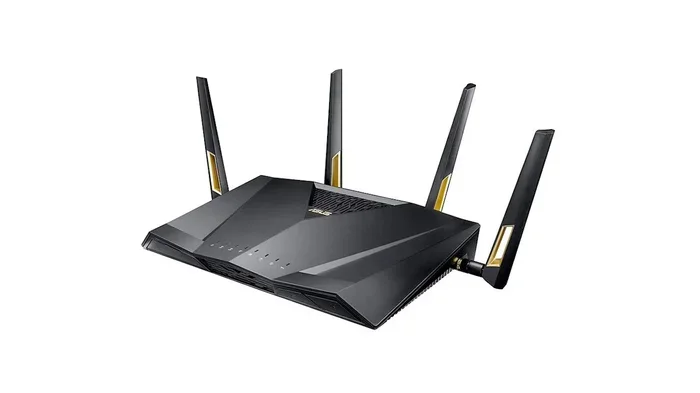
Another option is to use your existing WiFi router and connect it to the Pro Z690-P’s Ethernet port. This gives you a wired connection to the router, which then provides WiFi to all your other devices. This setup works well if your PC is in a fixed location and you do not need the PC itself to connect to WiFi directly.
This approach is common in home setups where the router is in a different room. You run an Ethernet cable from the router to your PC, and the router handles all the wireless duties for your phone, tablet, and other devices.
Comparing WiFi Options for the Pro Z690 P
When deciding how to add WiFi to your Pro Z690-P, it helps to compare the available options side by side. Here is a quick comparison table to guide your decision.
| Feature | PCIe WiFi Card | USB WiFi Adapter | Ethernet + Router |
|---|---|---|---|
| Speed | Fast (WiFi 6/6E) | Moderate | Fast (wired to router) |
| Range | Excellent | Good | Depends on router |
| Ease of Installation | Moderate | Very Easy | Easy |
| Cost | Medium | Low to Medium | Low (if router exists) |
| Takes Up PCIe Slot | Yes | No | No |
| Best For | Performance-focused users | Quick and easy setup | Fixed PC locations |
As you can see, each option has its place. The PCIe card is the best overall choice for most desktop users who want strong wireless performance. The USB adapter is ideal for people who want simplicity. And the Ethernet-plus-router approach works well for stationary setups.
WiFi Standards Explained: What to Look For
When shopping for a WiFi solution for your Pro Z690-P, you will encounter different WiFi standards. Understanding these can help you make the right choice.
WiFi 5 (802.11ac)
WiFi 5 is the older standard but still delivers solid speeds. It supports speeds up to about 3.5 Gbps and works well for most everyday tasks like browsing, streaming, and video calls. If you are on a tight budget, a WiFi 5 adapter can get the job done.
WiFi 6 (802.11ax)
WiFi 6 is the current mainstream standard. It offers faster speeds, better efficiency, and improved performance in crowded environments like apartment buildings or offices. If you want a good balance of speed and value, a WiFi 6 card is the way to go.
WiFi 6E (6 GHz Extension)
WiFi 6E is the newest standard available to consumers. It adds a 6 GHz band that is less congested, which means faster and more stable connections. If you have a WiFi 6E router and want the best possible performance, look for a WiFi 6E adapter like the Intel AX210.
Keep in mind that your WiFi speed also depends on your internet plan, your router capabilities, and your home environment. A great WiFi card will not help if your internet plan only provides slow speeds.
Installing a WiFi Card in the Pro Z690 P
Installing a PCIe WiFi card is a simple process that most users can handle in about 10 to 15 minutes. Here is a step-by-step guide.
- Turn off your PC and unplug it from the wall.
- Open the case and locate an available PCIe slot.
- Remove the metal bracket covering the slot where you plan to install the card.
- Align the WiFi card with the PCIe slot and press it in firmly until it clicks.
- Secure the card with the screw that held the metal bracket in place.
- Attach the antenna(s) to the card’s connector.
- Close the case and plug your PC back in.
- Turn on the PC and install the drivers from the manufacturer’s website or the included CD.
Once the drivers are installed, you should see a new WiFi icon in your system tray. Click it, find your network, enter your password, and you are online. It really is that simple.
Quick Tips for Installation
- Make sure your PCIe slot is not already occupied by a graphics card or other device.
- Use a grounded wrist strap to prevent static damage to components.
- Download the latest drivers from the manufacturer’s website rather than relying on the included CD.
- Place the antenna vertically for the best signal coverage.
- If you experience slow speeds, try moving the antenna to a different position or closer to a window.
Common Mistakes to Avoid
When adding WiFi to the Pro Z690-P, there are a few common mistakes that can cause frustration. Here is what to watch out for.
- Buying the wrong WiFi standard: Make sure your adapter matches or exceeds your router’s WiFi standard for the best performance.
- Forgetting to install drivers: A WiFi card will not work properly without the correct drivers. Always install them first.
- Using a USB adapter in a USB 2.0 port: This will severely limit your speeds. Always use USB 3.0 or USB-C ports for WiFi adapters.
- Blocking the PCIe slot: Large graphics cards can sometimes block adjacent PCIe slots. Check your layout before buying a WiFi card.
- Ignoring antenna placement: Poor antenna positioning can lead to weak signals and slow speeds. Take a few minutes to position them well.
Do You Really Need WiFi on a Desktop?
This is a fair question, especially since the Pro Z690-P does not include WiFi out of the box. Many people wonder whether they even need wireless connectivity on a desktop PC.
The answer depends on your setup and your needs. If your PC is in the same room as your router and you can run an Ethernet cable, a wired connection is almost always faster and more stable. Ethernet also has the advantage of not being affected by interference from other devices.
However, there are situations where WiFi is essential:
- Your PC is in a different room from the router and running a cable is impractical
- You use your PC in a location where Ethernet is not available
- You need to connect to a public WiFi network
- You want the freedom to move your setup around without rewiring
For most desktop users, a wired connection is sufficient. But if any of the above situations apply to you, adding WiFi is a smart move.
Pro Z690 P WiFi vs. Other Z690 Boards
To put things in perspective, let us compare the Pro Z690-P with other Z690 boards that include WiFi. This can help you decide whether the Pro Z690-P is the right choice for you.
The Pro Z690-P WiFi model includes Intel WiFi 6E out of the box. It offers the same features as the standard Pro Z690-P but with wireless connectivity added. The price difference is usually around $30 to $50.
Other Z690 boards from brands like ASUS, MSI, and Gigabyte may include WiFi 6 or WiFi 6E as standard. Some even come with Bluetooth support. When comparing boards, always check the specifications carefully to see what is included.
If you already own the Pro Z690-P without WiFi, adding a PCIe card is often cheaper than paying the premium for the WiFi version. You get the same wireless performance, and you can choose the card that fits your needs best.
Expert Insights: Getting the Best WiFi Performance
To get the most out of your WiFi setup with the Pro Z690-P, consider these expert tips.
Place your router in a central location. The farther your PC is from the router, the weaker the signal will be. If possible, keep the router in the same room or nearby.
Use the 5 GHz band for speed. Most modern WiFi adapters support both 2.4 GHz and 5 GHz bands. The 5 GHz band is faster and less congested, making it ideal for gaming and streaming. If you need range, the 2.4 GHz band is better but slower.
Keep your drivers updated. WiFi adapter manufacturers frequently release driver updates that improve performance and fix bugs. Check for updates regularly.
Consider a WiFi mesh system for large homes. If your PC is far from the router and you get weak signals, a mesh WiFi system can extend coverage throughout your home. This is a great solution for multi-story houses or large apartments.
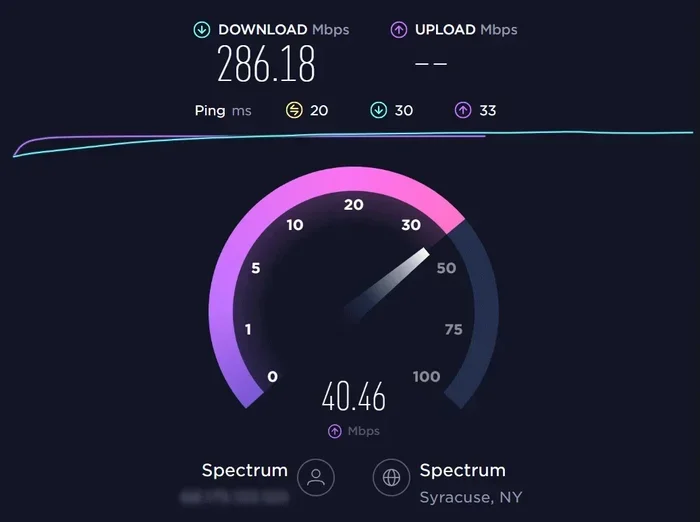
Check your internet speed. Before blaming WiFi for slow speeds, run a speed test using an Ethernet connection. If your speeds are slow even on a wired connection, the issue is your internet plan, not your WiFi setup.
Final Thoughts
So, does Pro Z690 P have WiFi? No, it does not. But that does not make it a bad choice. The Pro Z690-P is a capable and affordable motherboard that works great with a wired Ethernet connection. And when you do need wireless connectivity, adding WiFi is easy and inexpensive.
Whether you choose a PCIe WiFi card, a USB adapter, or stick with a wired setup, the Pro Z690-P gives you the flexibility to build exactly the system you need. The key is understanding your options and choosing the solution that fits your lifestyle and budget.
Take your time, compare your choices, and you will have a great setup in no time. The Pro Z690-P is a solid foundation, and with the right WiFi addition, it can handle anything from casual browsing to serious gaming.
Frequently Asked Questions
Can I use the Pro Z690 P without WiFi and still have a great experience?
Absolutely. Most desktop users rely on a wired Ethernet connection, which is faster and more stable than WiFi. The Pro Z690-P includes a Gigabit Ethernet port that provides excellent speeds for gaming, streaming, and everyday use.
What is the easiest way to add WiFi to the Pro Z690 P?
A USB WiFi adapter is the easiest option. It requires no internal installation and works right out of the box. Just plug it into a USB port, install the drivers, and you are connected.
Is the Pro Z690 P WiFi version worth the extra cost?
If you need WiFi and do not want to buy a separate adapter, the WiFi version is worth it. However, if you already have a WiFi router or plan to use Ethernet, the standard Pro Z690-P is a better value.
Can I upgrade from WiFi 5 to WiFi 6 on the Pro Z690 P?
Yes. You can install a WiFi 6 PCIe card in the Pro Z690-P to upgrade your wireless performance. Just make sure your router also supports WiFi 6 to take full advantage of the upgrade.
Does the Pro Z690 P support Bluetooth?
The standard Pro Z690-P does not include Bluetooth. However, many WiFi adapters come with Bluetooth support built in. If you need Bluetooth, look for a combo WiFi + Bluetooth adapter.
How do I check if my Pro Z690 P is connected to WiFi or Ethernet?
Go to Settings > Network & Internet in Windows. You will see your active connection type listed there. If it shows Ethernet, you are connected via cable. If it shows WiFi, you are connected wirelessly.