Does Cox Slow Down Your Wifi and Internet Speed Now
Yes, Cox can slow down your wifi for several reasons, including data caps, network congestion, and outdated equipment. Understanding why your internet slows down and knowing the right fixes can help you get back to full speed quickly. This guide covers everything from speed tests to router settings and when to contact Cox support.
Does Cox Slow Down Your Wifi
If you have ever wondered, “does Cox slow down your wifi,” you are not alone. Thousands of Cox internet users experience frustrating slowdowns every day. These drops in speed can ruin a movie night, kill a work Zoom call, or make gaming impossible. The good news is that most slowdowns have clear causes and even better fixes.
This guide breaks down exactly why Cox might throttle your wifi, how to test your speed, and what you can do right now to get your internet running fast again. We will cover everything from router placement to data caps and everything in between.
Why Does Your Cox Wifi Slow Down?
Several factors can cause your Cox wifi to slow down. Understanding the root cause is the first step toward fixing the problem. Let us look at the most common reasons.
Key Takeaways
- Cox may throttle your wifi: Data caps and network management policies can reduce your speeds during peak hours.
- Your router matters: Old or poorly placed routers cause slow wifi even if your plan offers fast speeds.
- A speed test is your first step: Running a quick test reveals whether Cox or your equipment is the problem.
- Simple fixes work: Restarting your router, updating firmware, and switching wifi bands often restore full speed.
- Mesh systems help large homes: Devices like mesh networks eliminate dead zones and boost overall performance.
- Contact Cox when needed: Persistent slowdowns may require professional troubleshooting from your provider.
📑 Table of Contents
- How Cox Internet Throttling Works
- How to Test Your Cox Wifi Speed
- Common Reasons Your Cox Wifi Feels Slow
- How to Fix Slow Cox Wifi Speed
- When to Contact Cox Customer Support
- Can You Stop Cox from Slowing Down Your Wifi?
- Expert Tips to Maximize Your Cox Wifi Performance
- Frequently Asked Questions
- Final Thoughts
How Cox Internet Throttling Works
Internet throttling is when your provider intentionally slows down your connection. Cox may do this for a few reasons. Let us explore them.
Data Caps and Usage Limits
Cox internet plans often come with data caps. A data cap is a monthly limit on how much internet you can use. Once you hit that limit, Cox may reduce your speeds. This is called throttling.
For example, if your plan has a 1.2 TB data cap and you use 1.3 TB, Cox might slow your connection for the rest of the billing cycle. This can feel like your wifi suddenly stopped working even though nothing changed on your end.
Not all Cox plans have data caps, so check your specific plan details. If you regularly hit your cap, consider upgrading to an unlimited plan or a higher tier.
Network Congestion During Peak Hours
Cox shares network infrastructure among many users in your area. During peak hours, usually between 7 PM and 11 PM, the network gets crowded. Think of it like a highway during rush hour. More cars means slower traffic.
When too many people in your neighborhood stream, game, or download at the same time, Cox may deprioritize some traffic. This causes your wifi to feel sluggish even though your plan advertises faster speeds.
Traffic Management Policies
Cox uses traffic management to keep the network fair for everyone. This means they may slow heavy data activities during busy times. Streaming 4K video, large file downloads, and online gaming use a lot of bandwidth. Cox may temporarily reduce speeds for these activities.
This is not always a bad thing. It helps prevent one user from hogging all the bandwidth. But it can be annoying if you are trying to get work done or enjoy your favorite show.
How to Test Your Cox Wifi Speed
Before you blame Cox, you need to know your actual speed. A speed test tells you exactly what you are getting. Here is how to do it right.
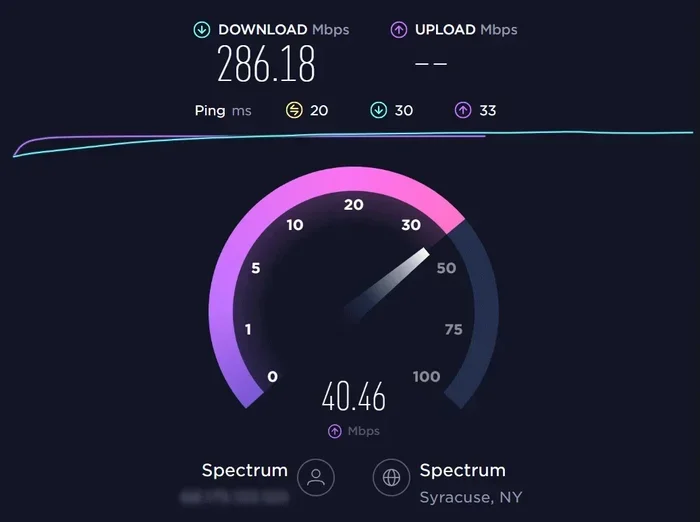
Running a Speed Test
Step 1: Connect your device directly to your modem using an ethernet cable. This removes wifi from the equation.
Step 2: Go to a speed test site like Speedtest.net or Fast.com.
Step 3: Run the test and note your download speed, upload speed, and ping.
Step 4: Now run the same test over wifi from the same spot.
Step 5: Compare the two results.
If your ethernet speed is close to what your plan promises but your wifi speed is much lower, the problem is likely your router or wifi setup. If both speeds are slow, the issue might be with Cox or your plan.
What Speed Should You Expect?
Your Cox plan should match the speeds you pay for. Here is a simple breakdown:
- Basic plans: 50 to 100 Mbps download
- Mid-tier plans: 200 to 400 Mbps download
- Gigabit plans: 940 Mbps download
If your speed test shows less than 80% of your advertised speed, it is time to investigate further.
Common Reasons Your Cox Wifi Feels Slow
Sometimes the problem is not Cox at all. Your own equipment or setup might be to blame. Let us look at the usual suspects.
Outdated Wifi Router
Old routers cannot handle modern internet speeds. If your router is more than five years old, it might be the bottleneck. Older wifi standards like Wireless N (802.11n) max out around 600 Mbps, which is fine for basic plans but not for gigabit speeds.
Upgrading to a router that supports Wifi 6 or Wifi 6E can make a huge difference. These newer standards offer faster speeds, better range, and improved handling of multiple devices.
Poor Router Placement
Where you put your router matters a lot. Placing it in a basement, closet, or behind furniture weakens the signal. Walls, floors, and large appliances all block wifi signals.
For the best results, place your router in a central, open location on the main floor of your home. Keep it elevated and away from metal objects and electronics that cause interference.
Interference from Other Devices
Many household devices emit signals on the same 2.4 GHz frequency as your wifi. Microwaves, baby monitors, cordless phones, and even smart home devices like air conditioners can interfere with your wifi signal.
This interference causes slowdowns, drops in connection, and slow response times. Switching to the 5 GHz band or the 2.4 GHz band intentionally can help reduce this problem.
Too Many Devices on One Network
Every device connected to your wifi shares your total bandwidth. If you have 15 smart home gadgets, phones, laptops, tablets, and smart TVs all connected at once, each device gets a smaller slice of the pie.
This is especially true if multiple people in your household are streaming or gaming at the same time. Consider using a mesh wifi system to distribute the load more effectively across your home.
How to Fix Slow Cox Wifi Speed
Now that you know the common causes, let us fix them. These steps can restore your wifi speed and improve your overall internet experience.
Restart Your Router and Modem
This sounds too simple, but it works. Restarting your router clears its memory and refreshes its connection to Cox’s network. Unplug both your modem and router, wait 30 seconds, and plug them back in. Wait two minutes for everything to reconnect and then test your speed again.
Update Your Router Firmware
Router manufacturers release firmware updates to fix bugs and improve performance. Check your router’s admin panel for updates. The process varies by brand, but most routers have a “Check for Updates” button in the settings menu.
Switch to the 5 GHz Band
Most modern routers broadcast two wifi bands: 2.4 GHz and 5 GHz. The 5 GHz band is faster but has a shorter range. The 2.4 GHz band is slower but reaches further.
For the best speed, connect to the 5 GHz band when you are close to your router. Use the 2.4 GHz band for devices that are far away or need more range. If you are unsure how to manage these bands, check your router settings or contact Cox support.
Use an Ethernet Cable for Critical Devices
Nothing beats a wired connection for speed and stability. If you game, work from home, or stream in 4K, plug your device directly into the modem or router with an ethernet cable. This bypasses wifi entirely and gives you the fastest possible speeds.
Consider a Wifi Extender or Mesh System
If your home is large or has multiple floors, a single router may not cover every room. A wifi extender boosts your existing signal to reach farther areas. A mesh system replaces your router with multiple nodes that create one seamless network throughout your home.
These solutions eliminate dead zones and give every device a strong, fast connection.
Check for Background Downloads and Updates
Sometimes your own devices are the problem. Background app updates, cloud syncing, and automatic downloads eat up bandwidth without you noticing. Check your devices and pause any unnecessary downloads or updates.
When to Contact Cox Customer Support
If you have tried all the fixes above and your wifi is still slow, it is time to contact Cox. Here are signs that the problem is on Cox’s end and not yours.
- Speed tests show slow speeds on ethernet: If a wired connection is slow, the issue is likely with Cox’s network or your plan.
- Slow speeds happen at the same time every day: This suggests network congestion that Cox needs to manage on their end.
- Frequent connection drops: If your wifi disconnects often, there may be an infrastructure problem in your area.
- Other users in your area report the same issue: Check local forums or social media to see if others are experiencing the same slowdowns.
When you contact Cox, have your speed test results ready. This gives the support team concrete data to work with and speeds up the troubleshooting process.
Can You Stop Cox from Slowing Down Your Wifi?
You cannot always prevent throttling, especially if you hit your data cap or Cox is managing network traffic. But you can take steps to minimize slowdowns.
- Monitor your data usage: Keep track of how much data you use each month. Cox provides a data usage tracker in your online account.
- Upgrade your plan: If you consistently hit your data cap, consider switching to a plan with a higher cap or unlimited data.
- Use a VPN during peak hours: A VPN can sometimes prevent Cox from identifying and throttling specific types of traffic. However, this may also slow your connection slightly.
- Optimize your home network: A strong, well-placed router with the latest firmware gives you the best chance of maintaining full speeds.
Expert Tips to Maximize Your Cox Wifi Performance
Tip 1: Place your router on the highest floor of your home. Wifi signals spread downward better than upward. Elevating your router improves coverage throughout your space.
Tip 2: Keep your router away from thick walls and metal objects. These materials block wifi signals and create dead zones. A clear line of sight to your devices makes a big difference.
Tip 3: Schedule heavy downloads for off-peak hours. Running large downloads at 3 AM instead of 8 PM avoids network congestion and keeps your speeds high.
Tip 4: Reboot your router weekly. A weekly restart clears temporary glitches and keeps your router running smoothly.
Tip 5: Use Quality of Service (QoS) settings. Many routers let you prioritize certain devices or activities. Set your work laptop or gaming console to high priority so it always gets enough bandwidth.
Frequently Asked Questions
Does Cox intentionally slow down wifi speeds?
Cox may slow down your wifi under certain conditions, such as hitting a data cap or during peak network congestion hours. They also use traffic management policies to ensure fair usage across all customers. However, they do not randomly slow everyone’s connection without reason.
How can I tell if Cox is throttling my internet?
Run a speed test with a wired ethernet connection first. Then run the same test over wifi. If both results are significantly below your plan’s advertised speeds, Cox may be throttling your connection. Contacting their support with your test results is the next best step.
What is Cox’s data cap and how does it affect wifi speed?
Cox typically enforces a data cap of around 1.2 TB per month depending on your plan. Once you exceed this limit, Cox may reduce your internet speeds until the next billing cycle starts. You can check your current data usage in your Cox online account dashboard.
Will upgrading my router fix slow Cox wifi?
Often, yes. An outdated router is one of the most common causes of slow wifi. Upgrading to a modern router that supports Wifi 6 or higher can dramatically improve your speeds, especially if you have many devices connected. However, if the problem is on Cox’s network side, a new router alone may not solve it.
Is it better to use wifi or ethernet with Cox internet?
Ethernet always provides a faster, more stable connection than wifi. If you need maximum speed for gaming, video calls, or large downloads, a wired connection is the best choice. Use wifi for convenience and mobility, but rely on ethernet for performance-critical tasks.
Can I use a VPN to prevent Cox from throttling my connection?
A VPN can sometimes help by encrypting your traffic and making it harder for Cox to identify the type of data you are using. This may prevent targeted throttling. However, a VPN can also add slight latency and reduce speeds depending on the server you connect to. It is worth testing to see if it helps your specific situation.
Final Thoughts
So, does Cox slow down your wifi? The answer is yes, but not always and not without reason. Data caps, network congestion, traffic management, and your own equipment all play a role in your wifi speed. The good news is that most slowdowns can be fixed with simple steps like restarting your router, updating firmware, switching wifi bands, or upgrading your equipment.
Taking control of your wifi speed starts with understanding the problem. Run a speed test, check your data usage, optimize your router placement, and reach out to Cox support when needed. With the right approach, you can enjoy fast, reliable internet every day.
Do not let slow wifi ruin your online experience. Use the tips in this guide today and feel the difference in your connection. Your internet should work for you, not against you.