Do Wi Fi Adapters Work Well For Pc and Desktop Users
Do Wi Fi adapters work well for Pc? Yes, they are one of the best ways to get your desktop or laptop online without running cables. A WiFi adapter for PC gives you wireless connectivity fast and easy. Whether you pick a USB dongle or a PCIe card, the right wireless network adapter can match your speed needs. This guide walks you through every option so you can choose with confidence.
Do Wi Fi adapters work well for Pc users? The short answer is a strong yes. If your computer does not have built-in wireless internet, a WiFi adapter for PC is the easiest fix. You plug it in, install the driver, and you are online. No cables. No hassle. No need to call a technician.
Many desktop PCs come without WiFi built in. Laptop users sometimes lose their internal wireless card after damage or wear. In both cases, a wireless network adapter steps in and saves the day. These small devices connect your computer to your router and give you access to the internet. They come in all shapes, sizes, and price ranges. Some cost under 15 dollars. Others go above 100 for serious performance.
This guide will answer every question you have about WiFi adapters for PC. We will look at the different types, how fast they are, what to watch out for, and how to set them up. By the end, you will know exactly which wireless connectivity solution fits your needs. Let us get into it.
Key Takeaways
- WiFi adapters work great for PCs: They are a simple, affordable way to add wireless internet to any desktop or laptop.
- USB dongles are the easiest option: Plug and play setup makes them ideal for beginners and quick fixes.
- PCIe cards offer better performance: Internal cards provide faster speeds and stronger signals for heavy users.
- WiFi 6 adapters deliver the fastest speeds: They support dual band WiFi and handle multiple devices with ease.
- Driver updates matter a lot: Outdated drivers cause slow speeds, drops, and connection problems.
- Placement affects signal strength: Where you place your adapter or router can make a big difference.
- Most adapters work instantly: You do not need special tools or technical skills to get started.
📑 Table of Contents
- What Is a WiFi Adapter and How Does It Work?
- Types of WiFi Adapters for PC
- Do WiFi Adapters Affect Internet Speed?
- How to Set Up a WiFi Adapter for PC
- Common WiFi Adapter Problems and How to Fix Them
- Who Needs a WiFi Adapter for PC?
- How to Choose the Right WiFi Adapter
- Expert Insights on WiFi Adapter Performance
- WiFi Adapter vs Ethernet: Which Is Better for PC?
- Common Mistakes to Avoid When Using WiFi Adapters
- Final Thoughts: Do WiFi Adapters Work Well for PC?
What Is a WiFi Adapter and How Does It Work?
A WiFi adapter is a small hardware device that lets your PC connect to a wireless network. Think of it as a bridge between your computer and your router. Without it, your PC would need a physical Ethernet cable to access the internet.
How a WiFi Adapter Connects to Your Network
Your router sends out a wireless signal. The WiFi adapter for PC picks up that signal and translates it into data your computer can use. It works the other way too. When you send data, your adapter sends it back to the router. This all happens in milliseconds. You do not notice any delay in most cases.
There are two main types of wireless network adapters. The first is a USB WiFi dongle. You plug it into any USB port. The second is a PCIe WiFi card. You install it inside your computer on a motherboard slot. Both do the same job. But they differ in speed, setup, and performance.
Why Do Some PCs Not Have WiFi Built In?
Many budget desktop PCs skip built-in WiFi to cut costs. They expect you to use an Ethernet cable instead. Some older PCs were made before WiFi became standard. Even newer laptops sometimes have broken WiFi cards after drops or spills. A USB WiFi dongle or PCIe WiFi card fixes all of these problems quickly.
Types of WiFi Adapters for PC
Not all WiFi adapters for PC are the same. Choosing the right type depends on your needs, budget, and how you use your computer. Here is a breakdown of the most popular options.
USB WiFi Dongles
A USB WiFi dongle is the most popular choice. It is small, portable, and easy to use. You simply plug it into a USB port. Most modern dongles install drivers automatically. You do not need to open your computer case. This makes them perfect for people who want a quick wireless connectivity solution.
USB dongles come in different standards. Basic models support WiFi 5 (802.11ac). Higher-end models support WiFi 6 and even WiFi 7. The more advanced the standard, the faster your speeds. A good WiFi 6 USB adapter can deliver speeds up to 1200 Mbps or more.
PCIe WiFi Cards
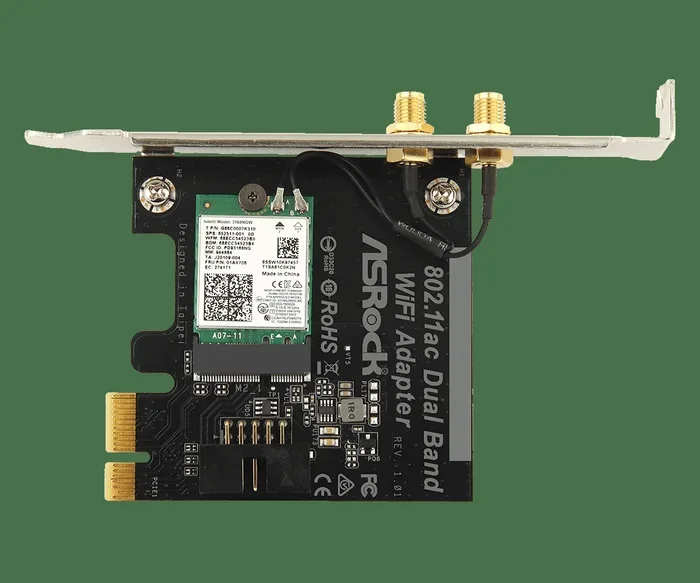
A PCIe WiFi card installs inside your PC. You open the case, find a free PCIe slot, and slide the card in. These cards offer better performance than USB dongles. They have stronger antennas and a direct connection to the motherboard. This means faster network performance and more stable signals.
PCIe cards are ideal for gaming PCs and workstations. They handle heavy internet use with ease. If you stream 4K video, play online games, or work from home, a PCIe WiFi card is a great investment. Brands like Intel, TP-Link, and ASUS make excellent options.
USB WiFi Adapters with External Antennas
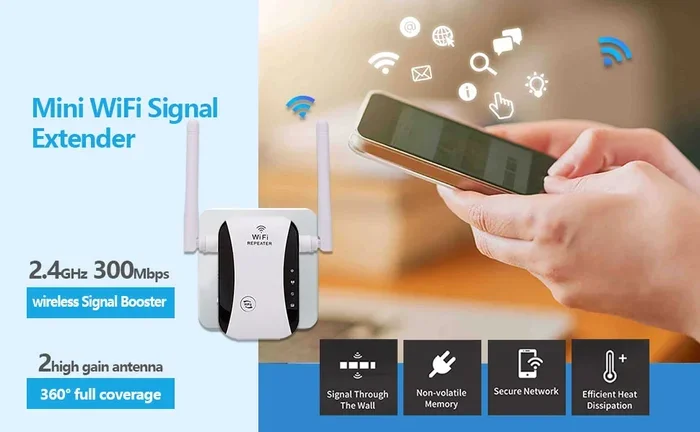
Some USB WiFi adapters come with big external antennas. These are different from small, stubby dongles. The antennas pick up signals from farther away. They also handle interference better. If your router is in another room, this type of adapter works best.
These adapters are perfect for WiFi range extender situations. They boost your signal strength even when the router is far away. They are slightly bulkier than regular dongles. But the performance boost is worth it.
Do WiFi Adapters Affect Internet Speed?
This is one of the most common questions people ask. The answer is yes, but it depends on the adapter you choose. A slow adapter will limit your internet speed. A fast adapter lets you reach your full potential.
WiFi Standards and Speed
Different WiFi standards offer different speeds. Here is a simple comparison:
- WiFi 4 (802.11n): Up to 600 Mbps. Good for basic browsing.
- WiFi 5 (802.11ac): Up to 1300 Mbps. Great for streaming and gaming.
- WiFi 6 (802.11ax): Up to 2400 Mbps. Excellent for heavy use.
- WiFi 6E: Up to 6000 Mbps. The latest and fastest standard.
Your internet plan speed also matters. If your plan gives you 100 Mbps, a WiFi 5 adapter is more than enough. If you have a 1 Gbps plan, you need a WiFi 6 adapter to get the full speed.
2.4GHz vs 5GHz: Which Band Is Better?
Most dual band WiFi adapters support two frequency bands. The 2.4GHz band covers a wider area but is slower. The 5GHz band is faster but has a shorter range.
- 2.4GHz: Better range. Good for browsing and email. More prone to interference from microwaves and other devices.
- 5GHz: Faster speeds. Better for streaming and gaming. Shorter range but less interference.
For the best results, use the 5GHz band when you are close to your router. Switch to 2.4GHz when you are farther away. A good wireless receiver will switch between bands automatically.
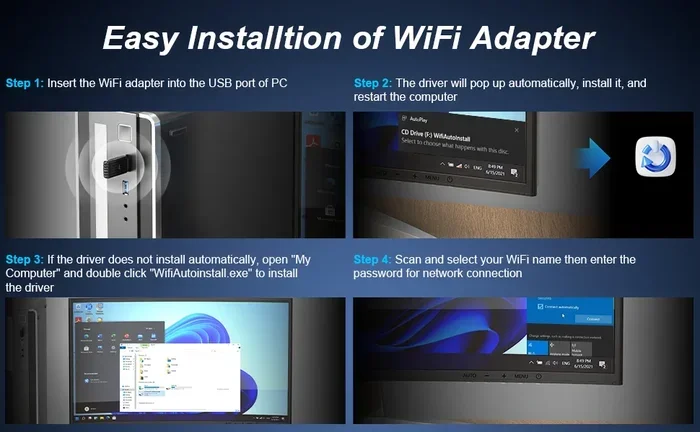
How to Set Up a WiFi Adapter for PC
Setting up a WiFi adapter for PC is easier than most people think. You do not need to be a tech expert. Here is a step-by-step guide that works for most adapters.
Step-by-Step Setup Guide
- Plug in your adapter: Insert the USB dongle or install the PCIe card.
- Wait for driver installation: Windows usually installs drivers automatically. If not, use the CD that came with the adapter or download drivers from the manufacturer’s website.
- Click the network icon: Look for your WiFi icon in the bottom right corner of your screen.
- Select your network: Click on your network name from the list.
- Enter your password: Type in your WiFi password and click Connect.
- Test your connection: Open a browser and visit a website. You are online!
Quick Tips for a Smooth Setup
- Always download the latest wireless driver from the manufacturer’s website.
- If your adapter does not work, try a different USB port.
- Restart your PC after installing new drivers.
- Keep your adapter away from metal objects and other electronics.
- Update your adapter firmware regularly for the best network performance.
Common WiFi Adapter Problems and How to Fix Them
Even the best WiFi adapter for PC can cause problems sometimes. Most issues are easy to fix. Here are the most common ones and their solutions.
Slow Internet Speeds
If your internet speed booster adapter is not delivering fast speeds, check a few things first. Make sure you are on the 5GHz band if your adapter supports it. Update your wireless driver to the latest version. Also, move your adapter closer to the router. Walls and furniture can block signals and slow things down.
Adapter Not Recognized by PC
Sometimes Windows does not detect your wireless network adapter. This usually happens with driver issues. Try plugging the adapter into a different USB port. If that does not work, go to Device Manager and check for errors. Reinstalling the driver almost always fixes this problem.
Frequent Disconnections
If your broadband connection keeps dropping, your adapter might be the culprit. Old drivers often cause this. Update them through Device Manager or the manufacturer’s website. Also, check if your router firmware is up to date. A WiFi range extender can help if the signal is weak in your area.
Adapter Overheating
USB adapters can get hot during long use sessions. This is normal to some extent. But if it gets too hot to touch, move it to a cooler spot. You can also use a USB extension cable to give it more airflow. Avoid plugging it directly into a USB hub that has no ventilation.
Who Needs a WiFi Adapter for PC?
Not everyone needs a WiFi adapter for PC. But many people do without realizing it. Here are the most common situations where an adapter makes a big difference.
- Desktop PC users: Most desktops lack built-in WiFi. An adapter is the only way to go wireless.
- Users with broken internal cards: If your laptop’s WiFi card is damaged, a USB adapter is a cheap replacement.
- Gamers: A fast PCIe WiFi card gives online gamers the speed and stability they need.
- Home office workers: Reliable wireless connectivity is essential for video calls and file uploads.
- Students: A budget USB dongle is perfect for dorm rooms and shared apartments.
- Travelers: Portable USB adapters let you connect to WiFi in hotels and cafes easily.
How to Choose the Right WiFi Adapter
With so many options on the market, picking the right one can feel overwhelming. Here are the key factors to consider before you buy.
Check Your WiFi Standard
Look for adapters that support WiFi 6 or at least WiFi 5. These standards offer the best speeds and reliability. Avoid older WiFi 4 adapters unless you only need basic browsing. The adapter compatibility with your router matters too. A WiFi 6 adapter works best with a WiFi 6 router.
Consider Your Usage Needs
Think about what you do online. If you just browse and check email, a basic USB dongle is fine. If you game or stream 4K video, invest in a faster PCIe WiFi card or a high-end USB adapter. Matching your adapter to your usage ensures the best network performance.
Look at Antenna Design
Adapters with external antennas usually perform better than those with internal antennas. They pick up weaker signals and handle interference better. If your router is far from your PC, choose an adapter with high-gain antennas for the best signal strength.
Budget Matters
You do not need to spend a lot to get good performance. Many excellent WiFi adapters for PC cost between 15 and 40 dollars. Premium PCIe cards can go up to 80 dollars. Set a budget based on your needs and stick to it. You can always upgrade later if needed.
Expert Insights on WiFi Adapter Performance
Networking experts agree that WiFi adapters for PC have improved dramatically in recent years. Modern adapters rival wired Ethernet in many situations. WiFi 6 and WiFi 6E adapters especially close the gap. They offer lower latency and better handling of multiple devices.
However, experts also warn about one thing: your adapter is only as good as your router. If your router is old or low quality, even the best wireless receiver will struggle. Always pair a good adapter with a good router for the best results.
Another expert tip is to keep your drivers updated. Manufacturers release driver updates that improve wireless connectivity and fix bugs. Checking for updates once a month can prevent many common problems. It takes just a few minutes and makes a big difference.
One more thing to keep in mind: adapter placement matters. If you use a USB dongle, do not stick it behind your monitor where it gets blocked by metal. Place it on the side of your desk or use a USB extension cable. Better placement means stronger signals and faster speeds.
WiFi Adapter vs Ethernet: Which Is Better for PC?
Many people wonder if a WiFi adapter can truly replace a wired Ethernet connection. The honest answer is: it depends on your needs.
Ethernet provides the most stable and fastest connection. It is ideal for competitive gaming and large file transfers. A wireless network adapter offers more convenience and freedom of movement. For most everyday tasks like browsing, streaming, and video calls, a good adapter works just as well.
If you need absolute maximum speed and zero lag, Ethernet wins. But for most home and office users, a modern WiFi adapter for PC delivers excellent performance. The convenience of going cable-free is a big advantage for many people.
Common Mistakes to Avoid When Using WiFi Adapters
Avoiding mistakes can save you a lot of frustration. Here are the most common errors people make with their WiFi adapters for PC.
- Skipping driver updates: Old drivers cause slow speeds and connection drops. Always keep them current.
- Buying the wrong standard: A WiFi 4 adapter will not give you WiFi 6 speeds. Check your needs before buying.
- Poor placement: Hiding your adapter behind metal objects kills your signal. Keep it in the open.
- Ignoring interference: Microwaves, baby monitors, and Bluetooth devices can interfere with 2.4GHz signals. Switch to 5GHz when possible.
- Using a USB hub without power: Passive hubs can starve your adapter of power. Use a powered hub or plug directly into your PC.
- Not restarting after setup: A simple restart after installing a new adapter can fix many issues.
Final Thoughts: Do WiFi Adapters Work Well for PC?
So, do Wi Fi adapters work well for Pc? The answer is a clear and confident yes. A WiFi adapter for PC is one of the simplest and most affordable ways to get wireless internet on any computer. Whether you choose a USB dongle or a PCIe card, you have plenty of great options.
Modern adapters offer fast speeds, strong signals, and easy setup. WiFi 6 adapters bring cutting-edge performance to desktop users. And with the right placement and updated drivers, you can enjoy reliable wireless connectivity every day.
Do not let a missing WiFi card keep you offline. Pick the right wireless network adapter for your needs, follow the setup steps in this guide, and you will be browsing in minutes. Your broadband connection will feel faster and more flexible than ever before.
Take action today. Check your PC, find the right adapter, and enjoy the freedom of wireless internet. You will wonder why you did not make the switch sooner.
Frequently Asked Questions
Do WiFi adapters work on all PCs?
Most modern WiFi adapters work with Windows, Mac, and Linux systems. Always check the adapter compatibility before buying. USB adapters work with virtually any PC that has a free USB port. PCIe cards require an available slot on your motherboard.
Can a WiFi adapter improve my internet speed?
A better adapter can unlock faster speeds if your internet plan supports them. For example, a WiFi 6 adapter can reach speeds that older adapters cannot. However, your speed also depends on your router and internet plan. The adapter removes any wireless bottleneck between your PC and router.
Is it easy to install a WiFi adapter on a desktop PC?
Yes, it is very easy. USB adapters plug directly into an open port and install automatically. PCIe cards require opening your PC case and inserting the card into a slot. Both options take less than 10 minutes. Most people can do it without any technical help.
What is the difference between a WiFi adapter and a WiFi range extender?
A WiFi adapter connects your PC to a wireless network. A WiFi range extender boosts an existing signal to reach farther areas. They serve different purposes. But some USB adapters with external antennas can act like a signal booster for your PC specifically.
Do WiFi adapters cause lag in online games?
Good adapters actually reduce lag compared to weak or old wireless cards. A dual band WiFi adapter on the 5GHz band provides low latency for gaming. However, Ethernet still offers the most stable connection for competitive gaming. For casual gaming, a modern WiFi adapter works great.
How often should I update my WiFi adapter driver?
You should check for driver updates at least once a month. Updated wireless drivers improve network performance and fix bugs. Most manufacturers provide free driver updates on their websites. You can also use Windows Device Manager to check for updates automatically.