Can I Plug My Mouse Into My Keyboard Without Any Problem
Yes, you can plug your mouse into your keyboard in most cases, especially if your keyboard has a built-in USB passthrough port. This simple connection works with wired mice, wireless mice, and even gaming setups. Whether you are using a desktop, laptop, or a compact keyboard, understanding the different connection options helps you set up your workspace quickly and efficiently.
Have you ever sat down at your desk, ready to get some work done, only to realize you have one less USB port available? You look at your keyboard and wonder, can I plug my mouse into my keyboard? The short answer is yes, in most cases you can. But the full story is a bit more interesting than a simple yes or no.
Whether you are using a basic office keyboard, a sleek wireless model, or a full-blown gaming setup, the way you connect your mouse matters. A lot depends on the type of keyboard you have, the ports available, and what kind of mouse you are using. This guide walks you through every scenario so you can set up your workspace without any headaches.
We will cover everything from USB passthrough ports to Bluetooth connections, wireless receivers, and even older PS/2 setups. By the end of this article, you will know exactly how to connect your mouse to your keyboard and why it works the way it does. Let us dive right in.
Key Takeaways
- USB Passthrough Works: Many modern keyboards feature a USB passthrough port that lets you plug your mouse directly into the keyboard.
- Plug and Play Simplicity: Most mice connect instantly with no extra software or drivers needed.
- Multiple Connection Types: You can use wired USB, wireless Bluetooth, or a USB wireless receiver to connect your mouse to a keyboard.
- Gaming Keyboards Support This: High-end gaming keyboards often include dedicated USB ports for mouse and other peripherals.
- Watch for Lag: Some wireless setups may experience slight input lag when routing through a keyboard hub.
- PS/2 Ports Are Obsolete: Older keyboards with PS/2 ports can still work, but USB is the modern standard.
- Check Compatibility First: Not all keyboards support mouse passthrough, so always verify your model before connecting.
📑 Table of Contents
- Understanding How Keyboards and Mice Connect
- Can You Plug a Mouse Into a Keyboard? Yes, Here is How
- Wired vs Wireless: Which Mouse Works Best With a Keyboard?
- Gaming Keyboards and Mouse Passthrough
- Step-by-Step: How to Plug Your Mouse Into Your Keyboard
- Common Mistakes People Make When Connecting a Mouse to a Keyboard
- Benefits of Plugging Your Mouse Into Your Keyboard
- When You Should Plug Your Mouse Directly Into the Computer
- Comparison Table: Keyboard Passthrough vs Direct Connection
- Final Thoughts
Understanding How Keyboards and Mice Connect
Before we get into the specifics, it helps to understand the basics of how these two input devices talk to your computer. Both your keyboard and your mouse are considered computer peripherals. They send signals to your system through different types of connections. The way they connect determines whether you can plug one into the other.
USB Connections: The Modern Standard
Universal Serial Bus, or USB, is the most common way to connect peripherals today. Almost every keyboard and mouse made in the last 15 years uses USB in some form. There are a few types of USB connections you should know about:
- USB Type-A: The classic rectangular plug. This is what most desktop computers and keyboards use.
- USB Type-B: A square-shaped plug often found on printers and older devices.
- USB Type-C: The newer, smaller, reversible connector found on modern laptops and keyboards.
- Micro-USB and Mini-USB: Smaller connectors used on some wireless mice and older devices.
When you plug your mouse directly into your computer, it communicates with the operating system through the USB port. But when you plug your mouse into your keyboard, the keyboard acts as a middleman. It passes the signal along to the computer through its own USB connection.
Bluetooth and Wireless Connections
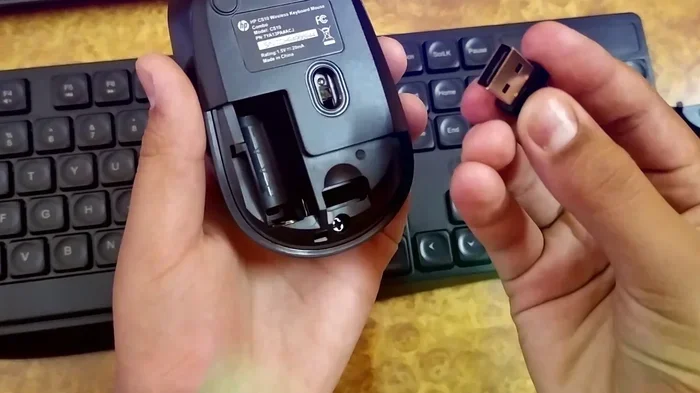
Not all mice use cables. Many modern mice connect wirelessly using Bluetooth or a small USB wireless receiver. These wireless mice work differently than wired ones. A Bluetooth mouse connects directly to your computer or keyboard if the keyboard supports Bluetooth pairing. A wireless mouse with a USB receiver typically plugs into the computer directly, but some keyboards also have a receiver port.
Wireless mouse connectivity has come a long way. Today, you can find mice that use radio frequency (RF) technology, Bluetooth Low Energy (BLE), or proprietary wireless protocols. Each has its own strengths when it comes to connecting through a keyboard.
PS/2 Ports: The Older Connection
If you have an older keyboard, you might see a round PS/2 port. This was the standard connection before USB took over. Some people still use PS/2 keyboards in certain environments because they offer reliable, low-latency connections. You can plug a PS/2 mouse into a PS/2 keyboard, but the setup is less common today. Most people now use USB-based input devices for their simplicity and speed.
Can You Plug a Mouse Into a Keyboard? Yes, Here is How
The most common reason people ask this question is that they are running out of USB ports on their computer. A keyboard with a USB passthrough port solves this problem beautifully. But not all keyboards support this feature, so let us look at the different ways you can make it work.
Using a Keyboard with USB Passthrough
A USB passthrough port is a USB port built into the keyboard. It connects to your computer through the keyboard’s main USB cable. This means when you plug your mouse into the keyboard, the signal travels from the mouse to the keyboard and then to the computer. It is a simple daisy-chain setup that works with most plug and play devices.
Here is how it typically works:
- Plug your keyboard into your computer using the included USB cable.
- Connect your mouse to the USB passthrough port on the keyboard.
- Wait a moment for your computer to recognize the mouse.
- Start using your mouse right away.
Most modern operating systems, including Windows, macOS, and Linux, recognize the mouse automatically. You do not need to install any special device drivers in most cases. This is what makes the whole process so easy and convenient.
What If Your Keyboard Does Not Have a Passthrough Port?
Not every keyboard comes with a built-in USB passthrough. Some compact or slim keyboards leave out this feature to save space. In that case, you have a few options:
- Use a USB hub: A small USB hub plugs into one of your computer’s ports and gives you extra ports for your mouse and other devices.
- Use a wireless mouse: A Bluetooth mouse connects directly to your computer without needing a USB port at all.
- Use a wireless receiver through the keyboard: Some keyboards can share their wireless receiver with a mouse, though this is less common.
- Upgrade your keyboard: Consider getting a keyboard that includes passthrough ports for future convenience.
Each option has its pros and cons. A USB hub is affordable and works with any device. A wireless mouse removes cable clutter but needs batteries or charging. The best choice depends on your workspace and how you use your computer.
Wired vs Wireless: Which Mouse Works Best With a Keyboard?
When you are connecting your mouse through your keyboard, the type of mouse you use matters. Wired and wireless mice each bring something different to the table. Let us break down the differences.
Wired Mice
A wired mouse connects to your keyboard through a USB cable. The setup is straightforward and reliable. You plug it in, and it works. There is no pairing process, no batteries to worry about, and no signal interference.
Wired mice are great for people who want a consistent, lag-free experience. They are also usually more affordable than wireless options. The main downside is the cable. It can create clutter on your desk, and the cable length may limit where you can place your keyboard.
That said, a wired mouse plugged into a keyboard passthrough port works just as well as plugging it directly into the computer. The signal quality remains the same because the data still travels through the same USB pathway.
Wireless Mice
A wireless mouse offers more freedom and a cleaner desk setup. You can place your keyboard anywhere without worrying about cable length. Wireless mice use either a USB receiver or Bluetooth to communicate.
When using a wireless mouse with a keyboard passthrough, there are a few things to keep in mind:
- USB receiver mice: Some keyboards have a dedicated slot for a wireless receiver. You can plug the receiver into the keyboard, and it will share the connection with your mouse.
- Bluetooth mice: If your keyboard supports Bluetooth, you can pair a Bluetooth mouse directly. The keyboard then acts as a Bluetooth hub in some cases.
- Battery life: Wireless mice need power. Make sure your mouse is charged or has fresh batteries before relying on the setup.
Wireless mice are perfect for people who value a tidy workspace. The slight convenience of going cordless often outweighs any minor latency differences. Most modern wireless mice have excellent response times that feel just as responsive as wired options.
Gaming Keyboards and Mouse Passthrough
Gamers have special needs when it comes to their setup. Every millisecond of input delay can matter in fast-paced games. So the question becomes, can I plug my mouse into my keyboard without sacrificing performance?
The answer is mostly yes, but with some caveats. Many gaming keyboards come with dedicated USB passthrough ports. These ports are designed to handle the data load of high-speed peripherals without adding noticeable lag.
What to Look for in a Gaming Keyboard
If you are a gamer who wants to use your keyboard as a USB hub for your mouse, look for these features:
- Dedicated USB passthrough ports: These are separate from the keyboard’s main connection and provide full bandwidth.
- USB 3.0 or USB 3.1 support: Faster data transfer means less lag and smoother performance.
- Polling rate support: Higher polling rates (1000Hz or more) ensure your mouse inputs are registered quickly.
- Onboard memory: Some gaming keyboards store profiles locally, which can affect how peripherals are recognized.
Popular gaming keyboard brands like Corsair, Razer, Logitech, and SteelSeries often include passthrough ports on their higher-end models. Before buying, check the product specs to confirm the keyboard supports mouse passthrough if that is important to your setup.
Common Gaming Setup Issues
Even with the right keyboard, you might run into some issues when plugging your mouse through the keyboard. Here are a few common problems and how to fix them:
- Mouse lag: If your mouse feels slow or unresponsive, try plugging it directly into the computer instead of through the keyboard.
- Port not recognized: Restart your computer or try a different USB port on the keyboard.
- Interference: Keep your wireless receiver away from other wireless devices to avoid signal conflicts.
- Driver conflicts: Update your keyboard and mouse drivers through your operating system’s device manager.
Expert Insight: Most gaming keyboards handle mouse passthrough without any noticeable performance loss. The key is to use a quality keyboard with dedicated passthrough ports and avoid cheap, unbranded USB hubs that may bottleneck the connection.
Step-by-Step: How to Plug Your Mouse Into Your Keyboard
Ready to try it yourself? Here is a simple step-by-step guide to get your mouse working through your keyboard.
Step 1: Check Your Keyboard for a USB Port
Look at the back or side of your keyboard. You should see a USB Type-A port labeled as “USB Out,” “Pass-through,” or “USB Hub.” If you see this port, you are good to go. If your keyboard does not have one, consider using a USB hub or a wireless mouse instead.
Step 2: Connect the Keyboard to Your Computer
Plug your keyboard into your computer using its main USB cable. Make sure the connection is secure and that your computer recognizes the keyboard. You should see a notification or hear a sound confirming the device is connected.
Step 3: Plug in Your Mouse
Take your mouse and plug it into the passthrough port on your keyboard. If you are using a wired mouse, simply insert the USB plug. If you are using a wireless mouse with a receiver, plug the receiver into the passthrough port.
Step 4: Wait for Recognition
Your computer should detect the mouse within a few seconds. On Windows, you will see a notification that says “New device found.” On macOS, you might see a brief popup. Once recognized, you can start using your mouse immediately.
Step 5: Test the Connection
Move your mouse around and check if the cursor responds smoothly. Click a few buttons to make sure everything works. If the mouse does not respond, try unplugging and replugging it, or restart your computer.
Quick Tips:
- Always use the keyboard’s passthrough port, not the keyboard’s charging port if it has one.
- Keep your USB cables away from heavy objects to avoid damage.
- If using a wireless mouse, keep the receiver as close to the mouse as possible for the best signal.
Common Mistakes People Make When Connecting a Mouse to a Keyboard
Even though the process is simple, people still make mistakes. Here are the most common ones and how to avoid them.
Plugging Into the Wrong Port
Some keyboards have multiple ports that serve different purposes. For example, a keyboard might have a USB port for charging a phone and a separate passthrough port for peripherals. Plugging your mouse into the wrong port can cause it not to work or to work unreliably. Always check the labels on your keyboard ports before connecting.
Ignoring Driver Updates
While most mice work without extra drivers, some specialized mice require software or firmware updates. If your mouse behaves strangely when connected through your keyboard, check the manufacturer’s website for updates. Keeping your operating system and device drivers up to date prevents most compatibility issues.
Using a Low-Quality USB Hub
If your keyboard does not have a passthrough port and you use a USB hub instead, the quality of the hub matters. Cheap hubs may not provide enough power or data bandwidth, leading to connection drops or lag. Invest in a reputable USB hub from a trusted brand to avoid these problems.
Overlooking Power Limitations
Keyboards draw power from the USB port on your computer. When you connect a mouse through the keyboard, you are adding to the power load. Most keyboards can handle this easily, but if you connect too many power-hungry devices, you might run into issues. Keep the total number of connected peripherals reasonable.
Benefits of Plugging Your Mouse Into Your Keyboard
Now that you know how to do it, let us look at why you might want to. There are several real benefits to using your keyboard as a hub for your mouse.
- Saves USB ports on your computer: This is the biggest advantage. You free up a port for other devices like a webcam, external drive, or printer.
- Reduces cable clutter: With fewer cables running directly to your computer, your desk looks cleaner and more organized.
- Convenient for compact setups: If you use a small desk or a laptop with limited ports, keyboard passthrough is a lifesaver.
- Easy to add or remove peripherals: You can plug and unplug your mouse from the keyboard without reaching behind your computer.
- Works with most devices: Desktop computers, laptops, and even some tablets with USB-C support can use this setup.
These benefits make keyboard passthrough a practical choice for many users. Whether you are working from home, setting up a gaming station, or just trying to keep your desk tidy, this simple connection method goes a long way.
When You Should Plug Your Mouse Directly Into the Computer
While plugging your mouse into your keyboard works in most situations, there are times when a direct connection is better.
- Competitive gaming: If you play fast-paced games where every millisecond counts, plug your mouse directly into your computer for the lowest possible latency.
- High-bandwidth devices: Some advanced mice with high polling rates or custom features perform best with a direct USB connection.
- Troubleshooting: If your mouse is acting up, connect it directly to the computer to rule out the keyboard as the source of the problem.
- Older keyboards: Very old keyboards with limited passthrough support may not handle modern mice reliably.
In these cases, a direct connection gives you the best performance and reliability. Think of keyboard passthrough as a convenient option for everyday use, not a replacement for a direct connection when performance matters most.
Comparison Table: Keyboard Passthrough vs Direct Connection
| Feature | Keyboard Passthrough | Direct Connection |
|---|---|---|
| USB Ports Used | One (on the computer) | One (on the computer) |
| Extra Ports Freed Up | Yes | No |
| Setup Complexity | Very simple | Very simple |
| Input Lag | Minimal in most cases | Lowest possible |
| Cable Clutter | Less | More |
| Compatibility | Works with most keyboards | Works with all computers |
| Best For | Everyday use, compact setups | Gaming, high-performance tasks |
As you can see, both methods have their place. For most people, keyboard passthrough is the more convenient choice. But if you need every bit of performance, a direct connection is the way to go.
Final Thoughts
So, can I plug my mouse into my keyboard? Absolutely. Whether you have a wired mouse, a wireless mouse, or a gaming setup, the answer is almost always yes. The key is knowing what kind of keyboard you have and choosing the right connection method for your needs.
Keyboard passthrough ports make life easier by freeing up your computer’s USB ports and keeping your desk organized. Wireless mice add even more flexibility by removing cables entirely. And for those with older or simpler keyboards, USB hubs and Bluetooth options provide excellent alternatives.
The next time you find yourself short on ports or looking to tidy up your workspace, remember that your keyboard can do more than just type. It can be a hub for all your input devices. Try it out and see how simple and convenient it can be. Your desk and your workflow will thank you.
Frequently Asked Questions
Can I plug any mouse into any keyboard?
Most modern keyboards with USB passthrough ports work with almost any USB mouse. However, not all keyboards have passthrough ports, so check your keyboard’s specifications first. If your keyboard lacks a passthrough port, you can still use a wireless mouse or a USB hub to connect your mouse.
Will plugging my mouse into my keyboard cause lag?
In most cases, no. Modern keyboards handle passthrough connections efficiently with minimal lag. However, if you are a competitive gamer or need the absolute lowest latency, plugging your mouse directly into the computer is the better option. The difference is usually too small to notice for everyday tasks.
Do I need special drivers to connect my mouse through my keyboard?
No, most mice work on a plug and play basis without any special drivers. Your operating system recognizes the mouse automatically when you connect it through the keyboard. Only specialized gaming mice or mice with custom features might require additional software.
Can I connect a Bluetooth mouse through my keyboard?
Yes, if your keyboard supports Bluetooth, you can pair a Bluetooth mouse through it. Some keyboards act as a Bluetooth hub, allowing multiple Bluetooth devices to connect through a single connection to the computer. Check your keyboard’s manual for Bluetooth pairing instructions.
Is it safe to plug multiple devices into my keyboard’s passthrough port?
Yes, it is generally safe. Most keyboards can handle one or two peripheral devices through their passthrough port without issues. However, avoid connecting too many power-hungry devices at once, as this can overload the port. Stick to standard peripherals like mice, keyboards, and flash drives for the best results.
What should I do if my mouse does not work when plugged into my keyboard?
First, try unplugging the mouse and plugging it back in. If that does not work, restart your computer and check if the keyboard is properly connected. You can also try a different USB port on the keyboard. If the problem persists, connect the mouse directly to the computer to see if it works there, which helps identify whether the issue is with the keyboard or the mouse itself.