Does Factory Reset Remove Your Google Backup Forever
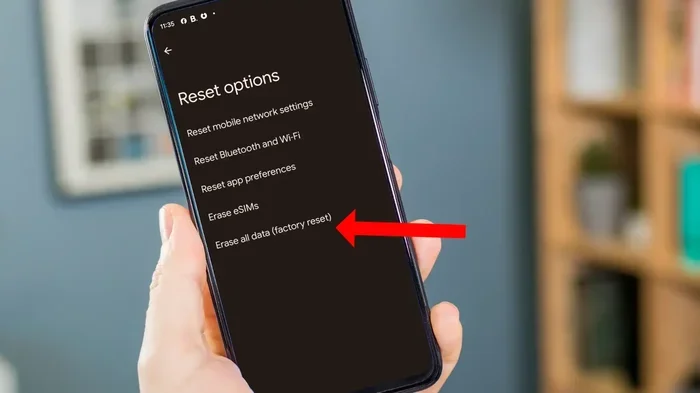
So, does factory reset remove Google backup? The short answer is no — your Google backup stays safe in the cloud. A factory reset wipes your device’s local data, but your Google-stored contacts, photos, and settings remain untouched. Understanding this difference is crucial before you reset any Android phone. This guide breaks down exactly what happens to your Google backup, what gets erased, and how to keep your data protected.
So you are thinking about doing a factory reset on your phone. Maybe your device is acting up, or you want to sell it, or you just want a fresh start. Whatever the reason, one question keeps popping up in your head: does factory reset remove Google backup? It is a really common concern, and honestly, it is a smart one to ask before you hit that reset button.
The truth is, a factory reset and your Google backup are two very different things. They live in separate places. One affects your phone locally, and the other lives safely in the cloud. Understanding this difference can save you a lot of stress and keep your important data exactly where it belongs. Let us walk through everything you need to know.
Key Takeaways
- A factory reset does not delete your Google backup. Your data stays safe in Google’s cloud servers.
- Local device data gets wiped, but cloud-synced information like contacts and photos remain intact.
- Google Backup and Google One store your app data, settings, and call history separately from your phone.
- You can restore your Google backup easily after a factory reset by signing back into your account.
- Always verify your backup before resetting to avoid losing any unsynced data.
- Wi-Fi passwords and home screen layouts may not return after a reset, even with Google backup.
- Google Photos and Google Drive operate independently, so your files stay safe regardless of a reset.
📑 Table of Contents
- What Happens When You Factory Reset Your Phone?
- How Google Backup Actually Works
- Does Factory Reset Remove Google Backup? The Clear Answer
- What Gets Deleted vs. What Stays After a Reset
- How to Back Up Your Data Before a Factory Reset
- Can You Recover Google Backup After a Factory Reset?
- Common Mistakes People Make Before a Factory Reset
- Expert Tips for Managing Google Backup and Resets
- Frequently Asked Questions
- Final Thoughts
What Happens When You Factory Reset Your Phone?
A factory reset is like hitting the undo button on everything you have done with your phone. It wipes all the data stored directly on your device and brings it back to the exact state it was in when you first took it out of the box. Sounds dramatic, right? But it is really just a clean slate.
When you start the reset process, your phone deletes all installed apps, personal files, system settings, and user data. This includes your photos saved to local storage, downloaded documents, cached files, and even your home screen arrangement. Essentially, your phone forgets everything about you as a user — at least locally.
What a Factory Reset Actually Erases
Here is a simple list of what gets wiped from your device during a factory reset:
- All installed apps and their local data
- Photos and videos stored on internal memory
- Downloaded files and documents
- Cached data and temporary files
- System settings and customizations
- Wi-Fi passwords saved on the device
- Home screen layouts and widget placements
- Call logs and SMS messages stored locally
- Accounts logged into the device
Notice that none of these items are your Google backup itself. The backup lives on Google’s servers, not on your phone. So even though your device forgets everything, the cloud version of your backup stays exactly as it is.
How Google Backup Actually Works
To fully answer the question “does factory reset remove Google backup,” you need to understand how Google backup works in the first place. Google backup is a cloud-based service that stores copies of your phone’s important data on Google’s servers. Think of it as a safety net that lives way above your phone — up in the internet cloud.
When you enable Google backup on your Android device, it starts automatically syncing certain types of data. This syncing happens in the background, usually when your phone is connected to Wi-Fi and charging. You do not have to do anything special. It just works.
What Google Backup Includes
Google backup covers a wide range of data types. Here is what it typically stores:
- App data — Many apps save their settings and login info to Google backup automatically.
- Call history — Your recent call logs get stored in the cloud.
- Contacts — All your contacts sync to your Google account.
- Device settings — Things like wallpaper, display preferences, and sound settings.
- SMS messages — Your text messages can be backed up to Google’s servers.
- Wi-Fi networks — Saved Wi-Fi passwords may be included in some backup versions.
Now, here is the key part. All of this data lives on Google’s cloud servers. Your phone is just a window into that data. When you factory reset your phone, you are removing the window, not the view behind it. Your Google backup remains completely untouched.
Does Factory Reset Remove Google Backup? The Clear Answer
Let us get straight to the point. Does factory reset remove Google backup? No, it does not. A factory reset removes data from your device’s local storage. It does not touch anything stored on Google’s cloud servers. Your Google backup stays exactly where it is — safe, sound, and waiting for you when you need it.
This is one of the most reassuring things about using Google’s backup system. Even if you reset your phone five times, your Google backup will still be there. It is not tied to your device. It is tied to your Google account.
Why People Get Confused About This
It is easy to see why people mix this up. When you reset your phone and set it up again, you might notice that some things are missing at first. Your apps are gone. Your photos are gone. Your custom settings are gone. This can feel like your backup disappeared too.
But here is what is really happening. After a factory reset, your phone is empty. When you sign back into your Google account during setup, the phone starts restoring data from your Google backup. This restoration process takes a little time. Some data syncs instantly, while other data might take hours or even a day to fully appear. The backup was never removed. It was just not yet restored to the new clean device.
Another reason for confusion is that people sometimes confuse Google backup with Google Photos or Google Drive. These are separate services. Google Photos stores your pictures and videos. Google Drive stores your files and documents. A factory reset does not delete anything from Google Photos or Google Drive either. All three services operate independently of your phone’s local storage.
Google Backup vs. Local Storage
Understanding the difference between Google backup and local storage is really important. Let us break it down simply:
- Google Backup — Lives on Google’s cloud servers. Safe from factory resets. Tied to your Google account.
- Local Storage — Lives on your phone’s internal memory. Wiped completely during a factory reset.
Think of it like this. Google backup is like a safe deposit box at a bank. Local storage is like the wallet in your pocket. If you lose your wallet, your safe deposit box is perfectly fine. A factory reset is like throwing away your wallet. Your safe deposit box stays locked and secure.
What Gets Deleted vs. What Stays After a Reset
Let us get really specific about what happens after a factory reset. This is where many people make mistakes or have unnecessary worries. Knowing exactly what changes and what does not change will give you total peace of mind.
Data That Gets Deleted After a Factory Reset
The following data is removed from your device during a factory reset:
- All apps you downloaded from the Google Play Store
- App data stored locally on your phone
- Photos and videos saved to your phone’s internal storage
- Any files you downloaded or created on the device
- Your custom home screen layout and widgets
- Saved Wi-Fi passwords on the device
- Bluetooth pairings and connections
- Local call logs and text messages
- Cached data and temporary files
Data That Stays Safe After a Factory Reset
Now for the good news. The following data remains safe and can be restored after a reset:
- Google contacts — Synced to your Google account and fully recoverable
- Google Photos — Stored in the cloud and accessible from any device
- Google Drive files — Safe in the cloud regardless of what happens to your phone
- Google Play apps — You can reinstall them from the Play Store after signing in
- Google backup data — App settings, call history, and SMS messages stored in the cloud
- Google account settings — Your account preferences sync across all devices
See the pattern? Anything stored in the Google cloud stays safe. Anything stored directly on your phone gets wiped. This simple rule covers almost everything you need to know.
How to Back Up Your Data Before a Factory Reset
Even though your Google backup stays safe, you should still take steps to back up everything before you reset your phone. Why? Because sometimes things do not sync perfectly. Sometimes there is a gap between what your phone has and what Google has saved. Doing a quick pre-reset check saves you from surprises later.
Step-by-Step Backup Checklist
Follow these simple steps before you factory reset your device:
- Check your Google backup status. Go to Settings, then Google, then Backup. Make sure backup is turned on and the last backup time is recent.
- Verify your Google Photos sync. Open Google Photos and check that your photos are fully uploaded to the cloud. Look for the cloud icon next to your photos.
- Confirm your contacts are synced. Go to Settings, Accounts, Google, and make sure contacts sync is enabled.
- Check Google Drive for important files. Make sure any documents or files you want to keep are uploaded to Drive.
- Note down any app-specific data. Some apps like WhatsApp have their own backup systems. Make sure you back up WhatsApp separately.
- Write down important passwords. Even though Google can save passwords, having a physical note never hurts.
Taking these few minutes before a reset can save you hours of frustration afterward. It is one of the best habits you can build as a phone user.
Can You Recover Google Backup After a Factory Reset?
Absolutely yes. Recovering your Google backup after a factory reset is actually one of the easiest things you can do. The process is designed to be simple and straightforward. Here is how it works.
Restoring Your Google Backup After Reset
When you set up your phone after a factory reset, you will be asked to sign into your Google account. During this setup process, your phone will detect that you have a Google backup available. It will ask if you want to restore from that backup.
Simply say yes, and the restoration process begins. Your contacts, app data, device settings, and SMS messages will start downloading from Google’s servers. The time this takes depends on how much data you have backed up and how fast your internet connection is.
Here are a few tips to make the recovery process smooth:
- Connect to a strong Wi-Fi network before starting the restore
- Keep your phone plugged in and charging during the process
- Be patient — large backups can take several hours to fully restore
- Do not turn off your phone or cancel the process midway
- Check that all your data has appeared before you start using the phone normally
Things That May Not Restore Automatically
While most data restores perfectly, there are a few things that might not come back automatically. Wi-Fi passwords sometimes need to be re-entered. Some app-specific data may require you to log in again. Your home screen layout might need to be rearranged. These are minor things, and they are easy to fix.
Common Mistakes People Make Before a Factory Reset
There are a few common mistakes that people make when preparing for a factory reset. Avoiding these will keep your data safe and your reset process stress-free.
Mistake 1: Assuming All Data Is Backed Up
Not all data automatically backs up to Google. Some apps store data locally and do not sync to the cloud. Always check individual app settings for backup options before you reset.
Mistake 2: Forgetting to Remove Your Google Account
On newer Android phones, you need to remove your Google account before performing a factory reset if you plan to sell or give away the device. This is a security feature called Factory Reset Protection. If you skip this step, the phone may lock you out after the reset.
Mistake 3: Not Checking Backup Completion
Just turning on backup is not enough. You should check that the backup actually completed successfully. Sometimes backups fail due to low storage, poor internet connection, or app errors. Always verify before you reset.
Mistake 4: Confusing Google Backup with Other Cloud Services
Google backup is not the same as iCloud, OneDrive, or Dropbox. Each service handles different types of data. Make sure you understand which service backs up what, and make sure all your important data is covered.
Expert Tips for Managing Google Backup and Resets
Here are some practical tips from people who deal with phone resets regularly. These small habits can make a big difference in protecting your data.
- Enable automatic backup. Turn on Google backup and let it run automatically. This way, you always have a recent copy of your data in the cloud.
- Use Google One for extra storage. If your Google storage is full, consider upgrading to Google One for more backup space.
- Test your backup regularly. Occasionally check that your backup is working by reviewing what is stored in your Google account.
- Keep your Google account secure. Use a strong password and two-factor authentication. Your backup is only as safe as your account.
- Reset only when necessary. Factory resets should be a last resort. Try restarting your phone or clearing cache first.
These tips are simple but powerful. They will help you feel confident every time you need to reset your device.
Frequently Asked Questions
Will I lose my Google Photos after a factory reset?
No, you will not lose your Google Photos after a factory reset. Google Photos stores your pictures and videos in the cloud, not on your phone’s local storage. As long as your photos are synced to the cloud, they remain safe and accessible from any device, including your freshly reset phone.
How long does it take to restore Google backup after a factory reset?
The restore time varies depending on the size of your backup and your internet speed. Small backups may restore in just a few minutes, while larger backups with lots of app data and photos can take several hours. A stable Wi-Fi connection and a charging phone will help speed things up.
Do I need to back up anything before a factory reset if I use Google backup?
Yes, you should still do a quick check before resetting. While Google backup covers a lot of data, some apps store information locally that does not sync to the cloud. Apps like WhatsApp, some gaming apps, and certain note-taking apps may need separate backup steps. Always verify your backup is complete before you reset.
Can someone access my Google backup after I factory reset my phone?
No, your Google backup remains private and secure. It is tied to your Google account, and only you can access it by signing into your account. A factory reset does not remove or expose your backup. Your data stays protected by Google’s security measures.
Will my apps be reinstalled automatically after a factory reset?
Yes, if you signed into your Google account during setup and chose to restore from backup, your previously installed apps from the Google Play Store will reappear on your phone. You may need to open each app and sign in again, but the apps themselves will be restored automatically.
What happens to my Google account after a factory reset?
Your Google account is completely unaffected by a factory reset. Your account, its data, and your settings all remain intact on Google’s servers. After a reset, you simply sign back into your account, and everything syncs back to your phone from the cloud.
Final Thoughts
So let us bring it all together. Does factory reset remove Google backup? The answer is a clear and definitive no. Your Google backup lives safely in the cloud, completely separate from your phone’s local storage. A factory reset wipes your device clean, but it leaves your cloud data untouched and fully recoverable.
This knowledge should give you real confidence. Whether you are resetting your phone to fix a problem, preparing to sell it, or just wanting a fresh start, you can do so without worrying about losing your Google backup. Your contacts, photos, app data, and settings are all protected in the cloud.
The key takeaway is simple. Always make sure your Google backup is turned on and up to date before you reset your phone. Take a few minutes to verify everything is synced properly. And when you set up your phone after the reset, sign back into your Google account and let the restoration process do its work.
You now know more about factory resets and Google backup than most people do. Use that knowledge wisely. Keep your data safe, your backup current, and your phone running smoothly. A factory reset does not have to be scary — not when you understand exactly what is happening to your data every step of the way.