How Can I Fix My Wi Fi Connection Problem Right Now
A Wi-Fi connection problem can disrupt your entire day, but most issues have simple solutions you can try at home. This guide walks you through step-by-step troubleshooting for slow Wi-Fi, dropped signals, and connected-but-no-internet scenarios. You will learn how to reset your router, adjust settings, and know when to call your ISP for help.
There is nothing more frustrating than staring at a spinning loading icon when you need the internet the most. Whether you are working from home, streaming your favorite show, or trying to video call a loved one, a Wi-Fi connection problem can bring everything to a halt. The good news is that most Wi-Fi issues are easy to fix, and you do not need to be a tech expert to solve them.
In this guide, we will walk you through every practical step to get your wireless network back up and running. We cover quick fixes you can try in under five minutes, as well as deeper troubleshooting for stubborn connection drops and slow speeds. By the end, you will know exactly what to do when your internet stops working.
Let us dive right in and get your Wi-Fi working again.
Key Takeaways
- Restart Your Router First: A simple reboot fixes over 50% of Wi-Fi connection problems instantly.
- Check Your ISP Status: Sometimes the issue is outside your home and not your equipment at all.
- Update Router Firmware: Outdated software causes compatibility and stability issues with your wireless network.
- Optimize Your Wi-Fi Channel: Switching to a less congested channel can dramatically improve your signal strength.
- Use a Wi-Fi Booster When Needed: If your router cannot reach all areas, a booster or extender solves range problems.
- Change DNS Settings: Switching to public DNS servers can fix slow browsing and connection drops.
📑 Table of Contents
Why Does My Wi-Fi Connection Keep Dropping?
Before you start fixing anything, it helps to understand what might be causing the problem. Wi-Fi connection issues come from a few common sources, and identifying the root cause saves you a lot of time.
Interference From Other Devices
Your wireless signal shares space with many other electronic devices. Microwaves, baby monitors, Bluetooth speakers, and even neighboring Wi-Fi networks can all cause interference. This is especially true if you live in an apartment building where dozens of networks overlap. The result? Your Wi-Fi signal weakens or drops unexpectedly.
The 2.4GHz band is most vulnerable to interference because it is the most commonly used frequency. If you notice your connection struggles at certain times of the day, interference is likely the culprit. Switching to the 5GHz band or changing your Wi-Fi channel can help a lot.
Outdated Router Firmware
Your router runs software, just like your phone or computer. When that software gets old, it can cause all sorts of connection problems. Manufacturers release firmware updates to fix bugs, improve stability, and patch security holes. If you have not updated your router in a while, this could be the reason your Wi-Fi keeps acting up.
Most modern routers have an auto-update feature, but many do not. It is worth checking your router’s admin panel to see if a newer version is available. A quick firmware update can resolve mysterious disconnections and slow speeds.
Hardware Limitations
Not all routers are created equal. Older models may not handle modern internet speeds or multiple connected devices well. If you have a smart home with dozens of devices, an outdated router will struggle to keep up. Similarly, if your router is placed in a basement or far corner of your house, the signal simply cannot reach everywhere effectively.
In some cases, the problem is not your router at all. A damaged Ethernet cable, a loose power connection, or a failing modem can all mimic Wi-Fi problems. It is worth checking your physical equipment before diving into software fixes.
Quick Fixes You Can Try Right Now
When your internet stops working, you want a fast solution. These are the steps that resolve the majority of Wi-Fi connection problems in minutes.
Restart Your Router and Modem
This is the golden rule of internet troubleshooting, and it works more often than you might think. Power off your router and modem, wait 30 seconds, and then power them back on. This clears the device’s memory, refreshes the connection to your ISP, and often fixes temporary glitches.
Make sure you wait the full 30 seconds. This gives the capacitors time to fully discharge and ensures a clean restart. Many people turn devices off and on too quickly, which defeats the purpose. Patience here pays off.
Check if Your ISP Is Down
Sometimes the problem is not in your home at all. Your internet service provider may be experiencing an outage in your area. Before you spend time troubleshooting your own equipment, check your ISP’s status page or app. You can also call their support line or check social media for reports from neighbors.
If there is an outage, all the troubleshooting in the world will not help. You simply need to wait for your ISP to restore service. In these cases, using your phone as a hotspot can keep you connected while you wait.
Forget and Reconnect to Your Network
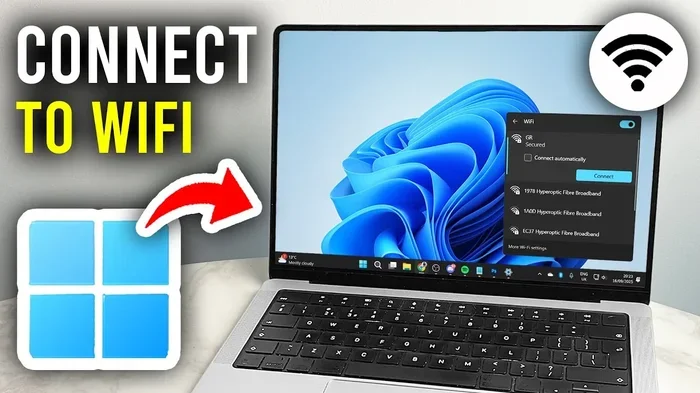
Your device sometimes gets stuck on a bad network configuration. Forgetting the Wi-Fi network and reconnecting with fresh settings can clear this up. On most devices, you go to your Wi-Fi settings, select the network, and choose “Forget.” Then reconnect by entering your password again.
This simple step resets the connection profile on your device and often fixes weird issues like connecting but having no internet access. It is one of the most overlooked troubleshooting steps, but it works surprisingly well.
Move Closer to the Router
This sounds obvious, but distance and physical barriers have a huge impact on Wi-Fi signal quality. Walls, floors, and large furniture all weaken the signal. If you are in a room far from your router, try moving closer and see if your connection improves.
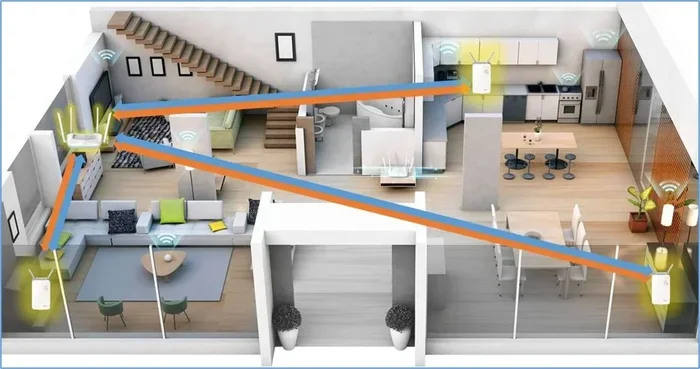
If you find that certain rooms in your home always have weak signal, you may have a range problem. This is where a Wi-Fi booster can make a big difference. A booster extends your signal to areas that your router cannot reach on its own.
How to Troubleshoot a Slow Wi-Fi Connection
A slow connection is different from no connection, but the fixes overlap in many ways. Here is how to diagnose and fix slow Wi-Fi step by step.
Run an Internet Speed Test
Before changing anything, you need to know what you are working with. Run a speed test at speedtest.net or a similar service. This tells you your actual download and upload speeds compared to what you pay for.
If your speeds are close to your plan’s advertised speeds, the problem is likely not your connection but the specific website or app you are using. If speeds are far below what you pay for, there is a real issue you need to address.
Change Your Wi-Fi Channel
Think of Wi-Fi channels like lanes on a highway. If too many networks use the same channel, traffic slows down for everyone. Your router can operate on different channels, and switching to a less crowded one can boost your speed significantly.
You can check which channels are least congested using a free Wi-Fi analyzer app on your phone. Then log into your router settings and change the channel. This is one of the most effective ways to improve wireless performance in a crowded area.
Switch Between 2.4GHz and 5GHz
Most modern routers broadcast on two frequency bands. The 2.4GHz band travels farther but is slower and more prone to interference. The 5GHz band is faster but has a shorter range.
If you are close to your router, use the 5GHz band for faster speeds. If you are far away or through walls, the 2.4GHz band gives better coverage. You can also force your device to use a specific band. For example, if your phone keeps connecting to the slower band, you can force your phone to use 2.4GHz Wi-Fi for better range or stick with 5GHz for speed.
| Band | Speed | Range | Best For |
|---|---|---|---|
| 2.4GHz | Slower | Longer | Far away, through walls |
| 5GHz | Faster | Shorter | Close range, streaming |
Advanced Fixes for Stubborn Connection Problems
If the quick fixes above did not solve your issue, it is time to dig deeper. These steps address the underlying causes of persistent Wi-Fi problems.
Update Your Router Firmware
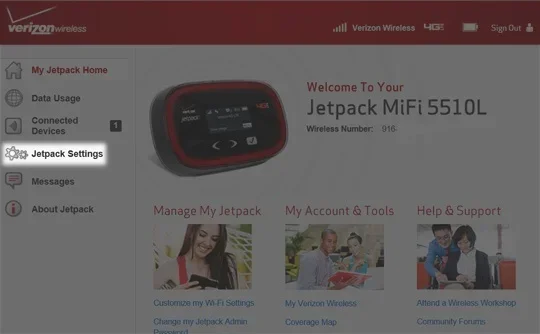
Firmware updates fix known bugs and improve performance. To check for updates, log into your router’s admin panel. The address is usually something like 192.168.1.1 or 192.168.0.1. You can find the login details on the sticker on the bottom of your router.
Once logged in, look for a section called “Firmware Update” or “Software Update.” If an update is available, install it. Your router may restart during this process, which is completely normal. After the update, check if your connection problems are resolved.
Reset Your Router to Factory Settings
If nothing else works, a factory reset can clear out any misconfigurations that are causing problems. Look for a small reset button on the back of your router. Press and hold it for 10 to 15 seconds with a paperclip or pin.
Be warned: a factory reset erases all your custom settings, including your Wi-Fi name and password. You will need to set up your network again from scratch. Make sure you know your Wi-Fi password before resetting. This should be a last resort, but it often solves problems that nothing else can.
Change Your DNS Settings
DNS is the system that translates website names into IP addresses. Your ISP assigns default DNS servers, but they are not always the fastest. Switching to a public DNS server can improve both speed and reliability.
Popular options include Google DNS (8.8.8.8 and 8.8.4.4) and Cloudflare DNS (1.1.1.1). You can change DNS settings in your router’s admin panel or directly on your device. This fix is especially helpful if your problem is specifically slow browsing while other things work fine.
Add an Antenna to Your Router
If your router has removable antennas, you can upgrade them for better signal strength and range. Standard antennas that come with routers are usually basic models. Upgrading to a high-gain antenna can significantly improve your wireless coverage.
This is a simple and affordable fix that works well for homes with thick walls or multiple floors. If you want to explore this option, you can learn more about adding an antenna to your Wi-Fi router for better signal reach.
When to Call Your Internet Service Provider
Most Wi-Fi problems can be fixed at home, but some issues require professional help. If you have tried all the steps above and your connection still does not work, it is time to contact your ISP.
Common signs that the problem is on the ISP’s side include: no lights on your modem, frequent disconnections at the same time every day, and speed tests showing speeds far below your plan. Your ISP can run diagnostics on their end and send a technician if needed.
Before calling, gather some information. Note when the problem started, which devices are affected, and what troubleshooting steps you have already tried. This helps the support team diagnose the issue faster and saves you time on the phone.
How to Prevent Wi-Fi Problems in the Future
Prevention is always better than cure. A few simple habits can keep your wireless network running smoothly for years.
- Restart your router regularly. A weekly reboot clears memory and prevents buildup of minor issues. You can even set a schedule if your router supports it.
- Keep your router in a central location. Place it in an open area, not hidden in a closet or behind furniture. Walls and obstacles weaken the signal.
- Update firmware when available. Check for updates every few months. Many routers now offer automatic updates, which you should enable.
- Limit connected devices. Too many devices on one network can slow things down. Disconnect devices you are not using.
- Use a strong password. This prevents neighbors and strangers from using your network, which can slow your speeds and create security risks.
Following these simple tips goes a long way in keeping your internet fast and reliable. A little maintenance now saves you from major headaches later.
Final Thoughts
A Wi-Fi connection problem does not have to ruin your day. Most issues can be fixed with simple steps that take just a few minutes. Start with a router restart, check your ISP status, and work your way through the troubleshooting steps in this guide.
If the problem persists, deeper fixes like firmware updates, DNS changes, or equipment upgrades can help. And remember, you are not alone. Millions of people deal with Wi-Fi issues every day, and the solutions in this article work for real users in real homes.
Now that you know how to fix your connection, you can get back to what matters most. Whether it is working, streaming, gaming, or staying connected with family, a reliable Wi-Fi connection makes it all possible. Take action today and enjoy a smooth, fast internet experience again.
Frequently Asked Questions
Why does my Wi-Fi show connected but have no internet?
This usually means your router is connected to the modem but the modem cannot reach the internet. Try restarting your modem and router first. If that does not work, the issue may be with your ISP or a DNS configuration problem.
How often should I restart my router?
Restarting your router once a week is a good habit. This clears temporary memory and refreshes the connection. Many modern routers also support scheduled restarts, which you can set and forget.
Can a VPN cause Wi-Fi connection problems?
Yes, a VPN can sometimes slow down or disrupt your connection. If you notice issues after turning on a VPN, try disconnecting it to see if your Wi-Fi improves. If the VPN is the cause, switching servers or providers may help.
What is the difference between Wi-Fi and internet?
Wi-Fi is the wireless signal that connects your devices to your router. The internet is the broader network that your router connects to through your ISP. You can have a strong Wi-Fi signal but no internet if your ISP service is down or your modem has an issue.
How can I tell if my router is failing?
Signs of a failing router include frequent disconnections, very slow speeds even after troubleshooting, overheating, and age (routers older than 5 years often struggle). If restarting and updating do not help, it may be time to replace your router.
Does weather affect Wi-Fi signal strength?
Yes, weather can affect Wi-Fi, especially outdoor signals. Heavy rain, snow, and high humidity can weaken wireless signals. Indoor routers are less affected, but extreme weather can still cause minor disruptions to your connection.