How Can I Get Wi Fi On My Computer Anywhere Easily
Getting Wi-Fi on your computer anywhere is easier than you think. You can use a portable hotspot, your phone as a mobile hotspot, or a dedicated wireless device to stay connected on the go. This guide walks you through every option so you can pick the best solution for your needs.
Have you ever been stuck in a hotel room, a coffee shop, or even your own backyard and realized your computer has no wireless internet connection? It is frustrating when you need to get work done, stream a movie, or video call a friend, and your wi-fi signal just is not there. The good news is that getting Wi-Fi on your computer anywhere is totally doable. You do not need to be a tech expert either. There are simple, affordable options that work for almost anyone.
In this guide, we will walk you through every way to get Wi-Fi on my computer anywhere you go. Whether you travel for work, love spending time outdoors, or just want internet in places where the signal is weak, you will find practical solutions here. We will cover portable hotspot devices, phone tethering, USB adapters, public Wi-Fi spots, and much more. By the end, you will know exactly which option fits your lifestyle and budget best.
Staying connected is no longer a luxury. It is a necessity. From checking emails on a train to attending virtual meetings from a park, having internet access on your computer at all times makes life so much easier. Let us dive into the best ways to make that happen.
Key Takeaways
- Portable hotspots let you create your own wireless internet connection anywhere you travel
- Phone tethering is the easiest and most affordable way to get Wi-Fi on your computer without extra devices
- USB Wi-Fi adapters and cellular devices can connect your computer directly to a broadband connection
- Public Wi-Fi is available in many places but always use safe practices when connecting
- Boosting your signal and picking the right data plan keeps you connected without frustration
- Unlimited hotspot plans prevent surprise charges and keep your internet access reliable
📑 Table of Contents
Understanding How to Get Wi-Fi on Your Computer Anywhere
Why Wireless Internet Access Matters
We live in a world where being offline can mean missing important emails, falling behind on work, or losing touch with loved ones. A wireless network gives you the freedom to work, learn, and play from almost any location. When you know how to get Wi-Fi on your computer anywhere, you take control of your connectivity. You are no longer stuck waiting for a strong signal at home or in the office.
Think about all the places you go during a typical week. Maybe you visit a café, ride public transportation, stay at a hotel, or spend time at a friend’s house. Each of these places might have different levels of wifi coverage. Some spots have great signals, and others have none at all. Having your own way to connect means you are never stuck without options.
The Different Ways to Connect
There are several methods to connect your computer to the internet when you are away from home. Here are the main ones:
- Portable hotspot devices — small gadgets that create your own wireless network using cellular data
- Phone tethering — sharing your phone’s cellular connection with your computer
- USB Wi-Fi adapters — devices that plug into your computer to connect to cellular networks
- Public Wi-Fi networks — free or paid networks available in cafes, libraries, and airports
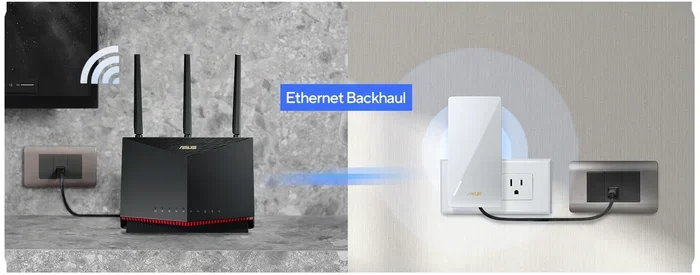
- Wi-Fi extenders and boosters — devices that amplify an existing signal to reach farther
Each method has its pros and cons. Some cost more upfront but save you money over time. Others are free but might be slower or less secure. The best choice depends on how often you need internet anywhere and what you plan to do online.
Using a Portable Hotspot Device for Internet Anywhere
How Portable Hotspots Work
A portable hotspot device is a small, battery-powered gadget that connects to a cellular network and broadcasts a wireless network that your computer can join. Think of it as a tiny router you can carry in your pocket. These devices are also called mobile hotspots or broadband hotspots. They use a data plan from a carrier like Verizon, AT&T, or T-Mobile to provide internet access wherever there is cell service.
The beauty of a portable hotspot is that it works independently. You do not need a home router, and you do not need to rely on someone else’s Wi-Fi. You just turn it on, connect your computer, and you are online. The wifi range of most hotspot devices reaches about 30 to 50 feet, which is plenty for a desk, a café table, or a hotel room.
If you are wondering whether you can buy your own device, the answer is yes. You can purchase a portable Wi-Fi hotspot device from most electronics stores or directly from your carrier. Some devices cost as little as $50 to $100, and monthly data plans start around $20 to $40 depending on your usage needs.
Best Portable Hotspot Options
Not all hotspot devices are the same. Here are some popular options to consider:
- Mobile hotspots from carriers — AT&T, Verizon, and T-Mobile all offer dedicated hotspot devices with prepaid and postpaid plans
- Pocket Wi-Fi devices — small, travel-friendly gadgets that work in many countries, making them great for international trips
- Multi-device hotspots — these can connect up to 10 or more devices at once, perfect for families or small teams
When choosing a hotspot device, look at the battery life, the number of devices it can support, and whether it works on the cellular data network you prefer. A device with a long-lasting battery is especially important if you travel often or work away from power outlets.
Turning Your Phone Into a Mobile Hotspot
Setting Up Tethering on Different Devices
The easiest and most affordable way to get Wi-Fi on my computer anywhere is by using your phone as a mobile hotspot. This process is called tethering. It shares your phone’s cellular data connection with your computer through Wi-Fi, Bluetooth, or a USB cable. Almost every smartphone made today supports tethering, whether you use an iPhone or an Android device.
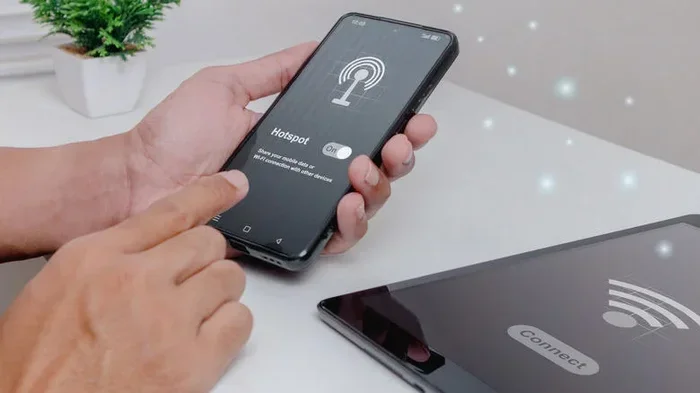
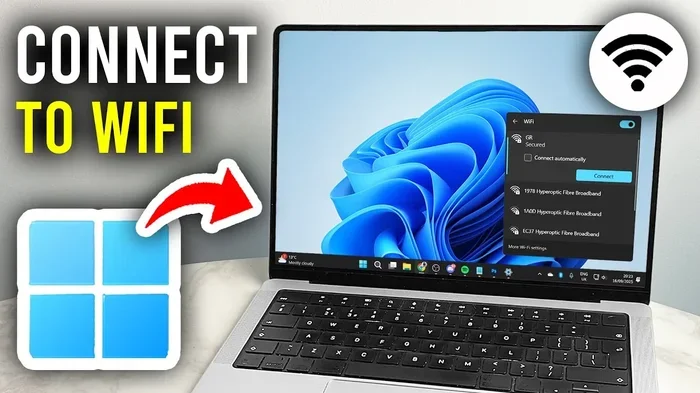
Setting up a mobile hotspot is simple. On most phones, you just go to Settings, find the Hotspot or Personal Hotspot option, and turn it on. You can set a name and password for your wireless network, then connect your computer just like you would with any Wi-Fi network. The whole process takes less than a minute.
One of the biggest advantages of using your phone as a hotspot is that you do not need to buy any extra equipment. You already have the device. You just need to make sure your data plan allows tethering. Some carriers limit the amount of data you can use for hotspot, so check your plan before you rely on this method regularly.
Watch Your Data Usage
While tethering is convenient, it can use up your data quickly. Streaming videos, downloading files, or video calling all use a lot of data. If you are on a limited plan, you might run out fast. To avoid surprises, keep an eye on your usage. You can check your data usage in your phone settings or through your carrier’s app.
If you find yourself using your hotspot often, you might want to look into a plan with more data or even unlimited hotspot data. This way, you never have to worry about running out of data when you need internet access most. Also, if your phone plan does not include hotspot data, you may want to explore getting a hotspot without phone service through a dedicated device or prepaid plan.
Another thing to keep in mind is that tethering can drain your phone battery fast. If you plan to use your phone as a hotspot for several hours, consider keeping it plugged into a charger. A connected device that is also charging will stay online longer and give you a more stable wireless internet connection.
Getting Wi-Fi Without a Router
USB Wi-Fi Adapters and Dongles
Not everyone wants to carry a separate hotspot device. A great alternative is a USB Wi-Fi adapter, also called a Wi-Fi dongle. This small device plugs directly into your computer’s USB port and connects to a cellular network. It works just like a USB modem but gives you Wi-Fi access on your computer without needing a router.
USB Wi-Fi adapters are compact and easy to use. You plug them in, install any needed software, and they connect to the nearest cellular tower. Many adapters come with a built-in SIM card slot, so you just insert a data SIM card and you are good to go. They are a great option if you want a simple, no-fuss way to get online.
If you are curious about whether you can add Wi-Fi to a computer that does not have it built in, getting Wi-Fi without a router is absolutely possible with the right adapter or dongle. These devices are especially useful for older laptops or desktop computers that lack built-in wireless capabilities.
Cellular Wi-Fi Devices
Beyond USB adapters, there are also dedicated mobile broadband devices that work without a traditional router. These devices connect directly to a cellular network and create a personal wireless network for your computer and other devices. They are similar to portable hotspots but are often designed for specific use cases like travel or rural connectivity.
Some of these devices come with built-in SIM cards and prepaid plans. Others let you bring your own SIM card from any carrier. The flexibility is a big advantage because you can switch carriers or plans whenever you want. This means you are never locked into a long-term contract just to get Wi-Fi on your computer anywhere.
Finding Free Wi-Fi in Public Places
Safe Practices for Public Networks
Free public Wi-Fi is everywhere these days. Coffee shops, libraries, airports, hotels, and even some city parks offer free wireless internet. These networks are convenient and can save you a lot of data usage on your personal hotspot. However, they also come with risks that you should know about.
Public networks are often less secure than private ones. Other people on the same network might be able to see what you are doing online if you do not take precautions. Here are some tips to stay safe:
- Use a VPN — a virtual private network encrypts your data and keeps your browsing private
- Avoid banking or shopping on public Wi-Fi unless you are using a secure connection
- Turn off file sharing on your computer before connecting to a public network
- Check the network name — make sure you are connecting to the legitimate network and not a fake one set up by a hacker
- Forget the network after you are done so your computer does not auto-connect next time
Following these simple steps lets you enjoy the convenience of public Wi-Fi while keeping your personal information safe. You can check your email, browse the web, and even do light work without worry.
Boosting Your Wi-Fi Signal and Choosing the Right Data Plan
Tips to Strengthen Your Connection
Even with the right device, your Wi-Fi signal can sometimes be weak. Distance from the router, walls, and even weather conditions can affect your wifi coverage. Here are some easy tips to improve your connection:
- Move closer to the source — if you are using a hotspot or public Wi-Fi, try getting closer to the router or access point
- Stay away from obstructions — walls, metal objects, and even water can block your signal
- Turn off unused devices — every device connected to a network uses bandwidth, so disconnect devices you are not using
- Restart your device — sometimes a simple restart fixes connection issues and refreshes your link to the network
- Use a Wi-Fi booster — these devices amplify your signal and extend your wifi range significantly
If you are using a portable hotspot, try placing it near a window or in an open area. This helps it get a stronger signal from the nearest cell tower. Better signal means faster internet speed and a more reliable connection for your computer.
Picking the Best Data Plan for Your Needs
Choosing the right data plan is just as important as choosing the right device. If you plan to use your hotspot or tethering often, you need enough data to last. Here is a quick comparison of common plan types:
| Plan Type | Monthly Cost | Best For |
|---|---|---|
| Pay-as-you-go data | $10-$20 | Occasional use, light browsing |
| Limited data plan | $20-$40 | Regular use, moderate streaming |
| Unlimited data plan | $40-$80 | Heavy users, frequent travelers |
| Prepaid hotspot plan | $15-$35 | Flexible users who want no contract |
The right plan depends on how much you use the internet and what you do online. If you mostly check emails and browse websites, a smaller plan works fine. But if you stream videos or attend video calls regularly, an unlimited or high-data plan is worth the investment. You can also look into unlimited hotspot options to make sure you never run out of data.
Can Humidity Affect Your Wi-Fi Signal?
You might not expect it, but weather can play a role in your wireless connection. High humidity and heavy rain can slightly weaken your Wi-Fi signal, especially over longer distances. This is more of a concern for outdoor hotspots or long-range connections. If you notice your signal dropping during rainy weather, try moving closer to your hotspot or finding a sheltered spot. For more details on how weather impacts your connection, check out our article on how humidity affects a Wi-Fi signal.
Conclusion
Getting Wi-Fi on your computer anywhere is no longer a challenge. You have many options, from using your phone as a mobile hotspot to buying a portable hotspot device or a USB Wi-Fi adapter. Each method has its strengths, and the best one depends on your needs, budget, and how often you need to stay connected.
Start by thinking about your typical usage. Do you need internet for a few hours a week, or do you need it every day? Are you often in areas with strong cell service, or do you travel to places with limited coverage? Your answers to these questions will guide you toward the right solution.
Remember to stay safe when using public networks, keep an eye on your data usage, and invest in a good data plan that matches your habits. With the right setup, you can enjoy a reliable wireless internet connection wherever life takes you. Take action today, pick the option that works best for you, and never worry about being offline again.
Frequently Asked Questions
Can I get Wi-Fi on my computer without a phone plan?
Yes, you can. You can buy a dedicated portable hotspot device with its own data plan. These devices work independently of your phone and give you a wireless internet connection wherever there is cell service. You can also use a USB Wi-Fi adapter with a data SIM card to connect directly to a cellular network.
Is it safe to use public Wi-Fi for work?
It can be safe if you take the right precautions. Always use a VPN to encrypt your data, avoid accessing sensitive accounts, and make sure you are connecting to the legitimate network name. Following these steps keeps your information secure while you enjoy public internet access.
How much data do I need for a mobile hotspot?
It depends on what you do online. Light browsing and email use about 1 to 2 GB per month. Streaming videos and video calls can use 10 GB or more. If you use your hotspot regularly, an unlimited data plan or a high-data plan is the safest choice to avoid running out of data.
Can I use a portable hotspot internationally?
Some portable hotspot devices work internationally, but you need to check compatibility with local networks. Many global hotspot devices support multiple frequency bands and can work in different countries. You may also need a local SIM card or an international data plan to use the device abroad.
What is the difference between tethering and a portable hotspot?
Tethering is when you share your phone’s cellular connection with another device, usually through Wi-Fi, Bluetooth, or USB. A portable hotspot is a standalone device that creates its own wireless network using cellular data. Tethering uses your phone’s battery and data, while a portable hotspot device has its own battery and SIM card.
Do I need a special router to get Wi-Fi anywhere?
No, you do not need a traditional router. You can use a portable hotspot device, a mobile hotspot on your phone, or a USB Wi-Fi adapter to get online. These devices connect directly to cellular networks and provide Wi-Fi access without needing a home router or a fixed broadband connection.