How Can I Control My Tv With My Phone Without A Remote
You can easily control your tv with your phone without a remote by using built-in smart TV apps, third-party remote apps, Bluetooth connections, or an HDMI cable. Whether you have a Samsung, LG, Sony, or any other smart TV, your smartphone can replace your lost or broken remote. This guide covers every method so you can find the best solution for your setup.
There is nothing more frustrating than settling in for a movie night and realizing your TV remote is missing. You dig through couch cushions, check between pillows, and even look in the kitchen. But the remote is nowhere to be found. Before you run out to buy a replacement, here is the good news. You can control your tv with your phone without a remote in several simple ways. Your smartphone is basically a mini computer that can do everything a remote does and more.
Whether your TV is a smart TV or an older model, there is a solution for you. Some methods work over Wi-Fi, others use Bluetooth, and some even need just a simple cable. I have tested almost every approach out there, and I will walk you through the best ones in this guide. By the end, you will know exactly which method works for your TV and phone combination.
Let us dive right in and explore how you can turn your phone into a powerful TV remote. Controlling your tv with your phone without a remote is easier than you think, and it works for almost every brand and model.
Key Takeaways
- Smart TV Apps: Most modern TVs come with free companion apps that let you use your phone as a remote.
- Third-Party Apps: Apps like AnyMote and Peel offer universal remote control for almost any TV brand.
- Bluetooth Connection: You can pair your phone directly to your TV using Bluetooth for wireless control.
- HDMI Connection: Connecting your phone to your TV via HDMI gives you full screen mirroring and control.
- IR Blaster Trick: Older phones with an IR blaster can work as a full universal remote.
📑 Table of Contents
- Why You Should Use Your Phone As a TV Remote
- Method 1: Use Your TV Manufacturer’s Official App
- Method 2: Use a Third-Party Universal Remote App
- Method 3: Connect Your Phone to Your TV Using Bluetooth
- Method 4: Connect Your Phone to Your TV with an HDMI Cable
- Method 5: Use Your Phone’s IR Blaster (For Older Phones)
- Common Problems and How to Fix Them
- Expert Tips for the Best Experience
- Can You Really Replace Your TV Remote Forever?
Why You Should Use Your Phone As a TV Remote
Using your phone as a TV remote comes with several big advantages. First, you always have your phone with you. You never need to worry about losing the remote again. Second, phone remotes often offer more features than the original remote. You can use a keyboard to type search queries, browse the internet, and even control volume with slider controls.
Third, it is usually free. Most TV manufacturers offer their own remote apps at no cost. Third-party apps are also free or very affordable. You do not need to spend money on a replacement remote. Finally, using your phone gives you access to features like voice search, trackpad navigation, and even casting content directly to your screen.
If you have ever wondered whether controlling your tv with your phone without a remote is reliable, the answer is yes. Modern phones and smart TVs communicate seamlessly. The connection is fast, responsive, and works just as well as a physical remote in most cases.
Method 1: Use Your TV Manufacturer’s Official App
Find the Right App for Your TV Brand
Almost every major TV brand has a free app you can download on your phone. These apps are designed specifically for their TVs and work very reliably. Here are the most popular ones:
- Samsung SmartThings: Works with Samsung Smart TVs. Lets you control volume, change channels, and type with your phone keyboard.
- LG ThinQ: Works with LG webOS TVs. Offers full remote control and even lets you manage smart home devices.
- Sony TV SideView: Works with Sony Android TVs. Provides a full remote interface and screen mirroring.
- Philips TV Remote: Works with Philips Android TVs. Simple and easy to set up.
- Vizio SmartCast: Works with Vizio TVs. Lets you cast content and control your TV from your phone.
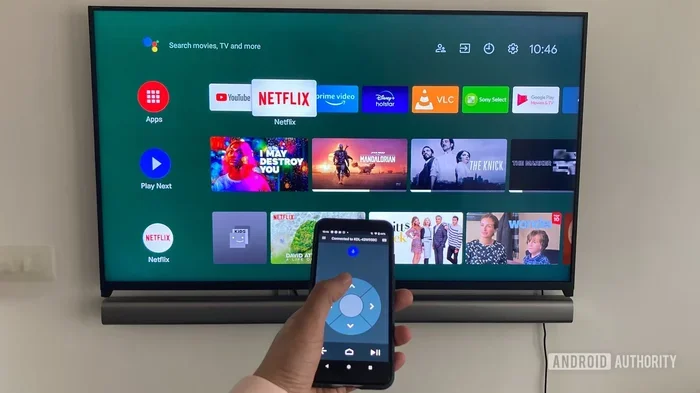
To get started, download the app from the App Store or Google Play Store. Make sure your phone and TV are on the same Wi-Fi network. Open the app and follow the on-screen pairing instructions. Within a minute or two, your phone will be connected and ready to control your TV.
These apps work great because they communicate directly with your TV’s smart system. They can power your TV on and off, change inputs, adjust picture settings, and navigate the TV menu. It is basically the same experience as using the original remote, but with a touchscreen interface that is often more intuitive.
If you are looking for a reliable way to control my tv with my phone without a remote, starting with the official app from your TV brand is the best first step. It is free, easy, and works right out of the box.
Setting Up the App Properly
Here is a quick step-by-step guide to setting up any TV remote app:
- Download the official app for your TV brand from your phone’s app store.
- Turn on your TV and make sure it is connected to your Wi-Fi network.
- Open the app on your phone and grant it permission to access your local network.
- The app should automatically detect your TV on the same network.
- Tap on your TV name to pair the connection.
- Follow any additional on-screen prompts to complete setup.
Once paired, you can use the app every time you want to control your TV. Some apps even let you customize the remote layout, add shortcut buttons, and set up voice commands. This makes the experience feel personalized and very convenient.
Method 2: Use a Third-Party Universal Remote App
Best Universal Remote Apps for Any TV
If your TV brand does not have a good official app, or if you want one app that works with multiple TVs, a third-party universal remote app is a great choice. These apps use Wi-Fi, Bluetooth, or even your phone’s infrared sensor to communicate with your TV.
Here are some of the best options:
- AnyMote: A popular universal remote app that supports hundreds of TV brands and devices.
- Peel Smart Remote: Works as both a TV remote and a program guide. Great for finding shows to watch.
- SURE Universal Remote: Supports a wide range of smart TVs and streaming devices.
- ZaZa Remote: Offers a large database of TV codes for different brands and models.
These apps are especially useful if you have multiple devices you want to control from one place. You can set up your TV, soundbar, streaming stick, and even your cable box all within one app. This saves you from juggling multiple remotes and keeps everything organized.
Most third-party apps let you enter your TV model number, and they automatically configure the remote layout for your specific TV. This means you get a customized experience without any complicated setup. Controlling your tv with your phone without a remote has never been this simple or flexible.
Are Third-Party Apps Safe to Use?
This is a common concern, and it is a valid one. Most well-known third-party remote apps are safe and do not collect unnecessary personal data. However, you should always download apps from official stores and check the reviews before installing. Stick to apps with high ratings and a large number of downloads. Avoid any app that asks for suspicious permissions that do not make sense for a remote control app.
Method 3: Connect Your Phone to Your TV Using Bluetooth
How Bluetooth TV Control Works
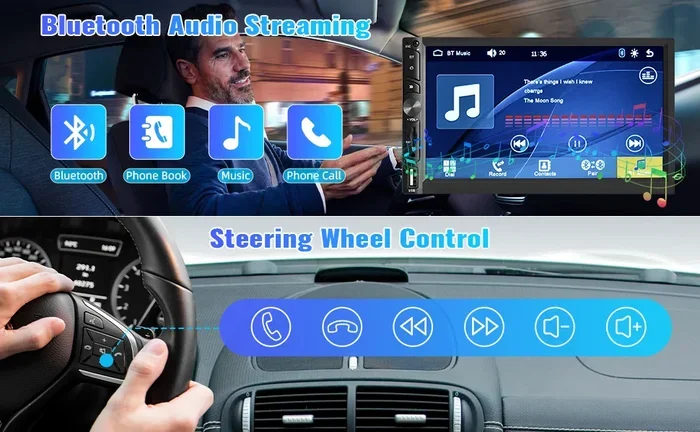
Bluetooth is a wireless technology that lets devices talk to each other over short distances. Many modern smart TVs support Bluetooth connections, which means you can pair your phone directly to your TV. Once connected, your phone can send commands to the TV just like a remote would.
This method works well if your TV has built-in Bluetooth support. Most smart TVs from the last five years include Bluetooth. To check if your TV supports Bluetooth, go to your TV’s settings menu and look for a Bluetooth or Connections section. If you see an option to pair a new device, your TV supports Bluetooth.
To connect your phone to your TV via Bluetooth, follow these steps:
- Go to your TV’s settings and turn on Bluetooth pairing mode.
- On your phone, open the Bluetooth settings.
- Look for your TV name in the list of available devices.
- Tap on your TV name to pair the connection.
- Once connected, you can use your phone’s screen as a control pad.
Bluetooth control is convenient because it does not need Wi-Fi. It works even if your internet connection is slow or down. The connection is also very stable and has low latency, which means your commands respond quickly. This makes controlling your tv with your phone without a remote via Bluetooth a smooth and reliable experience.
Using a Bluetooth Adapter for Older TVs
If your TV does not have built-in Bluetooth, you can add it with a Bluetooth adapter. These small devices plug into your TV’s USB port or audio output and add Bluetooth capability. Once the adapter is connected, you can pair your phone just like you would with a Bluetooth-enabled TV.
Bluetooth adapters are inexpensive and easy to set up. They cost between $10 and $30 on most online stores. This is a great option if you have an older TV that you do not want to replace but still want the convenience of phone control. You can also use a bluetooth adapter on your tv to add this functionality easily.
Method 4: Connect Your Phone to Your TV with an HDMI Cable
Why HDMI Connection Is a Game Changer
Using an HDMI cable to connect your phone to your TV is one of the most reliable methods for controlling your TV with your phone. When you connect your phone via HDMI, your phone screen appears on your TV. This is called screen mirroring, and it gives you full control over everything on your TV.
An HDMI connection works especially well if you want to watch videos, play games, or present content on a bigger screen. The picture quality is excellent because HDMI carries both video and audio in a single cable. You do not need Wi-Fi or Bluetooth for this method, which makes it very stable and dependable.
To connect your phone to your TV with HDMI, you will need the right cable or adapter. Most modern Android phones use a USB-C to HDMI cable or adapter. iPhones use a Lightning to HDMI adapter. Once you have the right cable, simply plug one end into your phone and the other end into your TV’s HDMI port.
After you plug in the cable, switch your TV to the correct HDMI input. Your phone screen should appear on your TV immediately. You can now use your phone as a trackpad and control everything displayed on the big screen. This is one of the most powerful ways to control my tv with my phone without a remote because you get a full mirrored experience.
If you want to learn more about connecting your phone to your TV, check out this guide on connecting your phone to an HDMI TV for detailed steps and tips.
Wireless HDMI Alternatives
If running a cable across your room is not appealing, you can use wireless HDMI alternatives. Devices like Chromecast, Roku, and Amazon Fire Stick let you cast content from your phone to your TV over Wi-Fi. These devices plug into your TV’s HDMI port and connect to your home network. You can then use your phone as a remote to select and play content on your TV.
These streaming devices are affordable and very popular. A Chromecast or Roku stick costs around $30 to $50 and transforms any TV into a smart TV. You can also use these devices to stream my steam deck to my tv or mirror content from any app on your phone. They give you a lot of flexibility without the clutter of cables.
Method 5: Use Your Phone’s IR Blaster (For Older Phones)
What Is an IR Blaster and Which Phones Have One?
An IR blaster is a small hardware component that emits infrared signals, just like a traditional TV remote. Some older smartphones came equipped with an IR blaster, which means they can literally replace your TV remote. The phone sends infrared signals that your TV receives and interprets as commands.
Many phones from brands like Xiaomi, Huawei, and OnePlus used to include IR blasters. If you have an older phone from one of these brands, there is a good chance it has this feature. You can check by opening your phone’s settings and looking for an IR or Remote option. Some phones also come with a pre-installed remote control app that uses the IR blaster.
Using an IR blaster is very straightforward. You open the remote app, select your TV brand, and enter your TV model code. The app then sends the correct infrared signals to your TV. This works just like a physical remote, and it does not need Wi-Fi or Bluetooth at all. It is one of the most reliable ways to control your tv with your phone without a remote because it uses the same technology as the original remote.
Limitations of IR Blaster Phones
The main limitation is that most modern smartphones no longer include IR blasters. Apple iPhones never had them, and many newer Android phones have removed them too. If your phone does not have an IR blaster, you will need to use one of the other methods described in this guide. But if your phone does have one, this is honestly the best and most direct method available.
Common Problems and How to Fix Them
Phone and TV Not Connecting
If your phone and TV are not connecting, the first thing to check is your Wi-Fi network. Both devices need to be on the same network for most apps to work. Try turning Wi-Fi off and back on for both devices. Restarting both your phone and TV can also fix most connection issues. Make sure your TV’s smart features are turned on in the settings menu.
App Is Slow or Laggy
If the remote app feels slow or laggy, try closing other apps on your phone. Too many running apps can slow down your phone’s performance. Also, make sure your Wi-Fi signal is strong in the room where your TV is located. A weak signal causes delays and unresponsive controls. Moving closer to your Wi-Fi router can help a lot.
TV Does Not Respond to Commands
If your TV does not respond to commands from your phone, try unpairing and re-pairing the connection. Sometimes the connection gets stuck and needs a fresh start. Also check if your TV’s software is up to date. Manufacturers often release updates that fix connectivity bugs. Updating your TV’s software is easy and usually fixes most issues.
Expert Tips for the Best Experience
Here are some expert tips to make controlling your TV with your phone as smooth as possible:
- Keep your phone and TV software updated: Updates often fix bugs and improve compatibility between devices.
- Use a stable Wi-Fi network: A strong Wi-Fi connection makes all remote apps work faster and more reliably.
- Bookmark your TV’s IP address: Some apps let you connect directly using your TV’s IP address. This bypasses discovery issues.
- Keep your phone charged: Using your phone as a remote drains the battery faster than normal. Keep a charger nearby during long viewing sessions.
- Try multiple apps: If one app does not work well with your TV, try another. Different apps have different levels of support for different TV brands.
These tips come from real-world experience and will save you a lot of frustration. Following them ensures that controlling your tv with your phone without a remote is a hassle-free experience every time.
Can You Really Replace Your TV Remote Forever?
The short answer is yes. For most people, using their phone as a TV remote is all they will ever need. Phone apps offer all the basic functions like power on/off, volume control, channel changing, and menu navigation. You also get bonus features like a keyboard for typing search queries and a trackpad for smooth navigation.
However, there are a few situations where keeping a physical remote is still useful. If you have guests who are not familiar with your phone app, a spare remote can be helpful. Also, if you like to control your TV from across the room without pulling out your phone, a small universal remote is convenient. But for everyday use, your phone handles everything you need.
The trend in TV technology is clearly moving toward phone-based control. More TVs are shipping with companion apps, and smart home ecosystems are making it easier than ever to control your TV from your phone. Embracing this change means you will never be stuck looking for a missing remote again.
So go ahead and try these methods today. Whether you use an official app, a third-party universal remote, Bluetooth, HDMI, or an IR blaster, you will find a solution that works for your setup. Controlling your tv with your phone without a remote is not just possible, it is actually the future of how we interact with our televisions.
Frequently Asked Questions
Can I control my TV with my phone if I don’t have Wi-Fi?
Yes, you can. Bluetooth-based methods and HDMI connections do not require Wi-Fi at all. If your TV and phone both support Bluetooth, you can pair them directly and control your TV without any internet connection. An HDMI cable also works completely offline and gives you full screen mirroring and control.
Which phone remote app works with all TV brands?
Apps like AnyMote, Peel Smart Remote, and SURE Universal Remote support a wide range of TV brands. These universal remote apps use Wi-Fi or IR signals to communicate with different TVs. You can usually find your TV brand in their database and get a working remote setup within minutes.
Do I need any special equipment to control my TV with my phone?
Most methods require nothing special. You just need your phone and your TV on the same Wi-Fi network for app-based control. For Bluetooth, your TV needs built-in support or a Bluetooth adapter. For HDMI, you need the right cable or adapter for your phone model. IR blaster methods need no extra equipment at all.
Is it safe to use third-party remote control apps?
Yes, most well-known third-party remote apps are safe to use. Stick to apps with high ratings and millions of downloads from official app stores. Always check the permissions the app requests. A legitimate remote app should only need access to your local network and nothing more.
Can I use my iPhone to control my TV without a remote?
Yes, you can. iPhones can use the TV manufacturer’s app, third-party universal remote apps, or connect via HDMI using a Lightning to HDMI adapter. iPhones do not have IR blasters, so Bluetooth and Wi-Fi-based methods work best for Apple devices.
Why is my phone remote app not finding my TV?
This usually happens when the phone and TV are on different Wi-Fi networks. Make sure both devices are connected to the same network. Also try restarting both devices and updating the app to the latest version. Some TVs need their smart features enabled in the settings for phone apps to detect them.
=== CONCLUSION ===
Controlling your tv with your phone without a remote is easier, more convenient, and more powerful than you might expect. You have several methods to choose from, including official TV apps, third-party universal remotes, Bluetooth connections, HDMI cables, and IR blasters. Each method has its strengths, and the best one depends on your TV model, your phone, and your personal preferences.
The official TV app is the simplest starting point for most people. Third-party apps offer more flexibility if you have multiple devices. Bluetooth gives you a wireless connection without needing Wi-Fi. HDMI provides the most reliable and highest-quality connection. And if you have an older phone with an IR blaster, you have a full universal remote right in your pocket.
Try out a few of these methods and see which one works best for your setup. Once you start using your phone as your TV remote, you will wonder how you ever lived without it. Controlling your tv with your phone without a remote is not just a workaround for a lost remote, it is a better way to interact with your television every single day.