Simple Ways To Improve Your Wifi Antenna On Your Computer
Learning how to improve wifi antenna on computer can transform your wireless experience. This guide covers easy, affordable methods like repositioning antennas, upgrading to external options, and adjusting settings. You will gain faster speeds, better range, and fewer dropped connections.
Are you tired of staring at a buffering screen while your wifi antenna on computer struggles to keep up? Slow internet speeds, dropped connections, and weak signals can ruin your entire online experience. The good news is that you do not need to be a tech expert to fix these problems.
Your computer’s wifi antenna plays a huge role in how well you connect to the internet. Whether you are working from home, streaming movies, or gaming online, a strong wireless signal makes everything smoother. In this guide, we will walk you through simple, practical ways to improve wifi antenna on computer and get the most out of your connection.
Most people do not realize that small changes can lead to big improvements. From repositioning your existing antenna to upgrading hardware, there are many options at every price level. Let us dive in and explore what you can do right now.
Key Takeaways
- Repositioning your antenna: Small adjustments can make a big difference in signal strength.
- Upgrading to an external antenna: A dedicated antenna can dramatically boost your wifi range.
- Updating drivers and firmware: Keeping your software current ensures peak performance.
- Reducing interference: Moving your computer and router apart from obstructions improves connectivity.
- Using a wifi extender or booster: These devices help extend your signal to weak spots.
- Switching frequency bands: Changing between 2.4 GHz and 5 GHz can optimize your connection.
📑 Table of Contents
Understanding Your Computer’s Wifi Antenna
Before you make any changes, it helps to understand what you are working with. Every computer has a wifi antenna, even if you cannot see it. These antennas come in different shapes and sizes, and each one affects your wireless signal in unique ways.
Internal vs. External Antennas
Most modern laptops use internal antennas. These are hidden inside the screen or chassis. They are convenient, but they often lack the power of external options. Desktop computers, on the other hand, may have visible antennas attached to the wireless card or router.
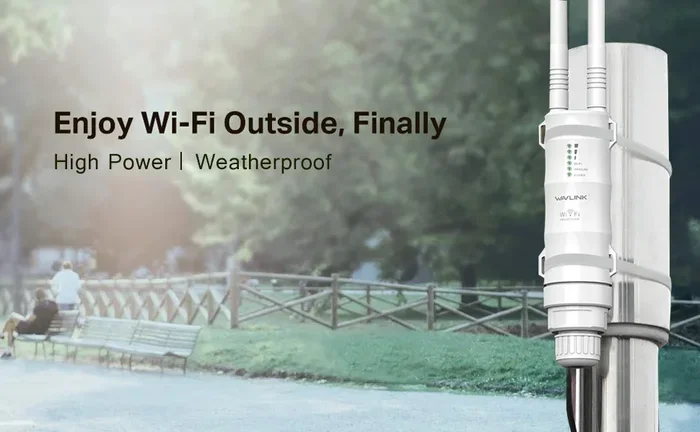
External antennas look like small rods or panels sticking out from your device. They are easier to position and usually offer better signal strength. If your computer has an external antenna, you already have a head start. If it does not, you can still add one later.
How Antenna Gain Works
Antenna gain measures how well an antenna directs its signal. Think of it like a flashlight. A regular bulb sends light everywhere. A focused beam goes further in one direction. Higher gain antennas push your wireless signal further and more directly.
Most built-in computer antennas have low gain, usually between 2 and 5 dBi. Upgrading to a higher gain antenna can significantly extend your wifi range. This is one of the easiest ways to boost performance without buying a whole new setup.
Simple Tips to Improve Wifi Antenna On Computer
You do not need expensive equipment to start seeing better results. Try these simple tips first. Many users notice an immediate difference after making just one or two of these changes.
Reposition Your Antenna
If your computer has an external antenna, its position matters a lot. Pointing it straight up works for some setups, but angling it can help more. Try positioning one antenna vertically and one horizontally to cover different signal planes.
For laptops with internal antennas, where you place the device makes a difference. Keep your laptop on a flat surface rather than on your lap or a pillow. Soft materials absorb wireless signals and reduce strength. Even moving your computer a few inches can improve your connection.
Reduce Physical Obstacles
Walls, furniture, and metal objects block wifi signals. The more obstacles between your computer and router, the weaker your connection becomes. Try to keep a clear line of sight between your wifi antenna on computer and the router.
Moving your router to a central location helps everyone in the home. But if you cannot move the router, repositioning your computer is the next best step. Even small shifts can reduce interference and boost your network performance.
Keep Your Computer Away From Interference Sources
Other electronic devices can interfere with your wifi signal. Microwaves, cordless phones, baby monitors, and even Bluetooth devices cause disruption. These gadgets operate on similar frequencies and can weaken your wireless connection.
Try to keep your computer at least three to five feet away from these devices. If you notice your signal drops when you use the microwave, that is a clear sign of interference. Moving your computer or router solves this problem quickly.
Upgrade Your Antenna Hardware
Sometimes simple tips are not enough. Upgrading your antenna hardware gives you the biggest performance boost. This section covers the best hardware options for improving your wifi antenna on computer.
Add an External Antenna
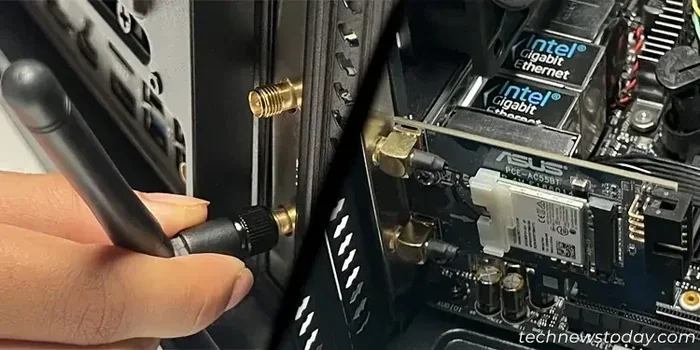
Many desktop computers and some laptops allow you to add an external antenna. Check your wireless card to see if it has a connector for an external antenna. Most modern cards use RP-SMA or SMA connectors.
When you buy an external antenna, look for one with higher gain. A 9 dBi antenna can double your range compared to a standard 5 dBi antenna. You can find affordable options online that make a real difference in your signal strength.
Before purchasing, make sure your wireless card supports external antennas. Not all cards have detachable antennas. Check your computer’s specifications or the manufacturer’s website for details.
Use a USB Wifi Adapter
A USB wifi adapter is one of the easiest ways to improve your connection. These small devices plug into a USB port and come with their own antennas. They are perfect for laptops that have weak built-in antennas.
Many USB adapters support dual-band connections, meaning they work on both 2.4 GHz frequency and 5 GHz frequency. This gives you flexibility to choose the best band for your needs. Higher-end adapters also support the latest wifi standards, like Wi-Fi 6.
Look for adapters with external antennas for the best results. Internal antennas on USB adapters work fine, but external ones offer better range and directionality. Brands like TP-Link, ASUS, and Netgear offer reliable options at various price points.
Consider a High-Gain Directional Antenna
If your router is far away, a directional antenna focuses the signal in one direction. This is different from a standard omnidirectional antenna, which spreads the signal in all directions. A directional antenna is perfect for reaching a distant router.
These antennas work well when you know exactly where your router is. They can also help if you live in a wifi dead zone area of your home. Just point the antenna toward your router and enjoy the improved wireless coverage.
Keep in mind that directional antennas reduce coverage in other directions. So if you need signal everywhere, an omnidirectional antenna with higher gain is a better choice.
Optimize Your Software and Settings
Hardware upgrades help, but software optimization can also boost your connection. These steps cost nothing and take just a few minutes.
Update Your Wireless Drivers
Outdated drivers can cause poor performance and connectivity issues. Your wireless card relies on software drivers to communicate with your computer. When these drivers are old or corrupted, your internet connection suffers.
Go to your computer manufacturer’s website and download the latest drivers for your wireless card. You can also use Windows Device Manager to check for updates. Simply right-click the Start button, open Device Manager, expand Network Adapters, and right-click your wifi card.
Regular updates fix bugs and improve compatibility. Many users report better network performance after updating their drivers. Make it a habit to check for updates every few months.
Adjust Your Wifi Channel
Your router broadcasts on a specific channel. If your neighbors use the same channel, interference happens. This congestion slows down everyone’s wireless signal. Switching to a less crowded channel can improve your speed significantly.
You can use free apps like Wifi Analyzer to see which channels are crowded. Then log into your router settings and change the channel. Most routers default to channel 6, but channels 1 and 11 are often less busy on the 2.4 GHz frequency.
For the 5 GHz frequency, there are more channels available and less congestion. Switching to 5 GHz is a great way to reduce interference and boost your wifi speed. However, 5 GHz has a shorter range than 2.4 GHz, so it works best when you are closer to the router.
Adjust Power Management Settings
Windows has a power-saving feature that can turn down your wifi adapter to save battery. This is great for laptop battery life, but it weakens your signal strength. Disabling this feature can improve your connection.
To adjust these settings, open Device Manager, find your wifi adapter, right-click, and select Properties. Go to the Power Management tab and uncheck “Allow the computer to turn off this device to save power.” This keeps your antenna running at full strength.
This simple change is often overlooked but can make a noticeable difference. Especially if you experience weak signals during video calls or downloads.
Extend Your Wifi Range
Sometimes the problem is not your antenna but the distance between your computer and router. Extending your wifi range solves this issue effectively.
Use a Wifi Range Extender
A wifi range extender picks up your existing signal and rebroadcasts it. This is an affordable way to reach areas of your home with poor coverage. Extenders plug into wall outlets and create a second network zone.
Place the extender halfway between your router and your computer for the best results. If you place it too far from the router, it will rebroadcast a weak signal. The goal is to strengthen the wireless signal in the areas where you need it most.
Set Up a Mesh Wifi System
For larger homes, a mesh wifi system is the best long-term solution. Mesh systems use multiple nodes placed around your home to create seamless coverage. Unlike extenders, mesh systems maintain a single network name and password.
Mesh systems are more expensive than extenders, but they offer superior network performance. They are especially helpful if you have dead zones in your home. Many mesh systems also support the latest wifi standards for faster speeds.
While mesh systems improve your entire home network, they also help your wifi antenna on computer connect more reliably. Your computer will automatically switch to the strongest node, giving you a consistent experience everywhere.
Common Mistakes That Hurt Your Wifi Signal
Avoid these common mistakes that many people make without realizing it. Fixing these issues can immediately improve your wireless connection.
- Placing your router in a closet or cabinet: Enclosed spaces block signals and reduce coverage.
- Ignoring firmware updates: Router firmware updates often include performance improvements and bug fixes.
- Using old wifi standards: Older standards like 802.11n are slower than modern ones. Upgrading your router to support Wi-Fi 5 or Wi-Fi 6 makes a big difference.
- Overloading your router: Too many connected devices slow down the network. Disconnect devices you are not using.
- Not restarting your router: A simple restart clears cache and refreshes your connection. Try restarting your router once a month.
Many of these mistakes are easy to fix. A little maintenance goes a long way toward keeping your internet connection strong and reliable.
When to Seek Professional Help
Most wifi antenna on computer issues can be solved with the tips above. But sometimes the problem runs deeper. If you have tried everything and still experience poor signal strength, it may be time to consult a professional.
A networking expert can assess your home layout, check your wiring, and recommend the best solution. They can also help you set up advanced equipment like access points or powerline adapters. These tools take your network performance to the next level.
Professional help is especially worth it for large homes or offices with complex layouts. The upfront cost can save you money in the long run by avoiding wasted time and frustration.
Final Thoughts
Improving your wifi antenna on computer does not have to be complicated or expensive. Start with the simple tips like repositioning your antenna and reducing interference. Then move on to hardware upgrades if you need more power. Software optimization and regular maintenance keep everything running smoothly.
Remember that every setup is different. What works best for one person may not work the same way for another. Experiment with different combinations of tips until you find what works for your space. The goal is a strong, reliable wireless signal that supports everything you do online.
Take action today. Even one small change can make a noticeable difference in your wifi speed and network performance. You deserve a fast, stable connection. Apply these tips and enjoy a better online experience starting now.
For more ways to boost your wireless setup, check out our guide on how to increase your wifi signal for additional expert tips and techniques.
Also, learn more about adding an antenna to your wifi router to further enhance your home network. And if you want to explore options for getting wifi in new areas, visit our article on getting wifi without a router for creative solutions.
Frequently Asked Questions
Can I improve my wifi antenna on computer without buying new hardware?
Yes, absolutely. Simple changes like repositioning your antenna, reducing interference, and updating drivers can improve your connection without spending a dime. Many users see noticeable improvements from software tweaks alone.
What is the best antenna gain for a computer wifi antenna?
For most users, an antenna with 5 to 9 dBi gain works well. Higher gain antennas extend range but are more directional. Choose based on whether you need coverage in all directions or focused toward your router.
Does a USB wifi adapter really improve signal strength?
Yes, USB wifi adapters often outperform built-in antennas. They have their own dedicated antennas and can support newer wifi standards. A quality USB adapter can significantly boost your wireless signal and network performance.
How do I know if my wifi antenna is causing poor performance?
If you experience slow speeds, frequent disconnections, or weak signals near your router, your antenna may be the issue. Try the tips in this guide and monitor your results. If problems persist, your antenna hardware may need upgrading.
Should I switch between 2.4 GHz and 5 GHz frequencies?
Yes, switching frequencies can help optimize your connection. Use 2.4 GHz for longer range and 5 GHz for faster speeds at close distances. Most modern devices support both bands and let you choose manually.
How often should I update my wifi drivers?
Check for driver updates every two to three months. Major updates often include performance improvements and bug fixes. Keeping your drivers current ensures your wifi antenna on computer works at its best.