How Can I Increase My Wifi Router Range at Home Today
Want to know how can I increase my wifi router range at home today? This guide covers easy, proven methods to boost your wireless signal, eliminate dead zones, and enjoy faster connectivity in every room. From smart router placement to mesh networks, these practical steps work for any home setup.
Key Takeaways
- Router placement matters: Moving your router to a central, elevated location can dramatically improve your wifi range.
- Frequency band choice is key: Switching between 2.4 GHz and 5 GHz bands affects how far your signal travels.
- Hardware upgrades help: A wifi range extender or mesh system can solve stubborn coverage problems.
- Software updates boost performance: Updating your router firmware often improves signal strength and stability.
- Interference is a hidden killer: Household devices like microwaves and baby monitors can weaken your wireless signal.
- DIY fixes are free and effective: Simple tricks like antenna adjustment and channel switching cost nothing.
- Mesh networks are the gold standard: For large homes, a mesh system provides seamless whole-house coverage.
📑 Table of Contents
- How Can I Increase My Wifi Router Range at Home Today?
- Why Does Your Wifi Range Drop in the First Place?
- Step-by-Step Ways to Increase Your Wifi Router Range
- Affordable Hardware Solutions to Boost Your Wifi Range
- Advanced Tips to Maximize Your Wifi Router Range
- Common Mistakes That Kill Your Wifi Range
- Quick Tips for Instant Wifi Range Improvement
- When Should You Call a Professional?
- Conclusion
How Can I Increase My Wifi Router Range at Home Today?
Slow wifi in the bedroom. Dead zones in the basement. Buffering videos in the living room. Sound familiar? If you have ever stared at a loading screen wondering why your internet is so weak in certain spots, you are not alone. Millions of people deal with weak wireless signals every single day. The good news is that you do not need to be a tech expert to fix this.
The truth is, increasing your wifi router range is often simpler than you think. A few smart adjustments can make a huge difference. This guide walks you through every practical method you can try right now. No expensive equipment required for most of these steps. Let us dive in and get your home network running better than ever.
Whether you live in a small apartment or a large house, these tips will help you reclaim every corner of your space. You will learn why your signal drops, what you can do about it, and how to choose the right solution for your home. By the end of this article, you will have a clear action plan to boost your wifi coverage and say goodbye to frustrating disconnections.
Why Does Your Wifi Range Drop in the First Place?
Before we fix the problem, it helps to understand what causes it. Your router sends out a wireless signal that travels through the air. But that signal does not travel forever. Walls, floors, furniture, and even water can weaken it. Think of your wifi signal like light from a lamp. The further you move from the lamp, the dimmer it gets. And if you put objects in the way, the light gets even weaker.
Several common factors shrink your wifi range:
- Distance from the router: The farther you are, the weaker the signal becomes.
- Physical barriers: Thick walls, metal objects, and concrete floors block wireless signals.
- Frequency band differences: 2.4 GHz travels farther but is slower. 5 GHz is faster but has a shorter range.
- Interference from other devices: Microwaves, baby monitors, and cordless phones can disrupt your signal.
- Outdated router hardware: Older routers simply cannot push a strong signal very far.
- Channel congestion: If your neighbors use the same wifi channel, your signal suffers.
Understanding these causes helps you pick the right fix. A router tucked behind a TV in the corner of your house will always struggle. A router placed in the open will perform much better. Once you know what hurts your signal, you can start fixing it.
Step-by-Step Ways to Increase Your Wifi Router Range
1. Move Your Router to a Better Spot
This is the single easiest and most effective thing you can do. Your router placement has a massive impact on your wireless signal strength. Most people hide their router in a closet, behind a TV, or in a corner. That is a big mistake. Walls and furniture absorb wifi signals and weaken them before they even reach your devices.
Instead, try these placement tips:
- Put your router in a central location in your home.
- Place it on a high shelf or mount it on a wall.
- Keep it away from walls and metal objects.
- Avoid placing it near microwaves or cordless phones.
- Keep the antennas upright and pointing straight up.
Even moving your router just a few feet can make a noticeable difference. Try different spots and test your signal in various rooms. You might be surprised by how much better your connection gets with a simple repositioning. This free fix alone solves the problem for many households.
2. Switch Between 2.4 GHz and 5 GHz Bands
Most modern routers broadcast on two frequency bands: 2.4 GHz and 5 GHz. Each one has its own strengths. The 2.4 GHz band travels farther and passes through walls more easily. But it is slower and more crowded. The 5 GHz band is faster and less congested. However, it has a shorter range and struggles with obstacles.
Here is how to choose the right band for your needs:
- Use 2.4 GHz for range: If you need wifi in a faraway room or outside, 2.4 GHz is your best bet.
- Use 5 GHz for speed: If you are streaming videos or gaming in the same room as your router, 5 GHz delivers faster speeds.
- Switch automatically: Some routers let devices choose the best band on their own. Check your settings to enable this feature.
If you want to learn more about switching between these bands, check out our guide on how to change your wifi from 5GHz to 2.4 GHz. It covers the process step by step for all major router brands.
3. Update Your Router Firmware
Router manufacturers release firmware updates to improve performance and fix bugs. An outdated router might not push a strong signal or handle multiple devices well. Updating your firmware is free and takes just a few minutes.
Here is how to do it:
- Log into your router’s admin panel. You can usually do this by typing 192.168.1.1 or 192.168.0.1 into your browser.
- Look for a section called “Firmware Update” or “Router Update.”
- Click “Check for Updates” and follow the prompts.
- Wait for the update to complete. Do not unplug the router during this process.
After updating, restart your router and test your signal. Many people notice an improvement right away. This simple step often gets overlooked but can make a real difference in your wifi signal strength.
4. Reduce Interference from Other Devices
Your home is full of devices that can interfere with your wireless signal. Cordless phones, baby monitors, Bluetooth speakers, and even microwave ovens all operate on similar frequencies. When these devices run at the same time, they create congestion and weaken your connection.
Try these tips to reduce interference:
- Move your router away from kitchen appliances.
- Keep it away from baby monitors and cordless phone bases.
- Turn off Bluetooth devices when they are not in use.
- Switch to a less crowded wifi channel using your router settings.
- Use a wifi analyzer app to find the best channel for your network.
These small changes can reduce signal drops and improve your overall internet speed. You may not even realize how much interference was hurting your connection until you remove the source.
5. Adjust Your Router Antennas
If your router has external antennas, their position matters more than you might think. Most router antennas broadcast the signal outward in a donut shape. When antennas are all pointing straight up, the signal spreads horizontally across your home. This is great for single-story homes. But for multi-story homes, you might want to angle them differently.
Try these antenna adjustments:
- Point one antenna straight up and one horizontally for multi-story coverage.
- Experiment with different angles to see what works best for your layout.
- If your router has only one antenna, try positioning it vertically or at a 45-degree angle.
Some routers also have adjustable gain antennas. These can boost your signal strength significantly. If your router came with weak antennas, upgrading to high-gain antennas is an affordable way to extend your wifi coverage.
Affordable Hardware Solutions to Boost Your Wifi Range
Wifi Range Extenders
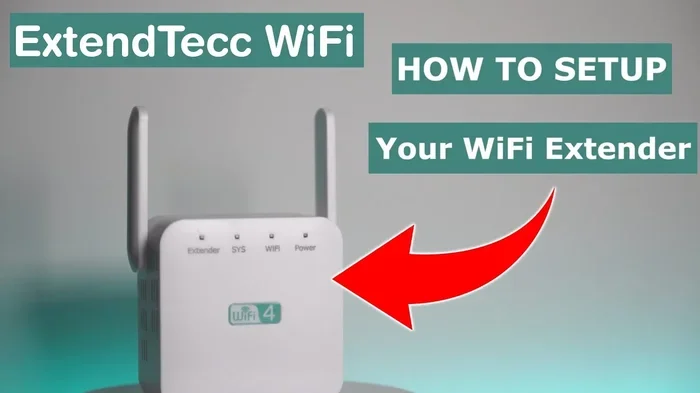
A wifi range extender is a small device that picks up your existing signal and rebroadcasts it to areas with weak coverage. Extenders are affordable and easy to set up. They work well for smaller homes or apartments where one dead zone is causing problems.
Here are the pros and cons:
- Pros: Inexpensive, easy to install, no need to replace your existing router.
- Cons: Can reduce your internet speed by up to half, creates a separate network name on some models.
If you want to explore this option further, read our article on can I get an extension on my wifi for a detailed breakdown of how extenders work and which ones to buy.
Mesh Wifi Systems
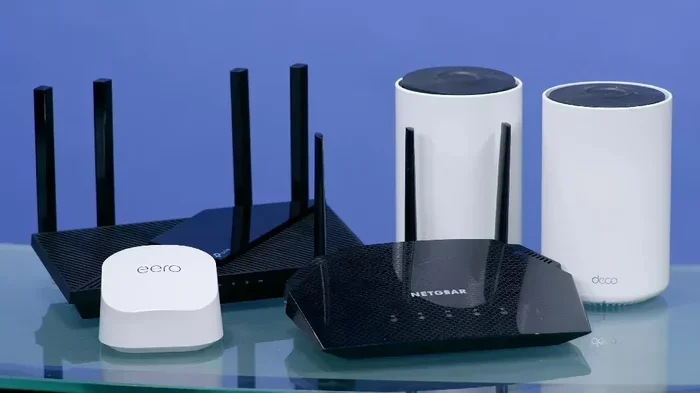
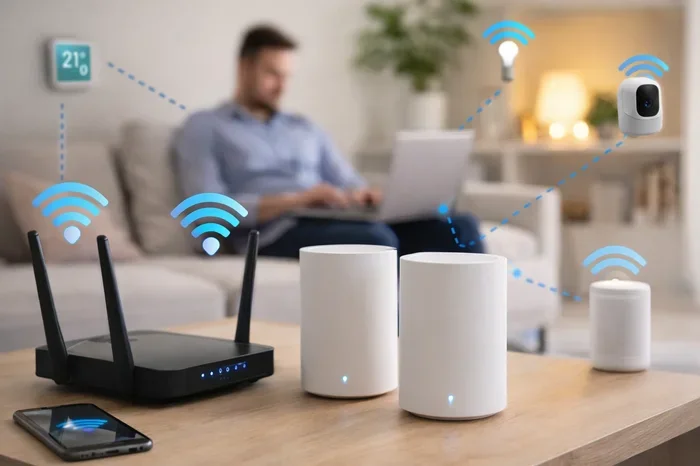
For larger homes or properties with multiple dead zones, a mesh wifi system is the best solution. A mesh system uses multiple nodes placed around your home to create one seamless network. Unlike range extenders, mesh systems maintain full speed throughout your home because the nodes communicate intelligently with each other.
Popular mesh systems include:
- Google Nest Wifi: Easy to set up and great for most homes.
- TP-Link Deco: Affordable and reliable with good coverage.
- Netgear Orbi: Powerful and ideal for large homes with many devices.
- Eero Pro: Sleek design and excellent app-based management.
Mesh systems cost more than extenders but deliver a much better experience. They eliminate the need to switch between different network names as you walk around your home. If you want to learn how to connect a mesh system to your existing router, check out our guide on connecting a mesh router to an existing router.
Powerline Adapters
Powerline adapters use your home’s electrical wiring to carry internet signals. You plug one adapter near your router and another in the room where you need better coverage. This is a great option for homes where wireless signals simply cannot reach certain areas due to thick walls or long distances.
Powerline adapters are not as fast as a direct ethernet connection, but they are much more reliable than weak wifi signals. They work well for home offices, game consoles, and smart TVs in rooms far from your router.
Advanced Tips to Maximize Your Wifi Router Range
Change Your Wifi Channel
Your wifi router operates on a specific channel, just like a radio station. In densely populated areas, many routers use the same channel. This creates congestion and slows down your connection. Changing to a less crowded channel can improve both your speed and signal range.
You can use free apps like Wifi Analyzer or NetSpot to scan for the best channel. Then log into your router settings and switch to the recommended channel. This simple change can reduce interference and boost your wireless signal significantly.
Set Up a QoS (Quality of Service) Rule
QoS settings let you prioritize certain types of traffic on your network. For example, you can tell your router to prioritize video calls and streaming over background downloads. This does not increase your range directly, but it ensures that important devices get the bandwidth they need. The result is a smoother, more reliable connection throughout your home.
Upgrade Your Router
If your router is more than five years old, it might be time for an upgrade. Newer routers support the latest wifi standards like WiFi 6 and WiFi 6E. These standards offer better range, faster speeds, and improved handling of multiple devices. If you have many smart home devices, streaming TVs, and gaming consoles, a modern router can make a world of difference.
Look for routers with multiple antennas, beamforming technology, and dual-band or tri-band support. These features help extend your signal and improve overall performance. While a new router is an investment, it pays off in better coverage and faster speeds for years to come.
Common Mistakes That Kill Your Wifi Range
Many people unknowingly make mistakes that hurt their wifi performance. Avoid these common pitfalls:
- Hiding your router in a cabinet: Enclosed spaces block signals and reduce range significantly.
- Placing the router on the floor: Signals spread outward and downward. Elevating your router improves coverage.
- Ignoring firmware updates: Outdated software can cause poor performance and security vulnerabilities.
- Using the wrong frequency band: Choosing 5 GHz for a distant device will result in a weak signal.
- Overloading your router: Too many connected devices can slow down your entire network.
- Not restarting your router regularly: A simple restart clears cache and refreshes your connection.
Avoiding these mistakes alone can improve your wifi router range without any extra equipment. Start with these basics before spending money on hardware solutions.
Quick Tips for Instant Wifi Range Improvement
Want fast results? Try these quick wins right now:
- Restart your router by unplugging it for 30 seconds and plugging it back in.
- Move your router to the center of your home.
- Switch your device to the 2.4 GHz band for better range.
- Remove any metal objects near your router.
- Change your wifi channel to a less crowded one.
- Update your router firmware through the admin panel.
- Reset your router to factory settings if nothing else works.
These quick tips take less than 10 minutes and can make an immediate difference. Even one or two of these changes can noticeably improve your wifi coverage throughout your home.
When Should You Call a Professional?
Most wifi range issues can be fixed with the tips in this guide. But sometimes, the problem goes deeper. If you have tried everything and still experience weak signals in certain areas, it might be time to call in a professional. A network specialist can assess your home’s layout, check for wiring issues, and recommend the best solution for your specific situation.
Consider calling a professional if:
- Your home has unusual architecture with thick or unusual walls.
- You have tried multiple range extenders with no improvement.
- Your internet speeds are consistently slow even near the router.
- You are setting up a home office that requires reliable, high-speed connectivity.
A professional can also help you set up a mesh network or hardwire your home with ethernet cables for the most reliable connection possible. Sometimes the best solution is a combination of wired and wireless setup.
Conclusion
Increasing your wifi router range does not have to be complicated or expensive. You can start with simple, free steps like moving your router, switching frequency bands, and updating your firmware. If those steps are not enough, affordable hardware like range extenders and mesh systems can solve even the toughest coverage problems.
The key is to understand your home’s unique layout and work with it. Every house is different, and what works for one home might not work for another. Experiment with different solutions and find the combination that works best for you. With the right approach, you can enjoy strong, reliable wifi in every room of your home. So go ahead, try these tips today, and experience the difference a boosted signal makes.
Frequently Asked Questions
What is the easiest way to increase my wifi range?
Moving your router to a central, elevated location is the easiest and most effective free method. It removes physical barriers and lets the signal spread evenly throughout your home. This single change often solves range problems for many households.
Does a wifi range extender really work?
Yes, wifi range extenders do work, but they can reduce your internet speed by up to half. They are best for smaller homes or single dead zones. For larger homes, a mesh wifi system delivers better results with less speed loss.
Should I use 2.4 GHz or 5 GHz for better range?
Use 2.4 GHz for better range because it travels farther and penetrates walls more easily. Use 5 GHz for faster speeds but only in the same room as your router. Most modern routers let you choose between the two bands easily.
How often should I update my router firmware?
Check for firmware updates at least once a month. Router manufacturers release updates to fix bugs, improve performance, and patch security holes. Many modern routers also offer automatic updates, which makes this step effortless.
Can a mesh wifi system replace my current router?
Yes, a mesh wifi system can replace your current router entirely. It creates one seamless network with multiple nodes placed around your home. Mesh systems are especially effective for large homes or properties with many dead zones.
Why is my wifi signal weak in certain rooms?
Weak signals in certain rooms are usually caused by thick walls, distance from the router, or interference from other devices. Metal objects, appliances, and even fish tanks can block or weaken your wireless signal. Repositioning your router or using a range extender often fixes this issue.