How Do I Change My Wifi Password On My Router Today
Changing your wifi password on your router is one of the simplest ways to boost your network security. You just need to access your router admin panel, navigate to the wireless settings, and enter a new password. This guide walks you through every step so you can protect your home network in under 10 minutes.
Your wifi password is the front door to your home network. If someone gets access to it, they can see your browsing activity, steal personal files, and even use your internet for illegal activities. That is exactly why knowing how to change your wifi password on your router is such an important skill. Whether you just moved into a new place or it has been years since you last updated it, this guide makes the process simple and fast.
Most people never think about their router settings until something goes wrong. But taking a few minutes to update your wireless network password can save you from headaches down the road. In this article, we will walk you through every single step. You will learn where to find your admin login, how to navigate the settings page, and how to create a strong new password that keeps strangers out of your network.
We will also cover common mistakes, troubleshooting tips, and best practices that go beyond just the password itself. By the end, you will feel confident managing your router settings like a pro. Let us get started.
Key Takeaways
- Regular password changes keep your network safe: Updating your wifi password frequently prevents unauthorized users from accessing your internet and personal data.
- You can change your password in minutes: The process is quick and does not require advanced technical skills or expensive tools.
- Your router admin login is the gateway: You need the router IP address, username, and password to access settings and make changes.
- Strong passwords matter: Using a mix of letters, numbers, and symbols makes your wifi network much harder to crack.
- Rebooting your router applies the changes: After updating the password, a quick restart ensures all connected devices use the new credentials.
- Related router settings can improve your setup: Changing your SSID and adjusting frequency bands work hand-in-hand with password updates for better security.
📑 Table of Contents
Why Changing Your Wifi Password Matters
Your wifi network carries everything from banking details to private photos. Leaving an old or weak wifi password in place puts all of that at risk. Here is why regular password updates are so important.
Prevent Unauthorized Access
When you share your wifi password with guests, it is easy to forget who has access. Over time, people may share it with others without your knowledge. Changing your security key regularly ensures only the people you trust can connect to your internet.
Hackers use automated tools to scan for open or weakly protected networks. A simple default password that came with your router is often the first thing they try. If you have never changed it, your network could be an easy target.
Improve Network Performance
Every device connected to your network uses bandwidth. If neighbors or strangers are piggybacking on your internet, your speeds will drop. Changing your password kicks off unwanted users and gives you back the speed you are paying for.
In addition, a clean network with fewer unknown devices means less interference and smoother streaming, gaming, and video calls for everyone in your household.
Protect Your Personal Data
Your internet connection is a gateway to every device on your network. Smart TVs, phones, laptops, and even smart home gadgets all travel through the same wireless connection. If someone gains access, they could intercept sensitive information or launch attacks on your devices.
Updating your router password is one of the easiest and most effective ways to lock down your personal data. Think of it as changing the locks on your front door.
How To Find Your Router Admin Login Details
Before you can change anything, you need to log into your router admin panel. This is where all the magic happens. The process is straightforward once you know where to look.
Check the Router Itself
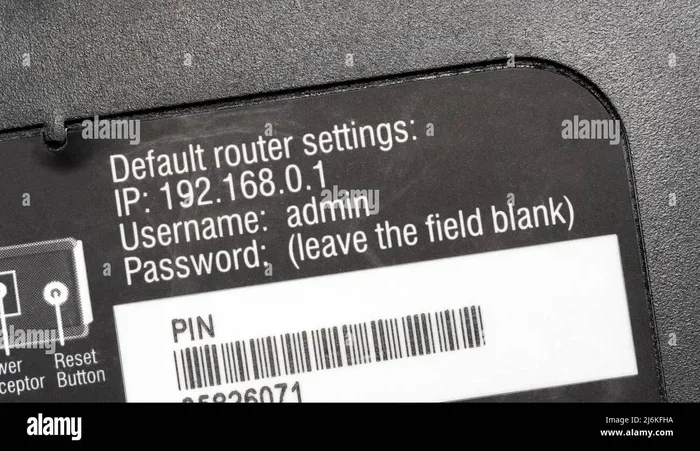
Most routers have a sticker on the bottom or back that lists the default login information. Look for a label that says “Admin,” “Username,” or “Password.” You will also find the router IP address there, which is usually something like 192.168.1.1 or 192.168.0.1.
Write these details down on a piece of paper and keep it somewhere safe. If you ever change the default login, you will need this information to reset everything.
Use Your Computer to Find the IP Address
If the sticker is worn off or missing, you can find your router IP address through your computer. On Windows, open the Command Prompt and type ipconfig. Look for the “Default Gateway” number. On a Mac, go to System Preferences, then Network, and look for the router listed next to your connection.
Once you have the IP address, type it into any web browser. This will take you straight to the login page where you enter your admin credentials.
What If You Already Changed the Login and Forgot It?
Do not panic. You can reset your router to factory settings by pressing and holding the small reset button on the back for about 10 seconds. This restores all default settings, including the original admin login credentials. Just keep in mind that you will need to set up your wifi network again from scratch.
Step-by-Step Guide To Change Your Wifi Password
Now that you are logged into your router admin panel, it is time to update your wifi password. The exact steps may vary slightly depending on your router brand, but the general process is very similar across all models.
Step 1: Log Into Your Router
Open your web browser and type your router IP address into the address bar. Press Enter. You will see a login screen asking for a username and password. If you have never changed these, use the default credentials from the sticker on your router. Common defaults are “admin” for both the username and password, or “admin” and “password.”
If you already changed these and forgot, a factory reset will get you back in. Simply hold the reset button for 10 seconds and use the default login details.
Step 2: Navigate to the Wireless Settings
Once logged in, look for a section called “Wireless,” “Wifi Settings,” or “Wireless Security.” This is usually found in the main menu or under a “Settings” tab. Different brands label this area differently, but the purpose is the same: to manage your wireless network configuration.
Some routers display the current wifi password in plain text, while others require you to click a field or checkbox to reveal it. Take note of the current password before you change it, so you know what you are replacing.
Step 3: Enter Your New Password
Look for a field labeled “Password,” “Passphrase,” “Security Key,” or “Network Key.” Delete the old password and type in your new one. Make sure it is strong and unique. We will cover what makes a good password in the next section.
Also check the “Security Type” or “Encryption” field. WPA3 is the newest and most secure option. If your devices support it, select WPA3. If not, WPA2 is still a solid choice. Avoid using WEP, as it is outdated and easily cracked.
Step 4: Save and Reboot
Click “Save” or “Apply” at the bottom of the page. Your router may take a moment to apply the changes. After saving, it is a good idea to reboot the router by unplugging it for 30 seconds and plugging it back in.
Once the router restarts, all your devices will be disconnected from the old network password. You will need to reconnect each device using the new password. This confirms that the change was successful and that your network security is now updated.
What Makes a Strong Wifi Password
Choosing the right password is just as important as the process of changing it. A weak password defeats the entire purpose. Here is how to create one that actually protects your wireless connection.
Use a Mix of Characters
The best wifi passwords combine uppercase letters, lowercase letters, numbers, and special symbols. For example, “Sunshine123!” is far stronger than “password123.” The longer and more varied, the better.
Aim for at least 12 characters. Shorter passwords are easier for hacking tools to crack through brute force attacks. Think of a phrase you will remember but others would never guess.
Avoid Common Words and Personal Info
Do not use your name, birthday, address, or the name of your pet. These are the first things someone would try if they wanted to guess your network security key. Avoid common words like “admin,” “welcome,” or “12345678.”
Instead, try combining unrelated words into a passphrase. Something like “BlueTiger$RunsFast99” is both memorable and extremely difficult to crack.
Change Your Password Regularly
Security experts recommend updating your router password every three to six months. This limits the window of opportunity for anyone who might have gained access without your knowledge. Set a reminder on your phone to make it a habit.
Also, change your password immediately if you suspect someone unauthorized has connected to your network. Signs include slower internet speeds, unknown devices in your router settings, or unfamiliar devices appearing on your network map.
Common Mistakes People Make When Changing Their Wifi Password
Even with the best intentions, people often make avoidable errors when updating their wifi password. Here are the most common mistakes and how to prevent them.
Forgetting to Update All Connected Devices
After you change your wireless network password, every device that was previously connected will lose access. Smart home gadgets, streaming sticks, game consoles, and even some printers need the new password entered manually. Make a list of all your connected devices before you change the password so you are prepared.
This is especially important for devices that do not have a keyboard, like smart TVs or security cameras. You may need to use a phone or computer to re-enter the credentials through their respective apps.
Using the Same Password for Years
It is tempting to set a password once and never think about it again. But over time, data breaches and leaks can expose your credentials. Changing your wifi password regularly ensures that even if an old password is compromised, your network stays protected.
Not Checking the Security Type
Some people focus only on the password and ignore the encryption type. If your router is set to WEP or an older security protocol, your network security is weak no matter how long your password is. Always select WPA2 or WPA3 when available.
If your older devices do not support WPA3, you can usually set the router to WPA2/WPA3 mixed mode. This gives you strong security while keeping older gadgets connected.
What To Do If You Forget Your New Wifi Password
Forgetting a wifi password happens to everyone at some point. The good news is that recovering it is not as hard as you might think.
If you still have access to your router admin panel, you can log in and view or reset the password from the wireless settings section. Most routers let you see the current password in plain text once you are logged in.
If you are locked out entirely, a factory reset will restore everything to default. Just remember that this erases all custom settings, including your network name and any port forwards you set up. You will need to reconfigure your router from scratch after a reset.
On devices you are already connected to, you can often find the saved wifi password in the network settings. On most phones and computers, there is an option to show or copy the saved password. This is a quick way to retrieve it without logging into the router.
Conclusion
Changing your wifi password on your router is one of the simplest and most impactful things you can do for your home network security. It takes just a few minutes, requires no special tools, and immediately kicks off any unwanted users. By following the steps in this guide, you have taken a major step toward protecting your personal data and keeping your internet running smoothly.
Remember to choose a strong, unique password, update it regularly, and never share it with people you do not trust completely. If you ever get stuck, a factory reset will always get you back on track. Taking control of your router settings puts you in the driver’s seat of your own digital home.
Now that you know how easy this process is, there is no reason to wait. Log into your router today and give your wireless network the protection it deserves. Your future self will thank you.
If you are also interested in changing your network name alongside your password, you might want to check out how to change the SSID on your router. Similarly, if you are curious about how far your wifi signal reaches, learn more about extending your wifi to 200 feet away. And if you ever need to boost your overall internet performance, understanding your upload speed can also make a big difference.
Frequently Asked Questions
How often should I change my wifi password?
Security experts recommend changing your wifi password every three to six months. You should also update it immediately if you suspect someone unauthorized has accessed your network. Regular changes reduce the risk of long-term unauthorized access to your wireless connection.
Can I change my wifi password without resetting the router?
Yes, absolutely. You can change your wifi password at any time through the router admin panel without performing a factory reset. Simply log in, go to the wireless settings, enter your new password, and save. A reset is only needed if you forget your admin login credentials entirely.
What is the difference between a wifi password and a router admin password?
Your wifi password is what devices use to connect to your wireless network. Your router admin password is what you use to log into the router settings page. Both are important for security, and ideally, you should change both regularly to keep your network fully protected.
Will changing my wifi password disconnect all my devices?
Yes, changing your wireless network password will temporarily disconnect all currently connected devices. Each device will need the new password to reconnect. Make sure you have the new password written down before you make the change so you can reconnect everything smoothly.
What security type should I use for my wifi network?
WPA3 is the most secure option available today. If your devices do not support WPA3, use WPA2. Avoid WEP at all costs, as it is outdated and easily broken. Choosing the right encryption type alongside a strong password gives your network security the best possible protection.
Can I see my saved wifi password on my phone?
Yes, both Android and iPhone devices allow you to view saved wifi passwords in their network settings. On Android, go to Settings, then Network, and select the saved network to view the password. On iPhone, you can view saved passwords through the Settings app if you have iCloud Keychain enabled. This is helpful when you need to retrieve your wifi password without logging into the router.