Can I Upgrade The Graphics Card In My Laptop Today
Can I upgrade the graphics card in my laptop? The short answer is: it depends. Most modern laptops have GPUs that are soldered to the motherboard, making upgrades nearly impossible. However, some older models and select gaming rigs do allow swap-outs. You also have the option of using an external GPU (eGPU) to gain serious performance gains. In this guide, we walk through every scenario so you know exactly what is possible and what steps to take.
You bought a laptop a few years ago. Games that used to run fine now lag and stutter. You wonder, can I upgrade the graphics card in my laptop? It is a question many gamers and creative professionals ask. The answer is not a simple yes or no. It depends on your laptop model, its age, and the type of GPU it uses.
In this guide, we break down everything you need to know. We cover why most laptops cannot be upgraded, what alternatives exist, and how an external GPU might save the day. Whether you are a casual user or a hardcore gamer, this article gives you clear, actionable answers.
The world of laptop graphics card upgrade options has changed a lot over the years. Manufacturers have made laptops thinner and lighter. But that trend came at a cost. Many components are now permanently attached inside the chassis. Understanding how this works helps you make smarter decisions about your setup.
Key Takeaways
- Most laptops cannot upgrade the GPU: The graphics card is usually soldered onto the motherboard in modern designs.
- External GPUs offer a real workaround: An eGPU connected via Thunderbolt can dramatically boost laptop graphics performance.
- Some older or custom laptops allow upgrades: Certain MX-series and older gaming models still support GPU replacement.
- Know your current setup first: Check whether you have integrated graphics or a dedicated GPU before planning any upgrade.
- Thermal design matters: Even if you upgrade, your laptop’s cooling system must handle the new card’s heat output.
- Consider cost vs. benefit: An eGPU setup can cost as much as a new laptop in some cases.
📑 Table of Contents
How Laptop Graphics Cards Work
Before diving into upgrades, it helps to understand what a graphics card does in a laptop. The GPU, or graphics processing unit, handles all visual tasks. It renders images, videos, and 3D graphics. Without a capable GPU, modern gaming and video editing become painful experiences.
Integrated vs. Dedicated Graphics
Laptops use one of two types of graphics. Integrated graphics share memory with the CPU. They are built into the processor itself. Intel and AMD both make integrated GPU solutions. These are fine for basic tasks like browsing, streaming, and office work.
Dedicated graphics have their own separate chip and memory, known as VRAM. They handle heavy workloads like gaming, 3D rendering, and video production. Brands like NVIDIA GeForce and AMD Radeon dominate this space. You will often see names like RTX 3050, GTX 1650, or RX 6600M in laptop specs.
Why the GPU Matters for Performance
Your graphics card directly impacts laptop performance in visual tasks. A stronger GPU means higher frame rates, smoother gameplay, and better rendering speeds. The amount of VRAM also matters. More VRAM lets your GPU handle higher resolutions and more detailed textures.
Here are key specs to know:
- GPU Clock Speed: How fast the chip processes data.
- VRAM: Dedicated memory for graphics tasks.
- CUDA Cores (NVIDIA) or Stream Processors (AMD): Parallel processing units that affect rendering power.
- TDP (Thermal Design Power): How much heat the GPU generates and needs to dissipate.
Understanding these numbers helps you evaluate whether an upgrade is worth pursuing. It also helps you choose the right external GPU if your laptop does not support internal upgrades.
Why Most Laptops Cannot Upgrade the GPU
This is the hard truth for most laptop users. In the majority of modern laptops, the graphics card is soldered directly to the motherboard. This means it is permanently attached. You cannot simply pull it out and plug in a new one.
The Soldering Problem
Laptop manufacturers use a technology called BGA (Ball Grid Array) to attach GPUs. This creates a strong physical and electrical connection. But it also means the GPU is fixed in place. Even expert repair shops cannot replace these chips without specialized equipment.
Here is why companies do this:
- Space savings: Soldered GPUs take up less room inside thin chassis.
- Thermal management: Manufacturers design cooling systems around specific GPUs.
- Cost control: It keeps production simpler and cheaper.
- Stability: Fixed components reduce the risk of user error.
So if your laptop uses a modern NVIDIA GeForce RTX or AMD Radeon RX mobile GPU, chances are it is soldered. This applies to most gaming laptops, business laptops, and ultrabooks released in the last five years.
Integrated Graphics Are Also Non-Upgradeable
If your laptop uses integrated graphics, there is no upgrade path either. The GPU is part of the CPU chip. You would need to replace the entire processor, which is often just as difficult as replacing a soldered GPU. In most cases, it is not practical.
Quick Tip
Before spending money on upgrades, make sure your GPU is actually the bottleneck. Use tools like GPU-Z or Task Manager to check usage. Sometimes a RAM upgrade or SSD swap gives you the boost you need.
The External GPU (eGPU) Option
So what can you do if your laptop GPU is soldered? The best solution today is an external GPU, or eGPU. This is a desktop graphics card housed in an external enclosure. You connect it to your laptop using a Thunderbolt 3 or Thunderbolt 4 cable.
How eGPUs Work
An eGPU enclosure contains a full-size graphics card, its own power supply, and its own cooling system. The enclosure connects to your laptop through a Thunderbolt port. This connection carries both data and display signals.
When you plug in the eGPU, your laptop recognizes it as a second graphics device. You can then choose which GPU to use for specific tasks. This gives you desktop-class performance without opening your laptop.
Pros and Cons of Using an eGPU
Like any solution, eGPUs have advantages and drawbacks. Here is a quick comparison:
| Feature | eGPU Setup | Internal Laptop GPU |
|---|---|---|
| Graphics Performance | Desktop-level (much higher) | Limited by laptop design |
| Upgrade Flexibility | Swap cards anytime | Usually fixed |
| Portability | Less portable (needs enclosure + cables) | Built-in and portable |
| Cost | Higher (enclosure + GPU + cables) | Lower upfront cost |
| Setup Complexity | Moderate (driver setup required) | None (ready to use) |
| Compatibility | Requires Thunderbolt port | Works out of the box |
Thunderbolt Bandwidth Limitations
One important thing to know: Thunderbolt connections have bandwidth limits. A Thunderbolt 3 port offers 40 Gbps of bandwidth. This is less than a full PCIe x16 slot found in desktops. As a result, you may see a slight performance drop of around 10 to 15 percent compared to the same GPU in a desktop.
Despite this, the performance gain is still massive. An eGPU with an RTX 4070 can turn a weak laptop into a solid gaming machine. For many users, this trade-off is well worth it.
Expert Insight
According to hardware reviewers, Thunderbolt 4 offers slightly better bandwidth than Thunderbolt 3. If you are buying an eGPU enclosure, look for one that supports Thunderbolt 4 for the best results. Brands like Razer, Sonnet, and OWC make reliable enclosures.
Which Laptops Support Graphics Card Upgrades
While most modern laptops do not allow GPU upgrades, some models still do. Knowing which ones support upgrades helps you plan ahead or make the right purchasing decision.
Laptops with MX Series GPUs
Some older or budget-friendly laptops use NVIDIA MX series graphics cards like the MX350 or MX450. These are low-power dedicated GPUs. In certain laptop models, these cards are socketed rather than soldered. This means a technically skilled user can replace them.
However, MX series GPUs are not powerful by today’s standards. They offer a small upgrade, not a massive leap in performance. Still, for light gaming or creative work, it can help.
Custom and Modular Gaming Laptops
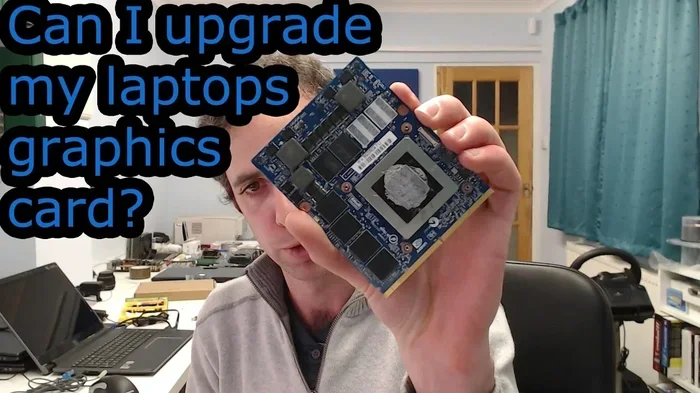
A few gaming laptops from brands like Clevo and some custom-built models use MXM (Mobile PCI Express Module) graphics cards. These are standard-sized laptop GPUs that slot into a dedicated connector on the motherboard. They are designed to be replaceable.
MXM cards are not common in consumer laptops. You mostly find them in workstation-class machines or custom-built systems. If your laptop has an MXM slot, you are in luck. You can swap in a newer and more powerful GPU.
Older Gaming Laptops
Laptops from around 2015 to 2019 sometimes had more accessible internals. Some models from brands like MSI, ASUS, and Lenovo allowed GPU replacement. However, finding compatible replacement cards today is challenging. The technology has moved on significantly.
Common Mistakes to Avoid
- Assuming all gaming laptops support upgrades: Even some gaming models use soldered GPUs. Always check your specific model.
- Buying incompatible GPUs: Not every GPU fits every laptop. Check the form factor and power requirements first.
- Ignoring thermal limits: A more powerful GPU generates more heat. Your laptop’s cooling system must be able to handle it.
Steps to Upgrade Your Laptop Graphics Card (If Possible)
If you have confirmed that your laptop supports a GPU upgrade, here are the general steps to follow. Keep in mind that every laptop is different. Always consult your specific model’s service manual first.
Step 1: Identify Your Current GPU
Open your Device Manager on Windows or System Information on macOS. Look for your graphics adapter name and model number. Write this down. You need to know what you have before you can find a compatible replacement.
Step 2: Research Compatible GPUs
Search online for your laptop model and check forums or the manufacturer’s website. Look for lists of supported GPU upgrades. Pay attention to the GPU’s power requirements and physical dimensions.
Step 3: Gather Your Tools
You will typically need:
- A Phillips-head screwdriver
- Anti-static wrist strap (recommended)
- Thermal paste (for reapplying after the swap)
- A clean, well-lit workspace
Step 4: Disassemble Your Laptop
Power off your laptop and disconnect all cables. Remove the battery if possible. Carefully open the bottom panel. Locate the existing GPU. Disconnect any cables or brackets holding it in place.
Step 5: Install the New GPU
Remove the old GPU gently. Apply fresh thermal paste to the new card’s heat spreader. Seat the new GPU in the connector or socket. Secure it with any brackets or screws. Reconnect all cables.
Step 6: Test and Update Drivers
Reassemble your laptop and power it on. Go to the GPU manufacturer’s website and download the latest graphics driver. Install it and restart. Run a benchmark or a game to test performance.
Quick Tip
Always back up your data before opening your laptop. Hardware work carries risks, and you do not want to lose important files if something goes wrong.
Alternatives to Upgrading Your Graphics Card
If upgrading is not an option for your laptop, do not worry. There are several alternatives that can improve your graphics experience without replacing the GPU.
Optimize Your Current Settings
Sometimes the easiest upgrade is a software one. Lowering in-game settings can dramatically improve frame rates. Reduce shadow quality, anti-aliasing, and resolution scaling. These changes cost nothing and can make a noticeable difference.
Update Your Graphics Drivers
Keeping your GPU drivers up to date is one of the simplest ways to boost performance. Both NVIDIA and AMD release regular driver updates. These often include game-specific optimizations and bug fixes. Check for updates at least once a month.
Upgrade Your RAM
More RAM can help your GPU handle heavy workloads more efficiently. If your laptop has 8 GB of RAM, upgrading to 16 GB or 32 GB can improve overall system responsiveness. This is especially true for tasks that use both system memory and VRAM.
Improve Your Cooling
Thermal throttling is a real problem. When your laptop gets too hot, the GPU slows down to protect itself. A cooling pad or a laptop stand can help. Cleaning dust from internal fans and vents also improves airflow and keeps temperatures lower.
Consider a New Laptop
Sometimes the best upgrade is a new machine. Modern laptops offer vastly better performance per dollar than older models. If your current laptop is more than four or five years old, a new one might save you time, money, and frustration in the long run.
Key Takeaways
- Most modern laptops have soldered GPUs: Internal upgrades are usually not possible.
- eGPUs are the best alternative: They give you desktop-class graphics through a Thunderbolt connection.
- Some older and custom laptops support GPU swaps: Check your specific model before assuming it is impossible.
- Software optimizations help: Driver updates and settings tweaks can improve performance without hardware changes.
- Cooling matters: Better thermal management can prevent throttling and keep your GPU running at full speed.
Conclusion
So, can I upgrade the graphics card in my laptop? The answer depends on your specific machine. Most modern laptops have GPUs that are soldered to the motherboard, making internal upgrades impossible. However, you are not completely stuck. An external GPU connected via Thunderbolt offers a powerful and flexible alternative.
If your laptop happens to support GPU replacement through an MXM slot or a socketed design, you can take the upgrade path yourself. Just be sure to research compatibility, manage thermals, and update your drivers after the swap.
For many users, the best approach combines several strategies. Optimize your software settings, keep your drivers current, improve cooling, and consider an eGPU for serious performance gains. These steps together can breathe new life into an aging laptop.
The world of laptop graphics is always evolving. New connection standards and smaller GPU designs may open up more upgrade paths in the future. For now, understanding your options puts you ahead of the curve. Take action based on what works for your setup, and enjoy a smoother, more responsive computing experience.
Frequently Asked Questions
Can I upgrade the graphics card in any laptop?
No, most modern laptops cannot be upgraded. The graphics card is soldered to the motherboard in nearly all current designs. Only a few older models, custom-built laptops, or systems with MXM slots support internal GPU swaps. Check your specific laptop model before assuming an upgrade is possible.
What is an eGPU and how does it help?
An eGPU, or external GPU, is a desktop graphics card housed in an external enclosure. You connect it to your laptop through a Thunderbolt 3 or Thunderbolt 4 port. It gives your laptop desktop-class graphics performance, which is especially helpful for gaming and creative workloads that your built-in GPU cannot handle.
Does using an eGPU cause noticeable performance loss?
Yes, there is a small performance penalty. Thunderbolt bandwidth is lower than a full desktop PCIe slot. You may see a 10 to 15 percent performance drop compared to the same GPU in a desktop. However, the overall performance gain over a built-in laptop GPU is still very significant and well worth it for most users.
How much does an eGPU setup cost?
The cost varies widely. A decent eGPU enclosure starts around $200 to $300. Adding a graphics card like an RTX 4060 or RX 6700 XT brings the total to $800 or more. While this is a significant investment, it can extend the useful life of your laptop by several years.
Can I upgrade from integrated graphics to a dedicated GPU in my laptop?
In most cases, no. Integrated GPUs are part of the CPU and cannot be replaced separately. Your only real option is to use an eGPU for external graphics power, or upgrade to a new laptop that comes with a dedicated GPU built in.
What should I check before attempting a laptop GPU upgrade?
First, confirm whether your laptop’s GPU is soldered or socketed. Check your model’s service manual or search online forums for your specific laptop. Also verify that your power supply and cooling system can handle a more powerful GPU. Finally, make sure you have the right tools and a clean workspace to avoid damage during the process.