Can I Use 2 Display Ports For Dual Monitors Explained
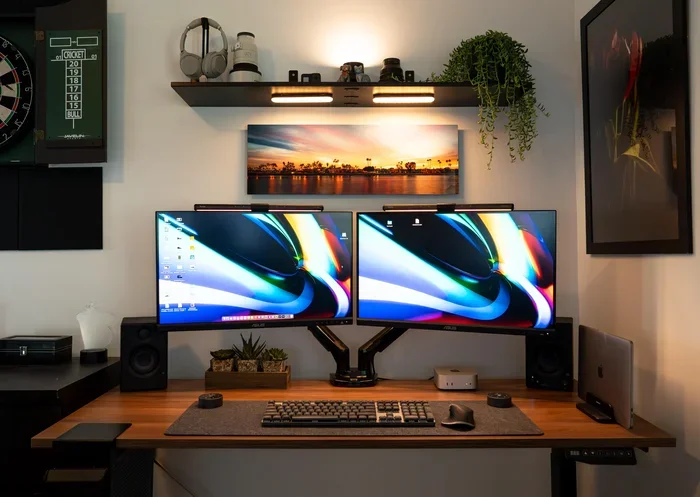
Yes, you can absolutely use 2 DisplayPorts for dual monitors. Most modern graphics cards support multiple DisplayPort outputs, making it easy to connect two screens for a powerful multi-monitor setup. Whether you work, game, or create content, a dual monitor display boosts productivity and screen real estate significantly.
So you want to set up two monitors and you have two DisplayPort cables lying around. The question is simple: can I use 2 DisplayPorts for dual monitors? The short answer is yes. But like most tech questions, the full answer has some details you should know.
Running a dual monitor setup with two DisplayPort connections is one of the most common ways to expand your workspace. Whether you are a gamer, a designer, a programmer, or just someone who wants more screen space, this guide covers everything you need. Let us break it down step by step.
Key Takeaways
- Dual DisplayPort works: Most GPUs support two or more DisplayPort outputs for a seamless dual monitor experience.
- Check your graphics card: Not all cards have multiple ports. Verify your GPU specs before buying cables or monitors.
- Cable quality matters: Using the right DisplayPort cable ensures the best resolution and refresh rate.
- Display settings are key: You must configure your display settings in Windows or macOS for extended or mirrored mode.
- Adapters solve problems: If your GPU lacks a second port, a display adapter or docking station can help.
- Resolution and refresh rate: Running two high-res monitors may require a more powerful graphics card.
📑 Table of Contents
- What Is a DisplayPort and Why Does It Matter for Dual Monitors?
- Can I Use 2 DisplayPorts for Dual Monitors? The Short Answer
- How to Set Up Two Monitors with DisplayPort Cables
- Common Problems and How to Fix Them
- Using Adapters and Docking Stations for More Flexibility
- Performance Considerations for Dual DisplayPort Monitors
- Common Mistakes to Avoid When Setting Up Dual DisplayPorts
- Final Thoughts on Using 2 DisplayPorts for Dual Monitors
What Is a DisplayPort and Why Does It Matter for Dual Monitors?
A DisplayPort is a digital display interface developed by VESA. It carries video and audio signals from your computer to your monitor. Think of it as a highway for visual data. The more lanes it has, the more data it can move at once.
DisplayPort has gone through several versions over the years. Each new version brings higher bandwidth. More bandwidth means you can push higher resolutions and faster refresh rates. For a dual monitor setup, this matters because your graphics card needs to send data to two screens at the same time.
DisplayPort Versions and Their Capabilities
Not all DisplayPort cables are the same. Here is a quick look at the versions and what they can handle:
- DisplayPort 1.2: Supports up to 4K at 60Hz. Good for most everyday tasks.
- DisplayPort 1.4: Supports up to 8K at 60Hz or 4K at 120Hz. Great for gaming and creative work.
- DisplayPort 2.0/2.1: Supports up to 16K with DSC. The latest and greatest for high-end setups.
When you use two DisplayPorts for dual monitors, the version of the port and cable affects what each monitor can deliver. A older DisplayPort 1.2 port on a newer GPU might limit a high-refresh monitor. Always check both sides of the connection.
Can I Use 2 DisplayPorts for Dual Monitors? The Short Answer
Let us get this out of the way. Yes, you can use 2 DisplayPorts for dual monitors. Most desktop graphics cards come with at least two DisplayPort outputs. Many come with three or four. So connecting two monitors via DisplayPort is usually straightforward.
But there are a few things that can trip you up. Let us walk through them so you do not run into surprises on setup day.
How Your GPU Handles Multiple Outputs
Your graphics card is the brain behind your display setup. It takes the visual data from your computer and sends it out through the available ports. A modern GPU can handle multiple displays at once. But older or budget cards might struggle.
Here are some quick points to keep in mind:
- Most NVIDIA and AMD GPUs from the last five years support dual DisplayPort outputs easily.
- Some integrated graphics (like Intel UHD) can also drive two monitors, but check your specific model.
- Running two 4K monitors demands more from your GPU than two 1080p monitors.
If your GPU specs list multiple display outputs, you are likely good to go. Look at the box or check the manufacturer’s website for the full list of supported display configurations.
Do Both Monitors Need to Be the Same?
No. You do not need two identical monitors. You can mix and match. One monitor can be a curved ultrawide and the other a standard flat panel. You can even mix ports if you use adapters. But matching monitors often gives a cleaner look and more consistent performance.
Here is a simple comparison of what works:
| Setup Type | Works with Dual DisplayPorts? | Notes |
|---|---|---|
| Two identical monitors | Yes | Easiest setup. Best visual consistency. |
| Two different monitors | Yes | Make sure both support DisplayPort input. |
| One DisplayPort + one HDMI | Yes, with adapters | Use a DisplayPort to HDMI adapter if needed. |
| Two 4K monitors | Yes, on most modern GPUs | Check your GPU’s bandwidth limits. |
How to Set Up Two Monitors with DisplayPort Cables
Setting up a dual monitor display with two DisplayPort cables is easier than most people think. Follow these steps and you will be up and running in no time.
Step 1: Check Your Ports
Look at the back of your computer or graphics card. Count the DisplayPort outputs. You need at least two free ports. If your GPU only has one DisplayPort, you will need an adapter or a docking station.
Step 2: Get the Right Cables
Not all DisplayPort cables are created equal. For the best results, use certified cables that match your desired resolution. A cheap cable might work for 1080p, but it could fail at 4K or high refresh rates.
Quick Tips:
- Buy DisplayPort cables rated for the bandwidth you need.
- Look for “DisplayPort 1.4” or higher on the packaging if you want 4K at 120Hz.
- Avoid excessively long cables (over 6 feet) unless you buy an active cable.
Step 3: Connect Both Monitors
Plug one end of each cable into your GPU’s DisplayPort outputs. Plug the other ends into your monitors. Power on both monitors and your computer.
Step 4: Configure Display Settings
Once both screens are connected, you need to tell your operating system how to use them. On Windows, right-click the desktop and select Display Settings. On macOS, go to System Settings and then Displays.
You will see options for extended display or mirrored display. Extended mode gives you separate desktops on each screen. Mirrored mode shows the same image on both. Most people prefer extended mode for productivity.
Here is what to do in Windows:
- Go to Display Settings.
- Click “Detect” if a monitor is not showing.
- Drag the monitor icons to match their physical layout.
- Select “Extend these displays.”
- Adjust resolution and scale for each monitor individually.
Common Problems and How to Fix Them
Sometimes things do not go smoothly. Here are the most common issues when using two DisplayPorts for dual monitors and how to solve them.
No Signal on One Monitor
This is the most frequent problem. Usually it means the cable is loose or the monitor input is set to the wrong source. Check the following:
- Make sure both cables are firmly seated.
- Check your monitor’s input selector. It might be set to HDMI instead of DisplayPort.
- Try a different DisplayPort cable to rule out a faulty cable.
Low Resolution or Flickering
If one monitor shows a blurry or flickering image, the cable or port version might be the issue. A DisplayPort 1.2 cable might not handle 4K well. Upgrading to a DisplayPort 1.4 cable often fixes this.
Windows Does Not Detect the Second Monitor
Try these fixes in order:
- Update your graphics driver. Go to NVIDIA, AMD, or Intel’s website for the latest version.
- Restart your computer with both monitors powered on.
- Check your display settings and click “Detect.”
- Try a different port on your GPU.
Expert Insight
According to display engineers, the most overlooked cause of detection issues is outdated graphics drivers. A simple driver update solves this problem more often than people expect. Always rule this out first before replacing hardware.
Refresh Rate Drops on One Monitor
When you run two monitors, your GPU splits its resources. If one monitor is set to a high refresh rate and the other is not, you might see a drop. Make sure both monitors are set to their native refresh rate in the display settings.
Using Adapters and Docking Stations for More Flexibility
What if your computer only has one DisplayPort? Or what if you need to connect more than two monitors? This is where display adapters and docking stations come in handy.
DisplayPort Daisy Chaining
Some monitors support DisplayPort daisy chaining. This means you connect one monitor to your GPU, then connect the second monitor to the first monitor. The second monitor passes the signal through. It is a clean way to reduce cable clutter.
Not all monitors support this feature. Check your monitor’s specs for “DisplayPort In” and “DisplayPort Out” ports. Both must be present for daisy chaining to work.
USB-C and Thunderbolt Docking Stations
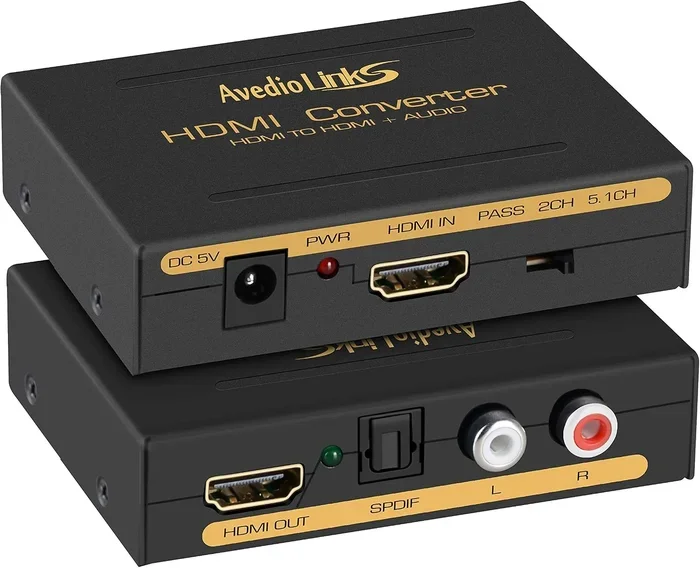
Many modern laptops come with USB-C or Thunderbolt ports. These can carry video signals through a docking station. A docking station can provide multiple display outputs including DisplayPort and HDMI. This is a great option for laptop users who want a dual monitor setup at their desk.
Quick Tips for Adapters:
- Always buy adapters from reputable brands.
- Passive adapters are cheaper but may not support all resolutions.
- Active adapters convert the signal and work with more setups.
Performance Considerations for Dual DisplayPort Monitors
Running two monitors does not just affect your desk setup. It also affects your computer’s performance. Let us look at what to expect.
GPU Load and Gaming
Gaming on two monitors at the same time puts extra load on your graphics card. If you game on one monitor and keep Discord or a browser open on the second, you will notice a small performance hit. But for most modern GPUs, this is negligible.
If you want to game across both monitors (spanning), that is a different story. It demands much more from your GPU. Here is a rough guide:
- 1080p dual screen gaming: Most mid-range GPUs handle this fine.
- 1440p dual screen gaming: Requires a high-end GPU for smooth frame rates.
- 4K dual screen gaming: Only the most powerful GPUs can manage this well.
Productivity and Workloads
For office work, coding, or content creation, a dual monitor setup is a game changer. You can have your main workspace on one screen and reference materials on the other. The performance impact is minimal because these tasks do not require heavy rendering.
Here are some tasks that benefit greatly from dual monitors:
- Video editing with timelines on one screen and previews on the other.
- Programming with code on one screen and documentation on the second.
- Data analysis with spreadsheets and charts side by side.
- Trading with real-time charts and news feeds visible at the same time.
Common Mistakes to Avoid When Setting Up Dual DisplayPorts
Even with a simple setup like this, people make mistakes. Here are the most common ones and how to avoid them.
Using the Wrong Cable Version
Not all DisplayPort cables support the same bandwidth. Using an old cable for a 4K monitor can cause frustration. Always match your cable to your monitor’s capabilities.
Forgetting to Update Graphics Drivers
This cannot be stressed enough. Outdated drivers cause more display problems than broken hardware. Update your graphics driver before and after setting up a new monitor.
Ignoring Monitor Refresh Rate Settings
If your monitor supports 144Hz but Windows is set to 60Hz, you are leaving performance on the table. Go into your display settings and set the correct refresh rate for each monitor.
Plugging Into the Motherboard Instead of the GPU
This is a classic mistake, especially for new PC builders. If you have a dedicated graphics card, plug your monitors into the GPU, not the motherboard. The motherboard ports use the integrated GPU, which is usually much weaker.
Expert Insight
Tech support professionals report that plugging into the wrong port is the number one reason dual monitors do not work as expected. Always double-check that your cables go directly into your discrete graphics card outputs.
Final Thoughts on Using 2 DisplayPorts for Dual Monitors
Setting up a dual monitor display with two DisplayPort connections is one of the simplest upgrades you can make to your workspace or gaming rig. The process is straightforward, the hardware is widely supported, and the productivity gains are real.
To recap, yes, you can use 2 DisplayPorts for dual monitors in almost all modern setups. Just make sure your graphics card has two free outputs, use quality cables, update your drivers, and configure your display settings correctly. You will be enjoying a wider workspace in under 30 minutes.
Whether you are stacking two 1080p monitors for an office setup or pushing two 4K screens for creative work, DisplayPort delivers the bandwidth and reliability you need. It remains one of the best digital display interfaces available today.
Start with the basics. Check your ports. Get the right cables. Connect and configure. The rest is just fine-tuning. Once you experience the freedom of a multi-monitor setup, you will wonder how you ever worked with just one screen.
Take your time with the setup. Enjoy the process. And most importantly, enjoy the extra screen space. Your workflow will thank you.
Frequently Asked Questions
Do I need a special graphics card to use 2 DisplayPorts for dual monitors?
Most modern graphics cards support multiple DisplayPort outputs out of the box. You do not need a special or expensive card. Even budget GPUs from the last few years typically offer at least two DisplayPort connections. Just check your GPU’s specifications to confirm.
Can I mix DisplayPort and HDMI for a dual monitor setup?
Yes, you can mix ports. Your GPU can output to different types of displays at the same time. If one monitor has DisplayPort and the other has HDMI, simply use the matching cable for each. You may need an adapter if the ports do not match directly.
Does using two monitors slow down my computer?
For everyday tasks like browsing, word processing, and video calls, the impact is minimal. Gaming or video editing across two high-resolution monitors does use more GPU power. But most modern systems handle dual monitors without noticeable slowdown.
What is DisplayPort daisy chaining and does it work for dual monitors?
Daisy chaining means connecting one monitor to your GPU and then connecting the second monitor to the first. The second monitor passes the signal through. This works only if both monitors have DisplayPort In and DisplayPort Out ports. Check your monitor’s manual to confirm support.
How do I set up extended display mode in Windows?
Right-click on your desktop and select Display Settings. Click Detect if your second monitor is not showing. Drag the monitor icons to match their physical arrangement on your desk. Select Extend these displays and click Apply. Your desktop will now span across both screens.
Can I use a docking station to connect two monitors via DisplayPort?
Yes, a docking station is a great solution, especially for laptops. A USB-C or Thunderbolt docking station can provide multiple display outputs including DisplayPort. This lets you connect two monitors easily without needing a desktop computer with multiple GPU ports.