How Can I Change My WiFi Password And Login Username
Changing your WiFi password and login username is one of the simplest yet most important steps you can take to secure your home network. Whether you want to boost network security or recover access after forgetting your credentials, this guide walks you through every step. You will learn how to find your router settings, update your wireless password, and even change your WiFi network name with ease.
Key Takeaways
- Easy Access: You can change your WiFi password by logging into your router admin panel through a web browser.
- Better Security: Regularly updating your wireless network password helps protect your personal data from unauthorized users.
- Simple Process: Changing your WiFi username (SSID) is just as straightforward as updating your password.
- Strong Passwords Matter: Using a mix of characters makes your network password much harder to crack.
- Troubleshooting Helps: Knowing common issues and fixes saves time when changing router settings.
- Default Credentials Are Risky: Always change the default admin login to keep your router secure.
📑 Table of Contents
- What Is a WiFi Password and Why Should You Change It?
- How to Find Your Router’s Login Details
- Step-by-Step Guide to Change Your WiFi Password
- How to Change Your WiFi Username (SSID)
- Tips for Creating a Strong and Secure WiFi Password
- Troubleshooting Common Issues When Changing WiFi Settings
- Expert Insights on WiFi Network Management
- Key Takeaways
- Frequently Asked Questions
- Conclusion
What Is a WiFi Password and Why Should You Change It?
Your WiFi password is the key that lets devices connect to your wireless network. Think of it as the lock on your front door. If the lock is old or easy to pick, anyone can walk in. That is exactly what happens when you never update your network password.
There are several good reasons to change your WiFi credentials regularly. First, it keeps strangers from using your internet without permission. Second, it protects your personal files and smart home devices. Third, it prevents neighbors or nearby users from slowing down your connection. Finally, changing your router login details adds an extra layer of network security that every home should have.
Many people never think about their wireless network settings until something goes wrong. By then, someone might already be using your bandwidth or, worse, accessing your data. A quick check and update can save you a lot of trouble down the road.
How to Find Your Router’s Login Details
Before you can change anything, you need to get into your router admin panel. Every router has a built-in admin page where you can adjust settings. Here is how to find your way in.
Check the Router Itself
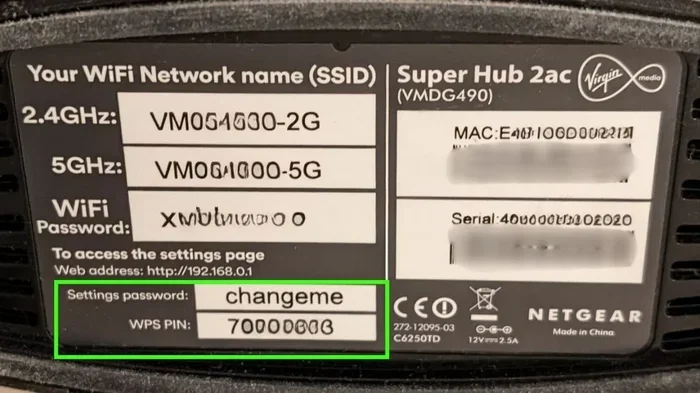
Look at the bottom or back of your router. Most manufacturers print a sticker with the default username and default password. You will usually see something like “admin” for both fields. The sticker also shows the default gateway address you need to type into your browser.
Use Your Computer to Find the Gateway
If the sticker is worn off or missing, you can find the gateway through your computer. On Windows, open Command Prompt and type ipconfig. Look for the line that says “Default Gateway.” On Mac, go to System Settings, then Network, and click on your connected WiFi. The router address will be listed there.
Common Router Login Addresses
Most routers use one of these addresses:
- 192.168.0.1
- 192.168.1.1
- 10.0.0.1
Type the address into your browser’s address bar and press Enter. You will see a login page asking for your router settings credentials.
Step-by-Step Guide to Change Your WiFi Password
Now that you are inside the router admin panel, changing your password is straightforward. Follow these steps carefully to make sure you do not get locked out.
Step 1: Log In to Your Router
Open your web browser and type in the default gateway address. Enter the username and password when prompted. If you have never changed these, use the default credentials from the router sticker. If you already changed them and forgot, you may need to reset the router to factory settings.
Step 2: Navigate to the Wireless Settings
Once logged in, look for a tab or menu labeled “Wireless,” “WiFi Settings,” or “Wireless Security.” The exact name varies by router brand. Popular brands like Netgear, TP-Link, and ASUS each have slightly different layouts, but the process is similar across the board.
Step 3: Find the Password Field
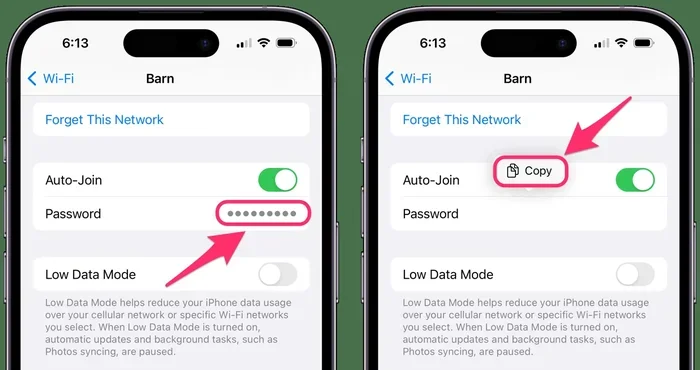
Inside the wireless settings page, you will see a field for your network password. It might be labeled “Password,” “Passphrase,” “Security Key,” or “WPA Key.” This is the password your devices use to connect to the WiFi network.
Step 4: Enter Your New Password
Type in your new WiFi password. Make it strong and unique. A good password strength rule is to use at least 12 characters with a mix of uppercase letters, lowercase letters, numbers, and symbols. Avoid using names, birthdays, or common words.
Step 5: Save and Reconnect
Click “Save” or “Apply” at the bottom of the page. Your router may restart briefly. After it comes back online, all your devices will need the new network password to reconnect. Go to each device and enter the updated credentials.
Quick Tip: Write down your new password and keep it in a safe place. You can also store it in a trusted password manager app for easy access later.
How to Change Your WiFi Username (SSID)
Your WiFi username is also called the SSID, which stands for Service Set Identifier. This is the name that appears when someone searches for available networks on their phone or laptop. Changing it is just as easy as updating your password.
Why Change Your WiFi Network Name?
There are a few good reasons to update your SSID. First, a default name like “Netgear_5G” tells hackers exactly what router model you use. They can then look up known vulnerabilities for that model. Second, a unique name makes your network easier to identify in a crowded area with many networks nearby.
Steps to Change Your SSID
- Log into your router admin panel using the same method described above.
- Go to the “Wireless” or “WiFi Settings” section.
- Find the field labeled “SSID,” “Network Name,” or “WiFi Name.”
- Delete the old name and type in your new WiFi network name.
- Save the changes and wait for the router to reboot.
After the reboot, your new network name will appear in the list of available wireless networks on all nearby devices. You will need to reconnect each device using your updated network password.
Quick Tip: Avoid putting personal information in your SSID. Names like “SmithFamilyWiFi” or “Apartment4B” give away too much about you. Pick something generic but memorable.
Tips for Creating a Strong and Secure WiFi Password
A weak password is the number one way hackers break into home networks. Taking a few extra minutes to create a strong WiFi password can save you from serious headaches.
Use a Passphrase Instead of a Single Word
Instead of “Sunshine123,” try something like “BlueCoffee$Rainy#Sky42.” A passphrase is longer, harder to guess, and still easy for you to remember. The more random and unique it is, the better your network security will be.
Enable WPA3 or WPA2 Encryption
Inside your router settings, make sure your wireless network uses WPA3 encryption if your devices support it. If not, WPA2 is still very secure. Never use WEP or no encryption at all, as these are easily cracked.
Avoid Common Mistakes
- Do not use “password” or “12345678” as your network password.
- Do not reuse a password you use for email or social media.
- Do not share your WiFi password publicly or write it on a sticky note near the router.
- Do not use your address, phone number, or birth date in the password.
Change Your Password Regularly
Making it a habit to update your WiFi password every three to six months is a smart move. It keeps your network configuration fresh and reduces the risk of old passwords being compromised. Set a reminder on your phone if that helps.
Troubleshooting Common Issues When Changing WiFi Settings
Sometimes things do not go smoothly when you are changing router settings. Here are the most common problems and how to fix them.
You Cannot Log Into the Router Admin Panel
If the login page will not load, double-check that you are using the correct default gateway address. Try a different browser or clear your cache. If you changed the admin password and forgot it, you will need to perform a factory reset. Hold the reset button on the back of the router for about 10 seconds. This restores all settings to their original state, including the default username and default password.
Devices Will Not Connect After the Change
After updating your WiFi password or SSID, your devices need the new information to reconnect. Go to your device’s WiFi settings, forget the old network, and reconnect using the new name and password. Make sure you are typing the password exactly as you set it, paying attention to uppercase and lowercase letters.
Internet Stops Working After Saving Changes
This sometimes happens if you accidentally changed a setting other than the password. Check that your internet service provider settings are still correct in the router panel. Look for the “Internet” or “WAN” section and verify that nothing was changed. If needed, contact your ISP for help.
The Router Keeps Freezing or Crashing
If your router becomes unresponsive after a settings change, try unplugging it for 30 seconds and plugging it back in. This simple router reset often fixes the issue. If the problem continues, you may need to update your router firmware through the admin panel.
Expert Insights on WiFi Network Management
Managing your wireless network goes beyond just changing a password now and then. Here are a few expert-level tips that can take your network security to the next level.
Create a Guest Network
Most modern routers let you set up a separate guest network. This gives visitors internet access without letting them see your main WiFi network or shared files. Set a different password for the guest network and change it whenever you want.
Update Your Router Firmware
Router manufacturers release firmware updates that fix security holes and improve performance. Check your router settings for a “Firmware Update” option and install any available updates. This is one of the easiest ways to keep your network configuration safe and up to date.
Monitor Connected Devices
Many routers have a section that shows all devices currently connected to your wireless network. If you see a device you do not recognize, change your WiFi password immediately. This is a clear sign that someone unauthorized is using your connection.
Use MAC Address Filtering
Advanced users can set up MAC address filtering, which only allows specific devices to connect. While this is not foolproof, it adds another layer of protection to your wireless network. Check your router admin panel for a “MAC Filter” or “Access Control” option.
Key Takeaways
- Find Your Router Login: Use the sticker on your router or the ipconfig command to locate your admin credentials and gateway address.
- Change Password Easily: Log into the router admin panel, go to wireless settings, update the password field, and save.
- Update Your SSID Too: Changing your WiFi network name hides your router model and makes your network easier to identify.
- Build Strong Passwords: Use passphrases with 12+ characters, mix in symbols and numbers, and never reuse old passwords.
- Enable WPA3 or WPA2: Always use the strongest encryption your devices support for the best network security.
- Troubleshoot Smart: Factory resets, firmware updates, and checking ISP settings can fix most common problems.
- Stay Proactive: Regularly check connected devices and update your router settings every few months.
Frequently Asked Questions
How do I change my WiFi password if I forgot my router login?
If you forgot your router login credentials, you can perform a factory reset by pressing and holding the reset button on the back of the router for 10 to 15 seconds. This will restore the default username and default password printed on the router sticker. After the reset, log in with those defaults and change your WiFi password right away.
Can I change my WiFi password without resetting the router?
Yes, absolutely. You do not need to reset your router to change your network password. Simply log into the router admin panel using your current credentials, go to the wireless settings section, and update the password field. This is the safest and fastest way to refresh your WiFi password without disrupting your network.
What is the difference between a WiFi password and a router admin password?
Your WiFi password is what devices use to connect to your wireless network. Your router admin password is what you use to log into the router settings page. They are two separate credentials. For the best network security, you should change both and make them different from each other.
How often should I change my WiFi password?
Experts recommend updating your WiFi password every three to six months. You should also change it immediately if you suspect someone unauthorized is using your network. Regular updates are one of the simplest ways to maintain strong network security and keep your wireless network safe.
Will changing my WiFi password disconnect all my devices?
Yes, changing your network password will temporarily disconnect all devices from the WiFi network. Every phone, laptop, smart TV, and smart home device will need the new password to reconnect. This is normal and expected. Have your new password ready before you make the change so the process goes smoothly.
Can I change my WiFi username to any name I want?
You can set your WiFi username (SSID) to almost any name you like, as long as it does not contain special characters or spaces that your router does not support. Avoid using personal details in the name. A fun or generic name works great and helps protect your privacy while making your wireless network easy to spot.
Conclusion
Changing your WiFi password and login username is one of the most important things you can do to protect your home network. It takes just a few minutes and makes a huge difference in your network security. Whether you are updating your network password for the first time or doing it as part of a regular routine, the steps are simple and straightforward.
Start by finding your router admin panel using the default gateway address. Then navigate to the wireless settings to update both your password and your network name. Use strong, unique passphrases and enable the latest encryption available. If you run into trouble, the troubleshooting tips in this guide will help you get back on track quickly.
Take a few minutes today to update your WiFi password and router settings. Your future self will thank you for the added peace of mind and protection. A little effort now goes a long way toward keeping your wireless network safe, fast, and secure for everyone in your home.