Can You Run A DVD Player Through A Laptop Full Guide
Yes, you can run a DVD player through a laptop using an external DVD drive or DVD player software. Whether your laptop has a built-in disc drive or not, this guide walks you through every method to enjoy your favorite DVDs on a bigger screen. You will learn about USB connections, free media players, and simple troubleshooting tips that make DVD playback on a laptop easy for everyone.
Have you ever popped a DVD into your laptop and wondered why it does not play? Maybe your laptop does not even have a disc drive anymore. You are not alone. Many people want to run a DVD player through a laptop but do not know where to start. The good news is that it is easier than you think. Whether you want to watch old movies, install software from a disc, or back up files, this guide covers everything you need.
Running a DVD player through a laptop means using your laptop as the screen and processor to read and play DVD content. You can do this with a built-in optical drive, an external USB DVD drive, or even DVD player software that reads ISO files. In this guide, we break down every method step by step. By the end, you will know exactly how to get your DVDs playing on your laptop without any headaches.
Key Takeaways
- External DVD drives plug in via USB and let any laptop play DVDs without needing a built-in disc drive.
- Free DVD player software like VLC can turn your laptop into a full DVD playback machine with just a few clicks.
- USB-C to USB-A adapters solve the connection problem for newer laptops that lack standard USB ports.
- DVD region codes and disc scratches are the most common reasons DVDs fail to play on laptops.
- Using an HDMI cable can send your laptop DVD output to a TV or external monitor for a theater-like experience.
📑 Table of Contents
- What It Means to Run a DVD Player Through a Laptop
- How to Connect an External DVD Drive to Your Laptop
- Using DVD Player Software on Your Laptop
- Troubleshooting Common DVD Playback Issues
- Can You Watch DVDs on a Laptop Without a Disc Drive?
- Tips for the Best DVD Viewing Experience on Your Laptop
- Final Thoughts
What It Means to Run a DVD Player Through a Laptop
When people talk about running a DVD player through a laptop, they usually mean one of two things. First, they want to physically play a DVD disc using their laptop. Second, they want to use software that mimics a DVD player on their computer. Both approaches work well, but they require different setups. Let us look at each one so you can pick the best option for your situation.
A DVD player through a laptop uses your laptop’s screen, speakers, and processing power to display DVD content. Older laptops came with built-in optical drives. These were the disc slots on the side of the computer. Newer laptops are thinner and lighter, so many of them dropped the disc drive entirely. That does not mean you cannot watch DVDs anymore. It just means you need a little extra equipment or software.
The most common way people watch DVDs on a laptop is through an external DVD drive. These small devices connect to your laptop using a USB cable. You put the DVD into the external drive, and your laptop reads it just like a built-in drive would. The second method uses DVD player software. This lets you open DVD files or ISO images directly on your laptop without needing any physical disc drive at all.
How to Connect an External DVD Drive to Your Laptop
An external DVD drive is the simplest way to play DVDs on a laptop. These drives cost between twenty and fifty dollars and work with almost any laptop. They plug right into a USB port and are ready to use in seconds. Here is how to get started.
Step-by-Step Connection Process
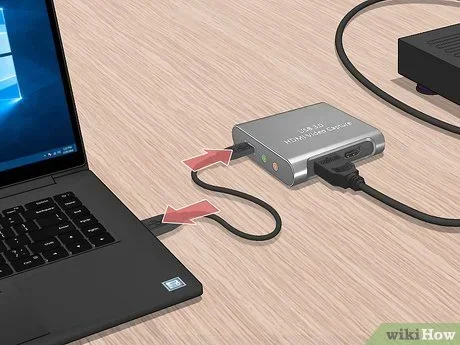
- Plug the external DVD drive into an available USB port on your laptop.
- Wait for your laptop to recognize the new device. Most laptops will install drivers automatically.
- Place your DVD into the tray of the external drive. Push it in gently until it clicks.
- Wait a few seconds while the drive reads the disc. You should see a prompt asking what you want to do.
- Choose your media player or let Windows Media Player open automatically to start playback.
If your laptop has USB-C ports but the external drive uses USB-A, do not worry. You can use a USB-C to USB-A adapter to make the connection work. Just plug the adapter into your laptop first, then connect the DVD drive to the adapter. It works the same way and there is no lag or quality loss.
Some people also connect their laptop to a bigger screen using an external monitor for laptop. This gives you a much better viewing experience when watching DVDs. You can use an HDMI cable to send the DVD output from your laptop to a TV or monitor. The picture quality looks much sharper on a larger screen.
Best External DVD Drives for Laptops
Not all external DVD drives are the same. Here are some things to look for when buying one:
- USB connectivity — Make sure it uses USB 3.0 for faster read speeds.
- Multi-format support — Look for drives that handle CDs, DVDs, and even Blu-ray discs.
- Plug-and-play design — You should not need to install any extra software or drivers.
- Compact size — A portable drive is easy to carry around if you travel often.
- Brand reliability — Stick with well-known brands like LG, ASUS, or Toshiba for dependable performance.
Using DVD Player Software on Your Laptop
Not everyone wants to buy an external DVD drive. If you mostly watch digital copies of DVDs or have ripped your collection to your laptop, software is the way to go. DVD player software turns your laptop into a full DVD playback machine. You can open disc images, ISO files, and even video folders that contain DVD content.
Free DVD Player Software Options
There are several great free options that let you play DVDs on your laptop without spending a dime:
- VLC Media Player — This is the most popular free media player in the world. It plays almost every DVD format and file type. It works on Windows, Mac, and Linux laptops.
- Windows Media Player — Built into most Windows laptops. It can play DVDs if you have the right codecs installed.
- KMPlayer — A lightweight player that supports a wide range of formats including DVD rips and ISO files.
- PotPlayer — Another excellent free option with a clean interface and strong DVD playback support.
VLC is the top recommendation for most people. It is free, open source, and does not try to sell you anything. Just download it, install it, and open your DVD files. The DVD playback quality is smooth and the software rarely crashes. It is a must-have for anyone who watches DVDs on a laptop regularly.
How to Rip a DVD to Your Laptop
Some people prefer to rip their DVDs to their laptop hard drive. This means copying the entire DVD content as a digital file. You can then watch the movie anytime without needing the physical disc. Here is a quick overview of how this works:
- Download DVD ripping software like HandBrake or MakeMKV.
- Insert your DVD into your laptop or external drive.
- Select the output format — MP4 is the most popular choice for laptop playback.
- Start the ripping process and wait for it to finish.
- Open the ripped file in your media player and enjoy.
Keep in mind that ripping DVDs may be subject to copyright laws in your country. Always make sure you own the original disc and are using the copy for personal use only.
Troubleshooting Common DVD Playback Issues
Sometimes things do not go smoothly when you try to play DVDs on a laptop. The disc might not read, the video might stutter, or the audio might be out of sync. These problems are usually easy to fix. Let us walk through the most common issues and their solutions.
DVD Will Not Play at All
If your laptop does not recognize the DVD, try these steps first:
- Check the USB connection — Unplug the external drive and plug it back in to a different USB port.
- Clean the DVD disc — A smudged or scratched disc can prevent the drive from reading it. Wipe it gently with a soft cloth from the center outward.
- Update your drivers — Go to Device Manager and check if the DVD drive needs a driver update.
- Check the disc format — Some older drives cannot read newer DVD formats like DVD-RW or DVD+R DL.
Video or Audio Problems During Playback
If the DVD plays but the video or audio is not right, the issue is usually with the media player or codecs:
- Switch to VLC Media Player — It has built-in codecs that handle almost every DVD format perfectly.
- Check your laptop display settings — Make sure your screen resolution matches the DVD output for the best picture quality.
- Update your graphics drivers — Outdated drivers can cause stuttering or choppy video playback.
- Try a different media player — Sometimes one player handles certain DVDs better than another.
For those using a laptop without a built-in drive, connecting through a USB device hub can sometimes cause power issues. If the external DVD drive keeps disconnecting, try plugging it directly into your laptop instead of through a hub. This ensures it gets enough power to read discs properly.
Region Code Errors
DVDs come with region codes that restrict where they can be played. If you try to play a DVD from a different region, your laptop might show an error message. Most DVD player software lets you change the region setting a few times before locking it. If you run into this issue, look up how to change the region code in your media player settings.
Can You Watch DVDs on a Laptop Without a Disc Drive?
The short answer is yes. You can watch DVDs on a laptop that does not have a built-in disc drive. You just need an external DVD drive connected through USB. These drives are small, affordable, and work with all modern laptops including Ultrabooks and Chromebooks.
Another option is to use DVD ripping software to convert your physical DVDs into digital files. Once ripped, you can store them on your laptop hard drive or even upload them to cloud storage. This means you never need the physical disc again. You can also use DVD player software to open ISO files, which are exact digital copies of DVDs stored as single files on your laptop.
If you use a USB device shared between two computers, you can connect your external DVD drive to either machine. This is handy if you want one drive to serve multiple laptops in your home or office.
Tips for the Best DVD Viewing Experience on Your Laptop
Watching a DVD on your laptop is great, but you can make the experience even better with a few simple adjustments. Here are some practical tips to get the most out of your DVD playback:
- Adjust your screen brightness — Turn it up in a bright room and down in a dark room for the best picture contrast.
- Use headphones or external speakers — Laptop speakers are small and often lack deep bass. A pair of Bluetooth headphones or a USB soundbar makes a big difference.
- Close unnecessary programs — This frees up processing power so your DVD plays smoothly without lag or stuttering.
- Keep your laptop plugged in — Watching a full-length DVD can drain your battery. Plugging in ensures you do not lose your place if the battery dies.
- Clean your laptop screen — A smudgy screen makes any movie look worse. A microfiber cloth can make a surprising difference in clarity.
For those who want an even bigger screen, you can connect your laptop to a TV using an HDMI cable. This turns your living room into a personal movie theater. The DVD playback quality stays sharp because the laptop handles all the decoding and sends a clean video signal to the TV.
If you travel often, a portable external DVD drive is a lifesaver. You can watch your DVD collection on the road without carrying around a bulky desktop computer. Just pack the drive in your bag, plug it into any laptop, and you are ready to go.
Final Thoughts
Running a DVD player through a laptop is simple and affordable. Whether you use an external DVD drive or free software, you can enjoy your favorite DVDs on your laptop screen anytime. The key is to pick the method that fits your setup best. If your laptop has a disc drive, you are already halfway there. If not, a small external drive or a good media player solves the problem completely.
Remember to keep your drivers updated, use quality media player software, and take care of your discs. These small habits make a big difference in your viewing experience. Now you have everything you need to watch DVDs on your laptop like a pro. Pop in your favorite disc and enjoy the show.
Frequently Asked Questions
Can I play DVDs on a laptop without a built-in disc drive?
Yes, you can. You just need an external DVD drive that connects through USB. These drives are affordable and work with almost any laptop. Simply plug it in, insert your DVD, and your laptop will read the disc just like a built-in drive would.
What is the best free DVD player software for laptops?
VLC Media Player is the best free option available. It plays virtually every DVD format and file type without any extra setup. It is open source, regularly updated, and works on Windows, Mac, and Linux laptops. You can download it from the official VLC website for free.
Why does my DVD keep skipping or stuttering on my laptop?
This usually happens because your laptop is running too many background programs or has outdated drivers. Close unnecessary apps, update your graphics drivers, and make sure you are using a reliable media player like VLC. If you are using an external drive, connect it directly to a USB port instead of through a hub for stable power.
Can I use a USB-C to USB-A adapter for an external DVD drive?
Yes, absolutely. Most modern laptops only have USB-C ports, but external DVD drives typically use USB-A. A simple USB-C to USB-A adapter solves this problem easily. The adapter does not affect playback quality or speed in any way.
Is it legal to rip DVDs to my laptop?
Ripping DVDs for personal backup use is legal in some countries but not in others. Laws vary by region, so you should check your local copyright regulations. In general, making a copy of a DVD you own for personal use is widely accepted, but distributing copies is not.
Can I connect my laptop DVD drive to two computers at once?
You can share a single external DVD drive between multiple laptops by connecting it via USB to one computer at a time. If you want to use it with two computers regularly, simply unplug it and plug it into the other laptop when needed. For a more permanent setup, you can use a network sharing method to make the drive accessible from both machines.