Can I Use Any Usb C Charger For Macbook Air Safely
Yes, you can use a USB-C charger for your MacBook Air, but not just any charger will do. You need to match the right wattage, use USB Power Delivery, and ensure the charger meets Apple’s safety standards. Using the wrong charger can damage your battery or slow down your charging speed significantly.
You just grabbed a new USB-C charger. Maybe it came with a new phone. Maybe you found a cheap deal online. And now you’re wondering, can I use any USB C charger for MacBook Air? It’s a great question, and one that a lot of Apple laptop users ask every day.
The short answer is yes. But the full answer is a little more nuanced. Not every USB-C charger is created equal. Some will charge your MacBook Air just fine. Others might barely make a difference, and a few could even cause problems. Let’s dig into everything you need to know about USB-C charger compatibility for your MacBook Air.
Your MacBook Air uses USB-C ports for charging. That’s been the case since Apple switched to USB-C back in 2018 with the MacBook Air (2018 and later). This means you have a lot more flexibility with chargers compared to the old MagSafe connector. But flexibility doesn’t mean you can plug in anything and expect great results.
Key Takeaways
- USB-C works with MacBook Air: All modern MacBook Air models use USB-C ports for charging.
- Wattage matters a lot: You need at least 30W to 36W for safe and efficient charging.
- USB Power Delivery is key: Look for PD-compliant chargers to ensure compatibility and safety.
- Third-party chargers can work: But they must meet Apple’s power delivery standards.
- Using the wrong charger risks damage: Too low wattage means slow charging; too high is generally safe but wasteful.
- Cable quality matters too: A cheap USB-C cable can limit charging speed or cause issues.
- Apple’s 30W adapter is the gold standard: It’s the safest and most reliable choice for MacBook Air.
📑 Table of Contents
- Understanding USB-C Charging on MacBook Air
- Can You Use Any USB-C Charger Safely?
- Quick Tips for Safe USB-C Charging
- Common Mistakes People Make with MacBook Air Charging
- Best USB-C Chargers for MacBook Air in 2024
- Does Using a Non-Apple Charger Void Your Warranty?
- How to Tell If Your Charger Is Compatible
- The Future of MacBook Air Charging
- Key Takeaways
- Conclusion
Understanding USB-C Charging on MacBook Air
Before you grab any charger off the shelf, it helps to understand how USB-C charging actually works on your MacBook Air. The technology behind it is called USB Power Delivery, or USB PD for short. This is a standardized charging protocol that lets devices negotiate the right amount of power.
What Is USB Power Delivery?
USB Power Delivery is a smart charging system. When you plug a USB-C charger into your MacBook Air, the two devices “talk” to each other. They agree on the right voltage and current. This negotiation happens in milliseconds. It’s what makes USB-C so versatile across different devices.
Here’s the important part. Not all USB-C chargers support USB PD. Some cheap chargers only provide a fixed amount of power. They don’t negotiate. And your MacBook Air might not draw enough power from them to charge properly.
How Many Watts Does Your MacBook Air Need?
Apple recommends using a 30W USB-C power adapter for most MacBook Air models. The M1 and M2 MacBook Air models work great with a 30W charger. The newer M3 MacBook Air also charges well with 30W to 36W chargers.
Here’s a simple breakdown of wattage needs:
- 30W charger: Sufficient for normal use. Your MacBook Air will charge, just not at the fastest possible speed.
- 36W to 67W charger: Charges faster. Great if you use your laptop while plugging it in.
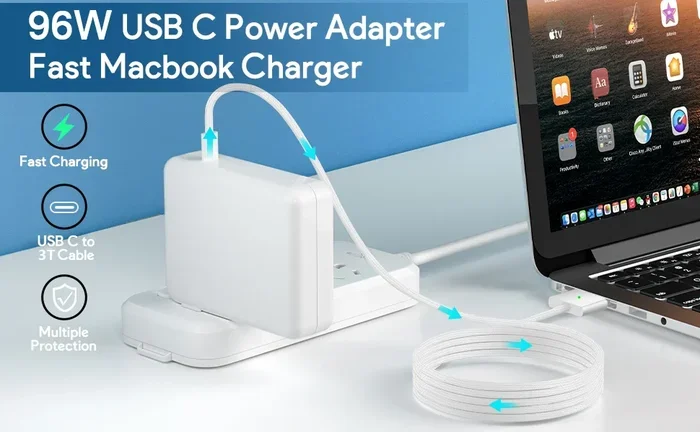
- 96W or higher: Overkill for MacBook Air. These are designed for MacBook Pro. They will work, but they’re more than you need.
Using a charger below 30W is possible, but it may charge very slowly. You might even notice your battery draining while you work if the charger can’t keep up with power demand.
Can You Use Any USB-C Charger Safely?
This is where things get tricky. The answer to can I use any USB C charger for MacBook Air depends on several factors. Let’s break them down so you don’t accidentally damage your laptop.
The Role of USB-C Cables
People often forget about the cable. A USB-C charger is only half the equation. The USB-C cable you use matters just as much. A cheap or damaged cable can limit power delivery. It might not support the wattage your MacBook Air needs.
Always use a high-quality USB-C cable that supports USB PD. Look for cables rated for at least 60W or 100W if you’re using a higher-wattage charger. The cable should be from a reputable brand or certified by USB-IF.
Third-Party Chargers vs. Apple Chargers
Apple’s own 30W USB-C power adapter is the safest bet. But third-party chargers from brands like Anker, Belkin, and Aukey also work great. The key is to choose chargers that are USB PD compliant and carry proper safety certifications.
Here’s a quick comparison:
- Apple 30W USB-C charger: Reliable, safe, and perfectly matched to MacBook Air. It’s the easiest choice.
- Anker USB-C chargers: Excellent quality. Many models support USB PD and work beautifully with MacBook Air.
- Amazon Basics or generic chargers: Hit or miss. Some work fine. Others don’t meet safety standards. Be cautious.
- No-name chargers from unknown brands: Avoid these. They may lack proper voltage regulation and could harm your battery.
What Happens If You Use the Wrong Charger?
Using a charger that’s too weak means slow charging. Your MacBook Air might take twice as long to fully charge. In some cases, the battery may actually drain while you’re working because the charger can’t supply enough power.
Using a charger that’s too strong generally won’t hurt your MacBook Air. Modern devices only draw the power they need. So a 96W charger won’t force 96 watts into your laptop. Your MacBook Air will simply take what it needs. But it’s overkill and a waste of money.
The real danger comes from uncertified or counterfeit chargers. These can deliver inconsistent voltage. They might spike or drop power unexpectedly. Over time, this can degrade your battery or damage the charging port. It’s not worth the risk.
Quick Tips for Safe USB-C Charging
Follow these simple tips to keep your MacBook Air charging safely and efficiently:
- Stick with USB PD chargers: Always look for “USB Power Delivery” on the charger label.
- Check the wattage: Aim for 30W or higher for best results.
- Use quality cables: Don’t cheap out on cables. A good cable ensures stable power delivery.
- Avoid extreme temperatures: Don’t charge your MacBook Air in very hot or cold environments.
- Inspect your charger and cable: Look for frayed wires or bent connectors. Replace them immediately.
- Unplug when fully charged: Leaving your MacBook Air plugged in all the time can reduce battery health over time.
Expert Insight
Apple designed the USB-C charging system on MacBook Air to be smart and safe. The laptop has built-in protections that regulate power intake. But those protections only work when you use a quality charger that follows the USB PD standard. Cutting corners here is never a good idea.
Common Mistakes People Make with MacBook Air Charging
Let’s talk about the mistakes that trip up a lot of users. Avoiding these will save you headaches and protect your laptop.
Mistake 1: Assuming All USB-C Chargers Are the Same
This is the biggest mistake. A USB-C phone charger and a USB-C laptop charger are very different. Your phone charger might output only 5W or 10W. That’s nowhere near enough for a MacBook Air. Always check the charger’s output wattage before plugging it in.
Mistake 2: Ignoring Cable Quality
You could buy the best USB-C charger in the world. But if your cable is faulty or low-quality, you’ll still have charging problems. A bad cable can cause slow charging, intermittent connection, or even overheating.
Mistake 3: Using Chargers Without Safety Certifications
Look for chargers that carry UL, CE, or FCC certifications. These marks mean the charger has been tested for safety. Chargers without any certification are a gamble. They might work fine today and fail tomorrow.
Mistake 4: Charging Through a Low-Quality Hub or Dock
Some USB-C hubs and docks don’t pass through power properly. If you’re charging your MacBook Air through a hub, make sure the hub supports USB-C power delivery passthrough. Otherwise, your laptop might not charge at all or charge very slowly.
Best USB-C Chargers for MacBook Air in 2024
If you’re in the market for a new charger, here are some solid options that work great with MacBook Air.
1. Apple 30W USB-C Power Adapter
This is the safest and most reliable choice. It’s designed specifically for MacBook Air. It’s compact, efficient, and delivers consistent power. If you want zero hassle, this is the one to buy.
2. Anker 312 Charger (30W)
Anker is a trusted brand in the charging world. Their 30W USB-C charger is compact and supports USB PD. It’s a great alternative to Apple’s charger at a similar price point.
3. Belkin Boost Charge Pro 30W
Belkin makes high-quality charging accessories. Their 30W USB-C charger is compact, durable, and works perfectly with MacBook Air. It also comes with a reassuring warranty.
4. Anker 521 Power Bank (65W)
If you need portability, this power bank is a fantastic option. It delivers 65W via USB-C and can charge your MacBook Air on the go. It’s perfect for travel or students who need to charge between classes.
Does Using a Non-Apple Charger Void Your Warranty?
Good news. Using a third-party USB-C charger does not void your MacBook Air warranty. Apple supports USB-C charging standards. As long as you use a certified charger and cable, you’re covered.
However, if your MacBook Air gets damaged because of a faulty third-party charger, Apple might not cover that repair under warranty. So the choice of charger still matters for your protection.
How to Tell If Your Charger Is Compatible
Not sure if your USB-C charger will work with your MacBook Air? Here’s a quick checklist:
- Check the output wattage. It should be 30W or higher.
- Look for USB PD support. The charger should explicitly state it supports USB Power Delivery.
- Check for safety certifications. Look for UL, CE, or FCC marks on the charger.
- Inspect the USB-C cable. Make sure it’s in good condition and rated for high power.
- Plug it in and monitor. Your MacBook Air should show a lightning bolt icon in the menu bar. If it doesn’t appear, the charger might not be providing enough power.
If your MacBook Air charges normally and doesn’t get hot, you’re good to go. If it gets unusually warm or charges very slowly, try a different charger or cable.
The Future of MacBook Air Charging
Apple is slowly moving toward USB-C across its entire product lineup. The transition from Lightning to USB-C on iPhones has already happened. It’s likely that future MacBook Air models will continue to use USB-C for charging.
This is great news for consumers. You’ll eventually be able to use one charger for your phone, tablet, and laptop. It reduces clutter and saves money. But for now, you still need to pay attention to wattage and compatibility.
Key Takeaways
- USB-C works with all modern MacBook Air models: You have plenty of charger options.
- Wattage is the most important factor: Aim for at least 30W for reliable charging.
- USB Power Delivery is essential: Always choose chargers that support this standard.
- Third-party chargers are fine if they’re quality: Brands like Anker and Belkin are excellent alternatives to Apple.
- Cheap or uncertified chargers are risky: They can damage your battery or charging port over time.
- The cable matters just as much as the charger: Use a high-quality USB-C cable rated for sufficient wattage.
- Your MacBook Air has built-in protections: But those protections only work with compatible, certified chargers.
Conclusion
So, can I use any USB C charger for MacBook Air? The answer is yes, but with important caveats. You need a charger that supports USB Power Delivery, delivers at least 30W of power, and carries proper safety certifications. When you find the right charger, your MacBook Air will charge safely and efficiently.
Don’t settle for cheap, uncertified chargers just to save a few dollars. Your MacBook Air’s battery is one of its most valuable components. Taking care of it with the right USB-C charger will extend your laptop’s lifespan and keep you running all day long.
Invest in a quality charger. Use a good cable. And your MacBook Air will reward you with reliable, fast charging every single time. It’s a small decision that makes a big difference in your daily experience with your Apple laptop.
Frequently Asked Questions
Can I charge my MacBook Air with my phone’s USB-C charger?
Probably not effectively. Most phone chargers output only 5W to 18W, which is too low for MacBook Air. Your laptop may charge very slowly or not charge at all while you use it. You need at least a 30W charger for reliable results.
Is it safe to use a 67W USB-C charger with a MacBook Air?
Yes, it is perfectly safe. Your MacBook Air will only draw the power it needs. The charger won’t force extra power into your laptop. However, a 67W charger is designed for MacBook Pro, so it’s more than you need for the Air.
What happens if I use a USB-C charger without USB Power Delivery?
Your MacBook Air might not charge at all, or it will charge very slowly. Without USB PD, the charger and laptop cannot negotiate the right power levels. Always look for USB PD support on any charger you buy for your MacBook Air.
Can I use a USB-C hub or dock to charge my MacBook Air?
Yes, but only if the hub or dock supports power delivery passthrough. Many USB-C hubs do not pass through charging power. Check the product specs to confirm it can charge your laptop while connected.
Do I need an Apple charger for my MacBook Air?
No, you don’t need an Apple charger. Many third-party brands make excellent USB-C chargers that work perfectly with MacBook Air. Just make sure they are USB PD compliant and carry proper safety certifications.
How can I tell if my USB-C charger is working properly with my MacBook Air?
Look for the battery icon with a lightning bolt in your menu bar. If it appears, your MacBook Air is charging. If the laptop charges at a normal speed and doesn’t get hot near the charging port, your charger is working correctly.