Can I Use My Hp Printer Without Internet Here Is How
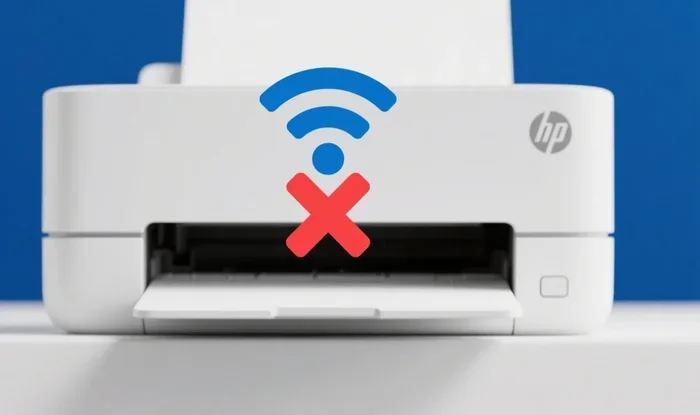
Yes, you can absolutely use your HP printer without an internet connection. Whether you need to print via USB, Wi-Fi Direct, or a local network, your HP printer can still produce high-quality documents offline. This guide shows you exactly how to set up, troubleshoot, and optimize your HP printer for offline printing in simple steps.
Can I Use My Hp Printer Without Internet? The short answer is yes. You can absolutely print documents, photos, and files even when your internet connection is down. Many people assume their HP printer needs Wi-Fi or an active web connection to work. That is simply not true. Your HP printer can function perfectly well in offline mode. You just need to know the right setup method.
This guide will walk you through every way to use your HP printer without internet. We will cover USB connections, Wi-Fi Direct, Bluetooth options, and more. You will also learn how to troubleshoot common problems. Whether you are at home, in an office, or in a location with no Wi-Fi, you will find a solution here. Let us get started.
Key Takeaways
- HP printers work without internet: You can print using USB, Wi-Fi Direct, Bluetooth, or a local network.
- USB connection is the simplest method: Plug in a cable and your printer is ready to print immediately.
- Wi-Fi Direct lets you print wirelessly: No router or internet is needed for this built-in feature.
- Offline printing has some limitations: Features like cloud printing and ink level updates won’t work.
- Driver installation matters: You must install the correct printer driver before printing offline.
- Common issues are easy to fix: Most offline printing problems can be solved with basic troubleshooting.
📑 Table of Contents
- How HP Printers Work Without Internet
- Setting Up Your HP Printer for Offline Use
- Wireless Printing Options Without Internet
- Common Problems When Using HP Printer Offline
- Tips to Keep Your HP Printer Running Smoothly Offline
- When You Need Internet for Your HP Printer
- Comparison Table: Offline Printing Methods
- Expert Insights on Offline HP Printer Use
- Quick Tips for Smooth Offline Printing
- Common Mistakes People Make with Offline HP Printing
- Frequently Asked Questions
- Final Thoughts
How HP Printers Work Without Internet
Many people wonder about HP printer offline functionality. They think the internet is required for all printing tasks. That is a common misconception. Your printer is a standalone device. It has its own processor, memory, and firmware. These components allow it to receive print jobs and process them independently.
When you send a print job, your computer communicates directly with the printer. This happens through a cable or a local wireless connection. The internet is not part of this process. Your computer and printer form a small local network. This network handles everything your printer needs to function.
What Does the Internet Actually Do for Your HP Printer?
The internet enables certain features on your HP printer. These include cloud printing services like HP ePrint. It also allows firmware updates and ink level monitoring through the HP Smart app. You can also access email printing and remote printing features when connected online.
However, none of these features are required for basic printing. You can still print from your computer, phone, or tablet without any of them. The core function of printing does not depend on the internet at all. This is great news for users who want to use HP printer without Wi-Fi.
Setting Up Your HP Printer for Offline Use
Setting up your HP printer for offline printing is straightforward. There are several methods you can choose from. Each method works well depending on your situation and available devices. Let us explore each one in detail.
Method 1: USB Cable Connection
The USB connection is the most reliable way to print HP documents offline. You do not need any Wi-Fi or network setup. Just plug in a USB cable from your computer to the printer. Here is how to do it step by step.
- Step 1: Turn off your HP printer.
- Step 2: Connect one end of the USB cable to your computer.
- Step 2: Connect the other end to your HP printer.
- Step 3: Turn on the printer.
- Step 4: Wait for your computer to detect the printer.
- Step 5: Install the HP printer driver if prompted.
- Step 6: Open a document and click Print.
That is it. Your printer is now ready to use without any internet connection. USB connections are fast and stable. They are ideal for home offices and workstations that need reliable offline printing.
Method 2: Wi-Fi Direct Printing
Wi-Fi Direct is a built-in feature on most modern HP printers. It allows your device to connect directly to the printer without a router. This means you can print wirelessly without internet. Both your computer and the printer create a direct wireless link between them.
Here is how to set up Wi-Fi Direct on your HP printer.
- Turn on your HP printer.
- Press the Wi-Fi button on the printer control panel.
- Look for the Wi-Fi Direct icon or network name on the screen.
- On your computer or phone, open Wi-Fi settings.
- Find and connect to the printer’s Wi-Fi Direct network.
- Enter the password if required.
- Your device is now connected to the printer.
Wi-Fi Direct is very convenient. You can print from anywhere within range. No router is needed. No internet is required. This makes it perfect for wireless printing in areas without network access.
Method 3: Bluetooth Connection
Some HP printers support Bluetooth connectivity. This is another way to print without internet. Bluetooth printing works well for short-range connections. It is ideal for printing from smartphones and tablets.
To use Bluetooth printing, make sure your HP printer has Bluetooth capability. Then follow these steps.
- Enable Bluetooth on your HP printer.
- Turn on Bluetooth on your phone or computer.
- Pair the devices through Bluetooth settings.
- Select the printer when you choose to print.
- Send your document to the printer.
Bluetooth printing is simple and cable-free. It works well for quick print jobs. Keep in mind that Bluetooth has a shorter range than Wi-Fi Direct. But for most home and small office uses, it works perfectly.
Wireless Printing Options Without Internet
Wireless printer connectivity without internet is more common than you might think. HP printers come with several wireless features that do not require an active internet connection. Let us look at these options in more detail.
Local Network Printing
If you have a router but no internet, you can still print. Your router creates a local network. Your computer and printer can connect to this network. They can communicate with each other even without internet access.
To set this up, connect your printer to the router via Wi-Fi. Make sure your computer is on the same network. You can then share the printer across devices on the local network. This is a great option for offices or homes where the internet goes down but the router still works.
HP Smart App for Offline Printing
The HP Smart app is a popular tool for managing HP printers. Many people wonder if the app works without internet. The answer is partially. The app needs internet for initial setup and firmware updates. But once the printer is configured, you can print offline.
You can use the app to manage your print queue. You can check ink levels stored locally on the printer. You can also troubleshoot connection issues. The app makes HP printer setup much easier, even for beginners.
Printing from USB Drives
Many HP printers have a USB port that can read memory sticks. You can save your document on a USB drive. Then plug the drive directly into the printer. The printer can read the file and print it. This method requires no computer and no internet at all.
This is a handy feature for people who need to print on the go. It is also useful in situations where you do not have a computer nearby. Just make sure your file is in a compatible format like PDF or JPEG.
Common Problems When Using HP Printer Offline
Even though offline printing is simple, you may run into some issues. These are common and usually easy to fix. Let us look at the most frequent problems and their solutions.
Printer Not Detected by Computer
This is the most common issue people face. Your computer does not see the printer after you connect it. This usually happens because the driver is missing or outdated. Printer driver installation is essential for offline printing to work.
To fix this, download the latest driver from HP’s website. Install it on your computer. Restart both the computer and the printer. The device should be detected automatically. You can also check your device manager for any errors.
Print Jobs Stuck in the Queue
Sometimes print jobs get stuck in the print queue. This can happen when the printer is offline. The computer keeps trying to send the job but cannot reach the printer.
To clear a stuck print queue, follow these steps.
- Open the Control Panel on your computer.
- Go to Devices and Printers.
- Right-click your HP printer.
- Select See What Is Printing.
- Click Printer in the menu bar.
- Select Cancel All Documents.
- Restart the printer and try again.
This usually resolves the issue quickly. Your print jobs should flow normally after that.
Wi-Fi Direct Connection Fails
Wi-Fi Direct is a great feature but it can sometimes fail to connect. This often happens when the printer’s Wi-Fi Direct mode is not active. It can also occur if another device is already connected to the printer.
To fix this, make sure Wi-Fi Direct is turned on. Check if any other devices are connected and disconnect them. Restart both the printer and your device. Try connecting again with the correct network name and password.
Print Quality Issues Offline
Some users notice that print quality drops when printing offline. This is usually not related to the internet connection. Instead, it is caused by low ink levels, clogged print heads, or incorrect settings.
To improve print quality, run a print head cleaning cycle. Check your ink levels using the printer display. Use the correct paper type and print settings in your document. These simple steps can make a big difference.
Tips to Keep Your HP Printer Running Smoothly Offline
Keeping your HP printer in good shape does not require internet access. A few simple habits can ensure smooth offline printing for years. Here are some practical tips.
- Keep your drivers updated: Download driver updates when you have internet access. This ensures the best performance offline.
- Clean your printer regularly: Dust and ink buildup can cause jams and quality issues.
- Use genuine HP ink cartridges: They work best with HP printers and reduce the risk of errors.
- Store paper properly: Keep paper in a dry place to prevent jams and moisture damage.
- Restart your printer weekly: A simple restart clears memory and keeps things running smoothly.
- Check cables and connections: Loose USB or power cables can cause connection problems.
These tips are easy to follow. They require no internet and very little time. Following them will keep your HP printer offline ready and working at its best.
When You Need Internet for Your HP Printer
While basic printing works without internet, some features do require it. It is important to know what those features are. This helps you set realistic expectations for offline use.
Here are features that need an active internet connection.
- HP ePrint and cloud printing: You cannot print from email or cloud services without internet.
- Firmware updates: Your printer needs internet to download the latest software.
- Ink level alerts: Real-time ink monitoring through the HP Smart app requires internet.
- Remote printing: Printing from a different location needs an internet connection.
- Wireless router setup: Initial Wi-Fi configuration requires internet access.
If you only need to print documents and photos, you do not need any of these features. Your printer will work perfectly without them. Focus on the offline methods we covered above for reliable document printing anytime.
Comparison Table: Offline Printing Methods
Here is a quick comparison of the different ways to use your HP printer without internet. This table helps you choose the best method for your needs.
| Method | Requires Cable? | Speed | Ease of Setup | Best For |
|---|---|---|---|---|
| USB Connection | Yes | Fast | Very Easy | Home offices, reliable printing |
| Wi-Fi Direct | No | Medium | Easy | Wireless freedom, mobile printing |
| Bluetooth | No | Slower | Easy | Quick prints from phones |
| Local Network | No | Fast | Moderate | Multiple device sharing |
| USB Drive | No | Medium | Very Easy | Printing without a computer |
Each method has its strengths. USB is the fastest and most reliable. Wi-Fi Direct offers the most convenience. Bluetooth is great for quick mobile prints. Choose the one that fits your workflow best.
Expert Insights on Offline HP Printer Use
Many tech experts agree that offline printing is one of the most underrated features of modern HP printers. HP printer troubleshooting experts often tell users that the internet is not needed for core printing functions. The printer is designed to work as a standalone device.
One important tip from experts is to always keep a USB cable handy. If your wireless connection fails, a USB cable can save the day. It is the most reliable backup method for HP printer connectivity without internet.
Another expert recommendation is to install the full HP printer software package. This gives you access to all offline features including scan, copy, and maintenance tools. You do not need the internet to use these features once they are installed.
Quick Tips for Smooth Offline Printing
- Always install the HP printer driver before you need to print offline.
- Keep a spare USB cable in your office or home.
- Turn on Wi-Fi Direct when you need wireless printing without a router.
- Clear your print queue regularly to avoid stuck jobs.
- Use the HP Smart app for easy printer management.
- Restart your printer every few weeks to keep it running smoothly.
- Check ink levels frequently so you never run out mid-print.
These quick tips take very little time. They can save you from frustrating printing problems. Keeping a few simple habits will make your offline printing experience seamless and stress-free.
Common Mistakes People Make with Offline HP Printing
There are a few mistakes that people often make when trying to use HP printer without internet. Avoiding these can save you a lot of time and frustration.
Mistake 1: Forgetting to install the printer driver. Without the driver, your computer cannot communicate with the printer. Always install the driver first, even if you plan to use the printer offline.
Mistake 2: Assuming Wi-Fi Direct needs internet. Wi-Fi Direct creates its own direct connection. It does not need a router or internet. Many users get confused by this and think their printer is broken.
Mistake 3: Ignoring firmware updates. Firmware updates improve printer performance and fix bugs. When you have internet access, always update your printer firmware. This ensures better offline performance later.
Mistake 4: Using the wrong cable. Not all USB cables work for printers. Use the cable that came with your printer or a high-quality USB cable designed for data transfer. A charging-only cable will not work.
Mistake 5: Not restarting the printer. A simple restart can fix many connection issues. If your printer is not responding, turn it off, wait 30 seconds, and turn it back on. This clears temporary glitches and resets the connection.
Frequently Asked Questions
Can I print from my phone without internet using an HP printer?
Yes, you can. Use Wi-Fi Direct or Bluetooth to connect your phone to the HP printer. Both methods work without internet. Just make sure your phone and printer are paired correctly. You can then send print jobs directly to the printer.
Do I need internet to install an HP printer?
No, you do not need internet for the initial setup if you use a USB connection. You can download the driver on another device with internet and transfer it via USB. Wi-Fi Direct setup also does not require internet access.
Can I scan documents with my HP printer offline?
Yes, scanning works offline. Most HP printers with scanning capability can scan documents and save them to your computer via USB or local network. The scanning function does not depend on internet connectivity.
Why does my HP printer show offline even when connected?
This usually happens because the printer is set to offline mode in your computer settings. Go to Devices and Printers in your Control Panel. Right-click your HP printer and select Use Printer Online. This should restore the connection.
Can I use HP Instant Ink without internet?
No, HP Instant Ink requires internet to manage subscriptions and order ink refills. However, you can still print without Instant Ink. You can use regular ink cartridges that work fully offline with your HP printer.
Is it safe to use an HP printer without internet?
Yes, it is completely safe. Printing offline does not expose your printer to any online security risks. In fact, some users prefer offline printing for added privacy and security. Your documents stay on your device and go directly to the printer.
Final Thoughts
Can I Use My Hp Printer Without Internet? Yes, you absolutely can. Your HP printer is designed to work as a standalone device. Whether you connect via USB, Wi-Fi Direct, Bluetooth, or a local network, you can print without any internet connection. The methods we covered in this guide give you plenty of options for offline printing that are simple and reliable.
Remember that the internet only adds extra features like cloud printing and remote access. The core function of printing does not need it at all. Keep your drivers updated, maintain your printer regularly, and follow the tips we shared. You will have a smooth and hassle-free printing experience every time.
Now you know exactly how to use your HP printer without internet. Try the methods that work best for your setup. You will be printing confidently even when the Wi-Fi is down. Happy printing!