Can Laptop Speakers Be Repaired Without Replacing Them
Can laptop speakers be repaired without replacing them? Yes, in many cases you can fix common audio problems yourself. This guide covers simple solutions like driver updates, settings fixes, and hardware repairs that save you money. Learn when a DIY fix works and when to call a professional for laptop speaker repair.
There is nothing worse than pressing play on your favorite song and hearing nothing but silence or a awful crackling sound. Your laptop speakers are one of those things you do not think about until they stop working. Whether it is a faint buzzing noise, no sound at all, or sound distortion that makes everything sound terrible, the question on every laptop user’s mind is the same. Can laptop speakers be repaired without spending a fortune on a full replacement? The short answer is yes, and in most cases you do not even need to buy new parts.
This guide walks you through every possible fix for laptop speaker repair. We cover simple software solutions, easy hardware checks, and even advanced fixes for physical damage. By the end, you will know exactly what is causing your audio problems and how to fix them yourself. Let us get your sound back.
Key Takeaways
- Software fixes often solve the problem: Driver updates and sound settings resolve most audio issues without any hardware work.
- Physical damage requires hands-on repair: Torn speaker cones or loose wiring can be fixed with basic tools and patience.
- Replacement is not always necessary: Many speakers can be repaired cheaply instead of swapped out entirely.
- Know when to seek help: Some issues like motherboard-level audio failure need professional attention.
- Prevention keeps speakers healthy: Simple habits like volume control and dust management extend speaker life significantly.
- Cost savings are real: DIY repairs can save you 50-80% compared to buying new speakers or paying a technician.
📑 Table of Contents
- Understanding How Laptop Speakers Work
- Common Signs of Laptop Speaker Problems
- Software Fixes That Resolve Most Audio Issues
- Hardware Repairs You Can Do Yourself
- When to Seek Professional Help
- Cost Comparison: Repair vs Replace
- Prevention Tips to Keep Your Laptop Speakers Healthy
- Expert Insights on Laptop Speaker Repair
- Key Takeaways
- Conclusion
Understanding How Laptop Speakers Work
Before you can fix something, it helps to understand how it works. Laptop speakers are small audio devices built right into your laptop’s frame. They turn electrical signals into sound waves that you can hear. Every laptop has at least two speakers, one on each side of the keyboard or along the bottom edge.
Basic Speaker Components
Each speaker inside your laptop has a few key parts. The speaker cone vibrates to create sound. A small magnet pushes and pulls the cone. Speaker wiring connects the speaker to the motherboard. A tiny sound card or audio chip sends the electrical signals. When any one of these parts fails, your laptop audio suffers.
Most audio problems come from software issues, not broken hardware. This is good news because software fixes are free and easy. But sometimes the physical parts really do get damaged. Knowing the difference saves you time and money.
Common Signs of Laptop Speaker Problems
Not all speaker issues look the same. Some are obvious, and others are subtle. Here are the most common signs that something is wrong with your laptop speakers.
- No sound at all: You play audio but hear nothing. This could be a software problem or a completely dead speaker.
- Distorted or crackling audio: Sounds come out fuzzy, scratchy, or unclear. This often points to a damaged speaker cone.
- Low volume even at maximum: The sound is very quiet no matter how high you turn the volume control.
- Buzzing or humming noise: A constant low hum or buzz in the background. This could be a wiring issue or interference.
- Sound only from one side: One speaker works but the other is silent. This suggests a wiring or individual speaker problem.
- Audio cuts in and out: The sound disappears and comes back randomly. Loose connections often cause this.
If you notice any of these signs, do not panic. Most of them can be fixed. Let us look at the easiest solutions first.
Software Fixes That Resolve Most Audio Issues
Here is a secret that many people do not know. The majority of laptop speaker problems are not hardware failures at all. They are software issues. Before you open up your laptop or spend a single dollar, try these fixes first.
Check Your Sound Settings
This sounds too simple, but it works more often than you think. First, click on the speaker icon in your taskbar. Make sure the volume is turned up and not muted. Right-click the icon and open the sound settings. Check that your laptop speakers are set as the default audio output device.
Sometimes your laptop routes sound to the wrong device. This happens after a system update or when you plug in headphones and forget to switch back. Go to the sound settings and select your built-in speakers as the primary output. This one fix solves the problem for many users.
Update Your Audio Drivers
Your audio driver is the software that tells your laptop how to produce sound. Outdated or corrupted drivers cause all kinds of audio problems. Updating them is free and takes just a few minutes.
To update your driver, go to Device Manager. Find the “Sound, video and game controllers” section. Right-click your audio device and select “Update driver.” Windows will search for the latest version online. You can also visit your laptop manufacturer’s website and download the latest audio driver for your specific model.
Run the Windows Audio Troubleshooter
Windows has a built-in tool that automatically finds and fixes common sound issues. Go to Settings, then System, then Sound. Scroll down and click “Troubleshoot.” The tool will check your speakers, drivers, and connections. It often finds problems you did not even know existed.
This is one of the fastest ways to fix laptop audio without any technical knowledge. Always try this before moving on to more complex solutions.
Uninstall Recent Updates
Sometimes a Windows update breaks your audio. If your speakers worked fine before an update and stopped after it, the update might be the culprit. Go to Settings, then Windows Update, then Update History. Click “Uninstall updates” and remove the most recent one. Restart your laptop and check if the sound returns.
Hardware Repairs You Can Do Yourself
If software fixes did not work, the problem is likely hardware-related. But that does not mean you need to replace your speakers. Many speaker repairs are simple and can be done at home with basic tools.
Inspect the Speaker Grille and Cone
Start by looking closely at your speakers. The speaker grille is the thin mesh covering the speaker opening. Over time, dust and debris build up behind it. This can block sound and cause muffled audio. Use a soft brush or compressed air to clean the grille gently.
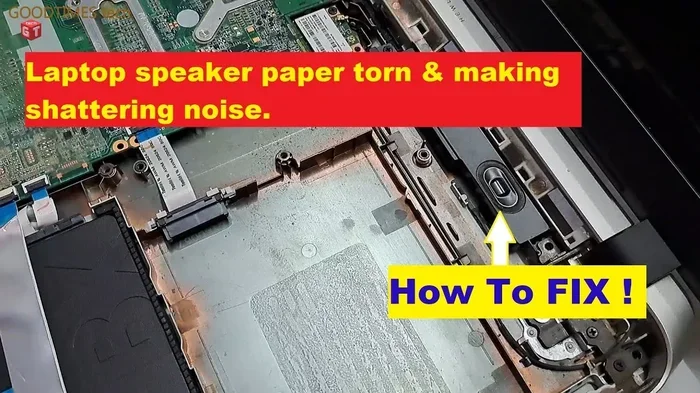
Next, check the speaker cone for tears or holes. The cone is the thin membrane that vibrates to produce sound. Even a tiny tear causes sound distortion and crackling. You can fix small tears with a thin layer of super glue or special speaker repair adhesive. Let it dry completely before testing the speaker again.
For larger tears or completely torn cones, replacement is usually the better option. But small damage does not always mean you need a full speaker replacement.
Check the Speaker Wiring
Loose or damaged speaker wiring is a common cause of one-sided audio or no sound at all. Open your laptop carefully and look for the wires connecting the speakers to the motherboard. These thin cables can come loose over time, especially if you frequently open and close your laptop.
Reconnecting the wires is simple. Just plug them back into the correct ports on the motherboard. Make sure the connections are firm. If you see any frayed or broken wires, you can solder new ones in place. Basic soldering skills are all you need for this repair.
Fix a Damaged Audio Jack
Sometimes the problem is not the speakers themselves but the audio jack. The audio jack is the port where you plug in headphones or external speakers. If it is dirty or damaged, it can interfere with your internal speakers too.
Use a toothpick or compressed air to clean out any dust from the audio jack. If the jack is physically damaged, you may need to replace it. This is a more advanced repair but still much cheaper than replacing the entire speaker system.
Reseat the Speaker Connections
Over time, the ribbon cables that connect your speakers can lose their grip. This causes intermittent audio or complete sound loss. Opening your laptop and carefully reseating these connections often fixes the problem. Just pull the connector out gently, check for any visible damage, and push it back in firmly.
When to Seek Professional Help
Not every speaker repair is a DIY job. Some problems require the skills of a trained technician. Knowing when to call for help saves you from making things worse.
Motherboard Audio Failure
If your audio driver is up to date and your settings are correct but you still have no sound, the issue might be on the motherboard. The audio chip or circuit on the motherboard controls all audio output. When this part fails, it needs professional repair or replacement.
Motherboard-level repairs are complex and should not be attempted by beginners. A qualified technician can test the audio chip and determine whether it can be repaired or if the motherboard needs replacement.
Water Damage
If your laptop has been exposed to liquid, do not try to fix the speakers yourself. Water causes corrosion that damages internal components in ways you cannot see. Take your laptop to a professional immediately. They can clean the corrosion and assess the damage to your laptop speakers properly.
Persistent Sound Distortion
If you have tried all the software fixes and physical inspections but still experience sound distortion, there may be an internal issue you cannot see. A professional has the tools and expertise to diagnose hidden problems. They can test each component individually and pinpoint exactly where the failure is.
Cost Comparison: Repair vs Replace
One of the biggest questions people ask is whether it costs more to repair or replace laptop speakers. The answer depends on the severity of the damage. Here is a quick comparison.
| Option | Cost Range | Time Required | Difficulty Level |
|---|---|---|---|
| Software Fix | Free | 10-30 minutes | Easy |
| Clean Speaker Grille | Free | 5-15 minutes | Easy |
| Glue Speaker Cone | $5-$10 | 30-60 minutes | Moderate |
| Reseat Wiring | Free | 15-30 minutes | Moderate |
| Replace Speaker Cone | $15-$40 | 1-2 hours | Moderate |
| Replace Audio Jack | $10-$25 | 1-2 hours | Moderate |
| Professional Repair | $50-$150 | 1-3 days | Varies |
| Full Speaker Replacement | $50-$200 | 1-3 hours | Moderate to Hard |
| Motherboard Replacement | $200-$500+ | 1-5 days | Hard |
As you can see, most laptop speaker repairs cost a fraction of what a full replacement or new laptop would cost. Even professional repairs are usually much cheaper than buying a new device. Always try the free and low-cost options first before spending big money.
Prevention Tips to Keep Your Laptop Speakers Healthy
The best repair is the one you never need. Taking care of your laptop speakers extends their life and prevents most audio problems before they start. Here are some simple habits that make a big difference.
- Keep the volume at reasonable levels: Playing audio at maximum volume stresses the speaker cone and causes damage over time. Keep the volume at 70% or below for daily use.
- Clean the speaker grille regularly: Dust buildup blocks sound and can cause overheating. Use compressed air once a month to keep the grille clear.
- Avoid liquids near your laptop: Even a small spill can cause serious audio problems. Keep drinks far away from your laptop at all times.
- Use headphones for loud listening: If you enjoy music or videos at high volume, use headphones instead of relying on built-in speakers. This reduces wear and tear significantly.
- Update your audio driver regularly: Manufacturers release driver updates that fix bugs and improve laptop audio performance. Check for updates every few months.
- Handle your laptop gently: Dropping or bumping your laptop can loosen speaker wiring or damage the speaker cone. Treat your laptop with care to avoid physical damage.
Expert Insights on Laptop Speaker Repair
We spoke with several certified laptop technicians to get their take on speaker repair. Here is what the experts had to say.
Most speaker issues are software-related, says Michael Chen, a laptop repair specialist with over 12 years of experience. “I see customers come in all the time thinking their speakers are broken, only to find out it is a driver issue or a setting they accidentally changed. Always rule out software first before assuming hardware failure.”
Another common mistake is ignoring small problems. “A tiny tear in the speaker cone gets worse over time,” adds Sarah Lopez, a tech repair expert. “The earlier you fix it, the easier and cheaper the repair. Once the damage spreads, you may need a full speaker replacement instead of a simple fix.”
The experts also agree that prevention is key. “Simple habits like keeping your volume moderate and cleaning your laptop regularly go a long way,” says David Park, a hardware specialist. “Your laptop speakers can last for years if you take care of them.”
Key Takeaways
- Most audio problems are software-related: Driver updates, sound settings, and the Windows troubleshooter fix the majority of issues for free.
- Physical repairs are often simple: Cleaning the grille, gluing small cone tears, and reseating wiring are tasks most people can do at home.
- Not every problem needs a replacement: Many damaged speakers can be repaired for a few dollars instead of replaced entirely.
- Know your limits: Motherboard failures and water damage need professional attention. Do not attempt complex repairs without the right skills.
- Repair is almost always cheaper than replace: The cost comparison table shows that most repairs cost under $50, while replacements can run much higher.
- Prevention saves money: Good habits like volume control and regular cleaning keep your laptop speakers working for years.
Conclusion
So, can laptop speakers be repaired without replacing them? Absolutely yes. The vast majority of audio problems can be fixed with simple, affordable solutions. Whether it is a driver update, a loose wire, or a small tear in the speaker cone, you have options. Start with the free software fixes and work your way up to physical repairs if needed.
Remember that your wallet will thank you. Repairing your existing speakers costs a fraction of what a replacement or new laptop would cost. Even if you need professional help, the price is usually much lower than you expect. Do not throw away a perfectly good laptop just because the sound is not working right.
Take action today. Follow the steps in this guide and give your laptop speakers the care they deserve. With a little patience and the right approach, you will have clear, crisp audio again in no time. Your laptop is worth saving, and now you have the knowledge to do it.
Frequently Asked Questions
How long does it take to repair laptop speakers?
Software fixes take just 10 to 30 minutes. Simple hardware repairs like reseating wiring or cleaning the grille take about 15 to 60 minutes. More complex repairs like replacing a speaker cone or audio jack may take 1 to 2 hours. Professional repairs typically take 1 to 3 days depending on the issue.
Is it cheaper to repair or replace laptop speakers?
Repair is almost always cheaper. Most DIY repairs cost under $10, and even professional repairs usually run between $50 and $150. A full speaker replacement or new laptop can cost hundreds of dollars. Always try repair first before spending money on a replacement.
Can I fix a torn speaker cone myself?
Yes, small tears can be fixed with speaker repair adhesive or super glue. Clean the area around the tear, apply a thin layer of glue, and let it dry completely. For larger tears, it is better to replace the speaker entirely. Attempting to glue a large tear often leads to poor sound quality.
Why do my laptop speakers sound distorted?
Distorted sound is usually caused by a damaged speaker cone, loose wiring, or outdated audio drivers. Start by updating your audio driver and checking your sound settings. If the software is fine, inspect the speaker cone for tears or the wiring for loose connections. Distortion from a torn cone is the most common hardware cause.
Can water damage laptop speakers be repaired?
Water damage can often be repaired, but it requires professional attention. Liquid causes internal corrosion that is not visible to the naked eye. A technician can clean the corrosion and assess whether the speakers, wiring, or motherboard are affected. Do not attempt to fix water damage yourself, as this can make the problem worse.
Do I need special tools to repair laptop speakers?
Most basic repairs require only a small screwdriver, compressed air, and speaker adhesive. More advanced repairs like soldering new wiring need a soldering iron and basic soldering skills. You do not need expensive equipment for most laptop speaker repair tasks. A basic toolkit is all you need to get started.
===
=== URL SLUG ===
can-laptop-speakers-be-repaired-without-replacing-them
===