Can I Use Hdmi 2 1 On A 2 0 Port Monitor And Details
Yes, you can plug an HDMI 2.1 cable into an HDMI 2.0 port, but you will not get the full HDMI 2.1 features. The connection will work at HDMI 2.0 speeds, which means you are capped at 4K 60Hz instead of 4K 120Hz or 8K. Understanding this difference saves you from buying unnecessary cables and helps you make smarter upgrade decisions for your setup.
Here is a question that confuses a lot of people. You just bought a shiny new HDMI 2.1 cable, and you plug it into your monitor. But wait. Your monitor has an HDMI 2.0 port. Does it work? Will you get the amazing speeds you paid for? The short answer is yes, it works. But the full answer has some important details you need to know. Let us break it all down in a way that makes sense.
Whether you are a gamer chasing smooth frame rates, a movie lover chasing 8K quality, or someone just trying to get your home theater setup right, this guide has you covered. We will talk about what happens when you mix HDMI versions, what you gain and what you lose, and how to make the best decision for your setup.
Key Takeaways
- Backward Compatible: HDMI 2.1 cables work on HDMI 2.0 ports, but the speed drops to HDMI 2.0 levels.
- Bandwidth Matters: HDMI 2.0 maxes out at 18 Gbps, while HDMI 2.1 jumps to 48 Gbps for higher resolutions and refresh rates.
- No Free Upgrades: You cannot unlock HDMI 2.1 features like VRR, ALLM, or 8K resolution without an HDMI 2.1 port on your monitor or TV.
- Check Your Ports: Look at your monitor or motherboard specs to know what HDMI version you actually have before buying cables or devices.
- Smart Buying: If your port is HDMI 2.0, an HDMI 2.0 cable is enough. Save money and avoid overkill purchases.
- Future-Proofing: Consider upgrading to an HDMI 2.1 monitor or TV if you want to take full advantage of next-gen gaming and media.
📑 Table of Contents
What Is HDMI 2.1 and Why Does It Matter?
HDMI stands for High-Definition Multimedia Interface. It is the cable standard that connects your devices to displays. Think of it as the bridge between your gaming console, PC, or Blu-ray player and your screen. Over the years, this bridge has gotten faster and smarter.
HDMI 2.1 is the latest major version of this standard. It brings a huge jump in bandwidth compared to older versions. Bandwidth is basically the amount of data the cable can carry per second. More bandwidth means higher resolutions, faster refresh rates, and better picture quality.
Here are some of the big features HDMI 2.1 introduces:
- Higher Bandwidth: Up to 48 Gbps, compared to 18 Gbps in HDMI 2.0.
- 4K at 120Hz: Smooth motion for gaming and sports.
- 8K at 60Hz: Ultra-high resolution for future-proof displays.
- Variable Refresh Rate (VRR): Reduces screen tearing during gaming.
- Auto Low Latency Mode (ALLM): Automatically switches to low-latency mode for gaming.
- Quick Frame Transport (QFT): Reduces input lag for competitive gamers.
- Dynamic HDR: Adjusts HDR settings frame by frame for better contrast.
All of these features sound amazing. And they are. But here is the catch. Your monitor or TV needs to have an HDMI 2.1 port to use them. Just having the cable is not enough. The port is the bottleneck. It is like having a superhighway but only being allowed to drive on a dirt road.
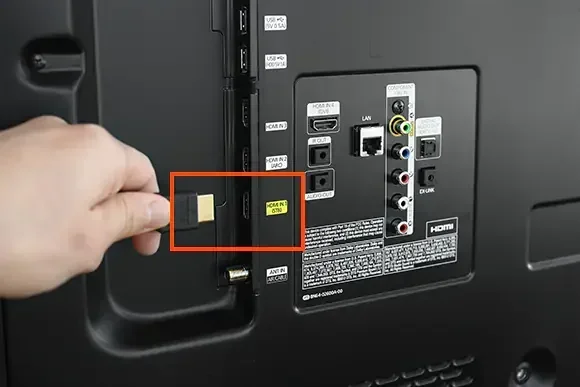
When you look at the physical components on your motherboard, the HDMI port is one of the output connectors soldered onto the board. The version of that port depends on the motherboard or display manufacturer. Not all ports are created equal, and that is exactly where the confusion starts.
Can You Use HDMI 2.1 on an HDMI 2.0 Port?
This is the big question. And the answer is simpler than you think. Yes, you can use an HDMI 2.1 cable on an HDMI 2.0 port. The connectors are the same shape and size. They plug in just fine. There is no physical barrier stopping you.
But here is where the details matter. When you plug an HDMI 2.1 cable into an HDMI 2.0 port, the connection will negotiate the highest speed both sides support. Since the port is HDMI 2.0, the connection will drop to HDMI 2.0 speeds. That means 18 Gbps maximum bandwidth.
So what does this mean in real life? Let us look at a few scenarios.
Scenario 1: You Have a 4K 60Hz Monitor
If your monitor supports 4K at 60Hz, an HDMI 2.1 cable on an HDMI 2.0 port will work perfectly. You will get the full 4K 60Hz experience. The cable is overkill for this setup, but it will not cause any problems. You simply will not get the extra features that HDMI 2.1 offers.
Scenario 2: You Want 4K 120Hz Gaming
This is where things get tricky. 4K 120Hz requires 48 Gbps of bandwidth. Your HDMI 2.0 port can only handle 18 Gbps. So even with a top-of-the-line HDMI 2.1 cable, you will be stuck at 4K 60Hz or you might need to drop to 1440p at 120Hz. The cable cannot magically upgrade the port.
Scenario 3: You Want 8K Resolution
8K at 60Hz requires even more bandwidth than 4K 120Hz. An HDMI 2.0 port simply cannot handle this. You will need an HDMI 2.1 port on your display to enjoy 8K content. Period. No cable trick will change that.
The bottom line is straightforward. The cable will work. The connection will be stable. But you will only get the performance that the HDMI 2.0 port allows. Think of it like putting premium fuel in a car that was built for regular fuel. The fuel is fine, but the car cannot use the extra power.
HDMI 2.0 vs HDMI 2.1: Key Differences at a Glance
It helps to see the differences side by side. Here is a simple comparison table that covers the most important specs.
| Feature | HDMI 2.0 | HDMI 2.1 |
|---|---|---|
| Maximum Bandwidth | 18 Gbps | 48 Gbps |
| Max 4K Refresh Rate | 60Hz | 120Hz |
| Max 8K Support | No | Yes (60Hz) |
| VRR Support | No (limited) | Yes (full) |
| ALLM Support | No | Yes |
| QFT Support | No | Yes |
| Dynamic HDR | No | Yes |
| Cable Length at Full Speed | Up to 5 meters | Up to 3 meters (recommended) |
| Backward Compatible | Yes | Yes |
As you can see, HDMI 2.1 is a massive step forward. But backward compatibility is a big deal too. HDMI 2.1 devices work with older HDMI 2.0 cables and vice versa. This is one of the best things about the HDMI standard. It evolves without leaving you behind.
Now, here is something important. The HDMI port on your device is a physical component. If you want to understand more about how these ports fit into the bigger picture of your device’s hardware, you can check out our guide on the five key components found on the motherboard. It gives you a broader picture of how ports like HDMI are part of your system’s architecture.
What Happens When You Connect HDMI 2.1 to HDMI 2.0?
Let us walk through exactly what happens when you make this connection. Understanding the process helps you troubleshoot issues and set realistic expectations.
When you plug in the cable, the devices on both ends communicate. This is called a handshake. The source device (like your PC or console) checks what the display (your monitor or TV) can handle. Then it adjusts the output to match the highest common standard.
In this case, both devices speak HDMI. The cable is HDMI 2.1. But the port on your monitor is HDMI 2.0. So the handshake settles on HDMI 2.0 specifications. Here is what that looks like in practice:
- Resolution: You get up to 4K. No 8K.
- Refresh Rate: You get up to 60Hz at 4K. No 120Hz.
- Bandwidth: Capped at 18 Gbps. No 48 Gbps.
- HDR: You still get HDR support through HDMI 2.0, but it is static HDR, not dynamic HDR.
- Audio: Standard audio formats work fine. You miss out on eARC and Dolby Atmos over HDMI.
- Gaming Features: No VRR, no ALLM, no QFT through HDMI 2.0.
Does this mean your setup will be bad? Absolutely not. 4K 60Hz with HDR still looks fantastic for movies, web browsing, and casual gaming. You just will not unlock the cutting-edge features that HDMI 2.1 was designed to deliver.
Quick Tip: How to Check Your HDMI Port Version
Not sure what version of HDMI port you have? Here are a few ways to find out:
- Check the Manual: Your monitor or TV manual usually lists the HDMI version.
- Look at the Port Labeling: Some manufacturers print the version number near the port.
- Check the Specs Online: Visit the manufacturer website and search for your model number.
- Look at the Device Settings: Some TVs and monitors show the HDMI version in the display settings menu.
- Check the Box: The original packaging often lists supported HDMI versions.
Knowing your port version helps you make smart buying decisions. It prevents you from overspending on cables or devices that will not give you the performance you want.
How to Get the Most Out of Your HDMI Setup
Now that you understand how HDMI 2.1 and HDMI 2.0 work together, let us talk about how to optimize your setup. Whether you are sticking with HDMI 2.0 or planning to upgrade, these tips will help.
1. Match Your Cable to Your Port
The simplest rule is this. Buy a cable that matches your port version. If your monitor has an HDMI 2.0 port, an HDMI 2.0 cable is perfectly fine. You do not need to spend extra on an HDMI 2.1 cable unless you plan to upgrade your display in the future.
That said, there is no harm in buying an HDMI 2.1 cable now. It will work with your current setup and be ready if you upgrade later. Think of it as future-proofing your cable collection.
2. Upgrade Your Monitor for Full HDMI 2.1 Features
If you want 4K 120Hz, VRR, ALLM, and dynamic HDR, you need an HDMI 2.1 monitor. Many modern gaming monitors and TVs now come with HDMI 2.1 ports. Look for at least one HDMI 2.1 port when shopping for a new display.
Popular options include monitors from brands like LG, Samsung, ASUS, and Acer. Many of these offer 4K 120Hz or even 4K 144Hz support through HDMI 2.1. Prices have come down significantly in recent years too.
3. Use the Right Port on Your Source Device
If your PC or console has multiple HDMI ports, make sure you are using the right one. Some devices have a mix of HDMI 2.0 and HDMI 2.1 ports. Check your device manual to identify which port supports which version.
Using the wrong port can limit your setup even if you have the right cable and monitor. This is a common mistake that many people make without realizing it.
4. Keep Cables Short for Full Bandwidth
HDMI 2.1 cables perform best at shorter lengths. For full 48 Gbps bandwidth, keep your cable under 3 meters (about 10 feet). Longer cables can still work but may not maintain the full HDMI 2.1 speed. If you need a longer run, consider an active HDMI 2.1 cable with a built-in signal booster.
5. Update Your Device Firmware
Sometimes the issue is not the cable or the port. It is the firmware. Make sure your monitor, TV, and source device all have the latest firmware updates. Manufacturers often release updates that improve HDMI compatibility and add support for new features.
Common Mistakes People Make With HDMI Versions
Let us talk about some mistakes that trip people up. Avoiding these will save you time, money, and frustration.
- Assuming the Cable Version Matches the Port: A fancy HDMI 2.1 cable does not magically upgrade an HDMI 2.0 port. The port is the limit.
- Buying 8K Content for a 4K Monitor: If your monitor is 4K, 8K content will be downscaled. You will not see the full 8K detail.
- Ignoring the Source Device: Your PC or console also needs to support HDMI 2.1 output. Even with an HDMI 2.1 monitor and cable, an older source device can limit your experience.
- Using Cheap Cables: Not all cables labeled HDMI 2.1 are created equal. Cheap cables may not deliver the full 48 Gbps bandwidth reliably. Look for certified cables from reputable brands.
- Forgetting About Audio: HDMI carries both video and audio. If you upgrade your video setup but ignore audio compatibility, you might miss out on surround sound features.
Expert Insight: The Future of HDMI
The HDMI standard continues to evolve. HDMI 2.1 is the current standard for high-end displays and gaming. But technology never stops moving. Future versions may bring even higher bandwidth, better compression, and new features we have not even imagined yet.
For now, HDMI 2.1 is the gold standard for anyone who wants the best picture quality and the smoothest gaming experience. If you are building or upgrading a setup, investing in HDMI 2.1 devices and cables is a smart move. It gives you room to grow as new content and devices arrive.
Remember, the port on your display is the key factor. If your HDMI 2.0 port is doing the job for now, that is perfectly fine. 4K 60Hz is still a great experience. But if you are ready for the next level, upgrading to an HDMI 2.1 display unlocks a whole new world of visual quality and gaming performance.
Final Thoughts
So can you use HDMI 2.1 on an HDMI 2.0 port monitor? Yes, you absolutely can. The connection works. The cable fits. But you will only get HDMI 2.0 performance. No 4K 120Hz, no 8K, no VRR, no ALLM.
This knowledge empowers you to make better decisions. You will not waste money on cables you do not need. You will not feel frustrated when premium features do not work as expected. And you will know exactly what to look for when it is time to upgrade your setup.
The world of HDMI technology can feel confusing with all the version numbers and specs. But once you understand the basics, it all clicks. Match your cable to your port. Match your display to your content. And always check the specs before you buy.
Your setup is only as strong as its weakest link. Make sure every piece, from the HDMI cable to the HDMI port to the display itself, is working together. That is how you get the best picture, the smoothest gameplay, and the most enjoyable entertainment experience.
Take what you learned here and apply it. Check your current ports. Evaluate your cables. And plan your next upgrade with confidence. The right HDMI setup makes all the difference in how you watch, play, and enjoy your favorite content every single day.
Frequently Asked Questions
Will an HDMI 2.1 cable damage an HDMI 2.0 port?
No, it will not cause any damage. The connectors are identical and the technology is backward compatible. Your HDMI 2.0 port will simply operate at its maximum supported speed, which is 18 Gbps.
Can I get 4K 120Hz with an HDMI 2.1 cable on an HDMI 2.0 port?
No, you cannot. 4K 120Hz requires 48 Gbps of bandwidth, which is only available through an HDMI 2.1 port. Your HDMI 2.0 port will cap you at 4K 60Hz or lower resolutions at higher refresh rates.
Do I need an HDMI 2.1 cable if I have an HDMI 2.0 monitor?
Not necessarily. An HDMI 2.0 cable will work perfectly with an HDMI 2.0 monitor. However, if you plan to upgrade your monitor to HDMI 2.1 in the future, buying an HDMI 2.1 cable now is a smart investment.
How can I tell if my monitor has an HDMI 2.1 port?
Check your monitor’s specifications on the manufacturer website or in the user manual. Look for mentions of 48 Gbps bandwidth, 4K 120Hz support, VRR, or ALLM. Some monitors also label the HDMI port version directly on the device.
Does HDMI 2.0 support HDR?
Yes, HDMI 2.0 supports static HDR formats like HDR10. However, it does not support dynamic HDR or the advanced gaming features like VRR and ALLM that come with HDMI 2.1.
Is HDMI 2.1 backward compatible with older devices?
Yes, HDMI 2.1 is fully backward compatible. You can use an HDMI 2.1 cable with older HDMI 2.0 and even HDMI 1.4 devices. The connection will simply operate at the highest speed that both the cable and port support.
=== CONCLUSION ===
Using an HDMI 2.1 cable on an HDMI 2.0 port monitor is perfectly fine and works without any issues. You get a stable connection and full HDMI 2.0 performance. But you will not unlock the advanced features that make HDMI 2.1 so exciting. Understanding this distinction helps you make smarter buying decisions and set realistic expectations for your display setup.
Whether you are keeping your current HDMI 2.0 monitor or planning to upgrade to HDMI 2.1, the knowledge you gained from this guide puts you ahead. You now know exactly what to look for, what to expect, and how to get the best performance from your setup. Apply these tips and enjoy a better viewing and gaming experience today.