Can I Use Nvme As Usb Drive For Faster File Transfers
Yes, you can use an NVMe drive as a USB drive with the right enclosure or adapter. This setup gives you blazing fast file transfers that leave regular flash drives in the dust. NVMe as USB storage is perfect for moving large files, backing up data, and carrying your entire library on the go. All you need is an NVMe enclosure and a USB connection to get started.
Have you ever wondered if you can use an NVMe drive as a USB drive? The short answer is yes. And the speed difference is incredible. If you have been stuck waiting forever for files to copy, this might be the solution you have been looking for.
Using an NVMe solid state drive as a USB storage device opens up a whole new world of fast file transfers. Whether you are a content creator, a gamer, or someone who just needs to move big files around, this setup can save you tons of time. Let us walk through everything you need to know.
The idea of NVMe as USB storage sounds technical, but it is actually pretty simple once you break it down. You take a small NVMe drive, put it in a special enclosure or adapter, and plug it into a USB port. That is it. You now have a super fast portable drive that works with almost any computer or laptop.
Key Takeaways
- NVMe drives can absolutely work as USB storage: With the right enclosure or adapter, you can plug an NVMe SSD into any USB port.
- Speed gains are massive: NVMe over USB delivers transfer speeds far beyond traditional flash drives and even standard external SSDs.
- You need the right hardware: A quality NVMe enclosure or USB adapter is essential for making this work properly.
- Compatibility matters: Not every device supports NVMe over USB, so check your system before buying.
- Portability is a big plus: Using NVMe as USB storage gives you compact, high-speed portable storage for travel or work.
- Watch out for overheating: NVMe drives can run warm, so choose enclosures with good heat dissipation.
- Formatting is key: Properly format your NVMe drive for the device you plan to use it with.
📑 Table of Contents
- What Is an NVMe Drive and Why Is It So Fast
- Can You Really Use NVMe as a USB Drive
- What You Need to Use NVMe as USB Storage
- Speed Comparison: NVMe vs Regular USB Flash Drive
- Best NVMe Enclosures for USB Use
- Common Mistakes and How to Avoid Them
- Expert Tips for Getting the Most Out of NVMe USB Storage
- Is NVMe USB Storage Worth It
- Final Thoughts on Using NVMe as a USB Drive
What Is an NVMe Drive and Why Is It So Fast
Understanding NVMe Technology
NVMe stands for Non-Volatile Memory Express. It is a storage protocol designed specifically for flash memory like SSDs. Unlike older standards, NVMe was built from the ground up to take full advantage of modern storage chips.
Think of it this way. Traditional storage protocols were like narrow highways. NVMe is like a multi-lane superhighway. Data can flow through many more lanes at the same time, which means much faster speeds.
NVMe drives use the PCIe bus to communicate with your computer. This is the same fast connection that graphics cards use. That is why NVMe SSDs can read and write data at incredible rates compared to older SATA drives.
How NVMe Differs From Traditional Storage
A regular SATA SSD tops out around 550 MB per second. A typical NVMe drive can hit 3,500 MB per second or more. Some of the latest NVMe drives push past 7,000 MB per second. That is a huge gap.
Here is a quick look at how they compare:
- SATA SSD: Up to 550 MB per second read speed
- NVMe SSD: Up to 3,500 to 7,000 MB per second read speed
- USB Flash Drive: Around 30 to 150 MB per second
- External HDD: Around 100 to 150 MB per second
As you can see, NVMe drives leave traditional storage and USB flash drives far behind. This is exactly why people want to use NVMe as a USB drive. The potential speed is just too good to ignore.
Can You Really Use NVMe as a USB Drive
The Short Answer
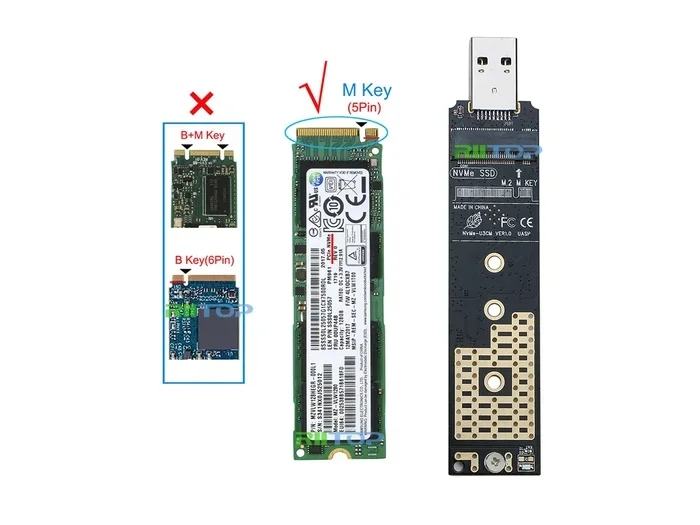
Yes, you can use an NVMe drive as a USB drive. But you cannot just plug an NVMe M.2 chip directly into a USB port. NVMe drives use a different connection type, typically the M.2 form factor or U.2. They need a bridge device to convert the NVMe signal into a USB signal.
This bridge device comes in two main forms. The first is an NVMe enclosure, which is like a small case that houses the drive and connects to USB. The second is a USB adapter, which plugs directly into the NVMe drive and connects to your computer via USB.
How NVMe Drives Connect to USB
The connection process is straightforward. You insert your NVMe M.2 drive into the enclosure or adapter. The enclosure has a built-in controller chip that translates the NVMe protocol into a USB-compatible format. Then you plug the enclosure into your computer using a USB cable.
Most modern enclosures use USB 3.0 or USB-C connections. The best ones support USB 3.2 Gen 2 or even Thunderbolt for maximum speed. The USB connection type you choose will affect how fast your transfers actually are.
Once connected, your computer sees the NVMe drive just like any other external storage device. You can drag and drop files, run programs from it, or use it as a backup drive. It feels just like a regular USB flash drive, but exponentially faster.
What You Need to Use NVMe as USB Storage
NVMe Enclosures Explained
An NVMe enclosure is the most popular way to turn an NVMe drive into a USB device. It is a small, usually metal or plastic case that holds the M.2 NVMe drive and connects to your computer via USB.
Good enclosures have a few key features you should look for:
- Heat dissipation: Metal enclosures help keep the drive cool during heavy transfers
- USB 3.2 or Thunderbolt support: This ensures you can reach the drive’s full speed potential
- Plug and play compatibility: No extra drivers or software needed on most systems
- Compact size: Many enclosures are small enough to fit in your pocket
Some popular brands in the external NVMe enclosure market include Sabrent, Unitek, SSK, and UGREEN. Prices range from about $20 to $80 depending on the build quality and connection type.
USB Adapters for NVMe Drives
If you do not want to buy a full enclosure, a USB adapter is a great alternative. These are small devices that you plug directly into the NVMe drive. The adapter then connects to your computer via USB.
Adapters are handy because they are very compact and affordable. However, they often lack built-in cooling. This means they can overheat during long transfer sessions. They are best for quick file moves rather than sustained heavy workloads.
Compatible Devices and Systems
Most modern computers and laptops support NVMe drives connected via USB. Windows, macOS, and Linux all recognize them as standard storage devices. Some smart TVs and gaming consoles also support external NVMe drives, but you should check your specific device specs first.
Here are a few things to verify before you buy:
- USB port type: Make sure your device has a USB-C or USB-A port that supports the speed you need
- Operating system compatibility: Most modern OS versions work out of the box
- Drive size support: Some adapters only support certain NVMe capacities or form factors
Speed Comparison: NVMe vs Regular USB Flash Drive
Transfer Speed Benchmarks
The whole point of using NVMe as a USB drive is speed. Let us look at real-world numbers so you can see the difference clearly.
A typical USB flash drive transfers files at around 30 to 150 MB per second. A standard external hard drive does about 100 to 150 MB per second. A regular external SSD hits around 500 to 550 MB per second.
Now compare that to an NVMe drive in a good USB enclosure. You are looking at 1,000 to 3,000 MB per second in real-world use. That is up to 20 times faster than a regular flash drive. The difference is night and day when you are copying large video files or game installations.
Real-World Performance Differences
In practice, this means a 50 GB file that takes 10 minutes on a USB flash drive might take just 30 seconds on an NVMe drive over USB. For video editors working with 4K footage or gamers copying 100 GB game installs, this time savings adds up fast.
Of course, actual speeds depend on several factors:
- The USB connection type: USB 3.0 is slower than USB 3.2 or Thunderbolt
- The NVMe drive itself: Not all NVMe drives are created equal
- The enclosure quality: Cheap enclosures may bottleneck the speed
- The file size: Large sequential files transfer faster than many small files
If you want the best results, match your USB connection speed to your drive speed. A USB 3.2 Gen 2 enclosure paired with a fast NVMe drive will give you the best portable storage experience.
Best NVMe Enclosures for USB Use
Top Picks for 2024
Not all enclosures are created equal. Here are some solid options that balance speed, build quality, and price:
- Sabrent EC-NVDS: A budget-friendly option with USB 3.0 and good heat management. Great for everyday use.
- Unitek NVMe Enclosure: Supports USB 3.2 and comes in a compact aluminum design. Good for travel.
- SSK SRNV-M2PM: A premium option with USB-C and Thunderbolt support for maximum speeds.
- UGREEN NVMe Enclosure: Offers a good balance of speed and affordability with metal construction.
What to Look For When Buying
When shopping for an NVMe enclosure, keep these factors in mind:
- Connection speed: Go for USB 3.2 Gen 2 or Thunderbolt if your computer supports it
- Build material: Metal enclosures dissipate heat better than plastic ones
- Drive compatibility: Make sure it supports your specific NVMe M.2 size (2280, 2260, etc.)
- Portability: If you carry it around often, look for a small and lightweight design
- Price: You can get a decent enclosure for $20 to $40. You do not need to spend a fortune
A good enclosure is the key to unlocking the full potential of your NVMe drive as a USB device. Do not cheap out on this part. A poor-quality enclosure can limit your speeds and cause overheating issues.
Common Mistakes and How to Avoid Them
Overheating Issues
One of the most common problems with NVMe drives used over USB is overheating. NVMe chips run warm, especially during long transfers. Without proper cooling, the drive may slow down to protect itself, which kills your speed advantage.
To avoid this, choose an enclosure with a metal body that acts as a heat sink. You can also add small cooling pads or fans if you use your drive for extended sessions. Avoid leaving the drive in direct sunlight or on soft surfaces that block airflow.
Compatibility Problems
Not every USB port will deliver the speeds you expect. If you plug a fast NVMe enclosure into an old USB 2.0 port, you will be limited to USB 2.0 speeds. Always check which USB version your port supports before connecting.
Also, some older computers may not recognize NVMe drives properly when connected via USB. If you run into issues, try updating your USB drivers or checking for firmware updates on your enclosure.
Driver and Formatting Mistakes
Most modern systems handle NVMe USB drives automatically. But sometimes you need to format the drive for the best results. If you plan to use the drive on both Windows and Mac, format it as exFAT for full compatibility.
Avoid using NTFS if you need Mac compatibility, and avoid HFS+ if you need Windows support. exFAT works across both platforms and is the safest choice for portable NVMe storage.
Expert Tips for Getting the Most Out of NVMe USB Storage
Here are a few quick tips to help you get the best experience:
- Always use the USB cable that comes with the enclosure: Cheap cables can limit your speed
- Keep your drive firmware updated: Manufacturers often release updates that improve performance and fix bugs
- Eject the drive properly: Always use the safe remove function before unplugging
- Use the drive for large file transfers: This is where NVMe shines the most
- Store the drive in a protective case: NVMe chips are sensitive to dust and physical damage
With the right setup and a little care, your NVMe USB drive will serve you well for years. It is one of the best upgrades you can make for your external storage setup.
Is NVMe USB Storage Worth It
The short answer is yes. If you regularly transfer large files, work with video or photo editing, or just want the fastest portable storage possible, an NVMe drive connected via USB is a game changer.
The cost is reasonable too. A good NVMe M.2 drive costs about $50 to $100 for 1 TB. A quality enclosure adds another $20 to $40. For under $150, you get a portable storage solution that outperforms most external drives costing twice as much.
The speed difference is immediately noticeable. You will wonder how you ever lived with slow USB flash drives. Whether you are a professional who moves gigabytes of data daily or a casual user who wants faster backups, this setup delivers.
One thing to keep in mind is that NVMe USB storage is best for portable use and quick transfers. For long-term archival storage, a traditional external hard drive might still make sense because it is cheaper per gigabyte. But for speed and convenience, nothing beats NVMe over USB.
Final Thoughts on Using NVMe as a USB Drive
Using an NVMe drive as a USB storage device is one of the smartest upgrades you can make for your workflow. The speed gains are enormous, the setup is simple, and the cost is reasonable. With just an NVMe enclosure or adapter, you can turn any NVMe M.2 drive into a blazing fast portable drive.
Whether you need faster file transfers for work, a reliable backup solution, or a compact way to carry your entire media library, NVMe as USB storage checks every box. The technology is mature, the enclosures are affordable, and the performance is outstanding.
Give it a try. Once you experience the speed difference, you will never go back to slow USB flash drives again. The future of portable storage is here, and it runs on NVMe.
Frequently Asked Questions
Can I plug an NVMe drive directly into a USB port?
No, you cannot plug an NVMe M.2 drive directly into a USB port. NVMe drives use a different connection type, so you need an NVMe enclosure or USB adapter to bridge the connection. The enclosure converts the NVMe signal into a USB-compatible format that your computer can read.
How much faster is NVMe over USB compared to a regular USB flash drive?
NVMe over USB can be 10 to 20 times faster than a standard USB flash drive. While a typical flash drive transfers at 30 to 150 MB per second, an NVMe drive in a good USB enclosure can reach 1,000 to 3,000 MB per second. This makes a huge difference when copying large files.
Do I need special drivers to use an NVMe drive as a USB drive?
Most modern operating systems like Windows 10, Windows 11, macOS, and Linux recognize NVMe USB drives automatically. You usually do not need to install any special drivers. If your system does not recognize the drive, try updating your USB drivers or checking for enclosure firmware updates.
Can I use an NVMe USB drive on a Mac?
Yes, NVMe USB drives work on Mac computers. macOS recognizes them as standard external storage devices. Just make sure to format the drive as exFAT if you plan to use it on both Mac and Windows systems for full cross-platform compatibility.
Are NVMe enclosures portable?
Yes, most NVMe enclosures are very compact and portable. Many are smaller than a credit card and fit easily in your pocket or laptop bag. The metal enclosures are especially durable and make great travel companions for professionals who need fast portable storage on the go.
What size NVMe drive should I get for USB use?
It depends on your needs. For everyday file transfers, a 500 GB or 1 TB NVMe drive is usually enough. If you work with large video files or need to store lots of games, consider a 2 TB drive. NVMe prices have dropped significantly, so larger capacities are now very affordable.
=== CONCLUSION ===
Using NVMe as a USB drive is a practical and powerful way to supercharge your file transfers and portable storage. With the right enclosure or adapter, you can enjoy speeds that traditional USB drives and external hard drives simply cannot match. The setup is simple, the cost is reasonable, and the performance payoff is enormous.
Remember to choose a quality enclosure with good heat management, match your USB connection to your drive speed, and format the drive properly for your needs. Avoid common mistakes like using the wrong cable or skipping firmware updates. Follow the expert tips in this guide, and you will get the most out of your NVMe USB setup.
Whether you are a professional who moves gigabytes of data every day or a casual user who wants faster backups, NVMe as USB storage is a smart investment. Try it today and experience the difference for yourself.