Can You Put Wifi On A Non Wifi Motherboard Right Now
Yes, you absolutely can put WiFi on a non WiFi motherboard. Whether you use a USB WiFi dongle or a PCIe wireless card, adding wireless connectivity to your PC is simple and affordable. This guide walks you through every option, from budget picks to high-performance WiFi 6E adapters, so you can get online without replacing your entire motherboard.
So, you just built a PC or bought a great deal on a motherboard, only to realize it does not have WiFi built in. Maybe you are staring at the back panel and noticing there is no wireless antenna connector. Or perhaps you are trying to avoid running a long Ethernet cable across your room. Whatever the reason, you are probably wondering, can you put WiFi on a non WiFi motherboard?
The short answer is a resounding yes. You have several options to add wireless connectivity to any desktop or laptop. From simple USB dongles to powerful internal PCIe cards, the solutions are plentiful and affordable. In this guide, we will walk you through every method, explain the pros and cons, and help you choose the right one for your needs.
Adding WiFi to a non WiFi motherboard is one of the easiest upgrades you can do. It does not require advanced technical skills, and most solutions take less than ten minutes to set up. Whether you are a casual web surfer or a hardcore gamer who needs the fastest wireless speeds possible, there is a solution that fits your budget and your needs.
Key Takeaways
- Multiple Solutions Exist: You can add WiFi via USB adapters, PCIe cards, or even M.2 WiFi modules.
- USB Adapters Are Easiest: Plug-and-play setup makes USB WiFi dongles the simplest option for most users.
- PCIe Cards Offer Better Performance: Internal cards provide faster speeds and more stable connections than USB options.
- Driver Installation Matters: Proper drivers ensure your wireless adapter works at peak performance.
- WiFi 6 and WiFi 6E Are Worth It: These newer standards deliver significantly faster speeds and better range.
- Bluetooth Often Comes Together: Many WiFi adapters also include Bluetooth support for wireless peripherals.
📑 Table of Contents
- Understanding How WiFi Works on Motherboards
- Option 1: USB WiFi Adapters (The Easiest Method)
- Option 2: PCIe WiFi Cards (The Best Performance Option)
- Option 3: M.2 WiFi Modules (For the Cleanest Setup)
- How to Choose the Right WiFi Solution for Your Non WiFi Motherboard
- Step-by-Step: How to Install a WiFi Card on a Non WiFi Motherboard
- Common Mistakes to Avoid When Adding WiFi
- Expert Insights on Adding WiFi to Non WiFi Motherboards
- Frequently Asked Questions
- Conclusion
Understanding How WiFi Works on Motherboards
Before we dive into the solutions, it helps to understand what a WiFi motherboard actually includes. A motherboard with built-in WiFi has a wireless module soldered onto the board or a slot for an M.2 WiFi card. This module handles all the radio frequency work needed to connect to your wireless router.
On a non WiFi motherboard, this module simply does not exist. The board still has an Ethernet port for wired connections, but it lacks the wireless radio, antenna connectors, and WiFi chip needed for wireless connectivity. That is where external or internal adapters come in.
What Makes a Motherboard WiFi-Enabled?
A WiFi-enabled motherboard typically includes a few key components. First, there is the wireless chip, which processes all the WiFi signals. Second, there are antenna connectors, usually labeled as Wi-Fi or ANT, that link to external antennas. Third, the motherboard firmware includes the necessary drivers to support the wireless module right out of the box.
When a motherboard lacks these components, it is called a non WiFi motherboard or a WiFi-free motherboard. This does not mean the board is lower quality. Many high-end motherboards skip WiFi to keep costs down or because the user prefers a wired connection for gaming or streaming.
WiFi Standards You Should Know About
Not all WiFi adapters are created equal. Here is a quick breakdown of the main WiFi standards you will encounter when shopping for an adapter.
- WiFi 4 (802.11n): Older and slower. Max speed around 600 Mbps. Fine for basic browsing but outdated for modern use.
- WiFi 5 (802.11ac): Much faster, with speeds up to 3.5 Gbps. Still widely used and perfectly capable for most households.
- WiFi 6 (802.11ax): The current sweet spot. Offers faster speeds, better performance in crowded areas, and lower latency. Speeds up to 9.6 Gbps.
- WiFi 6E: The newest standard. Uses the 6 GHz band for even less congestion and faster speeds. Great for power users and gamers.
When choosing an adapter, always match or exceed your wireless router’s standard. If your router supports WiFi 6, get a WiFi 6 adapter at minimum. This ensures you get the best possible wireless performance.
Option 1: USB WiFi Adapters (The Easiest Method)
If you want the simplest way to answer the question, can you put WiFi on a non WiFi motherboard, with a USB adapter, the answer is yes. USB WiFi adapters are small USB sticks that plug directly into any available USB port on your computer. They contain their own WiFi chip and antenna, so they work completely independently of your motherboard’s capabilities.
This method is perfect for people who want a no-hassle setup. You plug it in, install the drivers (or let Windows do it automatically), and you are connected to WiFi within minutes.
Why Choose a USB WiFi Adapter?
- Plug and Play: Most modern USB adapters work instantly on Windows 10 and 11 without manual driver installation.
- Portable: You can unplug it and take it with you to another computer or laptop.
- No Opening the Case: You do not need to touch your motherboard or internal components at all.
- Budget-Friendly: Basic USB WiFi adapters start at around $10 to $15, making them the cheapest option.
- No Technical Skills Needed: Anyone can set one up in under five minutes.
Drawbacks of USB WiFi Adapters
While USB adapters are convenient, they do have limitations. First, they share bandwidth with other USB devices on the same controller. Second, the external antenna on a USB dongle is small, which can limit range and signal strength. Third, USB 2.0 ports (if you only have those available) will bottleneck the adapter’s speed.
For the best results with a USB adapter, always plug it into a USB 3.0 port. The faster data transfer rate of USB 3.0 allows the WiFi adapter to reach its full potential. Also, look for adapters with external antennas rather than tiny internal ones, as they provide significantly better reception.
Best USB WiFi Adapters to Consider
Here are some popular USB WiFi adapter options that work great on non WiFi motherboards. The TP-Link Archer T3U is a reliable budget pick that supports WiFi 5 and includes a USB 3.0 connection. For a step up, the TP-Link Archer T9E supports WiFi 6 and delivers speeds up to 3000 Mbps. If you need the latest technology, the TP-Link Archer TX3000E is a WiFi 6E USB adapter that offers cutting-edge wireless performance.
Quick tip: Always check the adapter’s supported standards before buying. If your router is WiFi 6, do not buy a WiFi 4 adapter. You will not get the speeds you are paying for.
Option 2: PCIe WiFi Cards (The Best Performance Option)
If you want the strongest and most reliable wireless connection, a PCIe WiFi card is the way to go. These cards install directly into a PCIe slot on your motherboard, just like a graphics card or sound card. Because they connect internally, they often have better signal strength and faster speeds compared to USB adapters.
A PCIe WiFi card is the best answer to can you put WiFi on a non WiFi motherboard when performance matters most. Gamers, streamers, and anyone who needs a rock-solid wireless connection should strongly consider this option.
How PCIe WiFi Cards Work
A PCIe WiFi card plugs into a PCIe x1 or x4 slot on your motherboard. It includes a WiFi chip, a Bluetooth module (in most cases), and one or more high-gain antennas that you connect to the card’s antenna headers. The card draws power directly from the PCIe slot, so you do not need to worry about USB power limitations.
Most PCIe WiFi cards also include Bluetooth support. This means you get both wireless networking and wireless peripherals from a single card. You can connect wireless keyboards, mice, headsets, and controllers without needing a separate Bluetooth adapter.
Advantages of PCIe WiFi Cards
- Superior Performance: Internal cards generally deliver faster speeds and lower latency than USB adapters.
- Better Signal Reception: High-gain antennas mounted inside the PC case receive stronger signals with less interference.
- Dedicated Bandwidth: PCIe slots provide a direct, dedicated connection to the motherboard, unlike USB which shares bandwidth.
- Bluetooth Included: Most PCIe WiFi cards come with built-in Bluetooth 5.0 or higher.
- Future-Proof: Many PCIe cards support the latest WiFi 6 and WiFi 6E standards.
Disadvantages of PCIe WiFi Cards
The main drawback is installation. You need to open your PC case, find an available PCIe slot, and physically install the card. This is not difficult, but it does require some comfort with internal PC components. Additionally, PCIe WiFi cards tend to cost more than USB adapters, especially the WiFi 6E models.
Another consideration is antenna placement. The antennas that come with PCIe cards need to be positioned outside the case for the best reception. Running cables out of a case through a rear panel or side vent is usually straightforward but requires a bit of cable management.
Top PCIe WiFi Cards for Non WiFi Motherboards
The Intel AX210 is one of the most popular PCIe WiFi cards available today. It supports WiFi 6E and Bluetooth 5.3, offering top-tier wireless performance at a reasonable price. The ASUS PCE-AX58BT is another excellent choice that supports WiFi 6 with dual-band support and Bluetooth 5.0. For budget-conscious users, the TP-Link Archer TX3000E provides WiFi 6 speeds at a very affordable price point.
Quick tip: Before buying a PCIe card, make sure your case has enough clearance and that your motherboard has an available PCIe slot. Most modern cases have plenty of space, but compact or mini-ITX cases may require a low-profile card.
Option 3: M.2 WiFi Modules (For the Cleanest Setup)
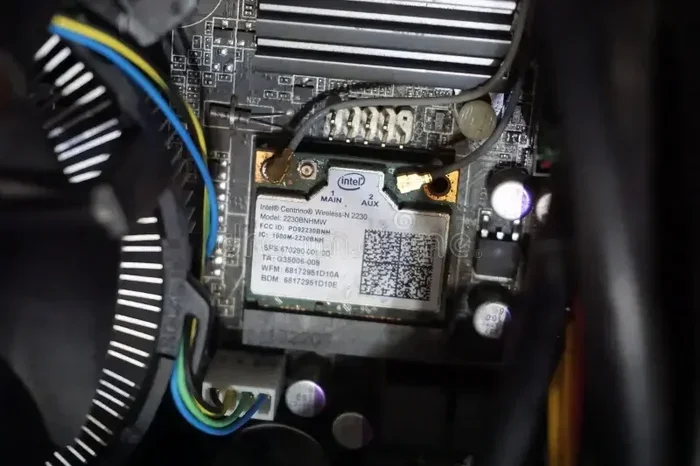
An M.2 WiFi module is a small card that slides directly into an M.2 slot on your motherboard. This is the same type of slot used for NVMe SSDs. M.2 WiFi modules are the cleanest and most compact way to add WiFi to a non WiFi motherboard because they sit entirely inside the case with no external cables or adapters.
This option is popular among laptop users and small-form-factor PC builders. It is also the method that most closely mimics a built-in WiFi motherboard, since the module connects directly to the board’s M.2 interface.
How M.2 WiFi Modules Compare
M.2 WiFi modules are essentially the same chips found on WiFi-enabled motherboards. Intel makes the most popular M.2 WiFi modules, including the Intel AX210 and the older but still capable Intel AC 9560. These modules include both WiFi and Bluetooth functionality in a tiny package.
The main advantage of an M.2 module is its size and clean installation. There are no external antennas to manage, no USB cables to route, and no PCIe card to install. Everything stays hidden inside the case. However, you do need a free M.2 slot on your motherboard, and not all motherboards have one available.
Installing an M.2 WiFi Module
Installing an M.2 WiFi module is straightforward. First, locate the M.2 slot on your motherboard. Then, remove the heatsink or cover if one is installed. Align the module with the slot at a 30-degree angle and gently press it down. Secure it with the small mounting screw. Finally, install the drivers from the manufacturer’s website.
Keep in mind that M.2 WiFi modules usually do not include external antennas. Instead, they use a small antenna that is often included in the module package or mounted to the case. The signal strength is decent but generally not as strong as a PCIe card with high-gain antennas.
How to Choose the Right WiFi Solution for Your Non WiFi Motherboard
With so many options available, choosing the right one can feel overwhelming. Here is a simple comparison to help you decide.
| Feature | USB WiFi Adapter | PCIe WiFi Card | M.2 WiFi Module |
|---|---|---|---|
| Ease of Installation | Very Easy | Moderate | Moderate |
| Performance | Good | Excellent | Very Good |
| Signal Strength | Average | Strong | Good |
| Bluetooth Support | Usually No | Usually Yes | Yes |
| Price Range | $10 – $50 | $25 – $80 | $20 – $60 |
| Portability | Highly Portable | Not Portable | Not Portable |
| Best For | Quick Setup, Budget | Gaming, Performance | Clean Build, Small PCs |
If you want the fastest and most reliable connection, go with a PCIe WiFi card. If you want the easiest setup and plan to move the adapter between devices, choose a USB WiFi adapter. If you want a clean, invisible installation and have a free M.2 slot, pick an M.2 WiFi module.
Step-by-Step: How to Install a WiFi Card on a Non WiFi Motherboard
Let us walk through the actual installation process for a PCIe WiFi card, since that is the most common upgrade path for desktop users.
- Turn off your PC and unplug it from the wall. Press the power button to drain any residual electricity.
- Open your PC case by removing the side panel. Most cases use thumbscrews or a simple latch mechanism.
- Locate an available PCIe slot on your motherboard. A PCIe x1 slot is all you need for a WiFi card. If you do not see one near the back of the case, you can use a slot further up the board.
- Remove the metal bracket covering the expansion slot opening at the back of the case. This usually requires removing one or two screws.
- Insert the WiFi card into the PCIe slot at a 30-degree angle. Press down firmly until the card clicks into place. Secure it with the screw you removed earlier.
- Connect the antennas to the WiFi card’s antenna headers. These are usually labeled ANT 1 and ANT 2. Make sure they are snug but do not overtighten.
- Close the case, plug your PC back in, and power it on.
- Install the drivers from the manufacturer’s website or the included CD. Restart your computer if prompted.
Once the drivers are installed, you should see a new WiFi icon in your system tray. Click it, select your wireless network, enter your password, and you are connected. That is it. You have successfully added WiFi to a non WiFi motherboard.
Common Mistakes to Avoid When Adding WiFi
Adding WiFi to a non WiFi motherboard is generally simple, but there are a few common mistakes that can cause problems. Avoiding these will save you time and frustration.
- Buying the wrong WiFi standard: If you buy a WiFi 5 adapter but your router supports WiFi 6, you will not get WiFi 6 speeds. Always match or exceed your router’s standard.
- Using a USB 2.0 port: A USB 2.0 port will severely limit the speed of a modern WiFi adapter. Always use a USB 3.0 port for best performance.
- Skipping driver updates: The drivers that come with your adapter may be outdated. Always download the latest drivers from the manufacturer’s website.
- Poor antenna placement: If you use a PCIe card with external antennas, do not bury them inside the case. Position them vertically and away from metal components for the best signal.
- Ignoring Bluetooth needs: If you need Bluetooth for wireless peripherals, make sure your adapter includes Bluetooth support. Not all USB adapters do.
- Forgetting to update Windows: Sometimes Windows needs a recent update to properly recognize and configure new wireless hardware. Keep your system up to date.
Expert Insights on Adding WiFi to Non WiFi Motherboards
According to networking professionals, the method you choose depends largely on your use case and your motherboard’s available slots. For most desktop users, a PCIe WiFi card offers the best balance of performance, features, and value. USB adapters are ideal for temporary setups or users who are not comfortable opening their PC case.
One thing experts consistently emphasize is the importance of matching your adapter to your router. If you invest in a WiFi 6 router, make sure your adapter supports WiFi 6 as well. Otherwise, you are leaving performance on the table. The same applies to WiFi 6E. If you want to take advantage of the 6 GHz band, your adapter must support WiFi 6E.
Another expert tip is to always check your power supply unit (PSU) when adding internal components. While a WiFi card uses very little power, it is still good practice to ensure your PSU can handle any new additions to your system. In most cases, this is not a concern at all, but it is worth a quick check.
Finally, do not overlook the value of a quality wireless router. Even the best WiFi adapter will perform poorly if your router is outdated or poorly placed. Invest in a good router, position it centrally in your home, and you will see a massive improvement in your wireless experience.
Frequently Asked Questions
Can I add WiFi to any desktop motherboard?
Yes, you can add WiFi to virtually any desktop motherboard. Whether your board has PCIe slots, USB ports, or an M.2 slot, there is a compatible WiFi solution available. The method you choose depends on your specific motherboard and your performance needs.
Is a USB WiFi adapter as fast as a PCIe WiFi card?
Generally, PCIe WiFi cards outperform USB adapters, especially at higher speeds. USB adapters are limited by the USB bus speed and tend to have weaker antennas. However, a high-quality USB 3.0 WiFi 6 adapter can still deliver excellent performance for most users.
Do I need to install drivers for a WiFi adapter?
Most modern WiFi adapters work with Windows 10 and 11 out of the box because Windows includes generic drivers. However, for the best performance and stability, always download and install the latest drivers from the manufacturer’s website. This is especially important for PCIe cards and M.2 modules.
Can a WiFi adapter also provide Bluetooth?
Many WiFi adapters include Bluetooth support, but not all of them. PCIe WiFi cards and M.2 WiFi modules almost always include Bluetooth. USB adapters vary by model, so check the product specifications before purchasing if you need Bluetooth functionality.
How much does it cost to add WiFi to a non WiFi motherboard?
The cost depends on the type of adapter you choose. USB WiFi adapters start at around $10 for basic models and go up to $50 for premium options. PCIe WiFi cards range from $25 to $80 depending on the WiFi standard. M.2 WiFi modules typically cost between $20 and $60. Overall, adding WiFi is a very affordable upgrade.
Will adding a WiFi adapter void my motherboard warranty?
No. Adding a WiFi adapter does not void your motherboard warranty. USB adapters plug into external ports and do not modify the motherboard at all. PCIe cards and M.2 modules use standard expansion slots designed for exactly this type of upgrade. Your warranty remains fully intact.
Conclusion
So, can you put WiFi on a non WiFi motherboard? Absolutely yes. You have multiple options ranging from simple USB adapters to high-performance PCIe cards and compact M.2 modules. Each solution has its own strengths, and the best choice depends on your budget, your performance needs, and your comfort level with PC hardware.
Adding WiFi to a non WiFi motherboard is one of the easiest and most rewarding upgrades you can make. It transforms a wired-only PC into a wirelessly connected machine in just a few minutes. Whether you are browsing the web, streaming movies, gaming online, or working from home, wireless connectivity adds incredible convenience to your daily routine.
Start by evaluating your needs. If you want simplicity, grab a USB WiFi adapter. If you want the best performance, invest in a PCIe WiFi card. If you want a clean, invisible installation, choose an M.2 WiFi module. No matter which path you take, you will be surfing the web without a single Ethernet cable in no time.
The beauty of these solutions is that they are affordable, widely available, and incredibly easy to set up. You do not need to be a tech expert, and you do not need to replace your motherboard. Just pick the right adapter, install it, and enjoy the freedom of wireless connectivity on any PC.