Can Serial Be Converted To Usb Here Is How To Do It
Yes, serial can be converted to USB using a serial to USB converter or adapter. This simple solution lets you connect legacy devices with RS-232 serial ports to modern computers that only have USB ports. Whether you are working with industrial equipment, microcontrollers, or older peripherals, a serial to USB converter bridges the gap between old and new technology. Keep reading to learn exactly how to do it.
If you have ever stared at an old piece of equipment and wondered how to connect it to your modern laptop, you are not alone. The short answer to the question “can serial be converted to USB” is a resounding yes. But the how-to part matters just as much. This guide walks you through everything you need to know about serial to USB conversion. We will cover what serial ports are, why USB replaced them, and exactly how to make the connection work.
Serial communication has been around for decades. It was the standard way devices talked to computers. Today, USB dominates the connection world. But many devices still rely on serial ports. The good news is that converting serial to USB is easy and affordable. You do not need to be a tech expert to make it work.
Key Takeaways
- Serial to USB conversion is possible and straightforward: You need the right adapter or converter cable to connect serial devices to modern USB-only computers.
- USB to serial adapters use FTDI or similar chips: These chips handle the protocol conversion between serial and USB signals automatically.
- Driver installation is essential: Most serial to USB converters require you to install drivers so your computer recognizes the device as a virtual COM port.
- Baud rate and settings must match: For reliable data transfer, your serial communication settings need to align between the device and your computer.
- Many applications need this conversion: From Arduino projects to industrial machinery, converting serial to USB keeps older equipment working with new systems.
- Quality adapters matter: Cheap converters can cause data loss or connection issues. Investing in a reputable brand saves frustration.
- Troubleshooting is usually simple: Most problems come from driver issues, wrong COM port assignments, or mismatched baud rates.
📑 Table of Contents
- What Is Serial Communication and Why Convert It to USB?
- How Serial to USB Converters Work
- Types of Serial to USB Converters You Can Buy
- Step-by-Step Guide: How to Convert Serial to USB
- Common Mistakes to Avoid When Converting Serial to USB
- Troubleshooting Serial to USB Connection Issues
- Expert Tips for Getting the Best Results
- Can Serial Be Converted To USB: The Bottom Line
What Is Serial Communication and Why Convert It to USB?
Serial communication sends data one bit at a time over a single connection. This is different from parallel communication, which sends multiple bits simultaneously. The RS-232 standard defined serial communication for computers starting in the 1960s. For decades, every computer had a serial port, often called a COM port. These ports used DB9 or DB25 connectors.
USB came along in the mid-1990s and changed everything. USB offered faster speeds, plug-and-play convenience, and better power delivery. Over time, manufacturers stopped including serial ports on new computers. Today, most laptops and desktops only have USB ports. This creates a problem for anyone who needs to connect older devices.
The serial to USB converter solves this problem. It acts as a bridge between the old serial world and the modern USB world. The converter takes serial signals and translates them into USB data that your computer understands. This process is called protocol conversion. Inside most adapters, you will find a chip like an FTDI chip that handles the translation work.
Common Devices That Need Serial to USB Conversion
Many devices still use serial connections. Here are some common examples:
- Industrial machines and sensors: Factory equipment often uses RS-232 serial ports for data transfer.
- Microcontrollers like Arduino: Many Arduino boards use serial communication for programming and debugging.
- Routers and switches: Network equipment often has a console port with serial connectivity.
- Older printers and scanners: Legacy peripherals may only offer serial connections.
- Medical equipment: Many medical devices still rely on serial port connections.
- GPS receivers: Some GPS modules use serial communication protocols.
- Lab instruments: Oscilloscopes and multimeters often feature RS-232 ports.
If any of these devices sound familiar, a USB to serial adapter is exactly what you need. The conversion process is simple and reliable when you use the right equipment.
How Serial to USB Converters Work
Understanding how a serial to USB converter works helps you choose the right one. The converter contains a processor chip that handles two jobs. First, it receives serial data from your device through the DB9 connector. Second, it converts that data into USB packets that your computer can process.
The converter also creates what is called a virtual COM port. When you plug in a USB to serial adapter, your computer sees it as a new COM port. Software applications that need serial communication can then use this virtual COM port just like a real physical serial port. This trick makes legacy software work seamlessly with modern hardware.
Most converters support common baud rates like 9600, 19200, 115200, and higher. Baud rate determines how fast data travels between devices. Matching the baud rate on both sides is critical for reliable communication. If the settings do not match, you will get garbled or no data at all.
Key Components Inside a Serial to USB Adapter
Not all adapters are created equal. Here is what you should know about the internal components:
- FTDI chips: FTDI (Future Technology Devices International) makes the most popular USB to serial converter chips. They are reliable and well-supported across operating systems.
- Prolific chips: These are another common option. They work well but sometimes have driver compatibility issues on newer Windows versions.
- CP2102 chips: Made by Silicon Labs, these offer good performance and easy driver installation.
- CH340 chips: These are budget-friendly and widely used in Arduino clones. They work well but may need manual driver installation on some systems.
When shopping for an adapter, look for one with an FTDI or CP2102 chip for the best experience. These chips offer stable performance and wide operating system support.
Types of Serial to USB Converters You Can Buy
Not all serial to USB converters are the same. Different types serve different needs. Let us break down the main options available on the market today.
USB to Serial Adapter Cables
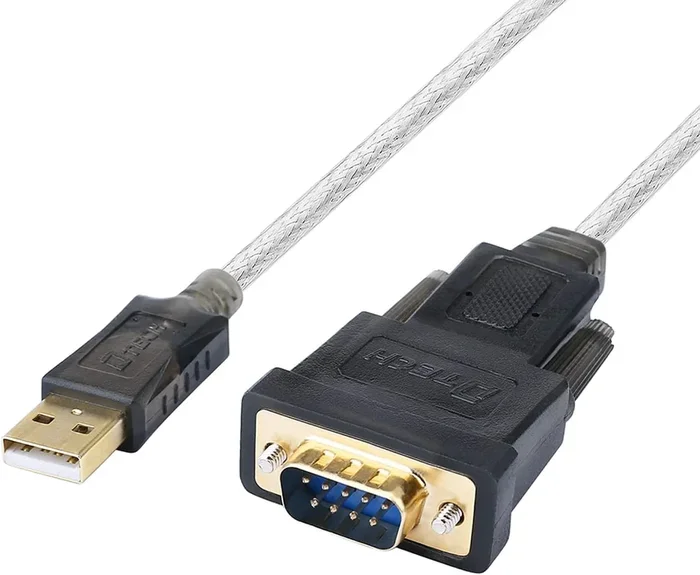
These are the most common type. One end has a USB plug, and the other end has a DB9 serial connector. You plug the USB end into your computer and the DB9 end into your device. These cables are affordable and easy to use. They work great for most personal and hobby projects.
Some cables come with extra features like opto-isolation. Opto-isolation protects your computer from electrical spikes that might come from industrial equipment. If you are working with heavy machinery, look for a cable with this protection.
USB to Serial Breakout Boards
Breakout boards give you access to individual serial signal pins. These are popular with electronics hobbyists and makers. You can connect them to breadboards and microcontrollers. They are perfect for Arduino projects and custom serial device connections.
Breakout boards usually expose TX, RX, GND, VCC, and sometimes RTS and CTS pins. This gives you full control over the serial communication. You can also use them to wire multiple serial devices together.
Industrial-Grade Serial to USB Converters
For professional and industrial use, there are rugged converters built to handle harsh environments. These converters feature metal housings, better shielding, and wider temperature ranges. They also often include surge protection and electrical isolation.
Industrial converters cost more but are worth it if you are connecting expensive or sensitive equipment. They provide reliable data transfer even in factory floors and outdoor installations.
Comparison Table: Types of Serial to USB Converters
| Type | Best For | Price Range | Durability | Extra Features |
|---|---|---|---|---|
| USB to Serial Cable | Home use, hobby projects | $5 – $20 | Standard | Compact, easy to use |
| USB to Serial Breakout Board | Electronics projects, Arduino | $5 – $15 | Standard | Full pin access, breadboard friendly |
| Industrial Converter | Factory equipment, harsh environments | $30 – $100+ | Heavy duty | Isolation, surge protection, metal housing |
| USB Hub with Serial Port | Multiple connections needed | $25 – $60 | Standard | Combines USB ports with serial port |
Choose the type that matches your use case. For most people, a simple USB to serial cable or breakout board will do the job perfectly.
Step-by-Step Guide: How to Convert Serial to USB
Now for the part you have been waiting for. Here is exactly how to convert serial to USB and get your device working with your computer. Follow these steps carefully and you will be up and running in minutes.
Step 1: Identify Your Serial Device
Before you buy anything, identify the serial port on your device. Look for a DB9 or DB25 connector. Check the device manual or label for the pinout configuration. Note the baud rate, data bits, parity, and stop bits. These settings are essential for proper communication.
Common serial settings include 9600 baud, 8 data bits, no parity, and 1 stop bit. This combination is often written as 9600 8N1. Write down these settings because you will need them later.
Step 2: Choose the Right Converter
Based on your device and needs, pick the right serial to USB converter. For a simple connection, a USB to serial cable with a DB9 connector works well. For electronics projects, a breakout board gives you more flexibility.
Make sure the converter supports the baud rate and settings of your device. Most converters support standard baud rates up to 115200 or higher. Check the product specifications before buying.
Step 3: Install the Drivers
Most serial to USB converters need drivers to work properly. Plug the converter into your USB port and wait for your operating system to try to install drivers automatically. On Windows, you may need to download drivers from the manufacturer website.
For FTDI-based adapters, drivers are available on the FTDI website. For Prolific adapters, check the Prolific website. CH340 drivers are easy to find online. Mac and Linux systems usually include built-in support for most USB to serial chips.
After installing drivers, check your device manager (Windows) or system information (Mac) to confirm the converter is recognized. You should see a new COM port listed.
Step 4: Connect the Converter to Your Device
Plug the serial end of the converter into your device. Make sure the TX pin connects to RX and the RX pin connects to TX. Ground connects to ground. If you are using a breakout board, double-check your wiring before powering on.
Wrong wiring can damage your device. Take your time and verify each connection. If you are unsure, refer to the pinout diagram in your device manual.
Step 5: Configure Communication Settings
Open your terminal or serial communication software. Select the virtual COM port that your converter created. Set the baud rate, data bits, parity, and stop bits to match your device settings.
Popular software options include PuTTY, Tera Term, and the Arduino IDE serial monitor. Each of these tools lets you configure serial connection settings easily.
Step 6: Test the Connection
Send some test data and see if it comes through correctly. If you get garbled text, check your baud rate settings. If you get no data, verify your wiring and COM port selection.
A working connection means data flows both ways between your device and computer. You can now use your serial device with your modern USB-equipped computer.
Common Mistakes to Avoid When Converting Serial to USB
Even with a good converter, mistakes can happen. Here are the most common errors and how to avoid them.
- Skipping driver installation: This is the number one reason converters fail to work. Always install drivers before troubleshooting anything else.
- Mismatched baud rates: If your device sends data at 9600 baud and your software listens at 115200, you will get garbage data. Always match the baud rate.
- Swapping TX and RX: TX goes to RX and RX goes to TX. This is a simple mistake that causes no communication. Double-check your wiring.
- Using cheap, unbranded adapters: Ultra-cheap adapters often use poor-quality chips that overheat or fail. Stick with reputable brands.
- Ignoring voltage differences: Some serial devices operate at 3.3V while others use 5V. Make sure your converter supports the voltage of your device.
- Not checking COM port assignments: Windows sometimes assigns different COM ports each time you plug in the adapter. Check the device manager to confirm which COM port is active.
Avoiding these mistakes will save you hours of frustration. Take a few extra minutes to verify your setup before diving into your project.
Troubleshooting Serial to USB Connection Issues
Sometimes things do not work the first time. Do not worry. Most serial to USB problems have simple solutions. Here is how to troubleshoot common issues.
If your computer does not recognize the converter, try a different USB port. USB hubs can sometimes cause power issues. Plug directly into your computer instead. Also, try a different USB cable if you are using one with the adapter.
If you see data but it is garbled, check the baud rate first. Then verify the data bits, parity, and stop bits settings. These must match exactly between your device and software.
If you get no data at all, check your wiring. Make sure TX connects to RX and vice versa. Also confirm that both devices share a common ground. Without a shared ground, serial communication will not work.
On Windows, the device manager is your best friend. Look for yellow warning icons or unknown devices. Right-click and update drivers if needed. On Mac, check the System Information panel for your USB serial device.
Still stuck? Try the converter on a different computer. This helps determine if the problem is with the adapter or your original computer setup.
Expert Tips for Getting the Best Results
Here are some tips from experienced users and professionals who work with serial to USB conversion regularly.
- Label your cables: If you use multiple serial devices, label each cable. This saves confusion when troubleshooting.
- Keep drivers updated: FTDI and other chip manufacturers release driver updates that fix bugs and improve compatibility.
- Use shielded cables for long runs: Serial signals can pick up interference over long cable lengths. Shielded cables reduce this problem.
- Add a USB extension cable if needed: This helps position your converter in a convenient spot without stressing the connector.
- Save your settings: Once you find the right baud rate and configuration, write them down or save them in your software profile.
These small habits make a big difference over time. They keep your serial connections stable and reliable.
Can Serial Be Converted To USB: The Bottom Line
The answer is a clear yes. Converting serial to USB is simple, affordable, and widely supported. Whether you are a hobbyist working with Arduino, a technician servicing industrial equipment, or a professional connecting lab instruments, a serial to USB converter makes it all possible.
The key is choosing the right converter, installing the correct drivers, and matching your communication settings. Follow the steps in this guide and you will have your serial devices connected to modern computers in no time.
Do not let outdated serial ports hold you back. With a USB to serial adapter, your legacy devices can work perfectly alongside modern technology. Invest in a quality converter, take your time with setup, and enjoy seamless data transfer between old and new equipment.
Frequently Asked Questions
Do I need to install drivers for a serial to USB converter?
Most serial to USB converters require drivers, especially on Windows. FTDI, CP2102, and CH340 chips each have their own drivers. Many converters come with a driver CD, or you can download the latest drivers from the manufacturer website. Mac and Linux systems usually handle drivers automatically.
Can I use a serial to USB converter with an Arduino?
Yes, absolutely. Arduino boards use serial communication for programming and data transfer. A USB to serial adapter works perfectly with Arduino. In fact, many Arduino boards have a built-in USB to serial converter chip, like the FTDI or ATMega16U2, right on the board.
What is the difference between RS-232 and TTL serial?
RS-232 uses higher voltage levels, typically +/- 12V, for serial communication. TTL serial uses lower voltages, usually 3.3V or 5V. Most USB to serial converters are designed for RS-232 connections. If your device uses TTL serial, you may need a different type of adapter or a level shifter to connect safely.
How long can a serial to USB cable be?
USB cables should generally be kept under 5 meters (about 16 feet) for reliable performance. RS-232 serial cables can be longer, typically up to 15 meters (50 feet). If you need a longer connection, use a quality USB extension cable or place your converter closer to the computer.
Can I connect multiple serial devices to one USB port?
You can use a USB hub to connect multiple serial to USB adapters to one computer. Each adapter will create its own virtual COM port. However, keep in mind that USB bandwidth is shared among all connected devices. For most applications, this is not a problem.
Are expensive serial to USB converters worth it?
For casual or hobby use, an affordable $5 to $15 adapter works great. For industrial or professional applications, investing in a higher-quality converter with isolation and better shielding is worth the extra cost. Quality converters provide more reliable connections and better protection for your equipment.
=== CONCLUSION ===
Converting serial to USB is easier than you think. With a serial to USB converter, you can connect almost any legacy device to a modern computer. The process involves choosing the right adapter, installing drivers, connecting your device, and matching communication settings. Follow the steps outlined in this guide and you will have a working connection in minutes.
Remember to avoid common mistakes like mismatched baud rates and swapped TX and RX wires. If you run into issues, the troubleshooting tips above will help you get back on track. Whether you are working on a hobby project or professional equipment, serial to USB conversion opens up a world of possibilities. Start connecting your serial devices today and experience the seamless integration of old and new technology.