Can You Connect 2 Monitors Without Using a Splitter
Yes, you can connect 2 monitors without a splitter using multiple ports on your graphics card, USB-C connections, docking stations, or adapter cables. This guide covers every method to help you build a dual monitor setup quickly and easily.
Key Takeaways
- Multiple Ports: Most graphics cards have 2-4 video outputs, letting you plug in two monitors directly.
- USB-C and Thunderbolt: You can extend your display through a single USB-C or Thunderbolt port using docking stations.
- Daisy Chaining: DisplayPort 1.2 or higher allows monitor daisy chaining to connect multiple screens in series.
- Adapters and Converters: HDMI-to-DisplayPort or USB-to-HDMI adapters offer flexible connection options.
- Check Your Hardware: Always verify your graphics card and motherboard ports before starting a dual monitor setup.
- Common Mistakes: Avoid using a splitter when you actually need a proper multi-port connection for better performance.
📑 Table of Contents
- Can You Connect 2 Monitors Without a Splitter?
- Why You Should Connect Two Monitors
- Check Your Hardware First
- Method 1: Use Multiple Ports on Your Graphics Card
- Method 2: Use USB-C or Thunderbolt Connections
- Method 3: Monitor Daisy Chaining
- Method 4: Use Adapters and Converters
- Method 5: Use a Docking Station
- Setting Up Your Dual Monitor Configuration
- Common Mistakes When Connecting Two Monitors
- Frequently Asked Questions
- Conclusion
Can You Connect 2 Monitors Without a Splitter?
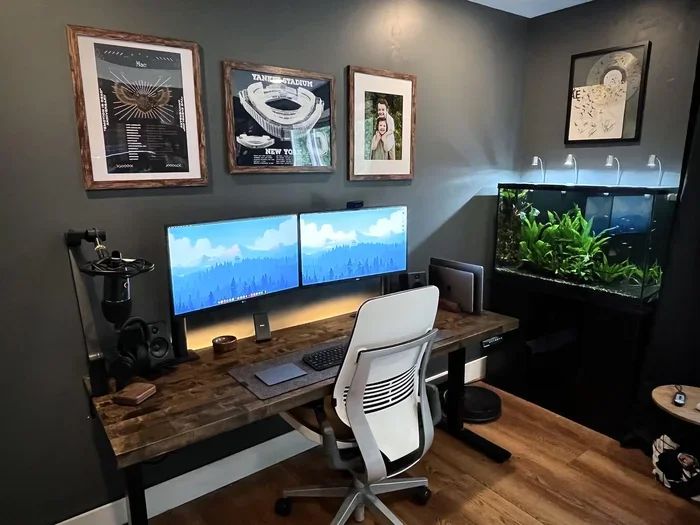
Running two monitors is one of the best upgrades you can make for productivity. Whether you are a programmer, a video editor, or just someone who hates tab switching, a dual monitor setup changes everything. But here is the big question: can you connect 2 monitors without a splitter?
The short answer is yes. You absolutely can. There are several straightforward methods to run multiple monitors without ever buying a video splitter. In this guide, we will walk you through every option available. You will learn how to check your hardware, pick the right cables, and set up your extended desktop in minutes.
We will also cover common mistakes people make when trying to hook up a second monitor. By the end, you will have a clear roadmap to get two screens working together perfectly. Let us dive in.
Why You Should Connect Two Monitors
The Productivity Boost
Studies show that a dual display setup can increase productivity by up to 30%. Having a second monitor means you can keep reference material on one screen and do your actual work on the other. You no longer need to constantly switch between browser tabs or windows.
Programmers benefit hugely. They can write code on one screen and test the output on the other. Video editors can keep their timeline on one monitor and preview footage on the second. The possibilities are endless with a proper multi-monitor setup.
Better Multitasking
Even basic tasks become easier. You can have your email open on one screen and your project on the other. Video calls can run on one monitor while you take notes on the other. A computer display setup with two screens makes multitasking feel natural rather than forced.
Check Your Hardware First
Examine Your Graphics Card
Before anything else, look at your graphics card. Most modern graphics cards come with multiple video outputs. You might see HDMI ports, DisplayPort connectors, or even DVI slots. If your card has at least two video ports, you can connect two monitors directly without any splitter.
Here is what to look for:
- HDMI ports: Very common on most cards. Support both video and audio.
- DisplayPort: Found on higher-end cards. Supports high refresh rates and daisy chaining.
- DVI ports: Older but still functional for many monitors.
- USB-C or Thunderbolt: Common on laptops. Can carry video signals with the right setup.
Check Your Motherboard
If you are using integrated graphics instead of a dedicated card, your motherboard may still have video outputs. Look at the back panel of your computer. Many motherboards include HDMI or VGA ports even without a separate graphics card. However, using both motherboard and card ports simultaneously sometimes requires specific BIOS settings.
Quick Tip: Always check your computer manual or manufacturer website to confirm how many video outputs your system supports. This saves a lot of guessing.
Method 1: Use Multiple Ports on Your Graphics Card
The Simplest Approach
This is the most direct way to connect 2 monitors without splitter. If your graphics card has two or more video ports, just plug each monitor into a separate port. Then configure your operating system to extend the display.
Here is a step-by-step process:
- Plug Monitor 1 into Port 1 on your graphics card using the appropriate cable.
- Plug Monitor 2 into Port 2 on your graphics card using another cable.
- Turn both monitors on.
- Right-click on your desktop and select Display Settings on Windows or System Preferences on Mac.
- Choose “Extend these displays” to create an extended desktop.
Which Cable Combinations Work
You can mix and match cable types in most cases. HDMI to HDMI, DisplayPort to DisplayPort, or even HDMI to DisplayPort all work fine. Some adapters can also help if your ports do not match exactly. Just make sure both cables support the resolution and refresh rate you need for your dual monitor setup.
Expert Insight: DisplayPort 1.2 or newer offers the best flexibility. It supports higher resolutions and allows monitor daisy chaining, which we will discuss later.
Method 2: Use USB-C or Thunderbolt Connections
Video Over USB-C
Many modern laptops have USB-C ports that support video output. This is sometimes called USB-C Alt Mode or DisplayPort Alt Mode. Through this single port, you can send video to one or even two monitors. This makes it a powerful way to connect 2 monitors without splitter.
To use this method, you need either a USB-C docking station or a USB-C to multi-output adapter. These devices expand your single USB-C port into multiple video outputs. Some docking stations even add extra USB ports, ethernet, and charging capabilities.
Thunderbolt Options
Thunderbolt 3 and 4 ports are even more capable. They support higher bandwidth and can drive multiple displays easily. A Thunderbolt docking station can handle two 4K monitors or even more without breaking a sweat. This is ideal for professionals who need a robust multi-monitor setup from a single port.
Quick Tip: Not all USB-C ports support video output. Look for the little lightning bolt icon or check your laptop specifications before buying a docking station.
Method 3: Monitor Daisy Chaining
What Is Daisy Chaining?
Monitor daisy chaining means connecting two monitors in a series using a single video output from your computer. The first monitor connects to your computer, and the second monitor connects to the first. The video signal passes through like a chain. This works with DisplayPort 1.2 or higher using MST (Multi-Stream Transport) technology.
How to Set It Up
Setting up daisy chaining is surprisingly simple:
- Connect your computer to Monitor 1 using a DisplayPort cable.
- Use another DisplayPort cable to connect Monitor 1’s DisplayPort output to Monitor 2.
- Enable MST support in your display settings if prompted.
- Configure both screens as an extended desktop in your operating system.
This method reduces cable clutter. You only need one cable running from your computer to the first monitor. It is a great option if your graphics card has limited video outputs but supports DisplayPort.
Common Mistake: Not all monitors support daisy chaining. Check both monitors’ specifications for DisplayPort 1.2 or higher with MST support. Without it, the signal will not pass through properly.
Method 4: Use Adapters and Converters
When Ports Do Not Match
Sometimes your computer and monitors have different port types. Your graphics card might only have DisplayPort outputs while your monitors use HDMI. In this case, you need a simple adapter or converter. These small devices let you connect 2 monitors without splitter even when ports do not match.
Popular Adapter Types
- DisplayPort to HDMI: Converts a DisplayPort signal to HDMI. Active adapters are recommended for best results.
- HDMI to DisplayPort: Converts HDMI output to a DisplayPort input. Make sure to buy an active adapter.
- USB to HDMI: Adds an HDMI port through a USB 3.0 port. Useful for laptops with limited outputs.
- USB-C to HDMI: Works with USB-C ports that support video output. Very common on modern laptops.
- DVI to HDMI: Bridges older DVI connections to newer HDMI monitors with a simple passive adapter.
Active vs. Passive Adapters
Active adapters have their own chip and can convert signals between different formats. Passive adapters simply pass the signal along and work only when the source and destination use the same digital protocol. Always choose active adapters when converting between different port types for reliable monitor connectivity.
Quick Tip: Buy adapters from reputable brands. Cheap adapters often cause flickering, resolution issues, or complete signal failure on your dual display setup.
Method 5: Use a Docking Station
All-in-One Solution
A USB-C docking station or Thunderbolt dock is the most convenient way to connect multiple monitors. These hubs plug into a single port on your laptop or desktop and give you multiple video outputs along with other connectivity options. Most docks support two or more monitors simultaneously.
What to Look For
When shopping for a docking station for your multi-monitor setup, consider these factors:
- Number of video outputs: Make sure it has at least two HDMI or DisplayPort outputs.
- Maximum resolution: Check if it supports the resolution you need per monitor.
- Bandwidth: Thunderbolt docks offer more bandwidth than USB-C docks.
- Extra features: Look for USB ports, ethernet, audio, and charging support.
- Compatibility: Confirm it works with your laptop or desktop operating system.
Setting Up Your Dual Monitor Configuration
Windows Display Settings
Once both monitors are physically connected, you need to configure them in Windows. Right-click anywhere on your desktop and select Display Settings. You will see two numbered rectangles representing your screens. Drag them to match the physical arrangement on your desk. Then choose between three display options:
- Duplicate these displays: Shows the same content on both screens. Great for presentations.
- Extend these displays: Creates one large workspace across two screens. Best for productivity.
- Show only on 1 or 2: Uses only one monitor at a time.
Mac Display Settings
On macOS, go to System Preferences and then Displays. Hold the Option key and click on Detect Displays if your second screen does not appear. You can arrange the monitors by dragging them and choose either mirrored or extended display modes for your dual monitor setup.
Adjust Display Scaling and Resolution
After extending your display, adjust each monitor’s resolution to its native setting. This ensures the sharpest image quality. Also check the scaling settings if text appears too small on either screen. A proper display configuration makes working across two screens feel seamless.
Common Mistakes When Connecting Two Monitors
Using a Splitter When You Do Not Need One
Many people grab an HDMI splitter out of habit. Splitters duplicate the same signal to two screens rather than extending it. They also reduce the available bandwidth, often limiting output to lower resolutions. In most cases, you do not need a splitter at all. Use the methods described above instead for a true extended desktop.
Ignoring Cable Quality
Cheap or damaged cables cause many display problems. Flickering, blurry images, and intermittent disconnections often come from poor-quality cables. Invest in certified cables that support your desired resolution and refresh rate. This simple step makes a big difference in your monitor connection reliability.
Not Updating Graphics Drivers
Outdated graphics drivers can cause detection issues with a second monitor. If your computer does not recognize one of your displays, update your graphics drivers first. Visit the manufacturer website for the latest versions. This often resolves display problems instantly.
Mixing Incompatible Refresh Rates
If one monitor supports 144Hz and the other only supports 60Hz, your system may default both to 60Hz. This is normal and usually fine for everyday use. However, if you want the best experience, set each monitor to its own supported refresh rate in your display settings.
Frequently Asked Questions
Can I connect 2 monitors with only one HDMI port?
Yes, you can. You can use a USB-C to HDMI adapter, a USB to HDMI adapter, or a USB-C docking station to add a second video output. Alternatively, if your computer has a DisplayPort, you can use daisy chaining or a DisplayPort-to-HDMI adapter to connect a second monitor without needing a splitter.
Do I need a special graphics card for a dual monitor setup?
Not necessarily. Most modern graphics cards come with at least two video outputs. Even integrated graphics on many processors support two displays simultaneously. You just need to check that your card or motherboard has enough ports or use a docking station to expand your connection options.
Is daisy chaining better than using a docking station?
It depends on your needs. Daisy chaining with DisplayPort is free and uses fewer cables. A docking station costs more but offers additional ports and often better convenience, especially for laptop users. Both methods work well for a multi-monitor setup. Choose based on your budget and how many extra connections you need.
Can I use two different monitor brands and sizes together?
Absolutely. There is no requirement for both monitors to be the same brand or size. You can connect an LG monitor alongside a Samsung monitor or pair a 24-inch screen with a 32-inch screen. Just make sure your graphics card can handle the combined resolution and that you configure each display correctly in your operating system.
Will a USB-C hub support two 4K monitors?
It depends on the hub and your host device. Some high-end USB-C and Thunderbolt 3 docks can drive two 4K displays at 60Hz. Check the specifications carefully before purchasing. Look for docks that explicitly state dual 4K support to ensure your dual display works at the resolution you want.
What if my computer does not recognize the second monitor?
First, check all cable connections and try different cables. Then update your graphics drivers. On Windows, go to Display Settings and click Detect. On Mac, hold Option and click Detect Displays. If the problem persists, try connecting the second monitor to a different port on your graphics card or test with a different monitor to isolate the issue.
Conclusion
Can you connect 2 monitors without a splitter? Absolutely yes. Whether you use multiple ports on your graphics card, USB-C connections, monitor daisy chaining, adapters, or a docking station, there are plenty of reliable methods. A dual monitor setup does not require expensive splitters or complicated configurations in most cases.
Start by checking your hardware. Identify your available ports and pick the method that fits your setup best. Use quality cables and updated drivers to ensure smooth performance. Configure your display settings carefully to get the most out of your extended desktop.
Now you have all the knowledge you need. Set up your dual monitor setup today and transform the way you work and play. The extra screen space will make a noticeable difference from the very first moment.