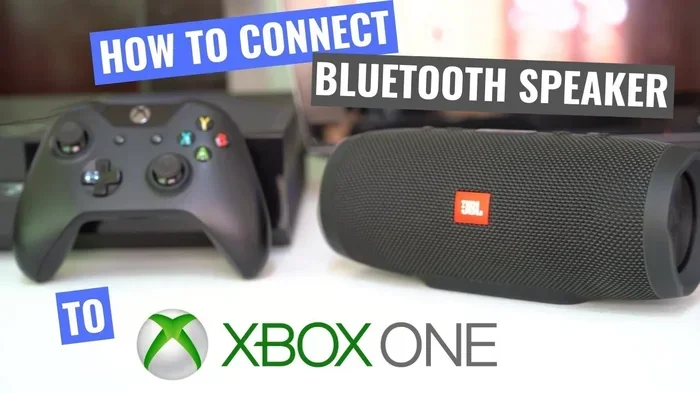
Can You Connect Bluetooth Speaker To Xbox One Console
Yes, you can connect a Bluetooth speaker to Xbox One, but it requires a workaround since Xbox One does not support direct Bluetooth audio. You can use a Bluetooth adapter, connect via the Xbox controller’s 3.5mm jack, or pair wirelessly through an optical or HDMI setup. This guide walks you through every method so you can enjoy wireless gaming audio without hassle.
You just got home after a long day. You want to kick back, play your favorite game on the Xbox One, and blast the soundtrack through a Bluetooth speaker. It sounds simple, right? But when you go to the Xbox One Bluetooth settings, you notice something missing. There is no option to pair a speaker directly. That moment of confusion is something almost every console gamer has experienced.
The good news is that you absolutely can connect a Bluetooth speaker to Xbox One. It just takes a little extra step. Xbox One was not built with native Bluetooth audio support, which surprises a lot of people. But the gaming community has found clever workarounds over the years. This guide will walk you through every single method, so you can get back to enjoying wireless gaming audio in no time.
Key Takeaways
- Xbox One lacks native Bluetooth audio support: You need a Bluetooth adapter or an alternative connection method.
- A Bluetooth transmitter adapter is the most popular solution: It plugs into the Xbox controller or TV and pairs easily with any speaker.
- Wired connections work too: The 3.5mm jack on the Xbox controller offers a reliable backup option.
- Audio settings matter: Adjusting Xbox One audio output ensures the best sound quality from your speaker.
- Common issues are fixable: Lag, static, and pairing problems have simple solutions covered in this guide.
- Multiple speaker brands work: JBL, Sony, Bose, and others all connect through the methods described.
📑 Table of Contents
- Why Xbox One Does Not Support Direct Bluetooth Audio
- Method 1: Use a Bluetooth Adapter (The Best Solution)
- Method 2: Connect Through the Xbox Controller’s 3.5mm Jack
- Method 3: Connect via Your TV or Soundbar
- Comparing Connection Methods
- Fixing Common Bluetooth Speaker Connection Issues
- Best Bluetooth Speakers for Xbox One Gaming
- Optimizing Xbox One Audio Settings for Speakers
- Can You Connect Bluetooth Speaker To Xbox One: Final Verdict
Why Xbox One Does Not Support Direct Bluetooth Audio
Before we dive into the solutions, let us talk about why Microsoft designed the Xbox One this way. Understanding the reason makes the fix much easier to grasp.
The Wireless Protocol Xbox One Uses
Xbox One uses a proprietary wireless protocol for its controllers and accessories. This is different from standard Bluetooth connectivity. Microsoft built the console to use its own Xbox Wireless technology for controllers, headsets, and other devices. The idea was to reduce interference and improve connection stability during gaming sessions.
Here is the catch. That custom wireless protocol does not extend to audio output. When you want to send sound to a speaker, the Xbox One audio output options are limited to HDMI, optical digital, and USB. There is no built-in Bluetooth speaker pairing feature in the system settings. Microsoft has kept this design choice consistent across all Xbox One models, including the original, the Xbox One S, and the Xbox One X.
What This Means for You
It means you cannot simply go to Settings, select Devices, and pair your favorite wireless speaker like you would with a phone. You need an intermediary device or a different connection path. The good part? None of these workarounds are complicated. Most take less than five minutes to set up.
Method 1: Use a Bluetooth Adapter (The Best Solution)
The most popular and effective way to connect Bluetooth speaker to Xbox One is by using a Bluetooth adapter. This small device bridges the gap between your console and your speaker. It plugs right into the Xbox One controller or connects to your TV.
How It Works
A Bluetooth transmitter receives audio from the Xbox and sends it wirelessly to your speaker. Think of it as a translator between two devices that do not speak the same language natively. The adapter handles the Bluetooth connectivity so your console does not have to.
Most Bluetooth adapters for Xbox One are affordable. You can find reliable ones for under $20. They work with virtually any wireless speaker that supports Bluetooth pairing. Brands like JBL, Sony, Bose, and Anker all work great with this method.
Step-by-Step Setup
Here is how to set up a Bluetooth adapter with your Xbox One:
- Plug the Bluetooth adapter into the 3.5mm jack on your Xbox One controller.
- Turn on your Bluetooth speaker and put it in pairing mode.
- Go to the Xbox One audio settings and select the controller as the audio output.
- Wait for the adapter to connect to the speaker.
- Play a game or a movie and test the sound.
That is it. You are now listening to gaming audio through a wireless speaker. No cables running across the room, no tangled wires, just clean wireless sound.
Quick Tips for Best Results
- Keep the adapter close to the speaker. Bluetooth range is typically around 30 feet, but walls and furniture can weaken the signal.
- Use a high-quality adapter that supports aptX or AAC codecs for better audio quality.
- Charge your controller fully before setting up. A low battery can cause connection drops.
- Update your Xbox One to the latest system software. Updates often improve audio output performance.
Method 2: Connect Through the Xbox Controller’s 3.5mm Jack
If you do not want to buy a Bluetooth adapter, you can use a wired connection through the Xbox One controller. The controller has a 3.5mm audio jack on the bottom. This jack can connect directly to a speaker or headphones.
When to Use This Method
This method works best when you are gaming in the same room as your speaker. You will need a 3.5mm aux cable that connects the controller to the speaker. Some Bluetooth speakers come with a 3.5mm input built in, which makes this even easier.
The downside? You are tethered. The cable limits how far you can move from the console. But for casual gaming or watching movies on the couch, it works perfectly fine.
Step-by-Step Setup
- Plug one end of the 3.5mm cable into the controller’s audio jack.
- Plug the other end into the AUX input on your speaker.
- Go to Xbox One settings and navigate to Display & Sound.
- Select Audio Output and choose the controller as the source.
- Adjust the volume on both the controller and the speaker.
This is the simplest method and costs nothing extra if you already have a 3.5mm cable lying around. It also delivers the most stable audio connection because there is no wireless interference.
Method 3: Connect via Your TV or Soundbar
Another smart approach is to route the Xbox One audio through your TV or soundbar. Many modern TVs and soundbars have Bluetooth capabilities. This means you can pair your wireless speaker with the TV, and the Xbox One sends audio to the TV through HDMI.
How This Method Works
The Xbox One connects to your TV using an HDMI cable. The TV then receives the audio signal. If your TV supports Bluetooth audio output, you can pair your Bluetooth speaker directly with the TV. The sound flows from Xbox One to TV to speaker.
This method adds one extra step, but it works well if you already have a smart TV with built-in Bluetooth connectivity. It also keeps your Xbox One setup clean and cable-free.
Step-by-Step Setup
- Connect the Xbox One to your TV using an HDMI cable.
- Go to Xbox One Settings and select Display & Sound.
- Set the audio output to HDMI.
- On your TV, go to Bluetooth settings and pair your speaker.
- Play audio on the Xbox One and check if sound comes through the speaker.
Some TVs have a feature called audio passthrough. This ensures that the TV sends the Xbox audio to the Bluetooth speaker without any delay. Check your TV manual if you are unsure whether your model supports this.
Comparing Connection Methods
Not all methods are created equal. Each option has its own strengths and weaknesses. Here is a quick comparison to help you choose the best one for your setup.
| Feature | Bluetooth Adapter | 3.5mm Cable | TV Bluetooth |
|---|---|---|---|
| Wireless Freedom | Yes | No | Yes |
| Setup Difficulty | Easy | Very Easy | Moderate |
| Audio Quality | Great | Good | Good |
| Cost | $10-$25 | Free (if you have a cable) | Free |
| Latency | Low (with aptX) | None | Low to Medium |
| Best For | Wireless gaming on the go | Same-room casual gaming | TV-centric setups |
As you can see, the Bluetooth adapter offers the best balance of wireless freedom and audio quality. The 3.5mm cable is perfect if you want zero latency and do not mind a wire. The TV Bluetooth method is ideal if your speaker stays in a fixed location near the TV.
Fixing Common Bluetooth Speaker Connection Issues
Even with the right method, you might run into problems. Bluetooth connectivity issues are common, but they are usually easy to fix. Let us go through the most frequent problems and their solutions.
Speaker Keeps Disconnecting
If your wireless speaker drops the connection during gameplay, the first thing to check is the distance. Move the speaker closer to the Xbox One or the adapter. Walls, furniture, and other electronics can interfere with the Bluetooth signal.
Another common cause is a low battery on the speaker. Bluetooth devices tend to lose connection when the battery is low. Charge your speaker fully and try again.
Audio Lag or Delay
Audio lag is frustrating, especially during fast-paced gaming sessions. If you notice the sound does not match the action on screen, try switching to a Bluetooth adapter that supports low-latency codecs like aptX or aptX Low Latency.
You can also try reducing the number of Bluetooth devices connected to your TV or adapter. Too many devices on the same channel can cause interference and audio delay.
Speaker Will Not Pair
If your Bluetooth speaker refuses to pair, reset both the speaker and the adapter. Turn off the speaker, turn it back on, and put it in pairing mode again. On the Xbox side, make sure the audio settings are configured correctly.
Sometimes the issue is as simple as the speaker being connected to a different device. Check if your speaker is still paired with your phone or another device. Disconnect it from everything else and try pairing again.
Expert Insight
According to gaming audio specialists, the Xbox One controller’s 3.5mm jack outputs audio at a fixed volume level. If your speaker sounds too quiet, adjust the volume on the Xbox controller itself. Hold the Xbox button, go to Profile & System, then Settings, and adjust the volume slider under Display & Sound.
Best Bluetooth Speakers for Xbox One Gaming
Not all wireless speakers are created equal. Some are better suited for gaming audio than others. Here are a few options that pair well with Xbox One:
- JBL Charge 5: Great audio quality, long battery life, and reliable Bluetooth connectivity. Perfect for both gaming and music.
- Sony SRS-XB33: Extra bass makes explosions and action scenes feel more immersive. The wireless range is excellent.
- Bose SoundLink Revolve+: 360-degree sound fills the room nicely. Ideal for casual console gaming sessions.
- Anker Soundcore Motion+: Affordable option with surprisingly good audio output. Works great with a Bluetooth adapter.
- Ultimate Ears Hyperboom: Loud, powerful, and designed for both indoor and outdoor use. A premium choice for serious gamers.
When choosing a Bluetooth speaker for Xbox One, look for ones that support A2DP profile. This is the standard Bluetooth protocol for streaming audio. Most modern speakers support it, but it is always worth double-checking the specifications.
Optimizing Xbox One Audio Settings for Speakers
Once your Bluetooth speaker is connected, take a few minutes to fine-tune the Xbox One audio settings. This small step makes a huge difference in sound quality.
Adjusting Volume and Output
Go to Settings, then Display & Sound, and then Audio Output. Here you can choose the audio device and adjust the volume. If you are using a Bluetooth adapter, select the controller as the output device.
Enabling Surround Sound
If your Bluetooth speaker supports surround sound, you can enable it in the Xbox settings. Go to Settings, Display & Sound, and then Volume. Look for the surround sound options and select the appropriate format. Keep in mind that not all wireless speakers support surround sound, but many modern ones do.
Testing Your Setup
After adjusting the settings, run the Xbox One audio test. Go to Settings, Display & Sound, and select the audio test option. This plays a series of tones through your speaker. Listen carefully to make sure all channels are working properly and the sound is balanced.
Can You Connect Bluetooth Speaker To Xbox One: Final Verdict
The short answer is yes. You can connect a Bluetooth speaker to Xbox One, even though the console does not support direct Bluetooth audio. Whether you choose a Bluetooth adapter, a 3.5mm cable, or route audio through your TV, the process is straightforward and takes only a few minutes.
The Bluetooth adapter method is the most popular choice among console gamers. It gives you the freedom to move around the room while enjoying high-quality wireless audio. The 3.5mm cable method is the simplest and costs nothing. And the TV Bluetooth method works well for setups where the speaker sits near the television.
Remember to keep your Xbox One updated, use a quality Bluetooth adapter if you go wireless, and take a moment to optimize your audio settings. These small steps ensure you get the best possible gaming audio experience every time you play.
Now that you know how to connect Bluetooth speaker to Xbox One, there is nothing stopping you from upgrading your gaming setup. Grab your favorite speaker, pick a method from this guide, and get ready to immerse yourself in your games like never before.
Frequently Asked Questions
Can Xbox One connect to Bluetooth speakers without an adapter?
No, Xbox One does not have built-in support for Bluetooth audio. You need a Bluetooth adapter, a 3.5mm cable, or a TV with Bluetooth passthrough to connect a wireless speaker to the console.
What is the best Bluetooth adapter for Xbox One?
Look for adapters that support aptX or aptX Low Latency codecs. Popular choices include the 1Mii B06, the Avantree Oasis, and the TaoTronics TT-BA07. These adapters offer low latency, strong Bluetooth range, and excellent audio quality for gaming.
Will connecting a Bluetooth speaker affect Xbox One controller battery?
Using a Bluetooth adapter plugged into the controller will drain the battery slightly faster. However, the impact is minimal. If you are concerned about battery life, keep your controller plugged in with a USB cable during longer gaming sessions.
Can you connect multiple Bluetooth speakers to Xbox One at once?
Not directly. The Xbox One can only output audio to one device at a time. However, some Bluetooth adapters support dual pairing, which allows two speakers to connect simultaneously. Check your adapter’s specifications for this feature.
Why is there no Bluetooth audio option in Xbox One settings?
Microsoft designed the Xbox One to use its own proprietary Xbox Wireless protocol for accessories. This was done to prioritize connection stability and reduce interference during gaming sessions. As a result, Bluetooth audio is not a native feature, and workarounds are required.
Does connecting a Bluetooth speaker to Xbox One cause audio lag?
Audio lag can occur with any Bluetooth connection, but it is usually minimal with modern adapters that support low-latency codecs. If you experience noticeable delay, try moving the speaker closer to the adapter or switching to a wired connection using the 3.5mm jack on the controller.
=== CONCLUSION ===
Connecting a Bluetooth speaker to Xbox One is entirely possible, and the process is simpler than most people think. Whether you go with a Bluetooth adapter, a 3.5mm cable, or a TV passthrough setup, you can enjoy wireless gaming audio without any special equipment beyond what this guide describes.
The key is to choose the method that fits your setup best. If you want freedom to move around, grab a Bluetooth adapter. If you are staying in one spot, the 3.5mm cable works perfectly. And if your TV supports it, the TV Bluetooth method keeps everything streamlined.
Take a few minutes today to set up your Xbox One audio output the way you want it. Your gaming sessions will feel more immersive, your soundtracks will sound richer, and your movies will come alive with crystal-clear wireless sound. The Xbox One Bluetooth speaker connection is waiting, and now you have everything you need to make it work.