Can You Do 2 Monitors Off 1 Hdmi Port With These Tricks
Yes, you can do 2 monitors off 1 HDMI port using a few clever methods. Whether you use an HDMI splitter, a USB-C adapter, or a docking station, connecting two screens to a single port is totally doable. This guide walks you through every option so you can pick the best one for your needs.
Have you ever looked at your desk and thought, “I really need two screens, but I only have one HDMI port”? You are not alone. Millions of people face this exact problem every day. The good news is that you can do 2 monitors off 1 HDMI port with the right tools and a little know-how.
Working with a single monitor feels limiting. You constantly switch between windows. You lose time. Productivity drops. A dual monitor setup changes all of that. But not everyone has a PC or laptop with two HDMI outputs. That is where these tricks come in. They let you connect two screens using just one HDMI port on your device.
In this article, we will cover every practical method you can use. We will talk about HDMI splitters, adapters, docking stations, and even some built-in solutions you might not know about. By the end, you will know exactly which option works best for your situation. Let us dive in.
Key Takeaways
- HDMI splitters are the most common and affordable way to run 2 monitors off 1 HDMI port, but they mirror the same screen by default.
- USB-C to HDMI adapters unlock true extended display when your laptop or PC has a USB-C port but only one HDMI output.
- A docking station gives you the most flexibility for connecting multiple monitors, keyboards, and peripherals through a single cable.
- Check your graphics card first because many modern GPUs support multiple outputs even if your HDMI port count is limited.
- Resolution and refresh rate drop when splitting signals so choose your method based on your performance needs.
- Screen mirroring vs. extended display are two different goals, and the right tool depends on which one you need.
📑 Table of Contents
Why Would You Want Two Monitors From One HDMI Port?
The question is not really “can you do 2 monitors off 1 HDMI port.” The real question is “why would you want to?” The answer is simple. More screens mean more productivity. Here are some of the biggest reasons people want a dual monitor setup.
Boost Your Productivity
Studies show that using two monitors can increase productivity by 20 to 30 percent. When you have two screens, you can keep your email open on one side and your main work on the other. No more toggling between tabs. No more shrinking windows to fit them side by side. It just works better.
Better Gaming and Entertainment
Gamers love the extra screen space. You can run your game on one monitor and keep a walkthrough, chat window, or browser open on the other. Movie lovers enjoy having a browser or media controls on the second screen while the film plays on the first.
Programming and Design Work
If you code or design, two monitors are almost essential. You can keep your code editor on one screen and the preview or terminal on the other. Designers can have their canvas on one display and their tools panel on the other. The workflow improvement is huge.
How an HDMI Splitter Works
The most popular way to connect two monitors with one HDMI port is by using an HDMI splitter. But how does it actually work? Let us break it down in simple terms.
What Is an HDMI Splitter?
An HDMI splitter is a small box with one HDMI input and two or more HDMI outputs. You plug your device into the input. Then you connect two monitors to the outputs. The splitter takes the signal and sends it to both screens at the same time.
Most HDMI splitters create a mirrored display. This means both screens show the exact same image. It is like looking into two mirrors facing each other. The content is identical on both monitors.
Limitations You Should Know About
Here is the catch. An HDMI splitter does not give you an extended display by default. You cannot drag a window from one screen to the other. Both monitors show the same thing. Also, the total resolution is often split between the two screens. If your splitter supports 1080p input, each monitor might only show 1080p or even lower.
Some higher-end splitters do support extended display modes. But they cost more and may require specific graphics card support. Always check the product specs before you buy.
Methods to Connect Two Monitors With One HDMI Port
There is more than one way to solve this problem. Let us walk through each method so you can choose the best one for your setup.
Method 1: HDMI Splitter
This is the simplest approach. You buy an HDMI splitter adapter, plug it into your HDMI port, and connect two monitors. It costs between 10 and 30 dollars most of the time. It is plug and play. No software installation needed.
Best for people who want screen mirroring. Great for presentations, digital signage, or watching the same content on two screens.
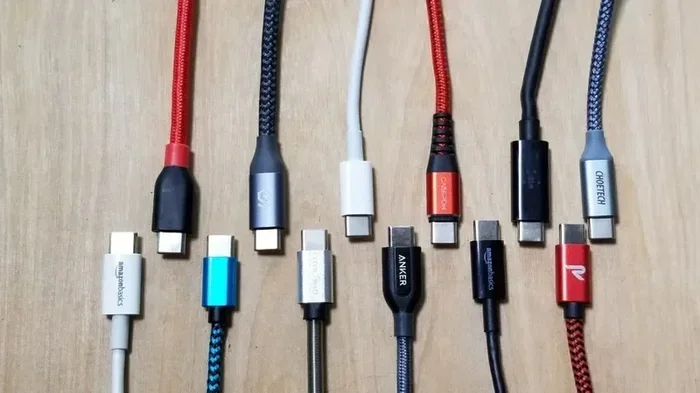
Method 2: USB-C to HDMI Adapter
If your laptop has a USB-C port but only one HDMI port, a USB-C to HDMI adapter is a great option. You use the HDMI port for one monitor. Then you plug the USB-C adapter into your laptop and connect the second monitor through that.
This method supports extended display natively. Your laptop treats each monitor as a separate screen. You can drag windows between them. This is the most common solution for laptop users.
Method 3: Docking Station
A laptop docking station is the most powerful option. You connect the dock to your laptop through USB-C or Thunderbolt. The dock gives you multiple video outputs. You can plug in two HDMI monitors, or one HDMI and one DisplayPort monitor.
Docking stations also give you extra USB ports, Ethernet, and audio jacks. They turn your laptop into a full desktop setup with one cable. The downside is cost. Good docking stations run from 100 to 300 dollars.
Method 4: Use Your Graphics Card’s Other Outputs
Here is something many people overlook. Your graphics card might have more outputs than you think. Many GPUs have multiple HDMI ports, DisplayPort connectors, and DVI ports. You might already have the ability to run two monitors without buying anything extra.
Check the back of your PC or the side of your laptop. Look at the video output ports. If you see more than one, you can use them directly. You do not need an HDMI splitter at all in this case.
Method 5: HDMI Switch
An HDMI switch is different from a splitter. A switch lets you toggle between two input sources on one output. This is useful if you want to connect two devices to one monitor. But it does not help you run two monitors from one port on your PC.
Make sure you do not confuse an HDMI switch with an HDMI splitter. They serve very different purposes. A splitter sends one signal to two screens. A switch sends two signals to one screen.
Step-by-Step Setup Guide
Now let us get practical. Here is how to set up two monitors from one HDMI port, step by step.
Step 1: Check Your Current Setup
First, look at your computer or laptop. How many HDMI ports does it have? How many USB-C ports? What kind of graphics card are you running? Write this down. It will help you decide which method to use.
Step 2: Choose Your Method
Based on your ports and needs, pick one of the methods we discussed. If you want mirroring, go with an HDMI splitter. If you want extended display, go with a USB-C adapter or docking station.
Step 3: Buy the Right Equipment
Make sure you get the right adapter or splitter. Check the resolution it supports. Check if it works with your device. Look for reviews online before you spend your money. A cheap splitter that drops frames or has audio issues will frustrate you fast.
Step 4: Connect Everything
Plug the splitter or adapter into your HDMI port. Connect your first monitor with an HDMI cable. Connect your second monitor the same way. Power on both monitors and your computer.
Step 5: Configure Your Display Settings
On Windows, right-click your desktop and select Display Settings. On macOS, go to System Settings and click Displays. You should see both monitors listed. Arrange them to match their physical positions on your desk. Choose whether you want to mirror or extend your display.
For Windows users, press Windows key plus P to quickly switch between display modes. This shortcut is a lifesaver.
Step 6: Adjust Resolution and Scaling
If the text looks too small or too big on one monitor, adjust the scaling. You can also set different resolutions for each monitor. Just make sure both are set to their native resolution for the sharpest picture.
Common Mistakes and How to Avoid Them
Setting up a multi-monitor setup with limited ports can lead to frustration. Here are the most common mistakes and how to avoid them.
Buying the Wrong Adapter
Not all adapters support extended display. Some only mirror. Always read the product description carefully. Look for terms like “extended display” or “multi-monitor support.” If it just says “HDMI splitter,” it probably mirrors only.
Ignoring Bandwidth Limits
An HDMI cable and splitter have bandwidth limits. If you try to push 4K resolution through a cheap splitter, you might get a blank screen or flickering. Stick to 1080p or 1440p for best results with splitters. Upgrade to a higher-quality splitter if you need 4K.
Forgetting About Audio
Some HDMI splitters do not pass audio to both monitors. If your monitors have built-in speakers, check if sound plays on both. If not, you may need a splitter with audio extraction or a separate audio solution.
Overlooking Your Graphics Card Capabilities
Your graphics card determines how many displays you can run. Some budget GPUs only support two displays total. If your GPU has one HDMI and one DisplayPort, you can run two monitors without any splitter. Check your GPU specs before buying extra hardware.
Using Low-Quality Cables
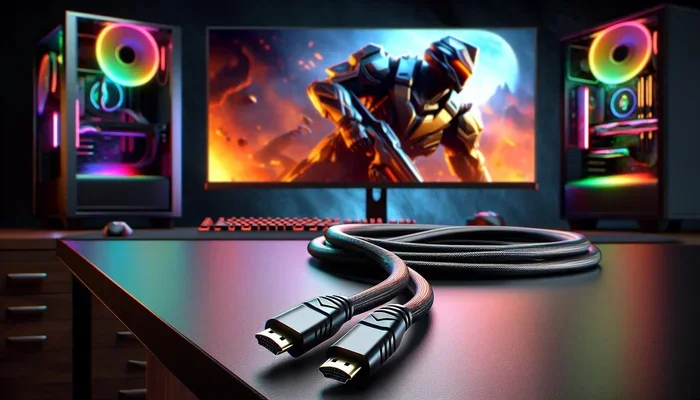
Cheap HDMI cables cause signal loss, flickering, and no sound. Invest in good quality cables. Look for cables rated for the resolution you need. A 10 dollar cable is worth it compared to a 2 dollar one that gives you headaches.
Expert Tips for the Best Dual Monitor Experience
Once you have your two monitors running, here are some tips to get the most out of your setup.
Use a Monitor Arm
A dual monitor arm holds both screens at the perfect height and angle. It frees up desk space too. You can position them side by side or at a slight angle for better ergonomics.
Match Monitor Sizes and Resolutions
For the best experience, use two monitors with the same size and resolution. Mismatched screens make window management harder. The taskbar and scaling settings behave differently on screens with different resolutions.
Optimize Your Cable Management
Two monitors mean more cables. Use cable ties, cable trays, or a desk grommet to keep things tidy. A clean workspace reduces stress and looks way better too.
Use Keyboard Shortcuts
Learn the shortcuts for moving windows between monitors. On Windows, use Shift plus Windows arrow keys. On Mac, use Mission Control or third-party apps like Rectangle. These small shortcuts save tons of time over the long run.
Consider a Second HDMI Port on Your GPU
If you are building or upgrading a desktop PC, choose a graphics card with multiple HDMI ports. Many modern GPUs offer three or four video outputs. This eliminates the need for splitters and adapters entirely.
Comparison Table
| Method | Display Mode | Cost | Setup Difficulty | Best For |
|---|---|---|---|---|
| HDMI Splitter | Mirroring | $10 – $30 | Very Easy | Presentations, signage, same content on both screens |
| USB-C to HDMI Adapter | Extended | $15 – $40 | Easy | Laptop users who need a second screen |
| Docking Station | Extended | $100 – $300 | Moderate | Full desktop setup with multiple peripherals |
| Graphics Card Outputs | Extended | $0 | Very Easy | PCs with multiple video outputs already |
| HDMI Switch | Single Monitor | $10 – $25 | Very Easy | Connecting multiple devices to one monitor |
Conclusion
The answer to whether you can do 2 monitors off 1 HDMI port is a clear yes. You have multiple paths to get there. An HDMI splitter gives you quick mirroring at a low cost. A USB-C adapter or docking station gives you true extended display for serious work. Checking your graphics card outputs might save you money altogether.
Each method has its strengths. Choose based on what you need most. If you want simplicity, go with a splitter. If you want a real productivity boost, invest in a docking station or adapter. The key is to match your tools to your goals.
Setting up a dual monitor configuration from a single HDMI port is easier than most people think. With the right adapter or splitter, you can transform your workspace in under an hour. You will wonder how you ever worked with just one screen.
Start with the method that fits your budget and your setup. Follow the steps we outlined. Avoid the common mistakes we highlighted. You will be running two monitors in no time. Your productivity will thank you.
Frequently Asked Questions
Can I run two 4K monitors from one HDMI port?
It depends on your hardware and the splitter or adapter you use. Most HDMI splitters do not support dual 4K without signal degradation. A high-quality splitter or a USB-C/DisplayPort adapter is a better choice for 4K extended display. Check your graphics card and cables to make sure they support the bandwidth.
Does an HDMI splitter reduce image quality?
Yes, splitting a signal can reduce quality slightly. The resolution may drop, and refresh rates might lower too. Using a powered HDMI splitter helps maintain better quality. Always choose a splitter that supports the resolution and refresh rate you need.
Can I use a USB-C hub instead of a docking station?
Yes, a USB-C hub with an HDMI output works similarly to a docking station. However, hubs are usually more basic and may not support multiple video outputs. If you need more than one additional monitor, a full docking station is the better choice.
Why does my second monitor show no signal after connecting?
This usually happens because the display settings are not configured correctly. Go to your display settings and make sure the second monitor is detected. Try pressing Windows key plus P and selecting Extend. Also check that your cables are securely connected and your splitter or adapter is powered on.
Is screen mirroring the same as extended display?
No, they are very different. Screen mirroring shows the same image on both monitors. Extended display treats each monitor as a separate workspace. You can drag windows between them. For productivity, extended display is almost always the better choice.
Do I need a special HDMI cable for a dual monitor setup?
Not necessarily. Standard HDMI cables work fine for most setups. However, if you are running higher resolutions like 1440p or 4K, you need an HDMI 2.0 or HDMI 2.1 cable. Make sure your cables are rated for the resolution and refresh rate you plan to use.