Can You Find Wi Fi Password With Cmd On Windows 10
Yes, you can find your Wi Fi password with Cmd on Windows 10 in just a few simple steps. Using the command prompt, you can quickly recover any saved wireless network password without third party tools. This guide walks you through the exact commands, tips, and troubleshooting steps to view your wifi key safely and easily.
Have you ever connected your laptop to a wifi network and then forgotten the password? It happens all the time. Maybe you set up a smart TV or a new phone and need the password again. Or perhaps you just want to check what your windows 10 machine has stored. Whatever the reason, there is good news. You can find your wifi password with Cmd on Windows 10. No extra apps needed. No tech degree required. Just a few simple commands in the command prompt.
In this guide, we will walk you through every step. We will show you exactly what to type. We will explain what each command does. And we will cover some common problems you might run into. By the end, you will know how to view any saved wireless network password on your PC. Let us get started.
Key Takeaways
- Command Prompt can reveal saved Wi Fi passwords on Windows 10 without any extra software.
- The netsh wlan show profile command is the key tool for wifi password recovery.
- You must run Command Prompt as administrator to view wifi keys.
- This method works for all saved wireless networks on your PC.
- You can also export wifi passwords to a text file for easy reference.
- Knowing this trick saves time and money compared to resetting your router.
- Always keep your wireless network password secure after retrieving it.
📑 Table of Contents
- Can You Find Wi Fi Password With Cmd On Windows 10?
- How to View Saved Wi Fi Passwords Using Command Prompt
- Understanding the Commands You Are Using
- How to Find Wi Fi Password for All Saved Networks
- Common Problems and How to Fix Them
- Quick Tips for Managing Wi Fi Passwords on Windows 10
- Is It Safe to View Passwords This Way?
- How This Compares to Other Methods
- Expert Tips for Better Wifi Password Security
- Conclusion
Can You Find Wi Fi Password With Cmd On Windows 10?
The short answer is yes. Windows 10 stores the passwords for every wifi network you have ever connected to. These saved passwords sit in your system settings. And the command prompt can pull them right up. You just need the right command. The main tool you will use is called netsh wlan show profile. It reads the wireless network profiles stored on your PC. When you add a simple key parameter, it reveals the password too.
This method works because Windows 10 keeps your wireless network settings backed up locally. Every time you connect to a new wifi network, Windows saves the security key. You can access this data through the command line. It is one of the easiest and fastest ways to do wifi password recovery. No downloads. No risks from sketchy software. Just built in Windows tools.
Why Use Command Prompt for Wifi Password Recovery?
You might wonder why use Cmd at all. Why not just go into your router settings? Or why not click on the wifi icon and check the properties? Those methods work sometimes. But they are not always convenient. The command prompt method has some big advantages.
- Speed: You can find any saved password in under a minute.
- No extra software: Everything you need is already built into Windows 10.
- Batch viewing: You can see all saved networks at once.
- No admin login to your router: You do not need router access.
- Works offline: You do not need an active internet connection.
These benefits make Cmd the go to method for many people. It is reliable. It is safe. And it works every time on Windows 10.
How to View Saved Wi Fi Passwords Using Command Prompt
Now let us get into the actual steps. This process is straightforward. You just need to follow along carefully. If you make a small typo, the command will not work. So pay close attention to what you type.
Step 1: Open Command Prompt as Administrator
First, you need to open the command prompt with admin rights. Regular access will not let you see the passwords. Here is how to do it.
- Click the Start menu.
- Type cmd in the search bar.
- Right click on Command Prompt.
- Select Run as administrator.
- Click Yes if a popup appears.
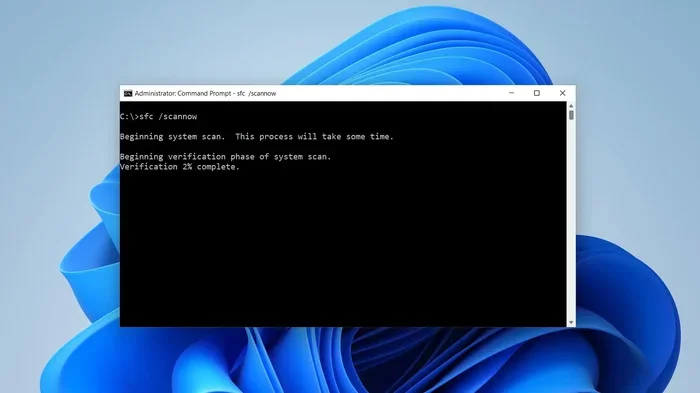
You will know it worked when the window title says Administrator: Command Prompt. The black window with white text is your workspace. Now you are ready to type the commands.
Step 2: List All Saved Wireless Networks
Before you can find a specific password, you need to see what networks Windows has saved. Type this command and press Enter:
netsh wlan show profiles
This will display a list of all wireless networks your PC has ever connected to. You will see names like HomeWifi, OfficeNetwork, CoffeeShopFree, and more. Each name is a profile that Windows has stored. Find the one you want the password for. Write down the exact name. You will need it in the next step.
Step 3: Show the Password for a Specific Network
Now type this command, replacing NetworkName with the actual name of the network:
netsh wlan show profile name=”NetworkName” key=clear
For example, if your network is called HomeWifi, you would type:
netsh wlan show profile name=”HomeWifi” key=clear
Press Enter. The command will pull up a lot of information about that network. Scroll through the results. Look for a section called Security settings. Under that section, find the line that says Key Content. The text next to it is your wifi password. That is it. You just revealed a saved wireless network password using nothing but the command prompt.
Step 4: Save the Password to a Text File
If you want to keep a record of the password, you can save the results to a text file. This is handy if you need to share the password with someone or just want it for backup.
Type this command:
netsh wlan show profile name=”HomeWifi” key=clear > C:\wifi_passwords.txt
This saves all the details to a file on your desktop or C drive. You can open the file with Notepad and find your password easily. Just be careful where you save it. Keep it in a safe place so others cannot see your wireless network password.
Understanding the Commands You Are Using
It helps to understand what you are actually doing. When you use netsh wlan show profile, you are asking Windows to read its stored wireless network settings. The word netsh stands for network shell. It is a built in Windows tool for managing network configurations.
The word wlan refers to wireless local area network. So netsh wlan targets your wifi settings specifically. The show profile part tells Windows to list or display saved network profiles.
When you add key=clear, you are telling Windows to show the security key in plain text. Without this parameter, Windows hides the password behind asterisks. With it, the actual password appears. This is why running Cmd as administrator is so important. Windows only reveals the key content to users with elevated privileges.
What Does Each Part of the Output Mean?
The output from the command can look a bit confusing at first. Here is what to look for:
- Name: The profile name of the wireless network.
- Type: Whether it is a wireless or wired connection.
- Security settings: The encryption type (usually WPA2).
- Key Content: This is the actual wifi password you want.
Focus on Key Content. That is the line you need. Everything else is extra information about the network connection.
How to Find Wi Fi Password for All Saved Networks
Do you want to see passwords for every network you have ever saved? You can do that too. This is great if you manage multiple devices or need to check several networks at once.
Using a Simple Batch Command
You can create a quick script to pull all passwords at once. Open Command Prompt as administrator. Then type this command:
for /f “skip=2 tokens=1,” %a in (‘netsh wlan show profiles’) do @echo %b & netsh wlan show profile name=”%b” key=clear | findstr Key
This long command goes through every saved profile. It shows the network name and the associated password. The output can be long if you have connected to many networks. But it gives you a complete picture of your wifi password list.
You can also redirect this output to a file for easier reading:
for /f “skip=2 tokens=1,” %a in (‘netsh wlan show profiles’) do @echo %b & netsh wlan show profile name=”%b” key=clear | findstr Key > C:\all_wifi_passwords.txt
Now all your saved wifi passwords are in one text file. Just remember to store that file securely. Anyone with access to your PC could read those wireless network passwords.
Common Problems and How to Fix Them
The Cmd method works great most of the time. But sometimes you might run into issues. Here are the most common problems and how to solve them.
Problem 1: Command Prompt Says Access Denied
This means you did not run Command Prompt as administrator. Close the window. Right click cmd again and choose Run as administrator. Then try the command again.
Problem 2: Network Name Does Not Show Up
If the network you want is not in the profile list, your PC has never connected to it. You can only view passwords for networks your computer has actually joined. If you just saw the network in range but never connected, the password will not be stored on your device.
Problem 3: Key Content Shows as Empty
Sometimes Key Content appears blank. This usually means the network uses a very old or unusual security type. Try updating your wireless network drivers. You can also check if the network uses WEP encryption instead of WPA2. The method still works, but the output format may differ slightly.
Problem 4: Typo in Network Name
Network names are case sensitive. If your profile is called HomeWifi, typing homewifi will not work. Double check the exact name from the profile list. Copy and paste it if needed to avoid typos.
Problem 5: Command Prompt Will Not Open
If Cmd will not open at all, try searching for PowerShell instead. You can run the same netsh commands in PowerShell with admin rights. The syntax is the same. Just open PowerShell as administrator and type your commands.
Quick Tips for Managing Wi Fi Passwords on Windows 10
Here are some handy tips to make your wifi password management easier and safer:
- Keep a master list: Save your passwords in a secure file or password manager.
- Check your router: The default password is usually on a sticker on the back of the router.
- Change default passwords: If you never changed your router password, do it now for better security.
- Use WPA2 or WPA3: These are the most secure wireless security types.
- Forget old networks: Remove profiles for networks you no longer use.
- Share passwords safely: Use a secure method to share wifi keys with guests.
These small habits go a long way. They keep your wireless network settings safe and organized. You will thank yourself later when you need a password quickly.
Is It Safe to View Passwords This Way?
Yes, it is completely safe. You are using a built in Windows tool. Nothing is being downloaded or installed. You are simply reading data that Windows already stores on your computer. No third party software is involved.
However, you should be careful about where you save the results. If you export passwords to a text file, do not leave it on your desktop where anyone can see it. Use a secure folder or a trusted password manager instead. Treat your wifi password recovery data with the same care you would treat any other sensitive information.
Also, this method only works on your own computer. You cannot use Cmd to find someone else’s wifi password remotely. The saved profiles are tied to your specific Windows 10 user account. So there is no privacy risk to others.
How This Compares to Other Methods
There are several ways to find a wifi password on Windows 10. Let us compare them side by side so you can see why Cmd is often the best choice.
| Method | Difficulty | Speed | Needs Extra Software? |
|---|---|---|---|
| Command Prompt (netsh) | Easy | Very Fast | No |
| Router Admin Panel | Medium | Medium | No |
| Settings App | Easy | Fast | No |
| Third Party Apps | Easy | Fast | Yes |
| Viewing Router Sticker | Very Easy | Instant | No |
As you can see, the command prompt method is fast, free, and does not require any extra tools. It gives you direct access to your wireless network password without leaving your seat. For most users, it is the best option.
Expert Tips for Better Wifi Password Security
Now that you know how to recover your password, let us talk about keeping it safe. Strong wifi security protects your entire home network.
- Use a long, complex password: Aim for at least 12 characters with a mix of letters, numbers, and symbols.
- Enable WPA3 if your router supports it: This is the latest and most secure wireless encryption standard.
- Change your password regularly: A good habit is updating it every few months.
- Disable WPS: Wi Fi Protected Setup can be a security weakness on some routers.
- Update your router firmware: Manufacturers release updates that fix security gaps.
These steps keep your home network safe from intruders. And if you ever need to recover your password again, you already know exactly how to do it with Cmd.
Conclusion
So can you find Wi Fi password with Cmd on Windows 10? Absolutely yes. The netsh wlan show profile command gives you instant access to any saved wireless network password. It is fast, safe, and built right into your operating system. You do not need to download anything or call your internet provider. Just a few simple steps in the command prompt and you are done.
We covered the full process. From opening Cmd as administrator to viewing individual passwords and saving them to a file. We also looked at common problems and how to fix them. And we shared tips for keeping your wifi security strong going forward.
Now you have the knowledge to handle any wifi password situation on your Windows 10 PC. Try it out next time you need a saved password. It works every time. And once you see how easy it is, you will never go back to guessing or resetting your router again.
Frequently Asked Questions
Can I find any Wi Fi password with Cmd on Windows 10?
You can find any password for a network your PC has previously connected to. Windows 10 saves these profiles automatically. If you never connected to a network, the password will not be stored on your device. The command prompt can only reveal what Windows has already saved.
Do I need to be an administrator to view wifi passwords with Cmd?
Yes, you must run Command Prompt as an administrator. Without admin rights, Windows will not display the Key Content field. To do this, right click the Command Prompt app and select Run as administrator. You will see “Administrator” in the window title when it is working correctly.
Is the netsh command safe to use on Windows 10?
Yes, netsh is a built in Windows tool that has been part of the operating system for many years. It is completely safe and does not change anything on your PC. You are only reading stored data, not deleting or modifying any settings.
Can I find the Wi Fi password of a network I am not currently connected to?
Yes, you can. As long as your Windows 10 PC has connected to that network before, the password is saved in the profile. You do not need to be currently connected. Just run the netsh command with the network name and key=clear to see the stored password.
What if the Key Content field is blank when I run the command?
A blank Key Content field usually means the network uses an older security type or there was a connection issue. Try updating your network drivers. You can also check the security type listed in the output. If it says WEP instead of WPA2, the formatting may differ slightly but the password should still be there.
Can I use this method on Windows 11?
Yes, the same netsh commands work on Windows 11 as well. The process is identical. Open Command Prompt as administrator, type netsh wlan show profile, and add key=clear to reveal the password. Windows 11 stores wifi profiles the same way Windows 10 does.