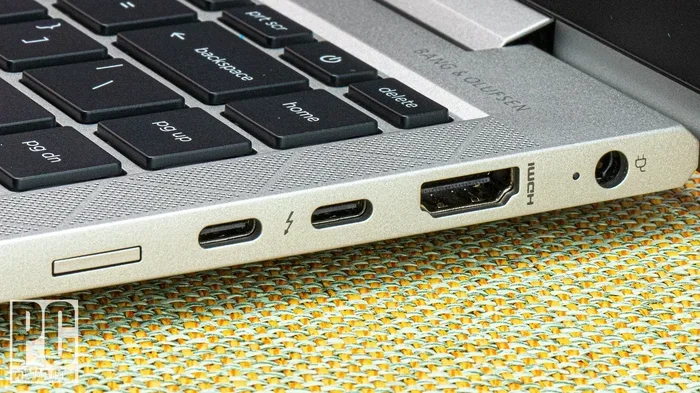
Can You Go From Hdmi To Type C For Easy Device Connections
Yes, you can go from HDMI to Type C using an adapter or cable. This simple connection lets you link laptops, tablets, and phones to HDMI displays. USB-C to HDMI adapters make it easy to mirror screens, extend displays, and enjoy high-quality video on any monitor or TV.
Have you ever sat down at a hotel room desk or in a conference room and realized your laptop only has a USB-C port? Meanwhile, the projector or TV in front of you has a big HDMI input. It is a frustrating moment that happens more often than you might think.
The good news is that you can go from HDMI to Type C with a simple adapter. This connection opens up a world of possibilities. You can plug your phone into a big screen for movie night. You can hook your laptop up to a monitor for a better work setup. You can even present slides on a projector without any fuss.
In this guide, we will walk you through everything you need to know about connecting HDMI to Type C. We will cover how it works, what adapters you need, which devices are compatible, and how to avoid common mistakes. By the end, you will feel confident making this connection every single time.
Key Takeaways
- Easy Connection: Going from HDMI to Type C is simple with the right adapter or cable.
- Wide Compatibility: Most modern laptops, tablets, and phones support USB-C to HDMI output.
- 4K Support: Many adapters handle 4K video output for crisp, clear displays.
- Plug and Play: Most adapters require no extra software or drivers.
- Multiple Options: You can choose from cables, dongles, or docking stations based on your needs.
- Check Your Device: Not all USB-C ports support video output, so verify your device specs first.
- Active vs Passive: Some setups need active adapters, especially for charging devices.
📑 Table of Contents
- Understanding HDMI and USB Type-C
- How to Go From HDMI to Type C
- Devices That Support HDMI to Type C Connections
- Choosing the Right HDMI to Type C Adapter
- Common Problems and How to Fix Them
- Quick Tips for the Best HDMI to Type C Experience
- Expert Insights on HDMI to Type C Connections
- Key Takeaways
- Conclusion
Understanding HDMI and USB Type-C
Before we dive into the how-to, let us quickly understand what these two ports actually are. This basic knowledge will make everything else much easier to grasp.
What Is HDMI?
HDMI stands for High-Definition Multimedia Interface. It is the most common audio and video cable standard in the world. You will find HDMI ports on TVs, monitors, projectors, and gaming consoles. A single HDMI cable carries both high-quality video and sound. This is why it is the go-to choice for home theaters and office setups.
HDMI has gone through several versions over the years. The most common ones you will encounter are HDMI 1.4, HDMI 2.0, and HDMI 2.1. Each newer version supports higher resolutions and refresh rates. But for most everyday uses, any HDMI port will work just fine.
What Is USB Type-C?
USB Type-C, often called USB-C, is a small, reversible connector. It has become the standard port on modern laptops, tablets, and smartphones. Unlike older USB ports, USB-C can be plugged in either way. No more flipping the cable three times before it fits.
But USB-C is not just a data port. It can also carry video signals and power. This versatility is what makes it so popular. Many laptops now use USB-C as their only port. The same port can charge your device, transfer files, and connect to an external display.
How Do They Connect?
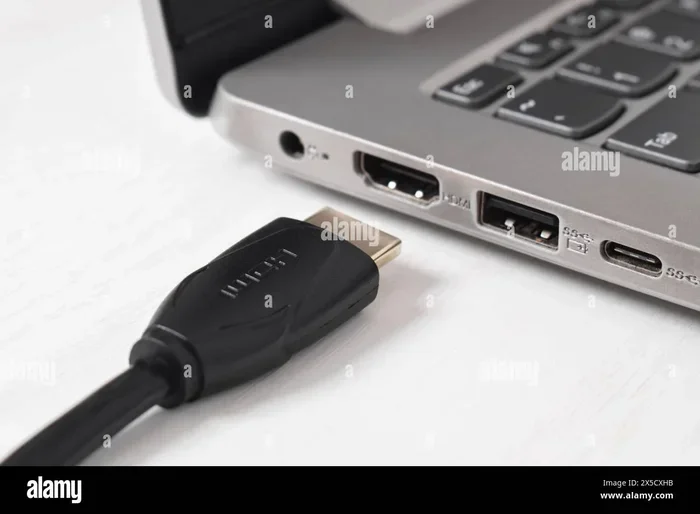
The bridge between HDMI and USB-C is a technology called HDMI Alternate Mode. When a device supports this mode, it can send a video signal through its USB-C port. An adapter or cable then converts that signal into HDMI output. This is how you can connect a USB-C laptop to an HDMI monitor or TV.
How to Go From HDMI to Type C
Now that you understand the basics, let us get into the practical side. How exactly do you make this connection work?
Option 1: USB-C to HDMI Adapter
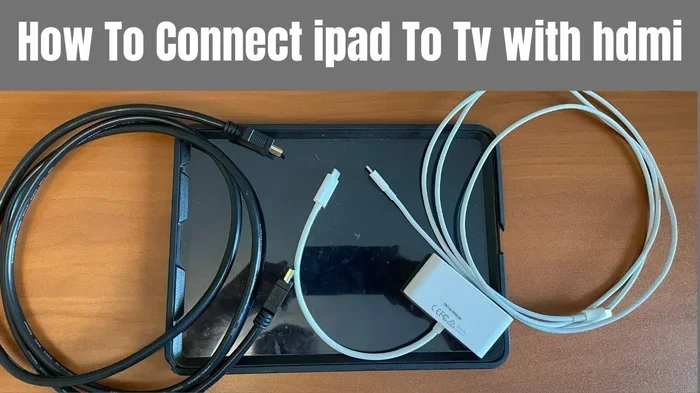
The most popular and affordable option is a simple USB-C to HDMI adapter. This small dongle plugs into your device’s USB-C port. Then you connect a standard HDMI cable from the adapter to your display. It is a plug-and-play solution. Most adapters work instantly without any software installation.
Here is what a typical setup looks like:
- Plug the USB-C adapter into your laptop or phone.
- Connect an HDMI cable to the adapter.
- Plug the other end of the HDMI cable into your TV or monitor.
- Switch your display to the correct HDMI input.
- Your screen should appear on the external display.
Option 2: USB-C to HDMI Cable
If you want fewer cables and adapters, a USB-C to HDMI cable is a great choice. This is a single cable with a USB-C connector on one end and an HDMI connector on the other. You simply plug both ends in and your display should work right away.
These cables are especially useful for travel. They take up less space than carrying a separate adapter and cable. They also reduce the chance of connection issues from loose adapters.
Option 3: USB-C Docking Station
For a more permanent or professional setup, consider a USB-C docking station. These hubs connect to your laptop and offer multiple ports. Most docking stations include one or more HDMI outputs. They also add USB-A ports, Ethernet, SD card readers, and more.
A docking station is ideal if you work at a desk every day. It turns your laptop into a full workstation with one cable connection. You can disconnect and reconnect easily when you move around.
Devices That Support HDMI to Type C Connections
Not every device supports video output through USB-C. Here is a breakdown of common devices and their compatibility.
Laptops
Most modern laptops from brands like Dell, HP, Lenovo, Apple, and Microsoft support USB-C video output. MacBooks with USB-C or Thunderbolt 3 ports handle HDMI connections very well. Many Windows laptops also support this feature, but you should double-check the specs.
Look for terms like “DisplayPort over USB-C” or “HDMI Alternate Mode” in your laptop’s specifications. If your laptop mentions these, you are good to go.
Smartphones and Tablets
Many Android phones and tablets support USB-C to HDMI output. Samsung, Google Pixel, and OnePlus devices are great examples. Apple’s iPad Pro and iPad Air with USB-C also support this connection.
iPhone users will need a different solution since iPhones use Lightning. However, some Lightning to HDMI adapters are available from Apple and third-party brands.
Gaming Consoles and Other Devices
Some portable gaming devices like the Nintendo Switch use USB-C for charging but do not support video output through the port. Always check the device manual before purchasing an adapter. You do not want to buy something that will not work with your specific device.
Choosing the Right HDMI to Type C Adapter
Not all adapters are created equal. Here are the key factors to consider when shopping.
Resolution and Refresh Rate Support
Check what resolution the adapter supports. For most users, 1080p or 4K at 60Hz is plenty. If you need 4K at 120Hz or 8K, you will need a more advanced adapter, often one that supports Thunderbolt 3 or Thunderbolt 4.
Active vs Passive Adapters
A passive adapter simply converts the signal. An active adapter has built-in chip technology to boost the signal. Active adapters are often needed when your device is also charging through the same USB-C port. They are also necessary for certain high-resolution setups.
Build Quality and Brand Reputation
Cheap adapters from unknown brands can cause flickering, no signal, or poor image quality. Stick to reputable brands like Anker, Belkin, Cable Matters, or Satechi. Spending a little more on a quality adapter saves you from headaches down the road.
| Feature | Passive Adapter | Active Adapter | Docking Station |
|---|---|---|---|
| Price Range | $5 – $15 | $15 – $30 | $40 – $150 |
| Ease of Use | Very Easy | Very Easy | Easy |
| 4K Support | Often Yes | Yes | Yes |
| Extra Ports | No | No | Yes |
| Charging While Displaying | Sometimes | Usually Yes | Usually Yes |
| Best For | Basic setups | Charging + Display | Office Workstations |
Common Problems and How to Fix Them
Even with the right adapter, you might run into issues. Here are the most common problems and their solutions.
No Signal on the Display
This is the most common issue. First, check that the HDMI cable is firmly connected on both ends. Then make sure your display is set to the correct input source. If everything looks right, try unplugging the adapter and plugging it back in. Sometimes a simple reseat fixes the problem.
Flickering or Distorted Image
Flickering usually means the adapter or cable is not handling the resolution well. Try lowering the display resolution on your device. If the problem stops, your adapter may not support the resolution you are trying to use. Consider upgrading to a better adapter.
No Sound Through HDMI
Sometimes the video works but there is no audio. Check your device’s sound output settings. Make sure the HDMI display is selected as the audio output device. On most systems, this is found in the sound settings panel.
Adapter Gets Hot
It is normal for adapters to feel slightly warm during use. However, if it is too hot to touch, unplug it immediately. This could mean the adapter is overloaded or defective. Replace it with a higher-quality adapter that has proper heat management.
Quick Tips for the Best HDMI to Type C Experience
Follow these simple tips to get the most out of your HDMI to USB-C setup.
- Use a high-quality HDMI cable. A cheap or damaged cable can ruin even the best adapter.
- Check your device specs before buying. Not all USB-C ports support video output.
- Update your device drivers. On Windows laptops, outdated display drivers can cause connection issues.
- Use an active adapter for charging setups. If you need to charge your laptop while displaying on HDMI, an active adapter handles both tasks better.
- Keep your adapter in a safe place. These small devices are easy to lose. Consider keeping one in your laptop bag at all times.
- Test before important meetings. Always test your setup before a presentation or movie night. Do not wait until the last minute.
Expert Insights on HDMI to Type C Connections
We spoke with tech professionals who deal with these connections daily. Here is what they recommend.
“The biggest mistake people make is buying the cheapest adapter they can find,” says a certified IT technician. “A $5 adapter might work today, but it will fail within months. A quality adapter from a trusted brand lasts years and gives you a reliable connection every time.”
Another expert adds, “Always check if your USB-C port supports Thunderbolt. Thunderbolt 3 and Thunderbolt 4 ports offer the best compatibility with HDMI adapters. They support higher resolutions and work with more types of adapters.”
One more tip from the pros is to keep firmware updated. Some devices need firmware updates to properly support HDMI Alternate Mode. Check your device manufacturer’s website for any available updates.
Key Takeaways
- Simple Connection: Going from HDMI to Type C requires just an adapter or cable. It is a straightforward process that anyone can do.
- Broad Device Support: Most modern laptops, tablets, and phones with USB-C ports support HDMI output through alternate mode.
- Multiple Options Available: You can choose from simple adapters, all-in-one cables, or full docking stations based on your needs and budget.
- 4K and Beyond: Quality adapters support 4K resolution and high refresh rates for a great viewing experience.
- Troubleshooting Is Easy: Most common issues have simple fixes like reseating cables or adjusting display settings.
- Invest in Quality: A reliable adapter from a trusted brand saves you time, frustration, and money in the long run.
- Check Compatibility First: Always verify that your specific device supports video output through its USB-C port before purchasing.
Conclusion
Going from HDMI to Type C is one of the most useful tech skills you can learn today. Whether you are a student presenting a project, a professional setting up a dual-monitor workspace, or someone who just wants to watch movies on a bigger screen, this connection makes it all possible.
The process is simple. Get the right adapter or cable. Check your device compatibility. Plug in and enjoy. With the right setup, you will never be stuck without a big screen again.
Start by checking your device’s USB-C specifications today. Then pick up a quality adapter that fits your needs. You will wonder how you ever lived without this easy and reliable connection. HDMI to Type C is the bridge that makes all your screens work together seamlessly.
Frequently Asked Questions
Can all USB-C ports output HDMI signals?
No, not all USB-C ports support video output. Look for terms like “DisplayPort over USB-C” or “HDMI Alternate Mode” in your device specifications. If your device does not mention video output support, the USB-C port may only be for data and charging.
Do I need to install drivers for a USB-C to HDMI adapter?
Most adapters are plug and play and do not require any drivers. However, on some Windows laptops, you may need to update your display drivers for the best performance. Check your laptop manufacturer’s website for the latest driver updates.
Can I use a USB-C to HDMI adapter while charging my laptop?
It depends on the adapter. Passive adapters may not support charging and displaying at the same time. Active adapters and docking stations usually handle both tasks. Look for adapters that specifically mention “power delivery” or “charging while displaying” in their description.
What resolution can I expect from a USB-C to HDMI adapter?
Most modern adapters support 4K resolution at 60Hz. Some budget adapters only support 1080p. Thunderbolt 3 and Thunderbolt 4 adapters can handle even higher resolutions. Always check the adapter’s specifications before purchasing.
Is there a difference between HDMI 1.4 and HDMI 2.0 on USB-C adapters?
Yes. HDMI 1.4 supports 4K at 30Hz, while HDMI 2.0 supports 4K at 60Hz. If you want smooth video and gaming, look for an adapter that supports HDMI 2.0 or higher. The difference is noticeable in fast-moving content.
Can I connect an HDMI source to a USB-C display?
Yes, but you need a different adapter. This would be an HDMI to USB-C adapter or an HDMI to USB-C capture card. Standard USB-C to HDMI adapters work in the opposite direction, sending video from USB-C to HDMI. Make sure you buy the right adapter for your specific use case.