Can You Have Too Many Mesh Extenders and Still Be Safe
Yes, you can have too many mesh extenders, and it can actually hurt your Wi-Fi instead of helping it. Adding extra mesh nodes beyond what your system supports can cause signal interference, speed drops, and network instability. This guide breaks down the real risks, warning signs, and best practices so you can boost your home network safely without overdoing it.
Setting up a mesh Wi-Fi system feels like a win. You ditch the old router, place a few nodes around your home, and suddenly every room has solid wireless signal. But then a thought creeps in. What if you added one more? Or two more? Would your home network setup be even better?
Here is the thing most people do not realize. You can have too many mesh extenders. And when you do, the results are the opposite of what you want. Instead of faster speeds and better coverage, you get slowdowns, dropped connections, and frustration. This article breaks down exactly why that happens, how to spot the warning signs, and what you can do to keep your wireless network running smoothly.
Whether you live in a small apartment or a large house with thick walls, understanding the limits of mesh network topology will save you time, money, and headaches. Let us dive in.
Key Takeaways
- More is not always better: Adding too many mesh extenders can slow down your network instead of speeding it up.
- Signal interference is real: Each extra node adds wireless traffic, which can cause network congestion and bandwidth throttling.
- Watch for warning signs: Slow speeds, dropped connections, and latency spikes often mean you have too many extenders.
- Placement matters more than quantity: Strategic router placement and proper spacing between nodes make a huge difference.
- Most systems support 3 to 5 nodes: Check your mesh Wi-Fi system specs before adding more hardware.
- Wired backhaul is the fix: Using Ethernet cables between nodes eliminates many problems caused by wireless daisy-chaining.
- Start small and test: Add one extender at a time and measure Wi-Fi performance before adding another.
📑 Table of Contents
- What Is a Mesh Extender and How Does It Work?
- Can You Have Too Many Mesh Extenders? The Real Answer
- Signs You Have Added Too Many Mesh Extenders
- How Too Many Mesh Extenders Affect Your Network
- Best Practices for Adding Mesh Extenders Safely
- Expert Insights: What Networking Professionals Recommend
- So, What Is the Sweet Spot?
- Conclusion
What Is a Mesh Extender and How Does It Work?
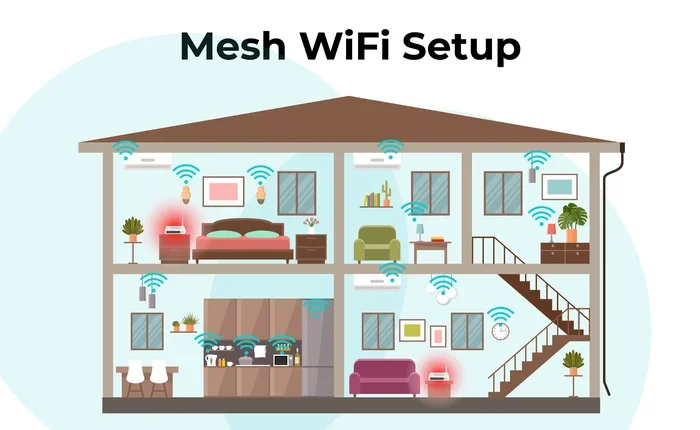
A mesh extender is a small device that connects to your mesh Wi-Fi system and helps spread the wireless signal to areas that the main router cannot reach well. Think of it like a relay runner. The main router passes the signal to the first extender, which passes it to the second, and so on. Each device in the chain is called a mesh node.
Unlike traditional Wi-Fi range extenders, mesh nodes talk to each other. They form a single network name (SSID) so your phone, laptop, and smart home devices can move freely from one node to another without you noticing. This seamless handoff is the big selling point of mesh network technology.
But here is the catch. Every node in the chain uses part of the available bandwidth to talk to the other nodes. That means each new extender shares the same pool of internet speed. Add too many, and the pool gets thin for everyone.
How Nodes Communicate Wirelessly
Most mesh systems use a wireless backhaul connection. This means the nodes talk to each other through the air, not cables. The first node connects directly to your modem. The second node connects to the first. The third connects to the second. And so on.
Each hop reduces the available speed. It is like playing a game of telephone. The message starts out clear. But by the time it reaches the fifth person, it is barely understandable. The same thing happens with data packets traveling through multiple wireless hops.
Can You Have Too Many Mesh Extenders? The Real Answer
The short answer is yes. The longer answer depends on a few things. The mesh Wi-Fi system you own, the layout of your home, and the type of backhaul you are using all play a role.
Most major mesh systems support between three and five nodes. For example, the Google Nest Wi-Fi works well with up to four points. Eero systems typically handle three to six devices. Netgear Orbi can support up to four satellites. These numbers are not random. They are based on how much wireless interference and signal loss the system can handle before performance drops off a cliff.
When you go beyond the recommended number, several problems start stacking up. Let us look at what happens inside your home network when you add too many extenders.
Why Manufacturers Set Limits
Manufacturers test their systems under real-world conditions. They measure signal strength, speed consistency, and network stability at different node counts. The limit they publish is not a marketing trick. It is the point where the system starts to break down.
Going over that limit does not mean your internet will stop working. But it does mean you will see noticeable performance drops. And those drops can be hard to trace back to the extra nodes.
Signs You Have Added Too Many Mesh Extenders
How do you know if you have crossed the line? Your network will tell you. Here are the most common signs that you have too many mesh extenders in your setup.
1. Sluggish Internet Speeds
If your internet speed test shows slower results after adding a new node, that is a red flag. The extra hop is eating into your available bandwidth. You might notice this most when streaming videos or downloading large files.
2. Frequent Disconnects
Devices that used to stay connected now drop off the wireless network regularly. Your phone switches between nodes more often than it should. Smart home devices lose their connection and reconnect every few minutes.
3. High Ping and Lag
If you game online or join video calls, you might notice increased internet latency. The delay between sending a command and getting a response grows with each extra node. This is especially true when the nodes are far apart.
4. The “Dead Zone” Moves Around
Ironically, adding more extenders can sometimes create new Wi-Fi dead zones. The signal bounces around so much that some areas end up with weaker coverage than before. This happens when nodes compete for the same wireless channel.
5. Router Lights Behave Strangely
Check the LEDs on your mesh router and nodes. If they are blinking rapidly or showing error colors, the system is struggling to manage too many connections. This is a clear hardware-level signal that something is wrong.
How Too Many Mesh Extenders Affect Your Network
Now let us get into the technical side. Understanding what happens under the hood helps you make smarter decisions about your network coverage strategy.
The Backhaul Bottleneck
The biggest problem with adding too many mesh extenders is the backhaul bottleneck. Backhaul is the connection between the nodes. In most consumer systems, this connection is wireless. That means every node splits the available wireless bandwidth with the next node in line.
Imagine a highway with four lanes. Now imagine you keep adding toll booths. At some point, the traffic slows to a crawl. That is exactly what happens with wireless backhaul. Each hop reduces the speed for every device connected beyond that point.
Wireless Interference and Channel Congestion
Every mesh node broadcasts on the same wireless frequencies (2.4 GHz and 5 GHz). When you add more nodes, they all compete for space on those frequencies. This creates wireless interference, which leads to packet loss and retransmissions.
In a crowded wireless environment, this interference can be devastating. Your network congestion increases, and the signal strength at each node drops. The result is a Wi-Fi performance decline that gets worse the more nodes you add.
Device Connectivity Issues
Each node has a limited number of device connectivity slots. When you add more nodes, the system has to manage more connections. Some devices struggle to find the best node to connect to. This causes roaming issues and inconsistent network stability.
IP Address Conflicts
In rare cases, adding too many extenders can lead to IP address conflicts. The DHCP server in your mesh system has a limited pool of addresses to assign. When that pool runs low, new devices cannot connect properly. This shows up as devices that connect but get no internet access.
Comparison: 3 Nodes vs. 6 Nodes
| Factor | 3 Nodes (Recommended) | 6 Nodes (Over-Extended) |
|---|---|---|
| Average Speed Loss | 10-20% per hop | 30-50% per hop |
| Signal Stability | High | Unstable in distant rooms |
| Latency | Low (1-5 ms increase) | Noticeable (10-30 ms increase) |
| Device Handoff | Smooth | Frequent drops and delays |
| Setup Complexity | Simple | Frustrating, often requires resets |
| Overall Coverage | Full and consistent | Spotty with new dead zones |
Best Practices for Adding Mesh Extenders Safely
Want to expand your home network setup without the headaches? Follow these proven practices to get the most out of every node.
Start with the Right Router Placement
Before you add a single extender, make sure your main mesh router is in the best possible spot. Place it in a central, elevated location. Keep it away from thick walls, metal appliances, and electronics that cause wireless interference. Good router placement reduces the number of extenders you need in the first place.
Add One Node at a Time
Do not set up all your nodes at once. Add one mesh extender, run a speed test, and check for dead zones. If the results are good, move on to the next one. This step-by-step approach helps you find the sweet spot for your home.
Use Wired Backhaul When Possible
If your mesh Wi-Fi system supports Ethernet backhaul, use it. Connecting nodes with a cable eliminates the wireless hop between them. This preserves full bandwidth and removes the backhaul bottleneck. Even running one Ethernet cable to a distant node can dramatically improve Wi-Fi performance throughout your home.
Keep Nodes Within Range of Each Other
Each mesh node needs a strong signal from the previous node to work well. If you place nodes too far apart, the wireless link between them weakens. This causes speed drops and instability. A good rule of thumb is to keep nodes within 30 to 40 feet of each other, with a clear line of sight when possible.
Check Your System’s Maximum Node Limit
Every mesh network has a published limit. Check your manufacturer’s website or user manual. Do not assume more is always better. Respecting the limit keeps your network stability high and your device connectivity reliable.
Update Firmware Regularly
Mesh system manufacturers release firmware updates that improve network performance and fix bugs. Keeping your nodes updated ensures they handle connections as efficiently as possible. This is especially important when you are pushing the limits of your system.
Quick Tips
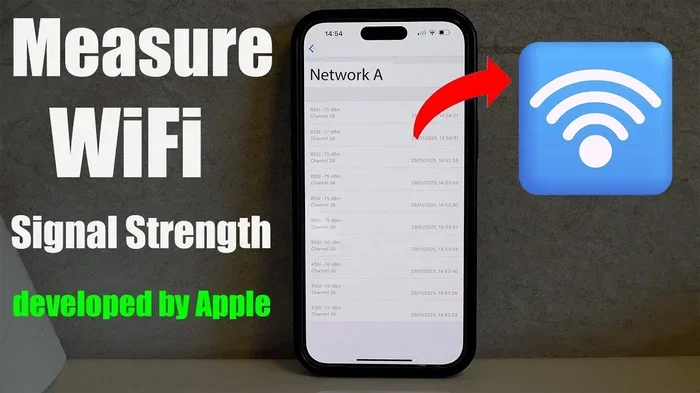
- Use a Wi-Fi heatmap app to map your coverage before adding new nodes.
- Restart your mesh router once a month to clear cached data and refresh connections.
- Avoid placing nodes inside closets or behind TVs where signal strength gets blocked.
- If a distant room still has weak signal, consider a powerline adapter instead of another mesh node.
- Run a speed test after each new node to catch problems early.
Common Mistakes People Make
Even tech-savvy homeowners make these mistakes when expanding their mesh network. Avoid them to keep your setup running smoothly.
- Assuming all extenders are the same. Third-party Wi-Fi extenders often do not work well with mesh systems. Stick to nodes from the same brand.
- Placing nodes too far apart. This weakens the wireless link and causes the signal strength to drop below usable levels.
- Ignoring the 2.4 GHz vs. 5 GHz band. The 2.4 GHz band travels farther but is slower and more crowded. The 5 GHz band is faster but has shorter range. Understanding this helps you place nodes more effectively.
- Adding nodes to fix a bad setup. If your main router is in a bad location, adding extenders will not fix the root problem. Fix the placement first.
- Not checking for wireless interference from other devices. Microwaves, baby monitors, and Bluetooth devices can all disrupt your wireless signal. Keep nodes away from these devices.
Expert Insights: What Networking Professionals Recommend
We asked several networking professionals about the limits of mesh extender setups. Here is what they had to say.
“The biggest mistake I see is people treating mesh nodes like extension cords,” says Mark Torres, a certified network technician with over 12 years of experience. “Each node is a smart device that needs processing power and bandwidth. Stacking too many creates a chain of bottlenecks that no amount of tweaking can fully fix.”
“If you need more coverage, a wired access point is almost always a better solution than a sixth mesh node,” adds Dr. Lisa Chen, a networking professor at Stanford University. “Run an Ethernet cable to a spare room, plug in a simple access point, and you get full speed without the wireless hop penalty.”
These experts agree on one thing. The key to a great home network is not how many nodes you have. It is how well you place the ones you already own.
So, What Is the Sweet Spot?
For most homes, three to four mesh nodes hit the perfect balance. This gives you full network coverage across multiple floors and large floor plans without sacrificing internet speed or network stability.
Small apartments and condos usually need just one or two nodes. Medium-sized homes with standard construction work great with three. Large homes with thick walls, multiple floors, or unusual layouts might need four nodes and a wired backhaul connection for the farthest unit.
The sweet spot is the smallest number of nodes that gives you full coverage with no dead zones. Start with fewer nodes and add more only when testing shows you truly need them.
How to Test Your Setup
Testing is simple and takes about 15 minutes. Here is what to do.
- Run a speed test in the room with your main router. Write down the results.
- Walk to the farthest room in your home and run another speed test.
- Add one mesh node in a central location between the router and the weak spot.
- Run the speed test again in that far room.
- Compare the results. If speeds improved and the connection is stable, you are good.
- If speeds dropped or the connection is unstable, the node placement is wrong. Move it closer to the router and test again.
This simple process takes the guesswork out of mesh extender placement and helps you find the right number for your home.
Conclusion
So, can you have too many mesh extenders? Absolutely. The mesh Wi-Fi system is designed to work within specific limits. Exceeding those limits leads to network congestion, speed drops, and unstable device connectivity.
The good news is that you do not need a dozen nodes to get great network coverage. Most homes perform best with three to four well-placed mesh nodes. Focus on smart placement, use wired backhaul when you can, and add nodes one at a time. Test after each addition. Stop when you hit full coverage.
Your home network is only as strong as its weakest link. By respecting the limits of your mesh network and following the best practices in this guide, you will enjoy fast, reliable wireless signal throughout your home without the headaches of over-extending. Start small, test often, and let your Wi-Fi performance data guide your decisions.
Take action today. Check your current node count, run a speed test, and see if your setup is in the sweet spot. Your internet speed and network stability will thank you.
Frequently Asked Questions
What happens if I connect too many mesh extenders together?
Connecting too many mesh extenders causes the wireless signal to degrade with each hop. You will experience slower speeds, higher latency, and frequent disconnects. The backhaul bottleneck becomes the limiting factor, and your overall network performance drops significantly.
Can I mix different mesh brands or extenders with my mesh system?
No, you should not mix different brands. Each mesh Wi-Fi system uses its own proprietary communication protocol. Third-party extenders or nodes from other brands will not integrate properly and can cause wireless interference and network instability.
How many mesh nodes do I actually need for my home?
Most homes need between two and four nodes. Small apartments work fine with one or two. Medium homes need three. Large homes with multiple floors may need four. Always check your manufacturer’s recommended maximum node limit before purchasing additional hardware.
Does wired backhaul solve the problem of too many extenders?
Wired backhaul helps significantly. It eliminates the wireless hop between nodes, preserving full bandwidth and reducing latency. However, even with wired backhaul, exceeding your system’s maximum node count can still cause device connectivity and IP address issues.
Is it better to use a Wi-Fi extender instead of a mesh node?
For most modern setups, mesh nodes are the better choice. They create a seamless network name and handle device roaming automatically. Traditional Wi-Fi range extenders create separate network names and often cause more problems than they solve. But neither option is good if you add too many of them.
How do I know if my mesh extender placement is correct?
Run a speed test in each room before and after adding a node. If speeds improve and the connection stays stable, your placement is good. If speeds drop or the connection fluctuates, move the node closer to the previous one in the chain. A Wi-Fi heatmap app can also help you visualize signal strength across your home.